
The Announcement bar shows one short message across the top of your store, for example Our Halloween treats are here with a link and a code to copy. You schedule it ahead, and it hides itself when it ends. It takes about 5 minutes.
Who it's for: stores running a seasonal promotion or an offer. Available on the Basic and Pro plans.
Step 1: Open the announcement bar page
Go to Growth and click Manage bars on the Announcement bar card.
The badge at the top tells you whether the RecurX announcement bar app embed is on in your theme. On in your theme means bars you turn on here show on your store. If it says Turn on the announcement bar in your theme, click Turn on in theme, switch the embed on and save your theme. The embed loads nothing until a bar is live.
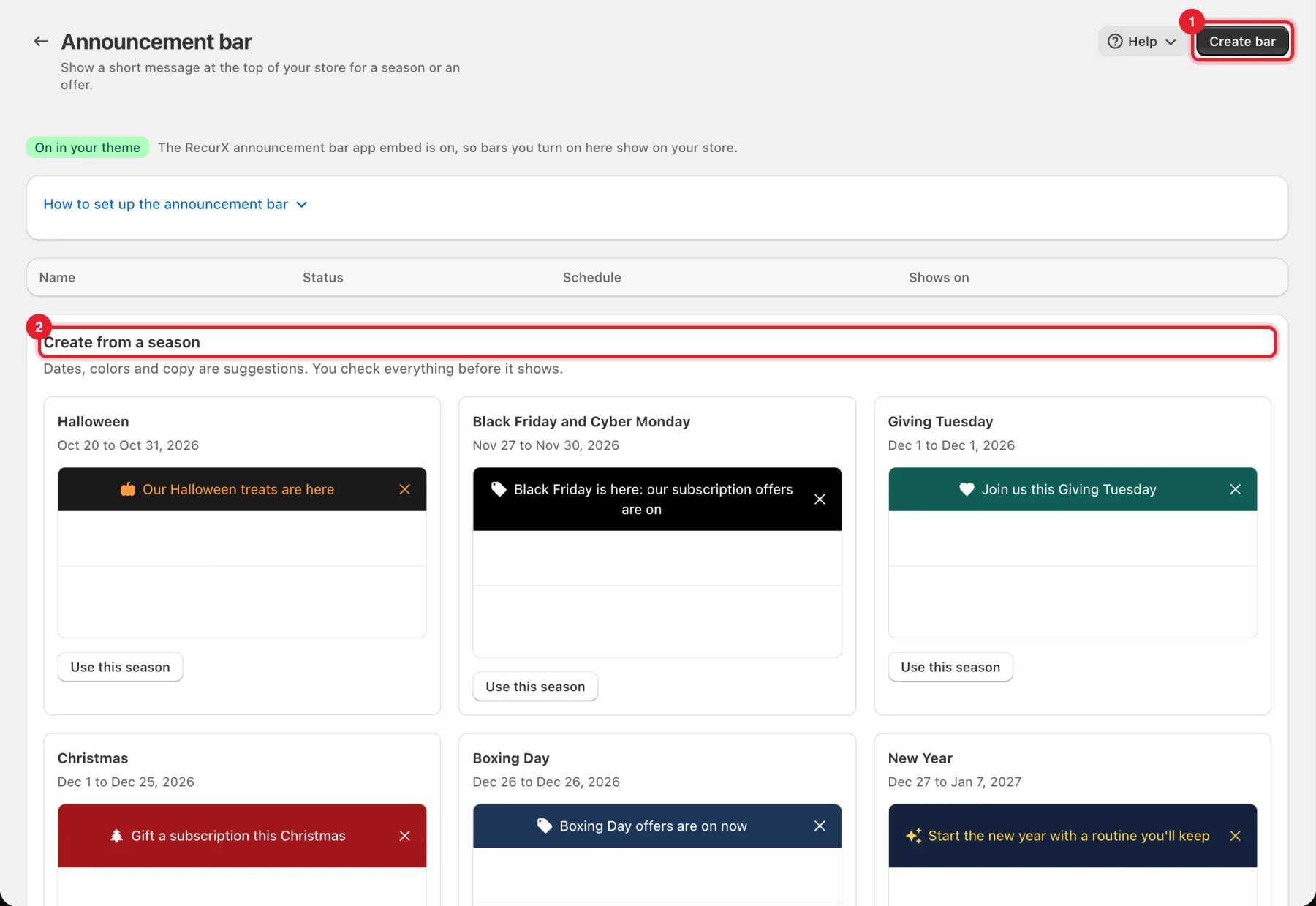
Your bars are listed with their Status (Live, Scheduled, Off or Ended), Schedule and where they show.
Step 2: Start from a season or from scratch
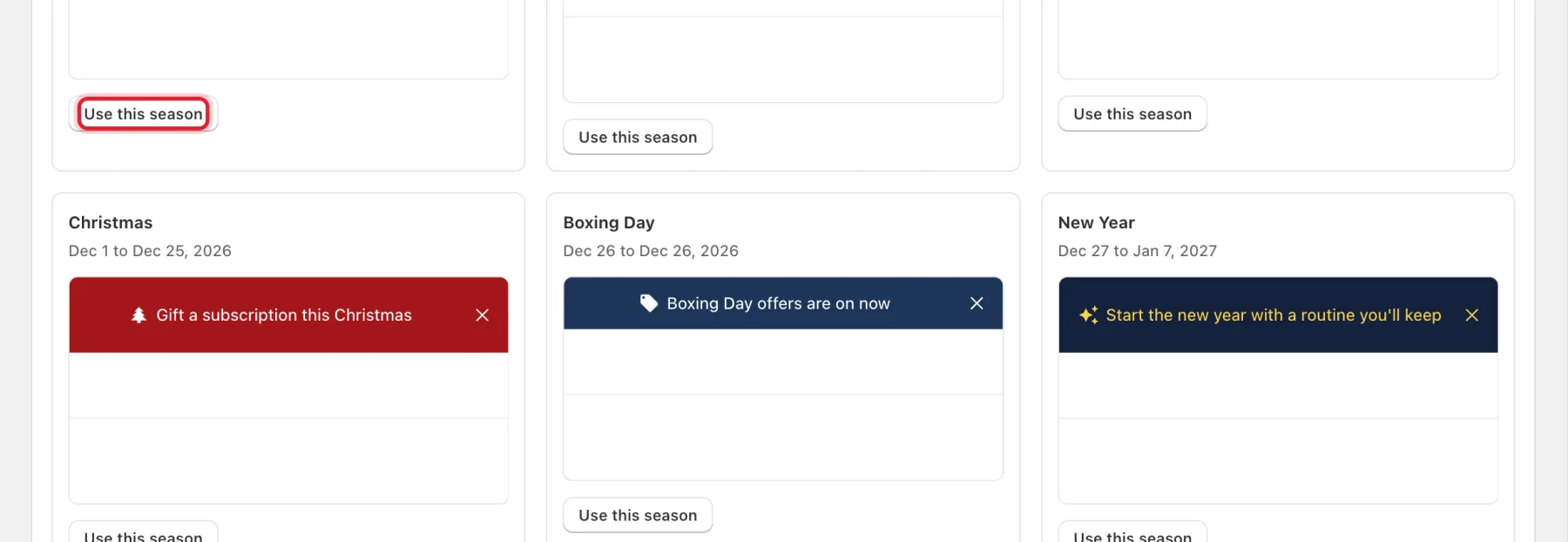
- Under Create from a season, each card shows the dates and a ready bar. Click Use this season to start from it. Dates, colors and copy are suggestions: you check everything before it shows.
- Or click Create bar (top right) to start from an empty bar.
Step 3: Name the bar and write the message
- Name (1): only you see it.
- Season (2): the season the bar is for, or No season (custom).
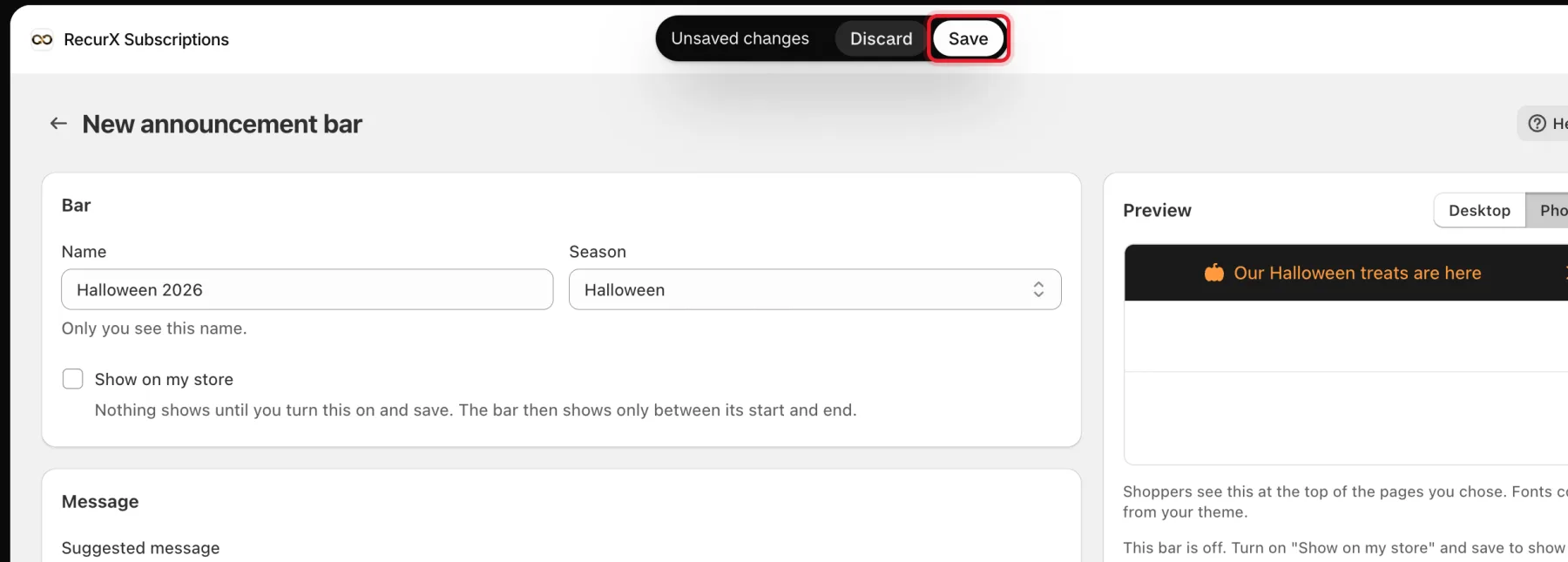
- Show on my store (3): leave it off while you work. Nothing shows until you turn this on and save, and then only between the start and end.
- Under Message, pick a Suggested message or Write your own, then edit Message (4). Keep it short: about 35 characters fit on one line on a phone (100 at most).
- Pick an Icon, or No icon.
Step 4: Add a link and a discount code (optional)
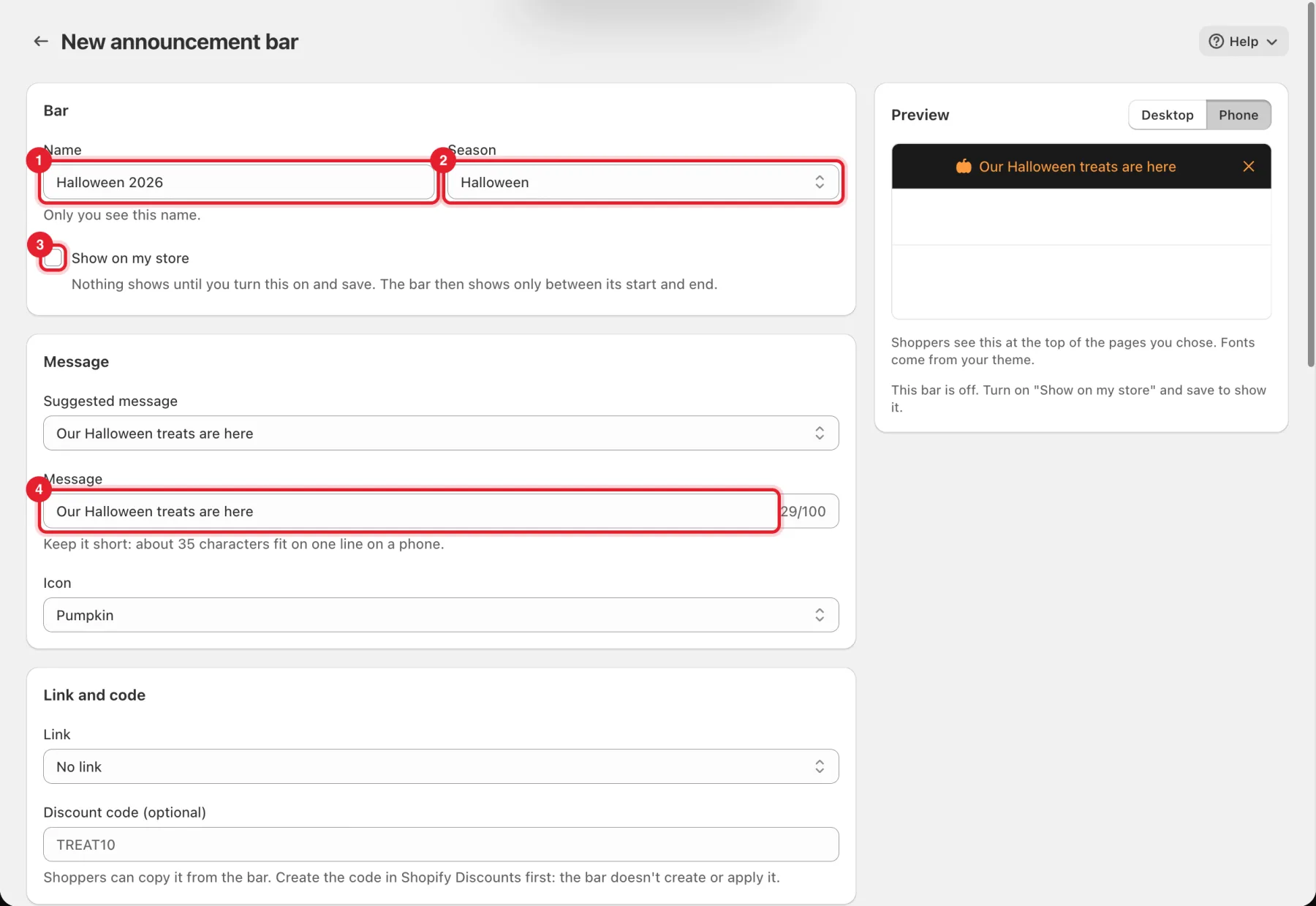
- Link (1): No link, Home page, All products, All collections, A collection… or Custom link… (a page on your store such as
/collections/sale, or a full https:// address). Add Link text such as Shop now, or leave it empty to make the whole message the link. - Discount code (optional) (2): shoppers can copy it from the bar.
Important: Create the code in Shopify → Discounts first. The bar shows the code; it doesn't create or apply it.
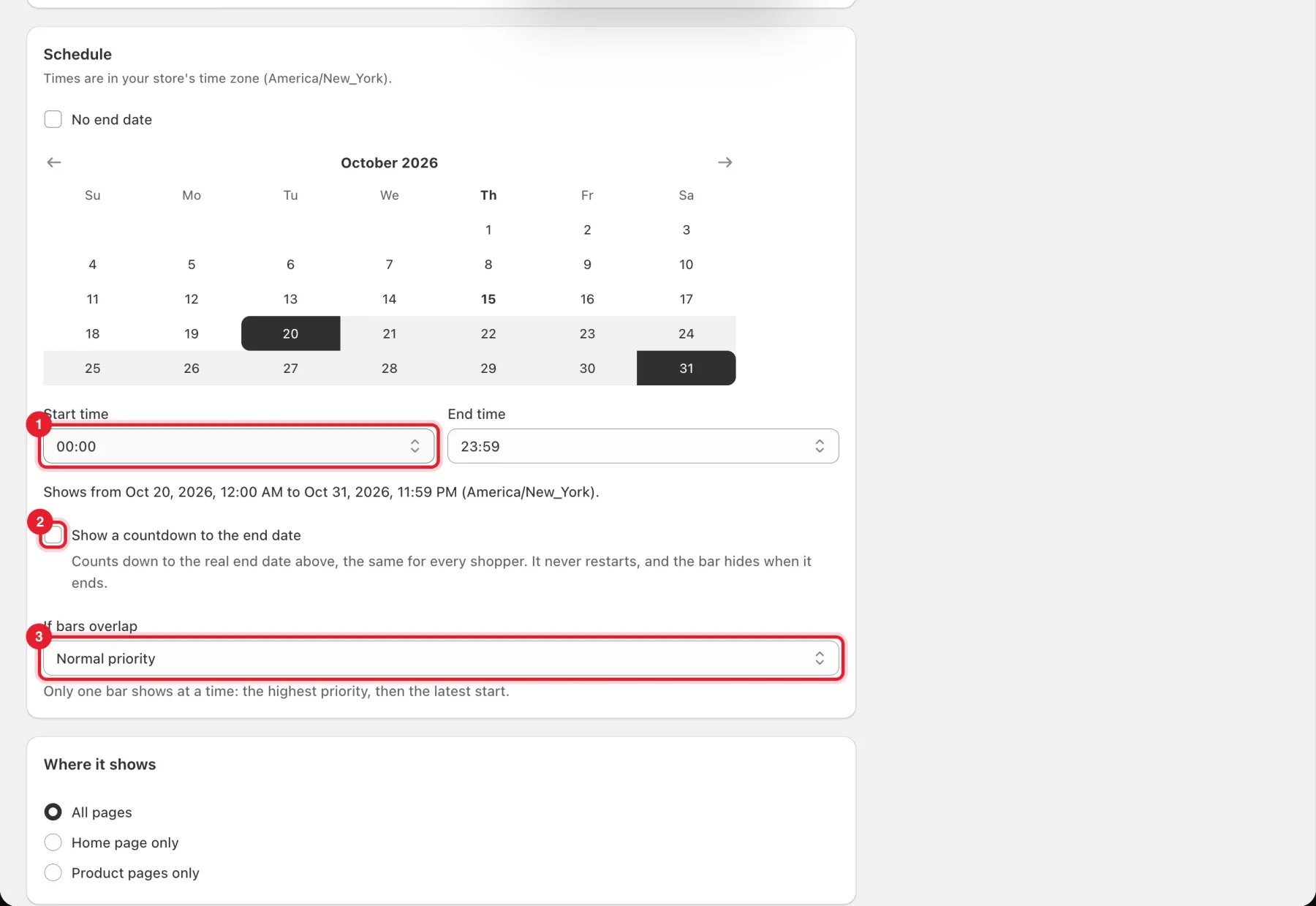
Step 5: Set the schedule
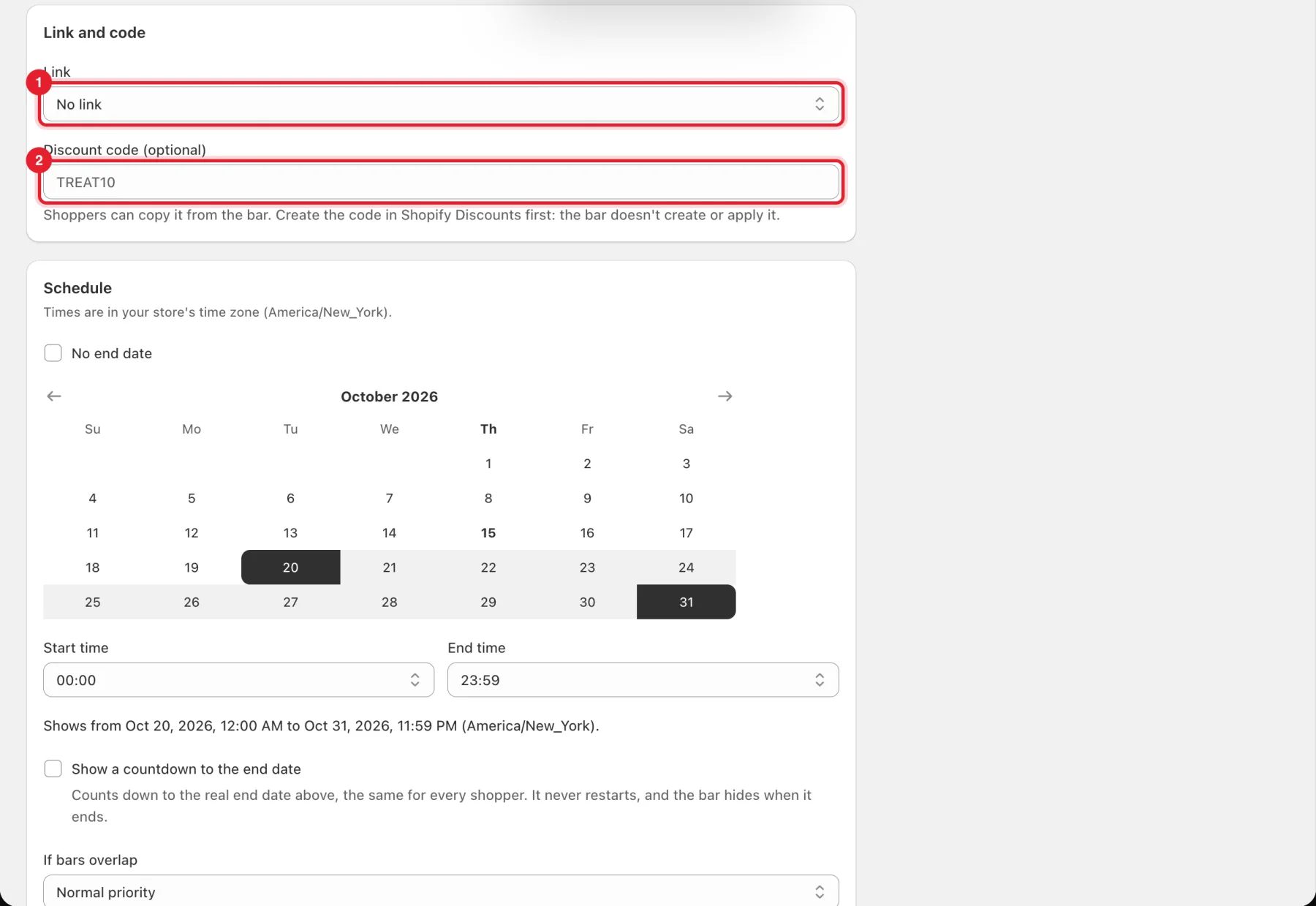
- Pick the dates on the calendar, or tick No end date.
- Set the Start time (1) and End time. Times are in your store's time zone, and the line under them repeats exactly when the bar shows.
- Tick Show a countdown to the end date (2) if you want one. It counts down to the real end date, the same for every shopper, never restarts, and the bar hides when it ends. A countdown needs an end date.
- If bars overlap (3): only one bar shows at a time — the highest priority (Normal, High or Highest), then the latest start.
Step 6: Choose where it shows and the colors
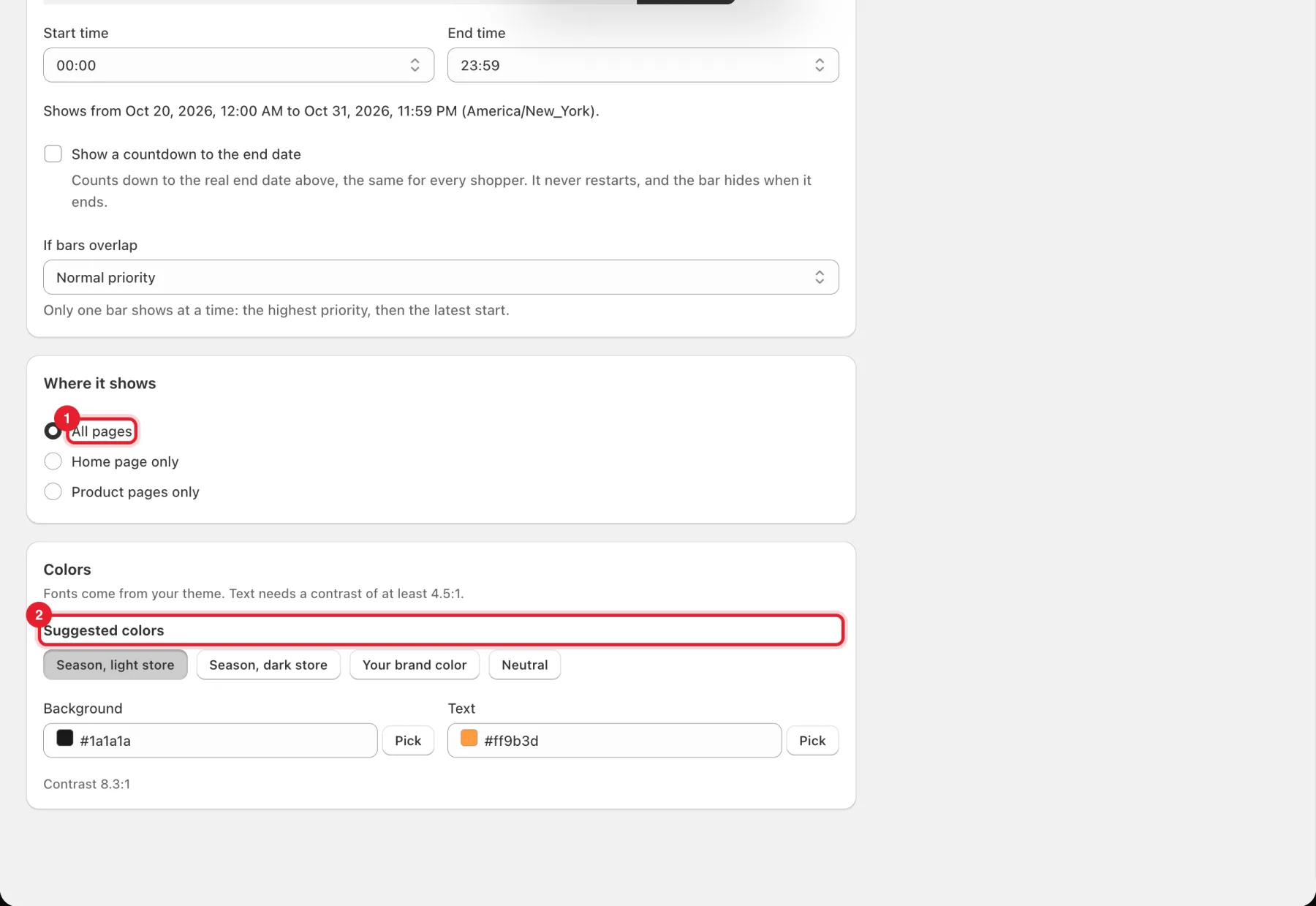
- Under Where it shows, pick All pages, Home page only or Product pages only (1).
- Under Colors, click one of the Suggested colors (2): Season, light store, Season, dark store, Your brand color or Neutral. Or set Background and Text yourself. Text needs a contrast of at least 4.5:1; the contrast is shown under the fields. Fonts come from your theme.
- Check the Preview on the right, on Desktop and Phone.
Step 7: Turn it on and save
Tick Show on my store, then click Save in the bar at the top of the page.
Good to know
- Once a bar has shown a countdown, its end date can't move later while the countdown is on.
- Delete bar on a bar's page removes it from your store right away. This can't be undone.
- See all your storefront pieces in one place on the Growth map.