
The Growth map lists every RecurX piece in your store (widget, announcement bar, quiz, cart offers, portal and more), where shoppers see it, and whether it is working. Use it to check your setup at a glance or after you change your theme. It takes about 2 minutes.
Who it's for: anyone setting up or checking RecurX on the storefront. The map is on every plan. Results for each piece are included in a higher plan; the page names it when yours doesn't include them.
Step 1: Open the map and read the summary
- Go to Growth and click Open map in the Growth performance card (or See it on the growth map on a tool's page).
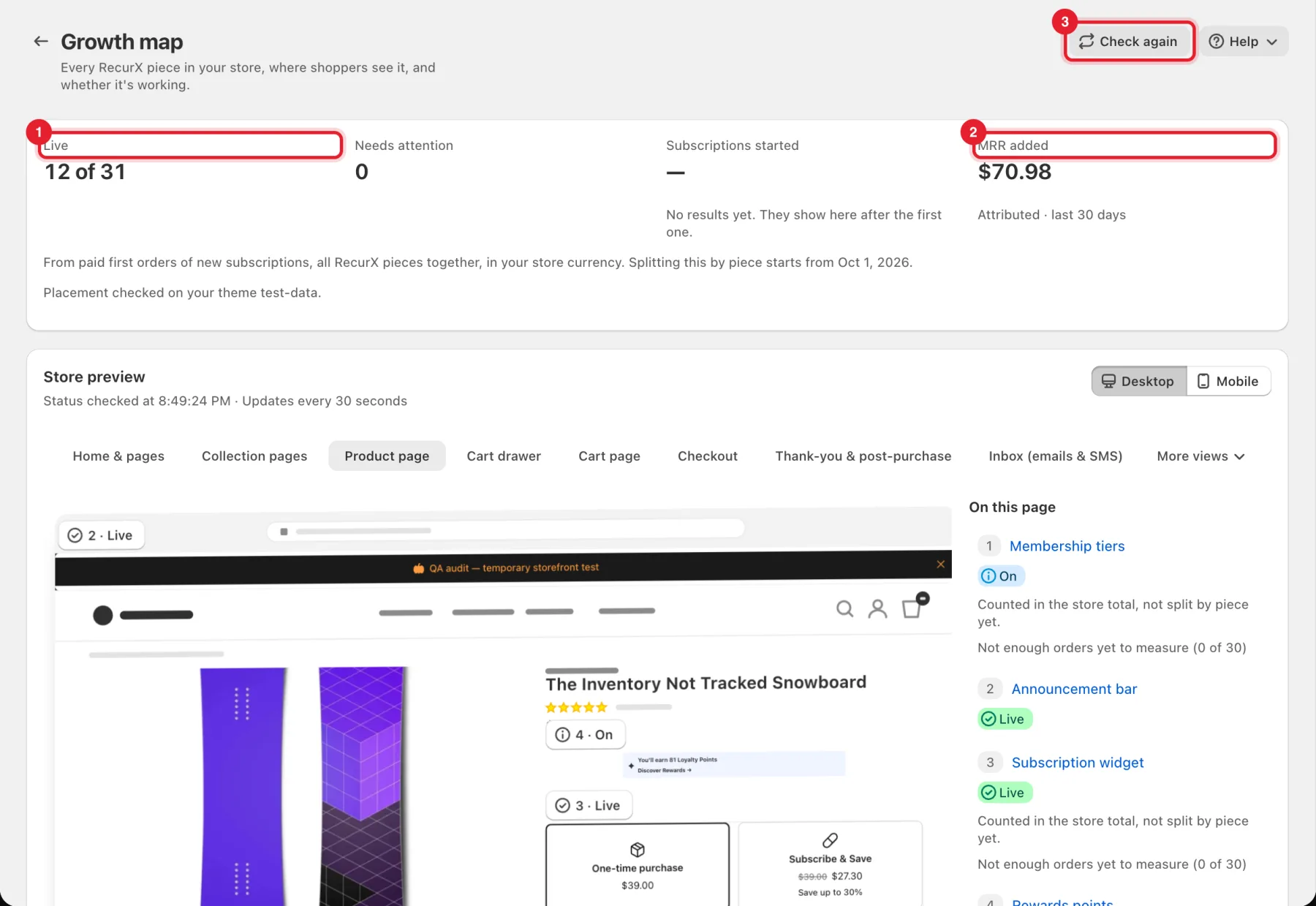
- The summary at the top shows:
- Live (1): how many pieces are showing to shoppers, for example 12 of 31;
- Needs attention: pieces that are on but not working as expected;
- Subscriptions started and MRR added (2): from paid first orders of new subscriptions in the last 30 days, all RecurX pieces together, in your store currency.
- Click Check again (3) after you change something in your theme. Status also refreshes on its own every 30 seconds while the page is open.
Step 2: Look through the store preview
Store preview draws one page of your store at a time, with numbered markers where each piece sits.
- Pick a page from the tabs (1): Home & pages, Collection pages, Product page, Cart drawer, Cart page, Checkout, Thank-you & post-purchase, Inbox (emails & SMS), Customer account & portal or Outside your store (on a narrow screen, the extra tabs sit under the overflow menu). Switch between Desktop and Mobile in the top right.
- On this page (2) lists each piece on that page with its status and, where it is measured, its results.
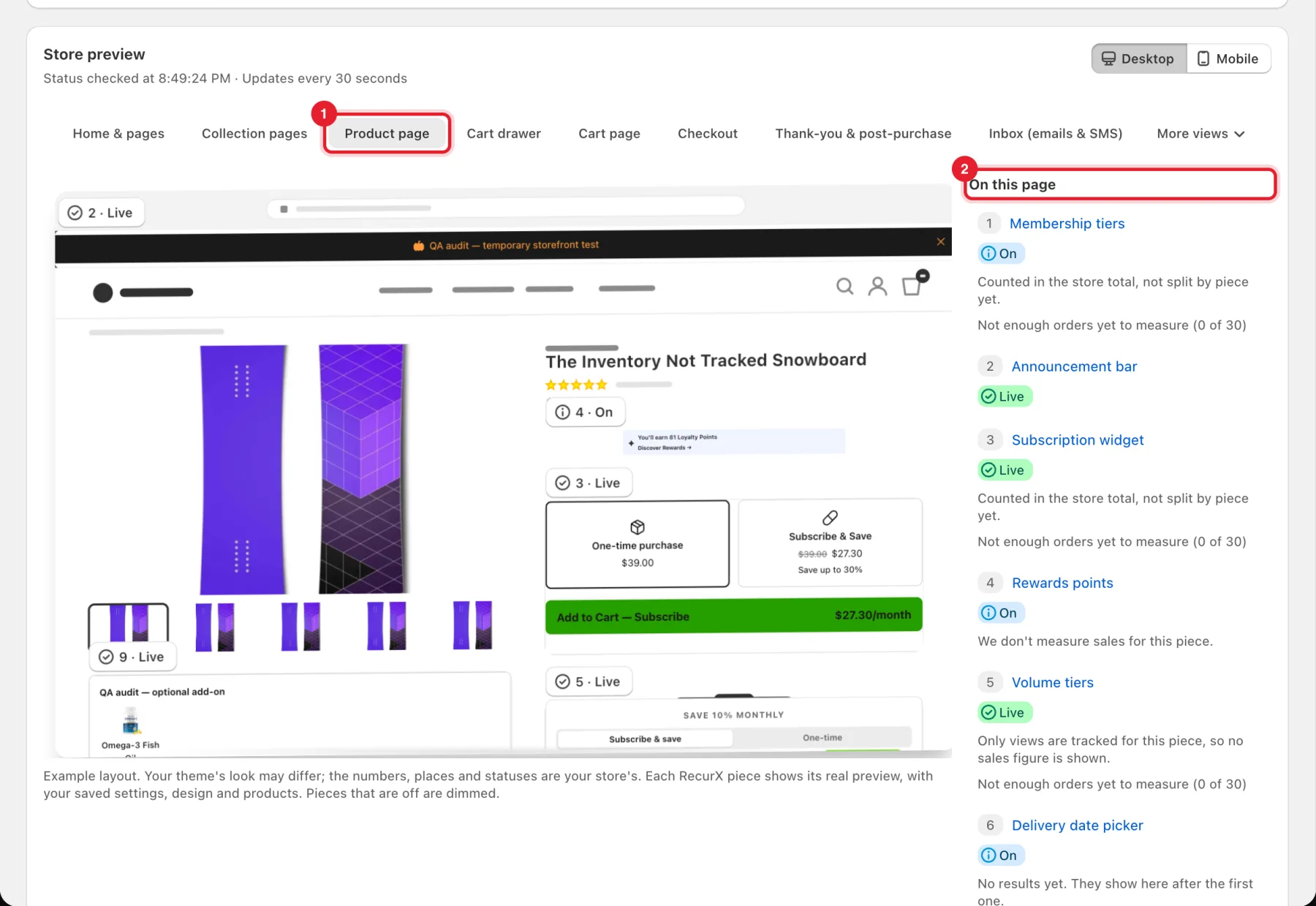
The preview is an example layout: your theme may look different, but the numbers, places and statuses are your store's. Pieces that are off are dimmed.
Step 3: Filter the pieces
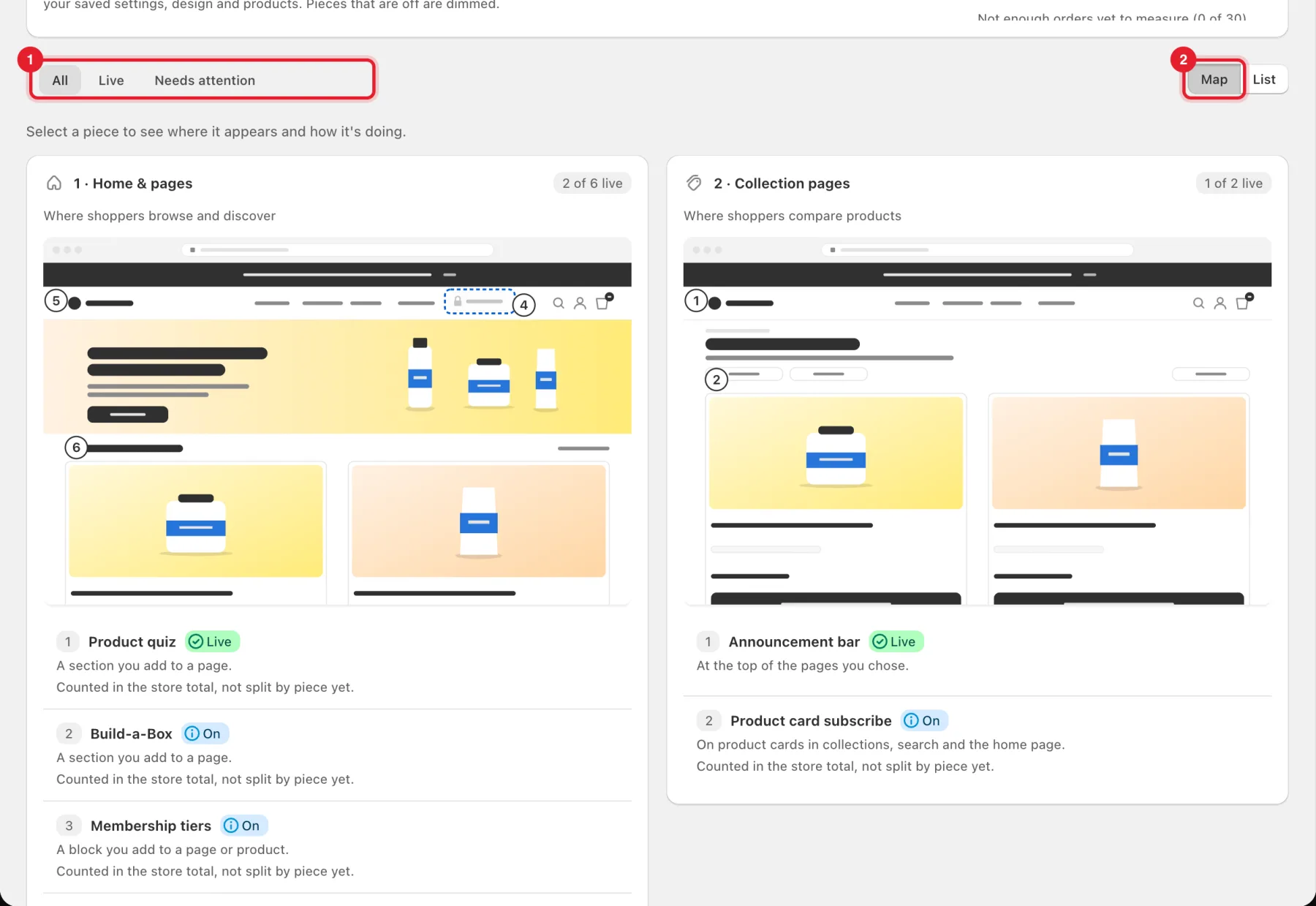
Below the preview, every page of your store has its own card with its pieces in the order shoppers move through the store.
- Use All, Live or Needs attention (1) to narrow the list.
- Switch between Map and List (2). The list shows each piece with its page, status, placement and results.
What the statuses mean
| Status | Meaning |
|---|---|
| Live | Switched on and showing to shoppers. |
| On | Switched on; RecurX couldn't confirm it on the page yet. |
| On, not showing | Switched on, but RecurX didn't find it on your store. Check the app embed or block in your theme. |
| Needs setup | Not set up yet. |
| Off | Switched off. |
| Not on your plan | Needs a higher RecurX plan. |
| Couldn't check | RecurX couldn't check it right now. Click Check again. |
Good to know
- Some pieces say Counted in the store total, not split by piece yet, Only views are tracked for this piece or We don't measure sales for this piece: those don't get their own sales figure.
- Not enough orders yet to measure (0 of 30) means the figure appears once there are enough orders.
- Attributed means counted from paid orders in your store currency. A shopper can use more than one piece, so pieces can share credit.
- A piece that is on but not showing is usually fixed in the theme editor — see Widget not showing on my product page.