
RecurX shows the subscription widget and the customer portal in your shoppers' language, with built-in translations for 20 languages. On the Translations page you replace any of that text with your own wording, per language. This guide takes about 5 minutes per language.
What it covers: the subscription widget on product pages and the customer portal. Emails and the cancellation flow have their own editors.
Step 1: Open Translations
- In your Shopify admin, open Apps → RecurX Subscriptions.
- Go to App settings.
- Under Customer experience, click Translations.
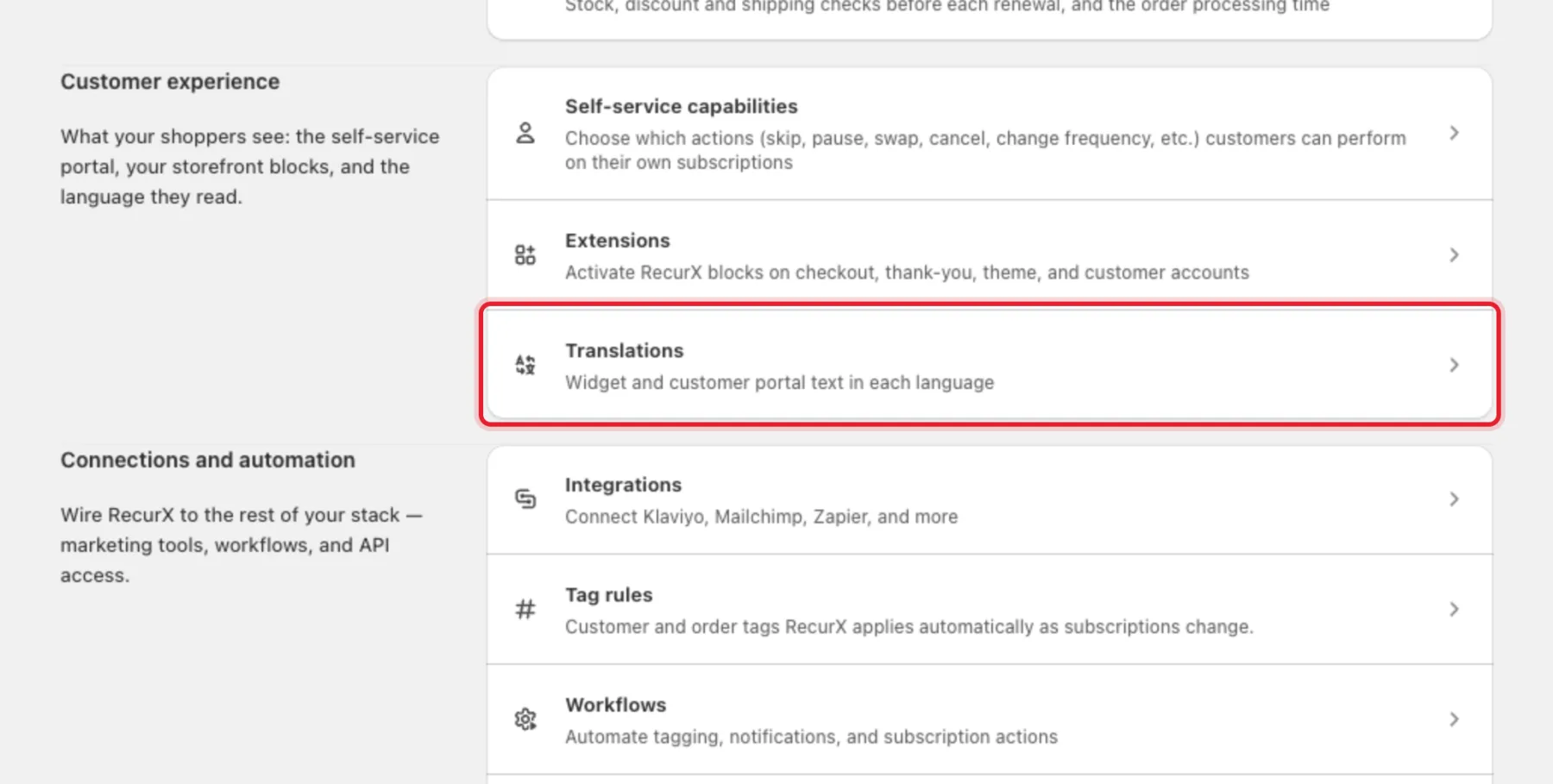
Tip: On the widget page (Subscriptions → Widget → Customize widget) the Languages section has an Edit widget translations link to the same page.
Step 2: Pick a language
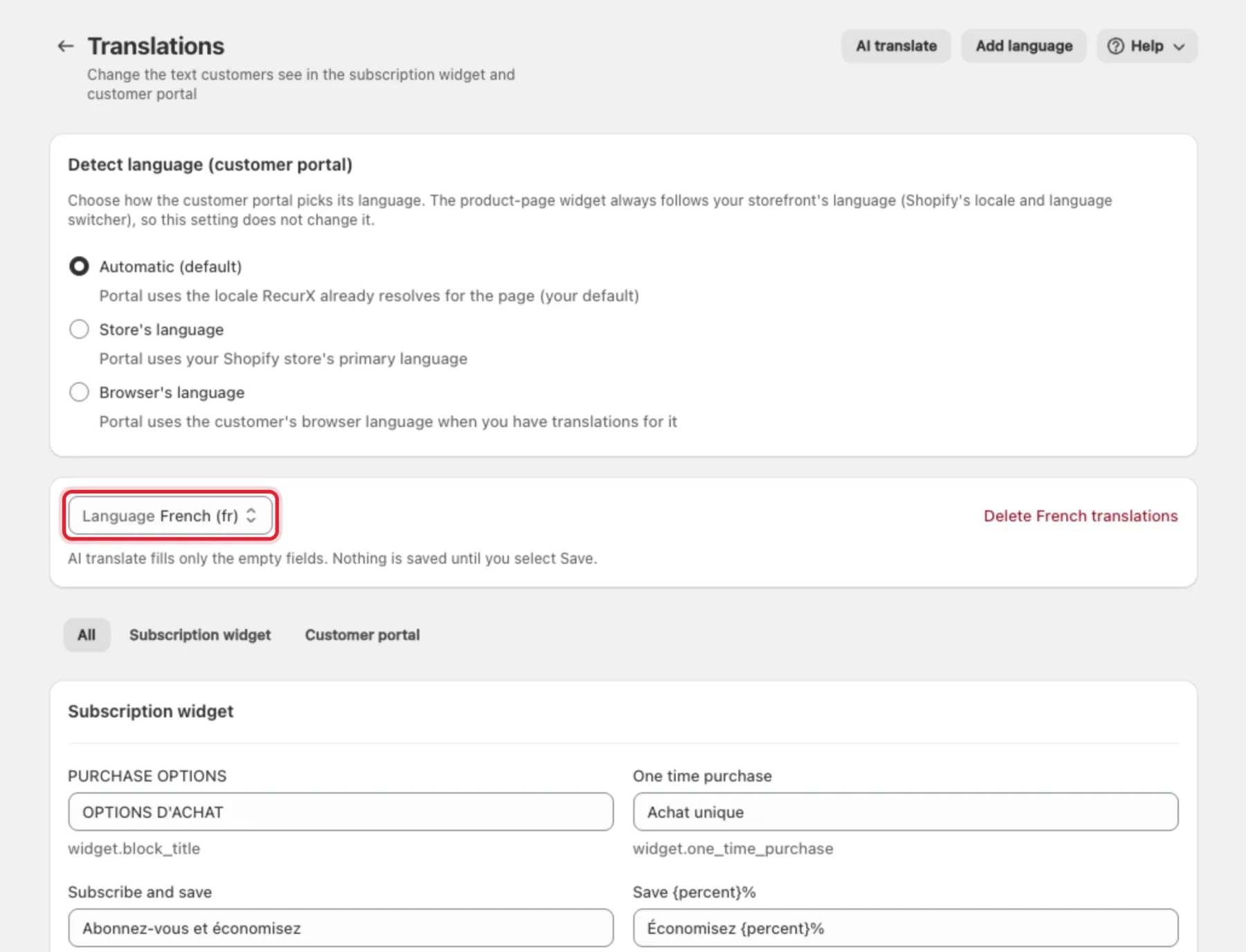
Open Language and choose the language you want to edit. The list has every language the widget and portal can show:
French, Spanish, German, Italian, Portuguese (Brazil), Portuguese (Portugal), Dutch, Japanese, Danish, Finnish, Norwegian (Bokmål), Czech, Swedish, Polish, Korean, Thai, Chinese (Simplified), Chinese (Traditional), Turkish and Vietnamese.
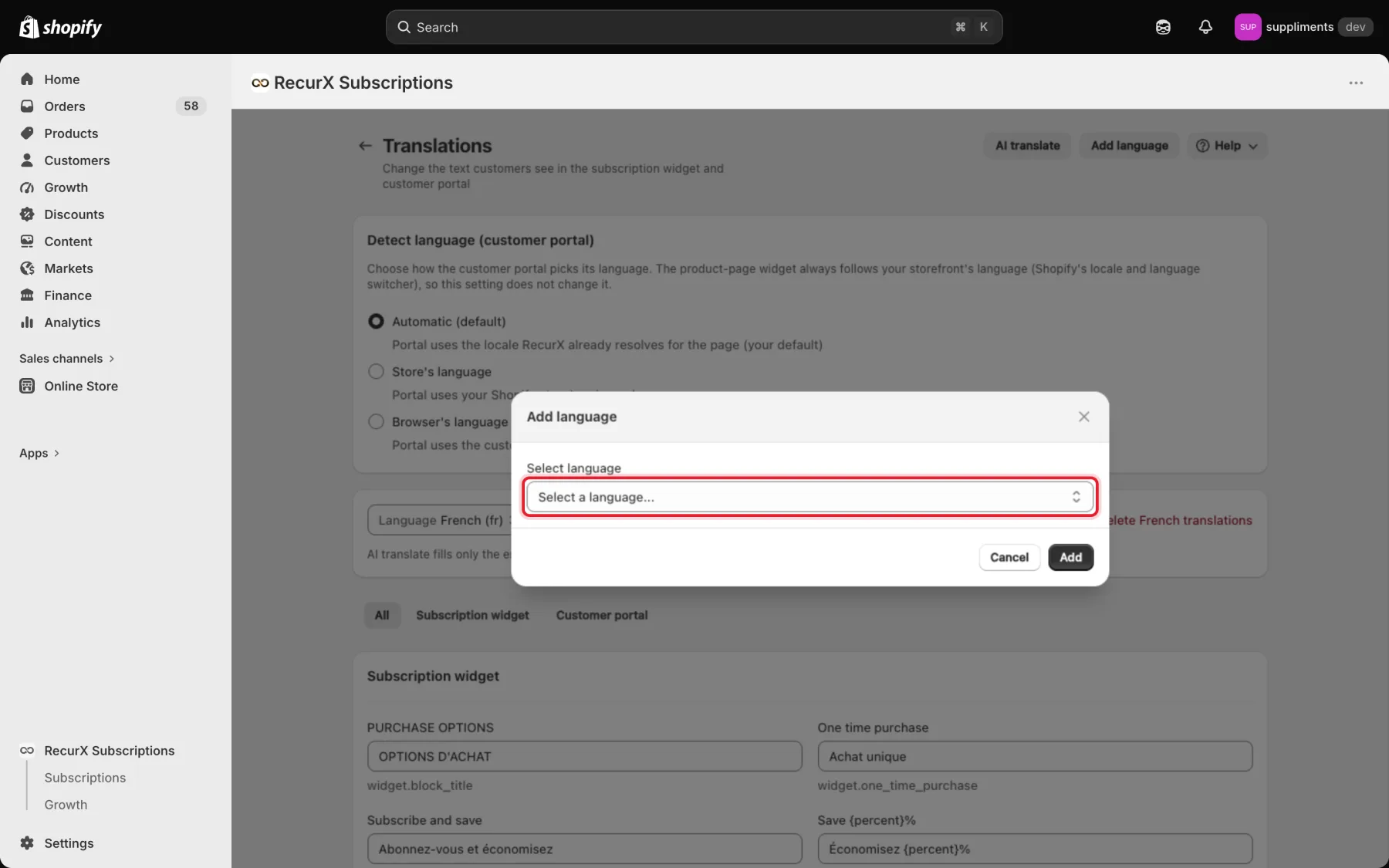
Add language at the top of the page opens the same list in a dialog. Choose a language and click Add to start editing it.
Note: English is the source text, so it isn't in the list. Some English labels (such as the one-time and subscription option names) can be changed on the widget page's Content tab.
Step 3: Find the text you want to change
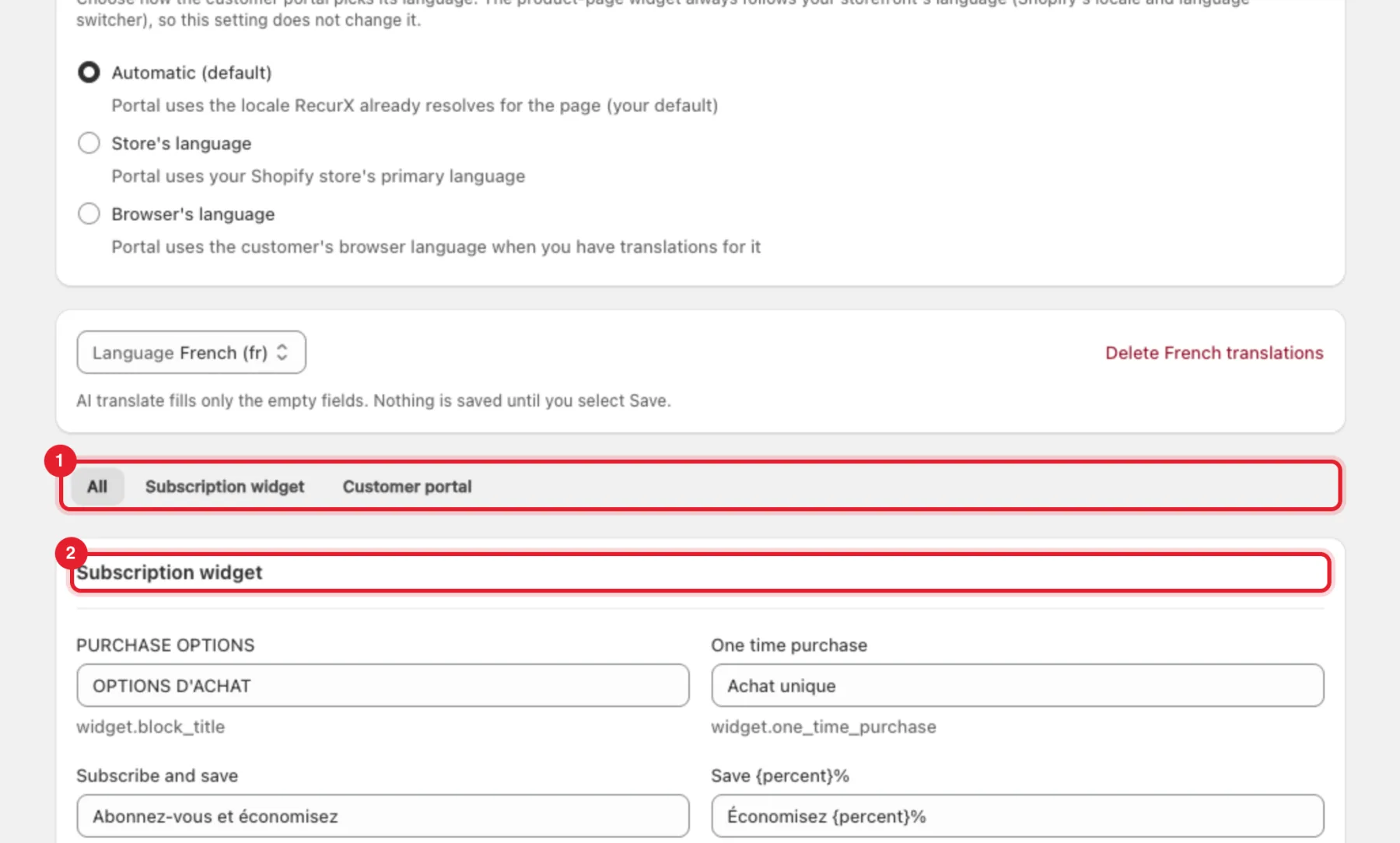
Use the tabs to narrow the list: All, Subscription widget or Customer portal. Each field is labelled with the original English text, and the small grey line under it is the text's key.
Step 4: Type your translations
- Click a field and type your wording.
- Leave a field empty to keep RecurX's built-in translation for that language (or English if there isn't one).
- Keep placeholders in curly brackets exactly as they are — for example
{percent}in Économisez {percent}%.
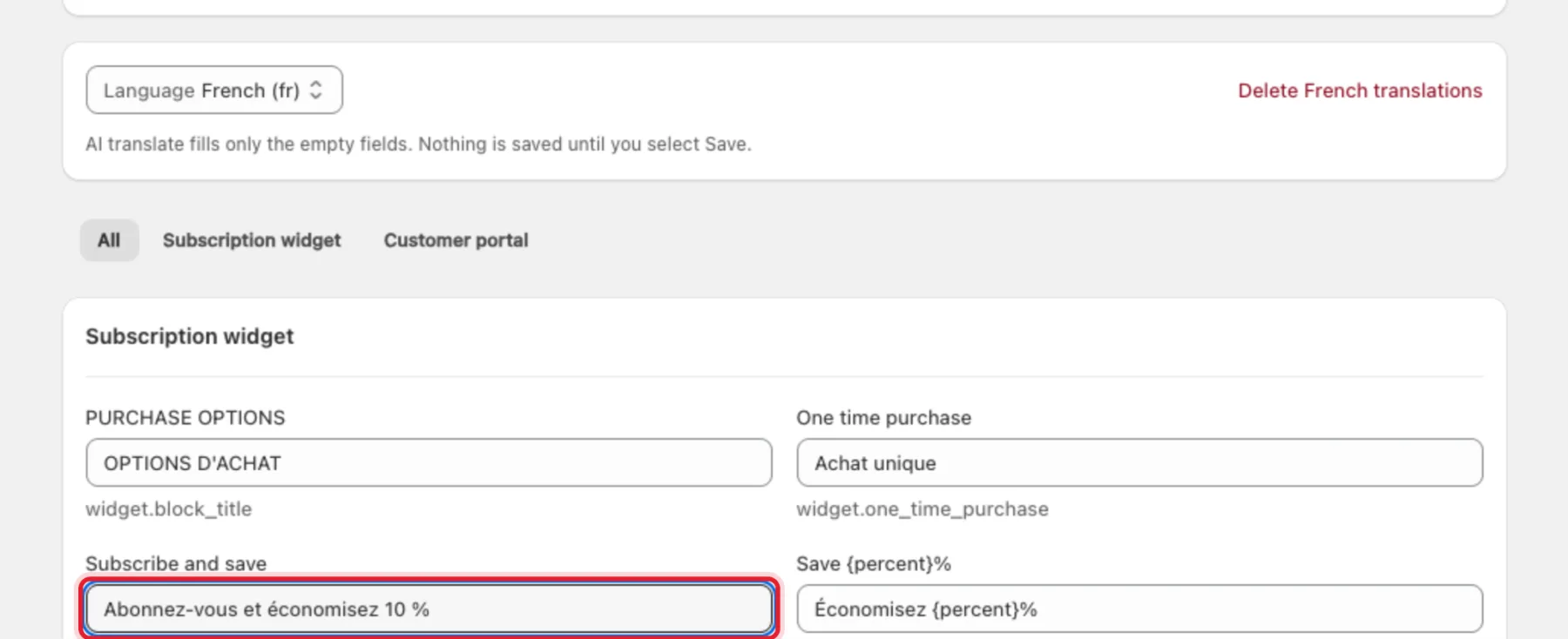
Rules the page checks before saving:
- Use 500 characters or fewer.
- Remove the < and > characters. HTML isn't allowed.
- Use only the placeholders from the original text.
Step 5: Let AI fill the empty fields (optional)
Click AI translate at the top of the page. RecurX sends the original English text to an AI model and puts the results in the empty fields only. Nothing you typed is replaced, and nothing is saved until you click Save.
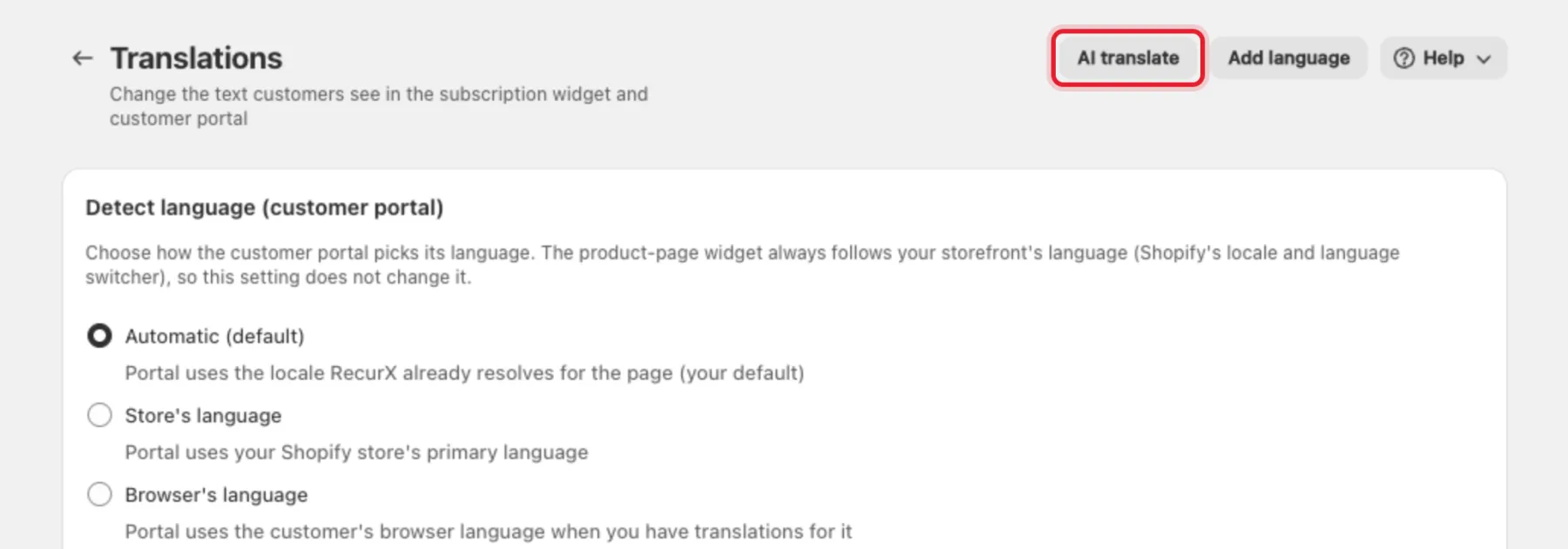
Tip: Review the suggestions before you save. If every field already has text, you'll see Every text already has a translation. Clear the ones you want AI to translate again.
Step 6: Choose how the customer portal picks its language
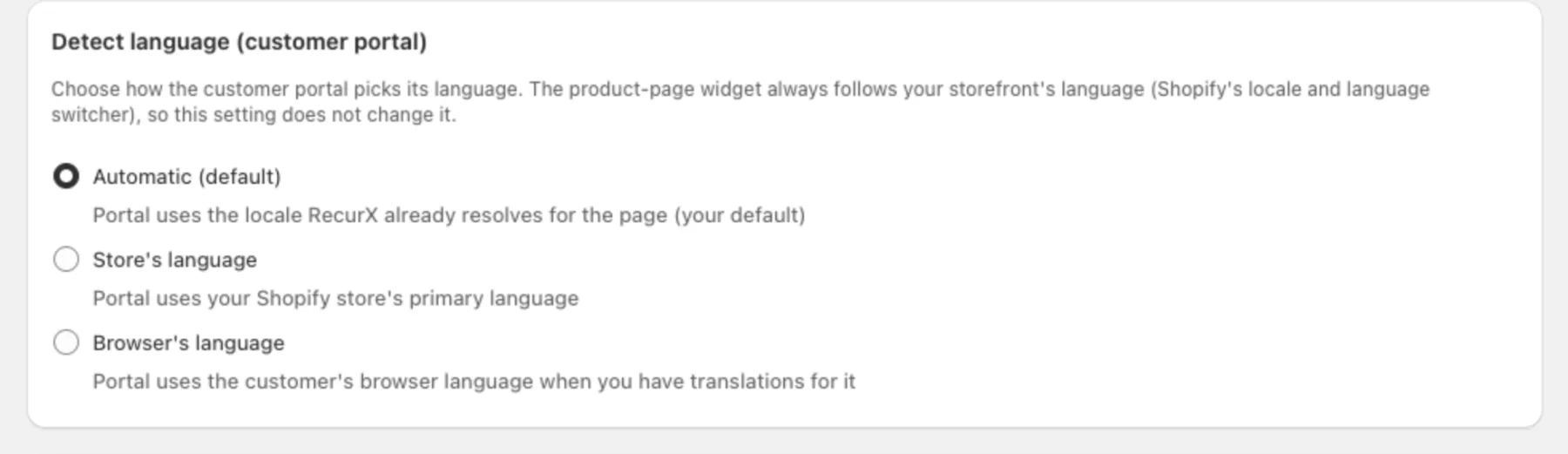
The Detect language (customer portal) card applies to the portal only:
- Automatic (default) — the portal uses the locale RecurX already resolves for the page.
- Store's language — the portal uses your Shopify store's primary language.
- Browser's language — the portal uses the customer's browser language when you have translations for it.
The product-page widget always follows your storefront's language (Shopify's locale and language switcher), so this setting doesn't change it.
Step 7: Save
Click Save in the save bar. Your text then replaces the built-in text for that language.
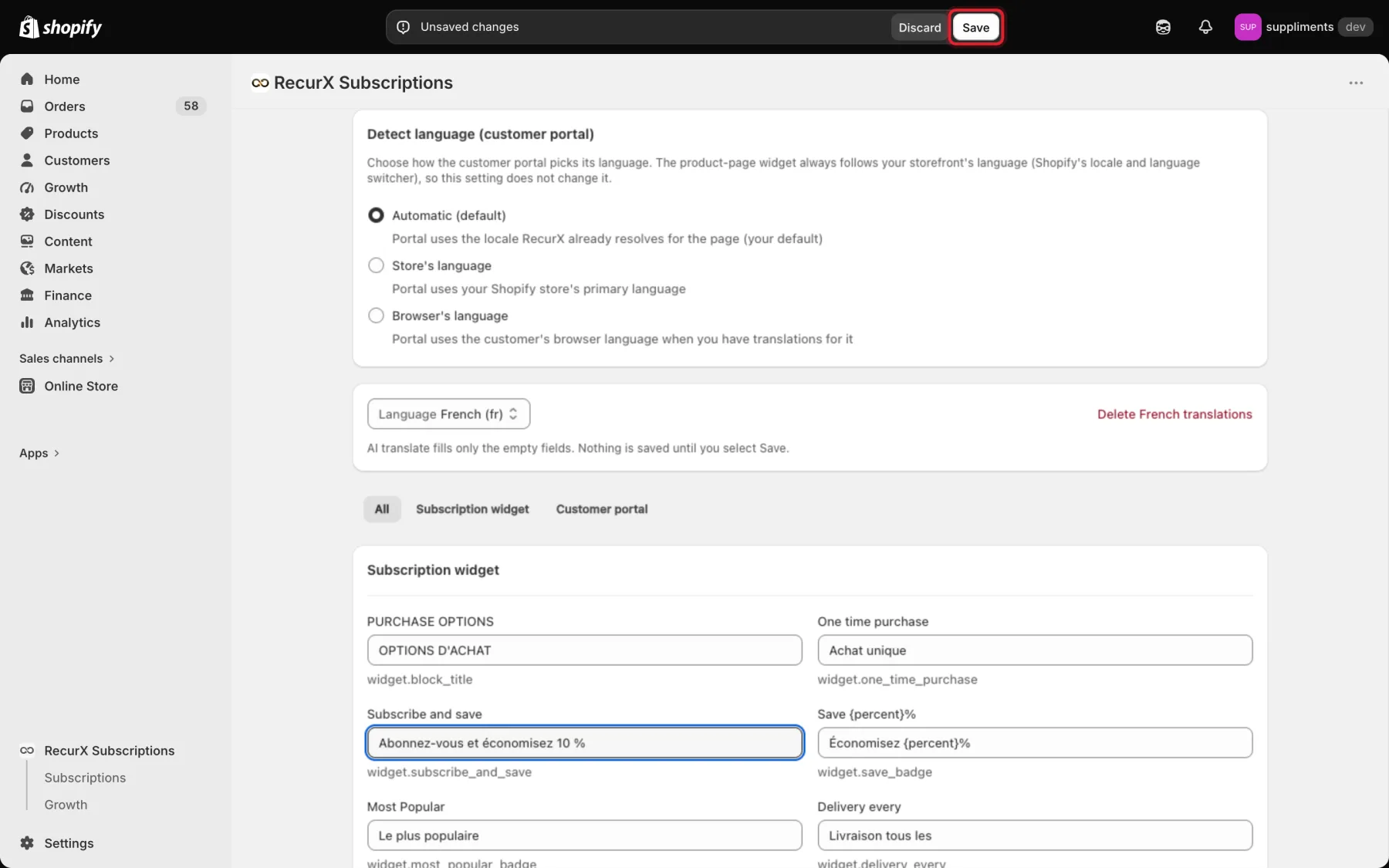
Note: If you switch language with unsaved changes, RecurX asks Discard unsaved changes? first, so you don't lose your work by accident.
What happens next
- Shoppers browsing your store in that language see your wording in the widget; subscribers see it in the customer portal.
- To remove your text for a language, click Delete {language} translations next to the language picker. Customers see the built-in text again. This can't be undone.
Troubleshooting
- "AI translate is unavailable right now. You can still type translations yourself." — the AI service is down; type the translations or try later.
- "You've used AI translate several times in a row. Try again in a few minutes." — wait a few minutes before running it again.
- Banner "Some saved translations are not shown to customers" — you have text saved for a language the widget and portal don't render. Nothing was deleted; it appears automatically if the language becomes supported.