
RecurX shows up in several places on your store: the subscription widget on product pages, the cart, the customer portal, optional theme blocks, and checkout and customer-account extensions. This overview shows what each one looks like and where you switch it on.
See everything on the Extensions page
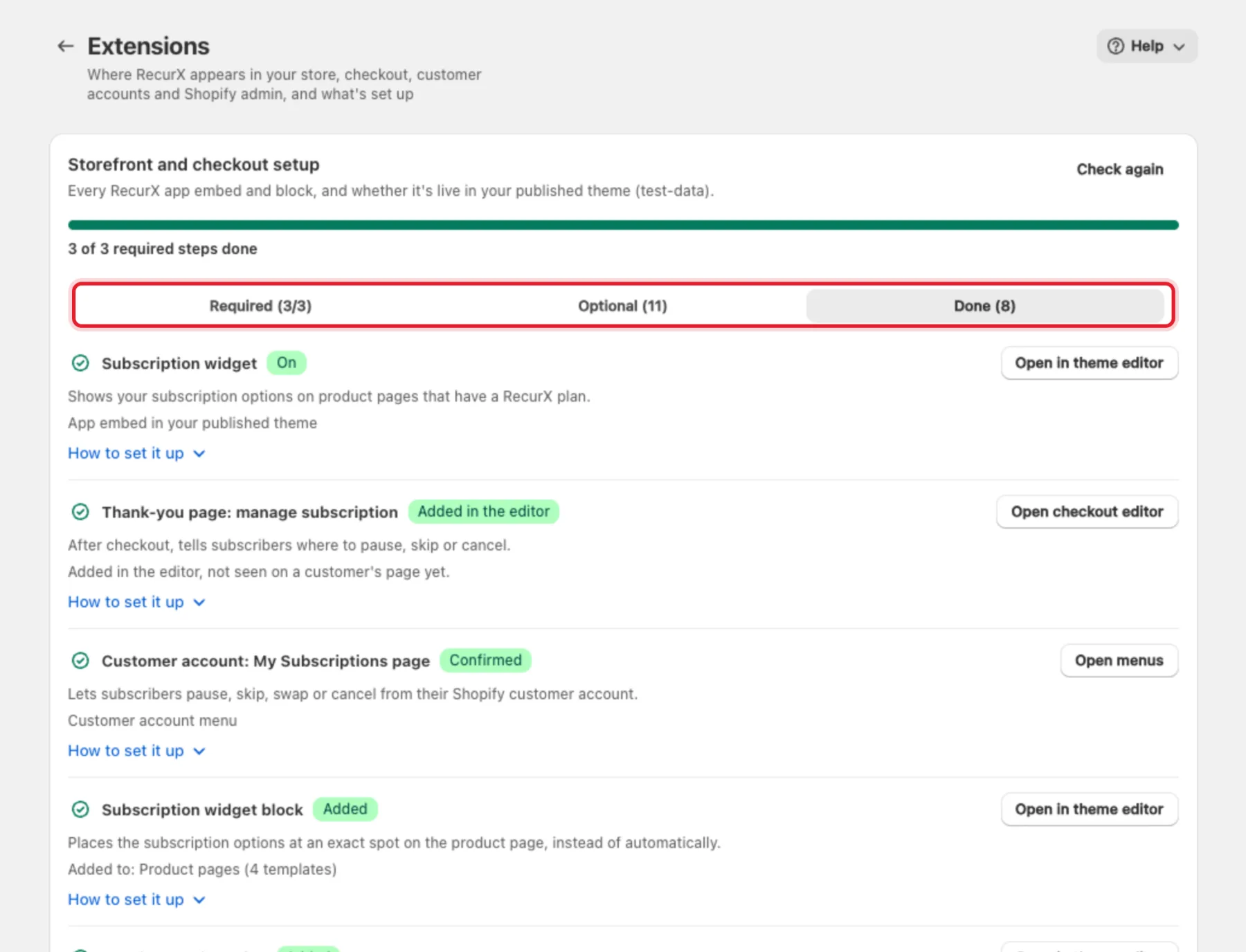
Go to Apps → RecurX Subscriptions → App settings → Extensions. The Storefront and checkout setup card lists every RecurX app embed and block and whether it's live in your published theme.
- Required — the three pieces the subscription flow needs: Subscription widget, Thank-you page: manage subscription and Customer account: My Subscriptions page.
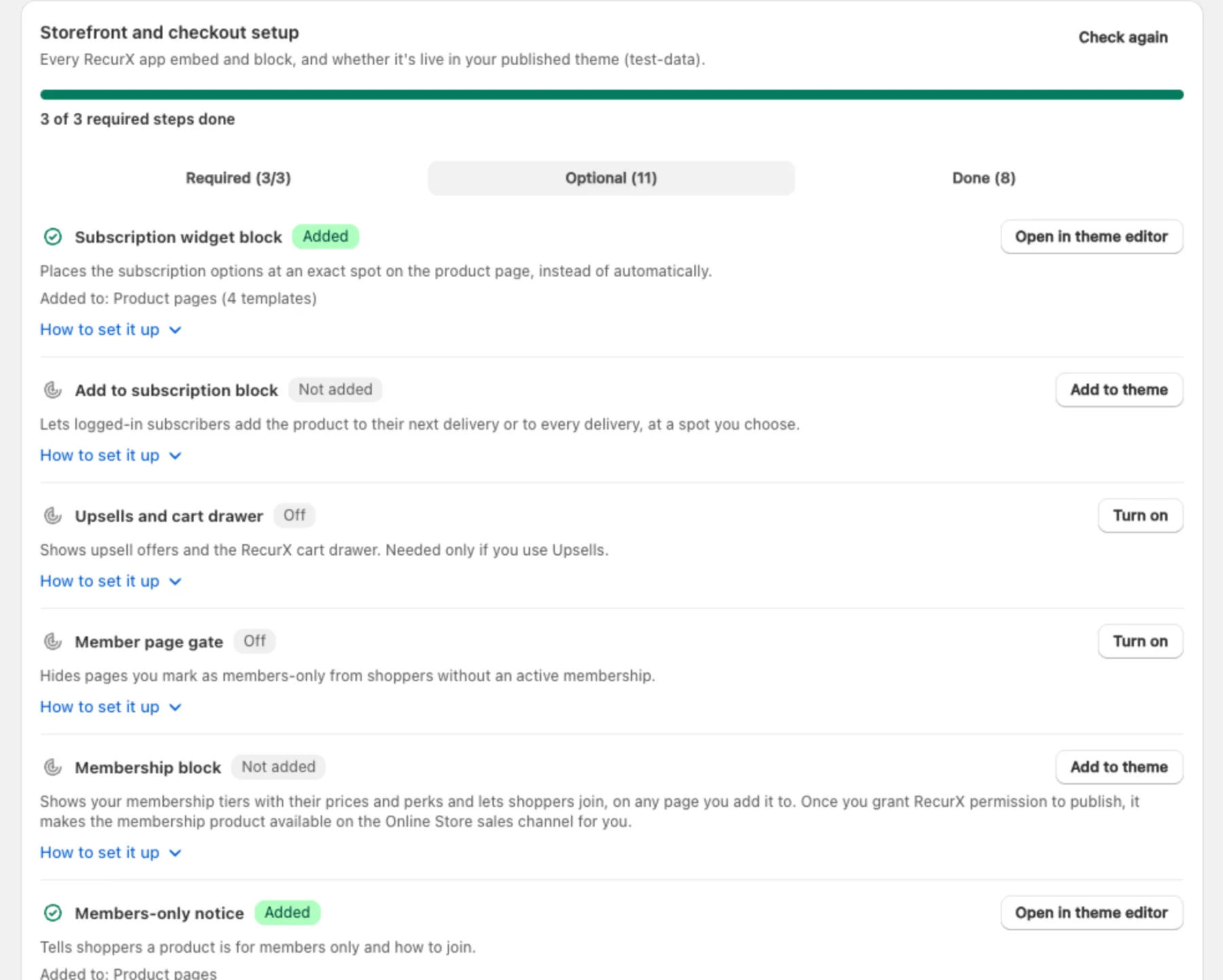
- Optional — extras you add only if you use the feature.
- Done — everything RecurX has detected on your store.
Each row has a button that takes you straight to the right place — Open in theme editor, Add to theme, Turn on or Open checkout editor — and How to set it up with the exact steps. Click Check again after you change your theme.
Subscription widget (product pages)
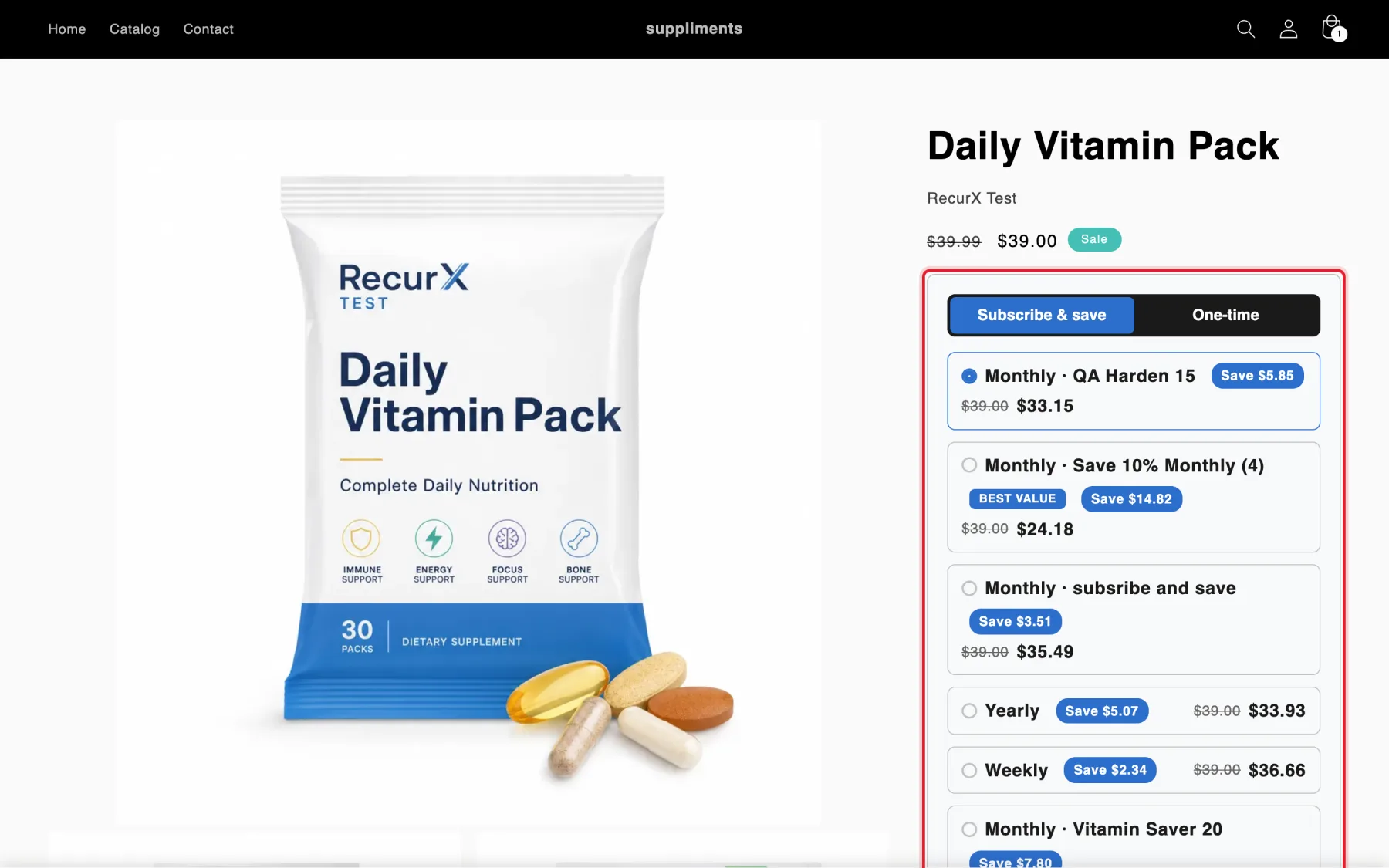
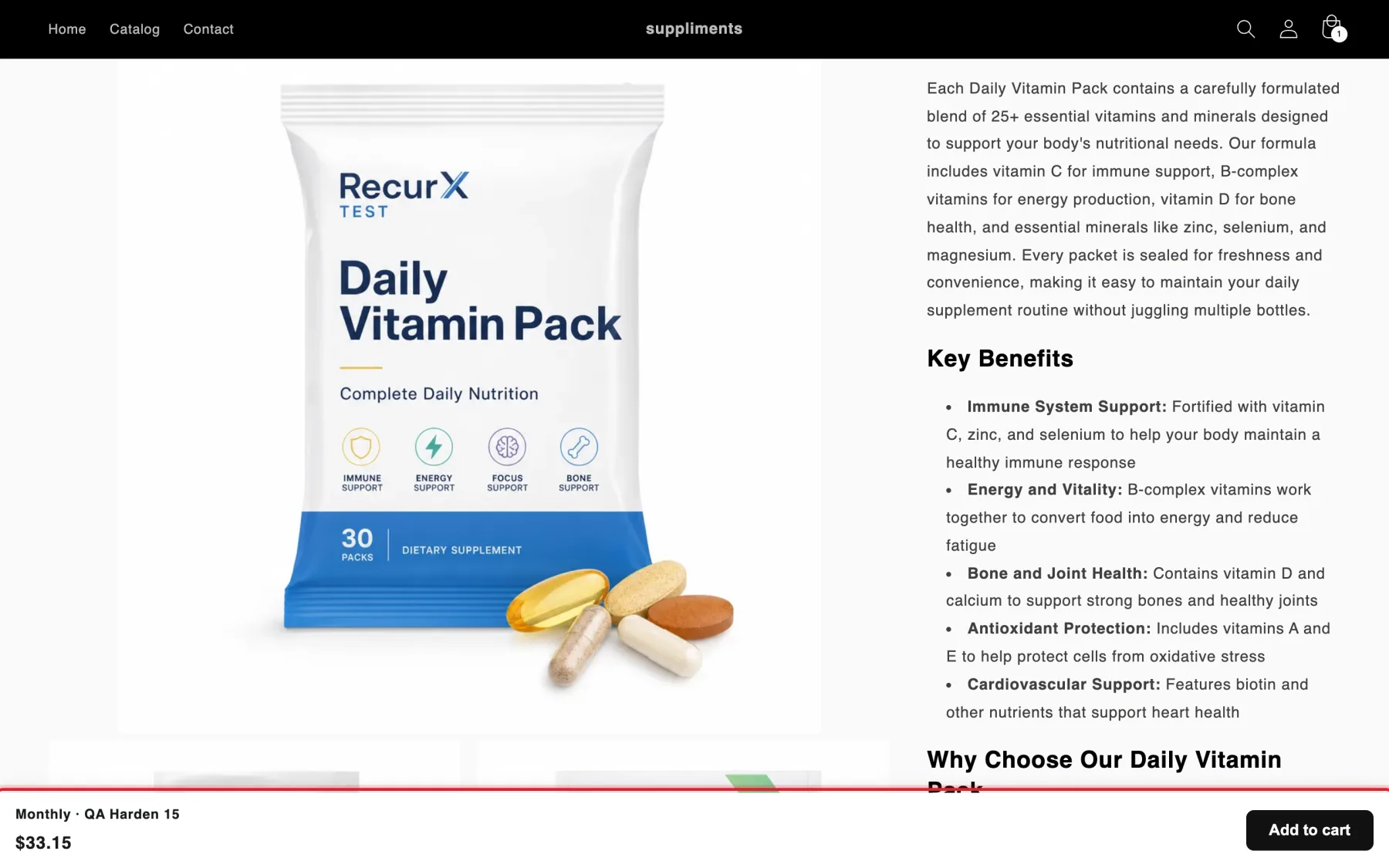
The main widget: one-time or subscription, the delivery frequencies and the savings, on every product that belongs to an active plan. It comes from the RecurX Subscriptions app embed and places itself next to the Add to cart button. On themes where it can't find a spot, add the Subscription widget block to your product template instead.
Set it up in Subscriptions → Widget — see Install and customize the subscription widget.
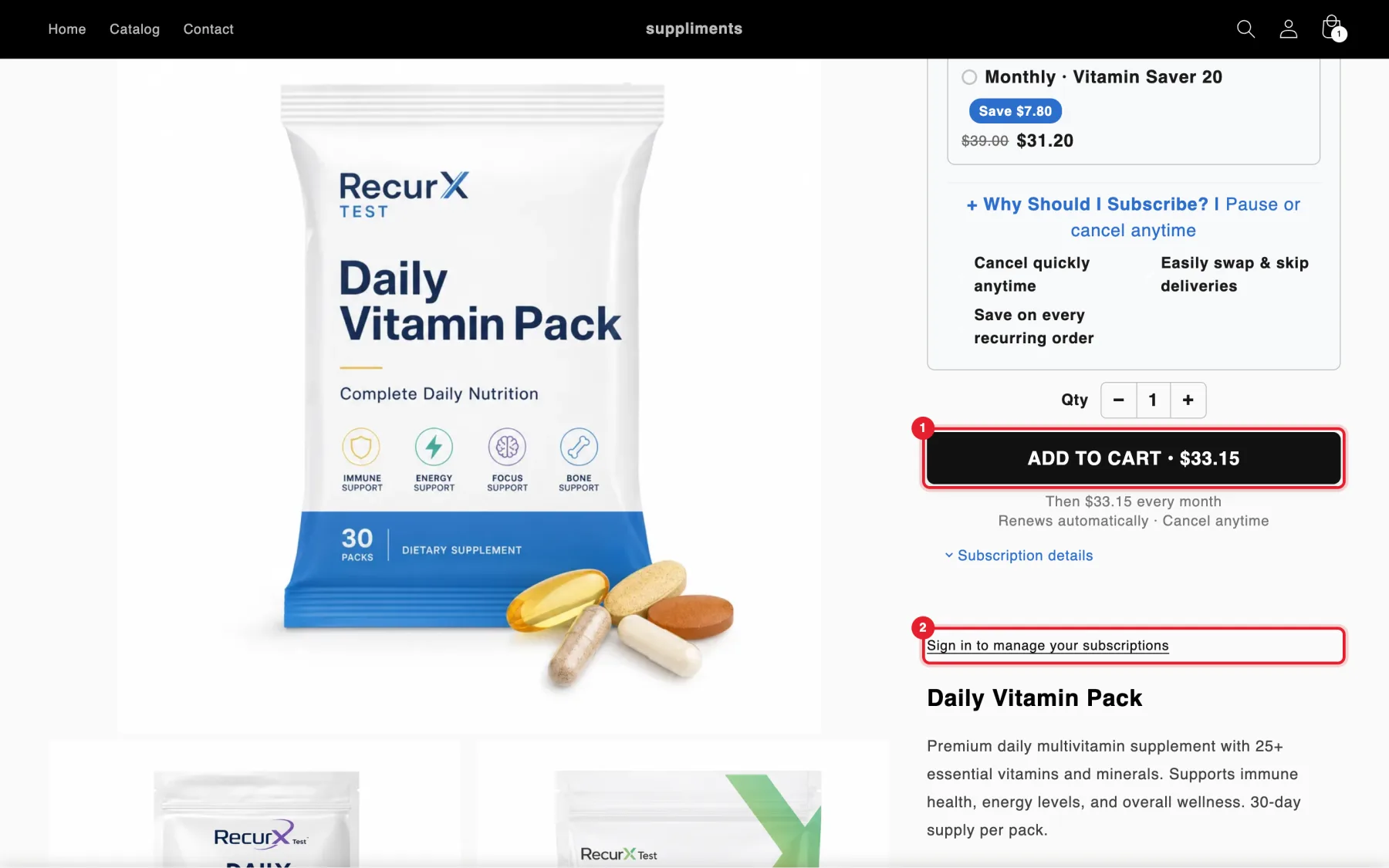
Below the plans, the widget can show its own add to cart button with the price of the chosen option (Behavior → Add to cart → Show an add to cart button in the widget), plus a Subscription details link. The Manage subscription link block adds a Sign in to manage your subscriptions link for existing subscribers.
Sticky add to cart bar
A bar at the bottom of the screen that stays in view while shoppers scroll, showing the chosen plan and price. Turn it on in Subscriptions → Widget → Behavior → Show a sticky add to cart bar.
Cart widget (Pro)
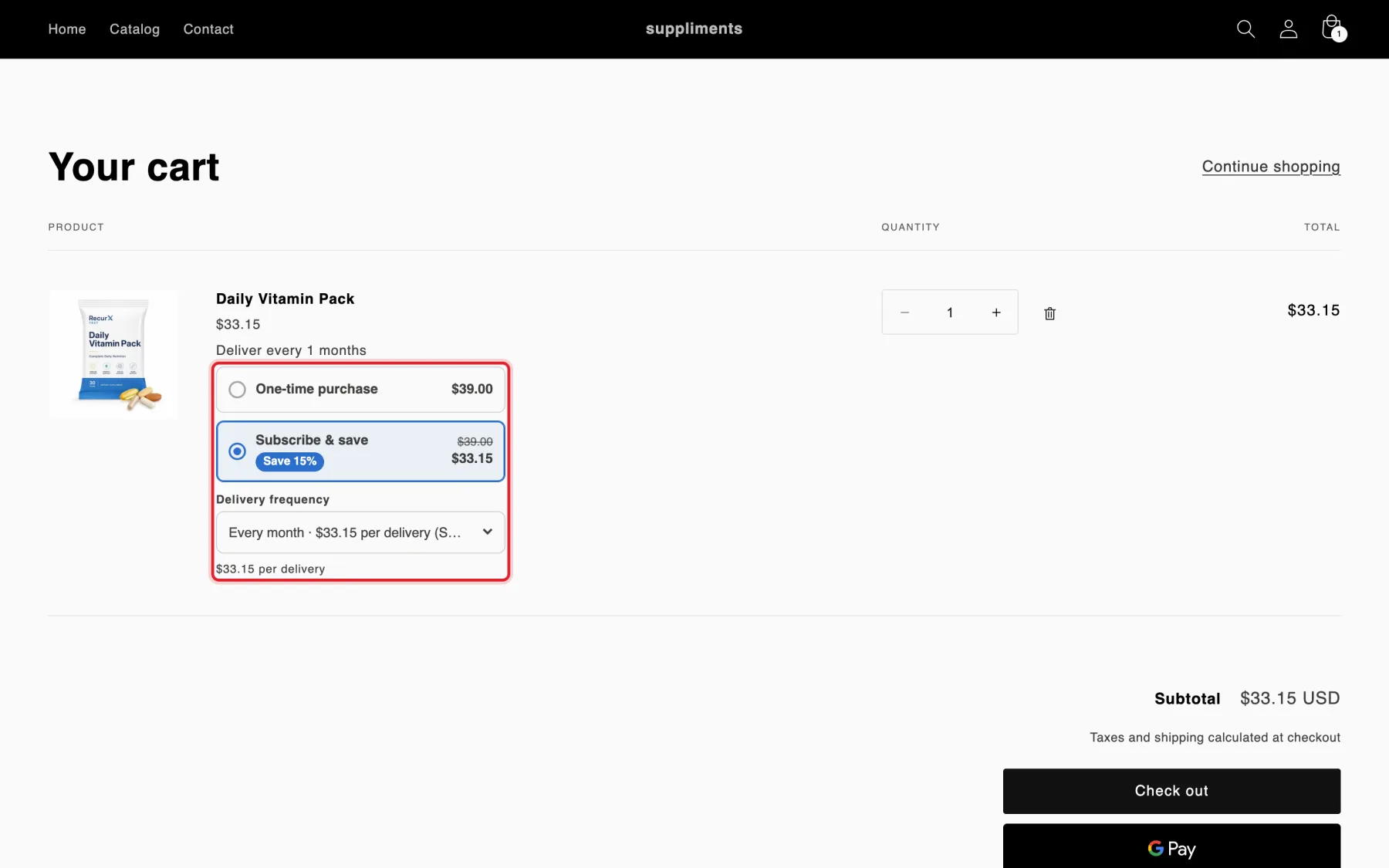
Under each cart line that has your subscription plans, shoppers switch between one-time and subscription and choose the delivery frequency. It works on the cart page and in most theme cart drawers, and uses your theme's fonts, colors and corners. Turn it on in Subscriptions → Widget → Behavior → Cart widget (Show on the cart page, Show in the cart drawer).
Customer portal
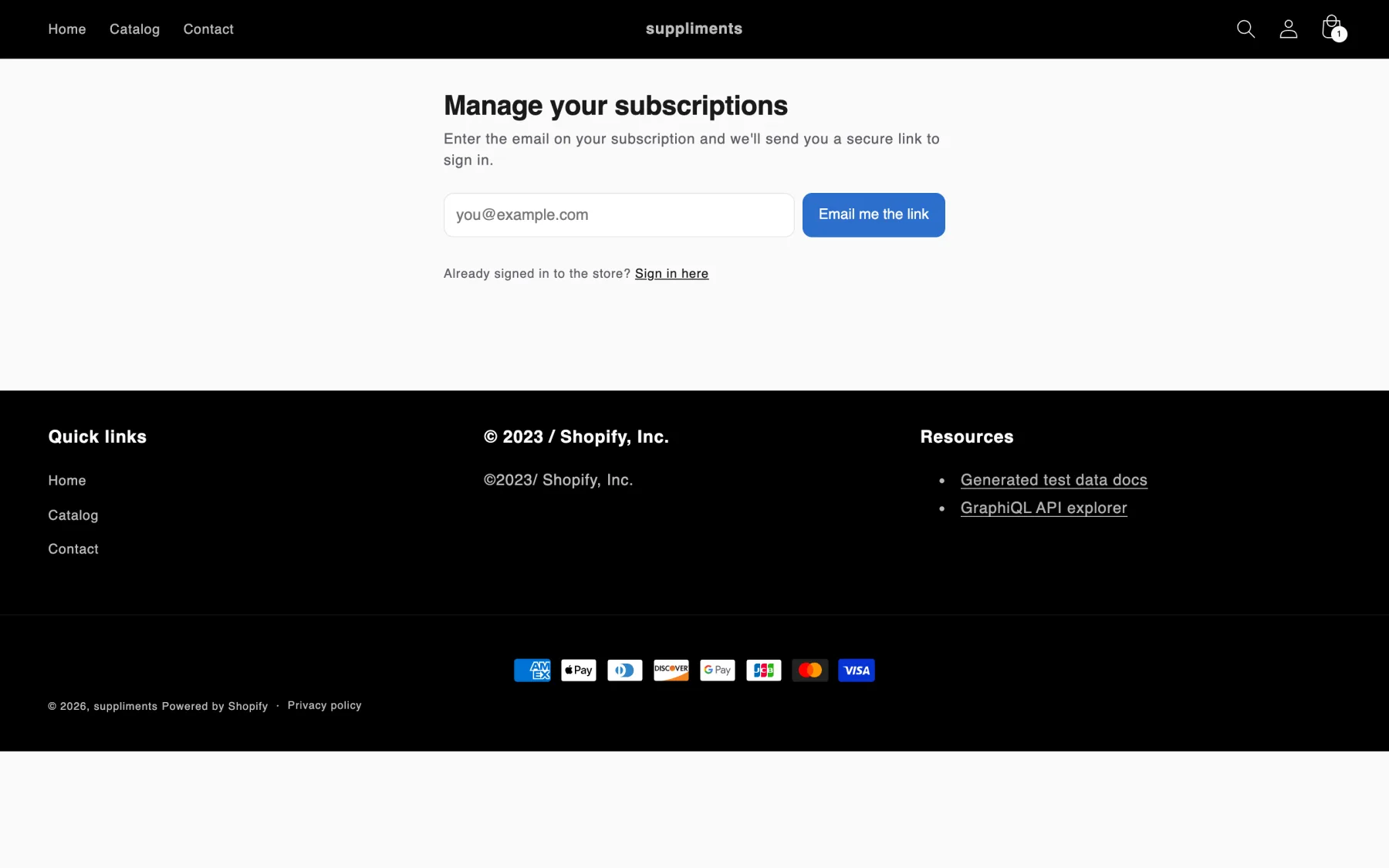
Where subscribers manage their subscriptions. Shoppers who aren't signed in can ask for a secure sign-in link by email. See Customer portal setup.
Upsells
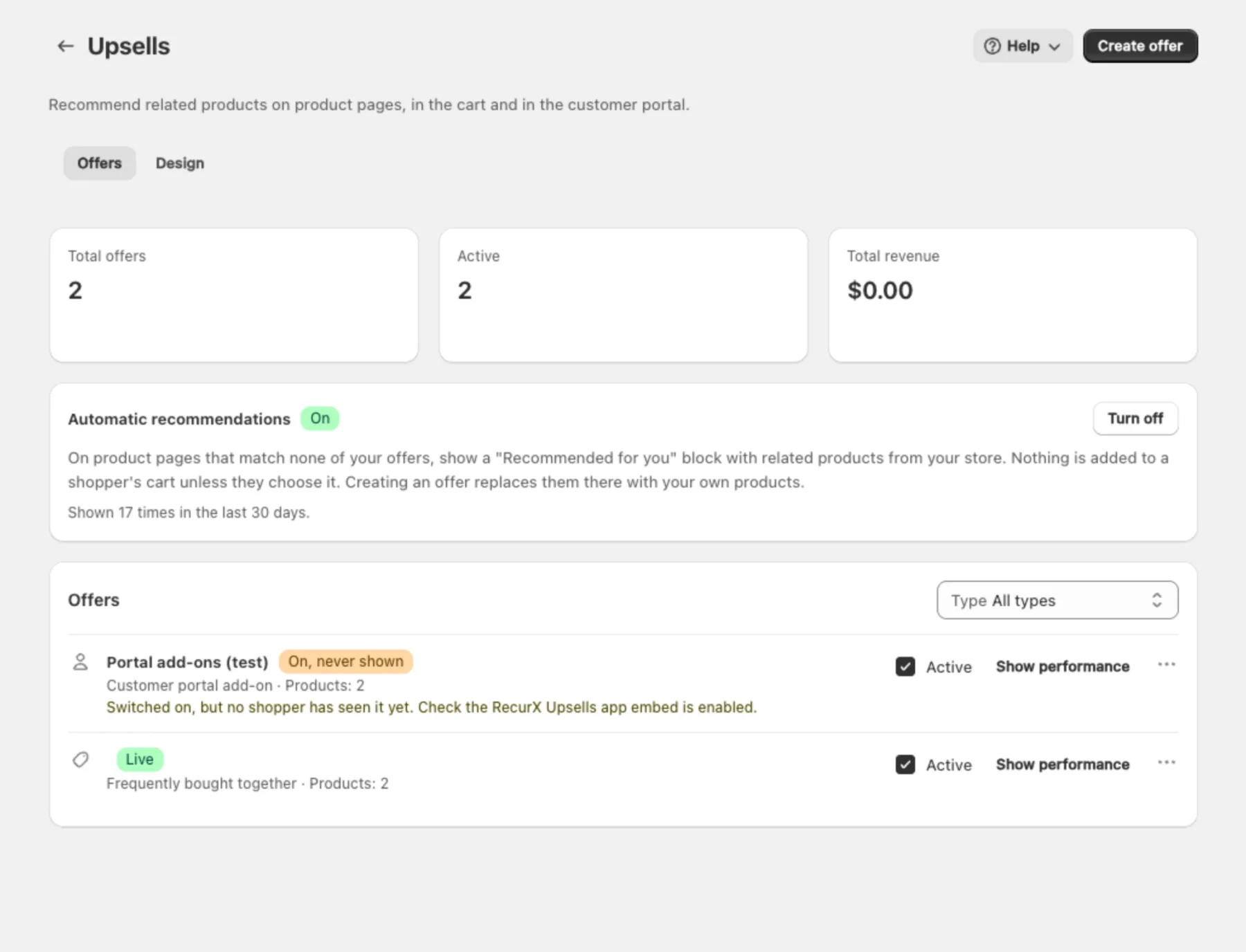
Product recommendations on product pages, in the cart and in the customer portal: Frequently bought together, Product add-on, Pop-up cross-sell, Cart upsell and Customer portal add-on. They need the Upsells and cart drawer app embed (Optional tab on the Extensions page). Set them up in Growth → Upsell rules (the Upsells page).
Other theme blocks and embeds
All of these are on the Optional tab of the Extensions page, each with its own How to set it up steps.
| Block or embed | What shoppers get |
|---|---|
| Subscription widget block | The subscription options at an exact spot on the product page, instead of automatically. |
| Add to subscription block (Pro) | Logged-in subscribers add the product to their next delivery or to every delivery. |
| Product card subscribe (Pro) | A Subscribe & save option for one product in a section, page builder or featured product. |
| Build-a-Box | Shoppers build their own subscription box on any page. |
| Product quiz | A RecurX quiz that recommends subscription products. |
| Membership block | Your membership tiers with prices and perks, and a way to join. |
| Members-only notice | Tells shoppers a product is for members only and how to join. |
| Member page gate (embed) | Hides pages you mark as members-only from shoppers without an active membership. |
| Manage subscription link | A link subscribers use to open their subscription portal. |
Checkout and customer accounts
These live outside your theme. Their rows on the Extensions page open the checkout editor or your customer account menus.
| Extension | What it does |
|---|---|
| Thank-you page: manage subscription | After checkout, tells subscribers where to pause, skip or cancel. |
| Customer account: My Subscriptions page | Lets subscribers pause, skip, swap or cancel from their Shopify customer account. |
| Checkout: subscribe and save (Shopify Plus) | Offers a subscription on one-time items during checkout. |
| Checkout: subscription selector per item (Shopify Plus, Pro) | Lets shoppers choose one-time or a delivery frequency under each item in checkout. |
| Order status page: subscription details | Shows the subscription on the order status page of the customer account. |
Theme compatibility
RecurX storefront features are Shopify theme app extensions: app embeds and app blocks that you turn on in the theme editor, without editing theme code. By default they follow your store theme's fonts and colors; see Smart theme color matching.