
Shoppers who add a product as a one-time purchase can still switch it to a subscription before checkout. RecurX shows that choice under each cart line, inside your theme's own cart drawer and on the cart page. There's nothing to install for the drawer itself — RecurX works inside the drawer your theme already has and uses your theme's fonts, colors and corners.
There are two versions:
- Cart widget (Pro plan) — under each cart line, shoppers switch between one-time and subscription and choose the delivery frequency. Three layouts, or one frequency for the whole cart.
- Cart subscription upgrade (Basic plan) — a one-line offer to switch a one-time item to a subscription in the cart.
Setup takes about 2 minutes.
Before you start: the product needs an active subscription plan, and the RecurX app embed must be on in your theme — see Install and customize the subscription widget. The cart offers load with RecurX's upsells, so keep Enable upsells and cart offers on in the RecurX Subscriptions app embed (it's on by default), or turn on the separate RecurX Upsells app embed.
Step 1: Open the cart settings
- In your Shopify admin, open Apps → RecurX Subscriptions → Growth.
- On the Subscription upgrade card, click Manage upgrade offer.
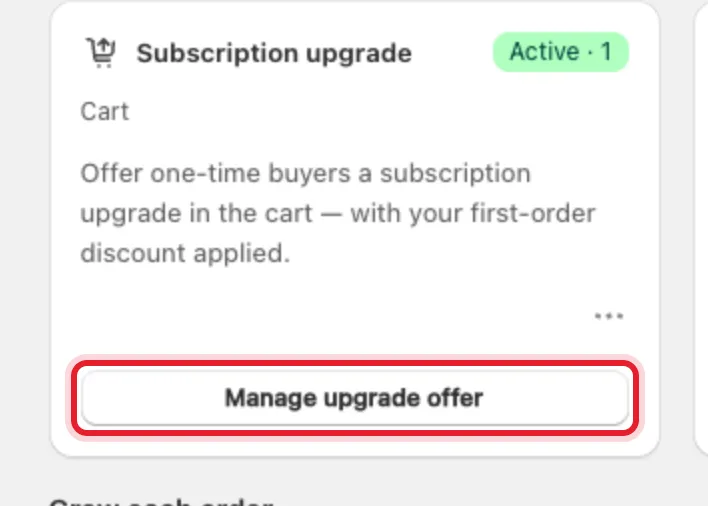
This opens the widget editor (Subscriptions → Widget).
Step 2: Go to the Behavior tab
Click the Behavior tab. The cart settings are further down, below Options and Add to cart.
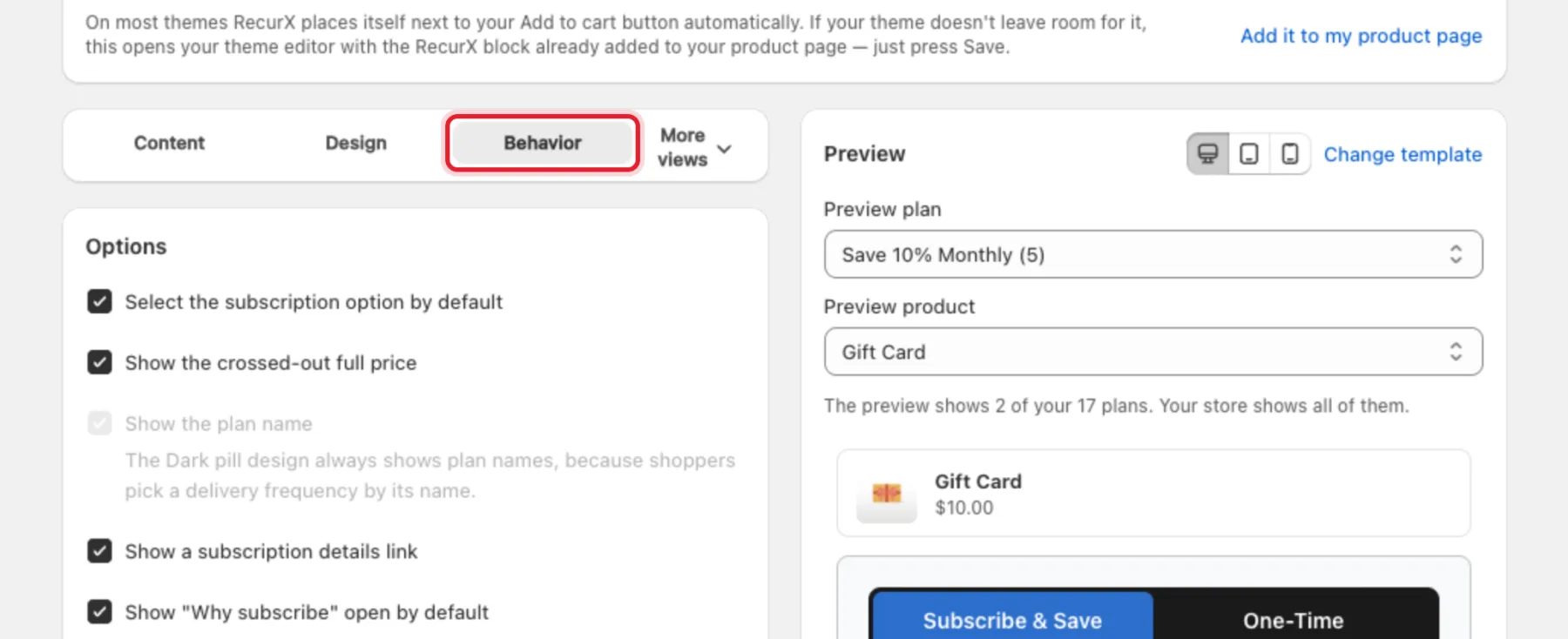
Step 3: Choose where the cart widget shows (Pro)
In the Cart widget card:
- Tick Show on the cart page to show the choice under each line on your
/cartpage. - Tick Show in the cart drawer to show it in your theme's slide-out cart. It works with most theme cart drawers.
Then pick a Layout:
- Inline — lightest touch: a dotted outline.
- Panel (recommended) — a tinted block in your theme's button color.
- Segmented — both choices on screen. Clearest, and the tallest.
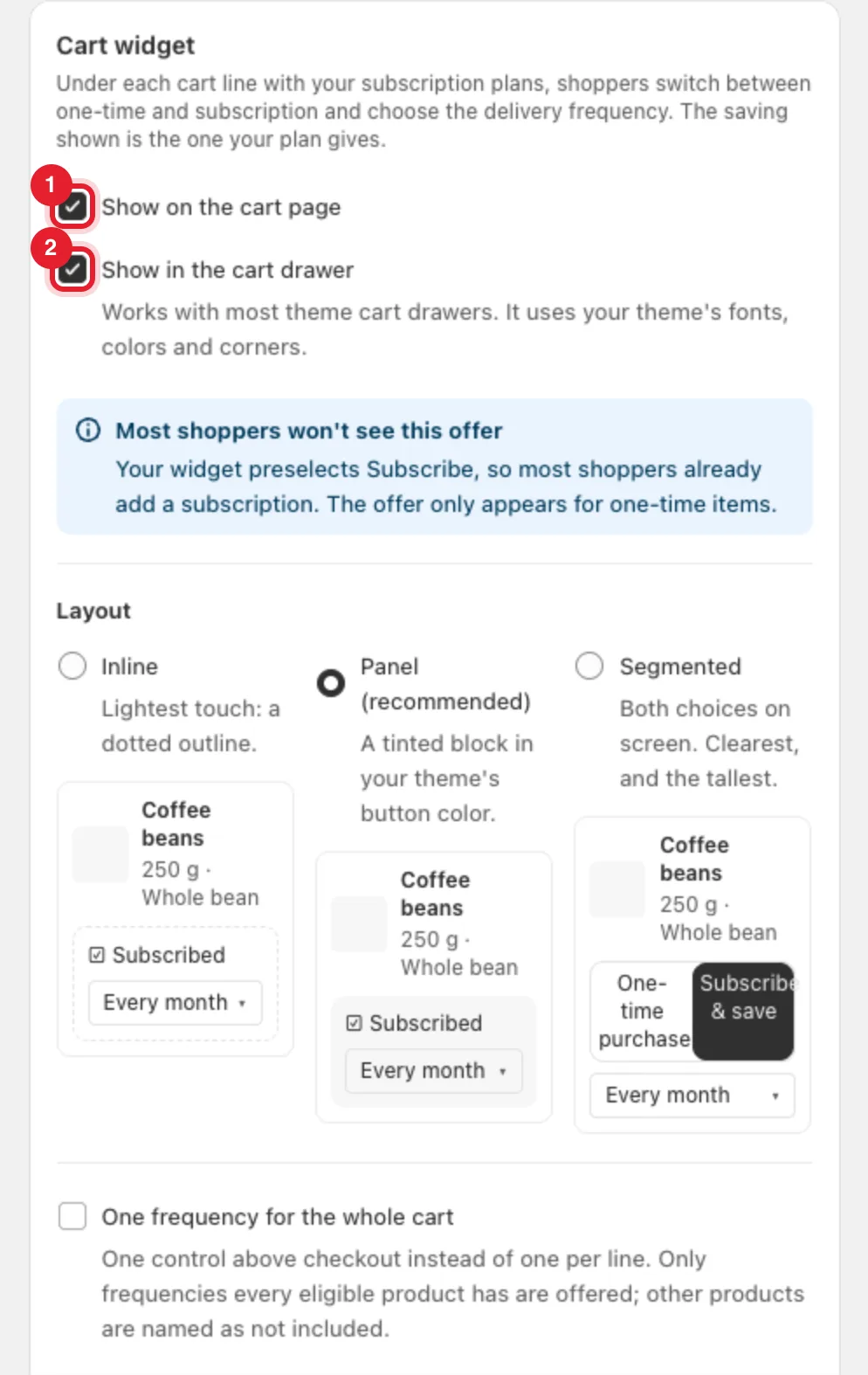
Note: If Select the subscription option by default is on (under Options), RecurX shows "Most shoppers won't see this offer". Your product page already adds most items as subscriptions, so the cart choice only appears for one-time items.
Step 4: Set the options and labels (optional)
- One frequency for the whole cart — one control above checkout instead of one per line. Only frequencies every eligible product has are offered; other products are named as not included.
- Reload the page after a change — only for themes whose cart doesn't update on its own.
- Labels — change One-time label, Subscribe label, Subscribed label, Frequency label and Whole-cart heading. Leave a label empty to use the default, shown in your shopper's language. Each label can be up to 60 characters.
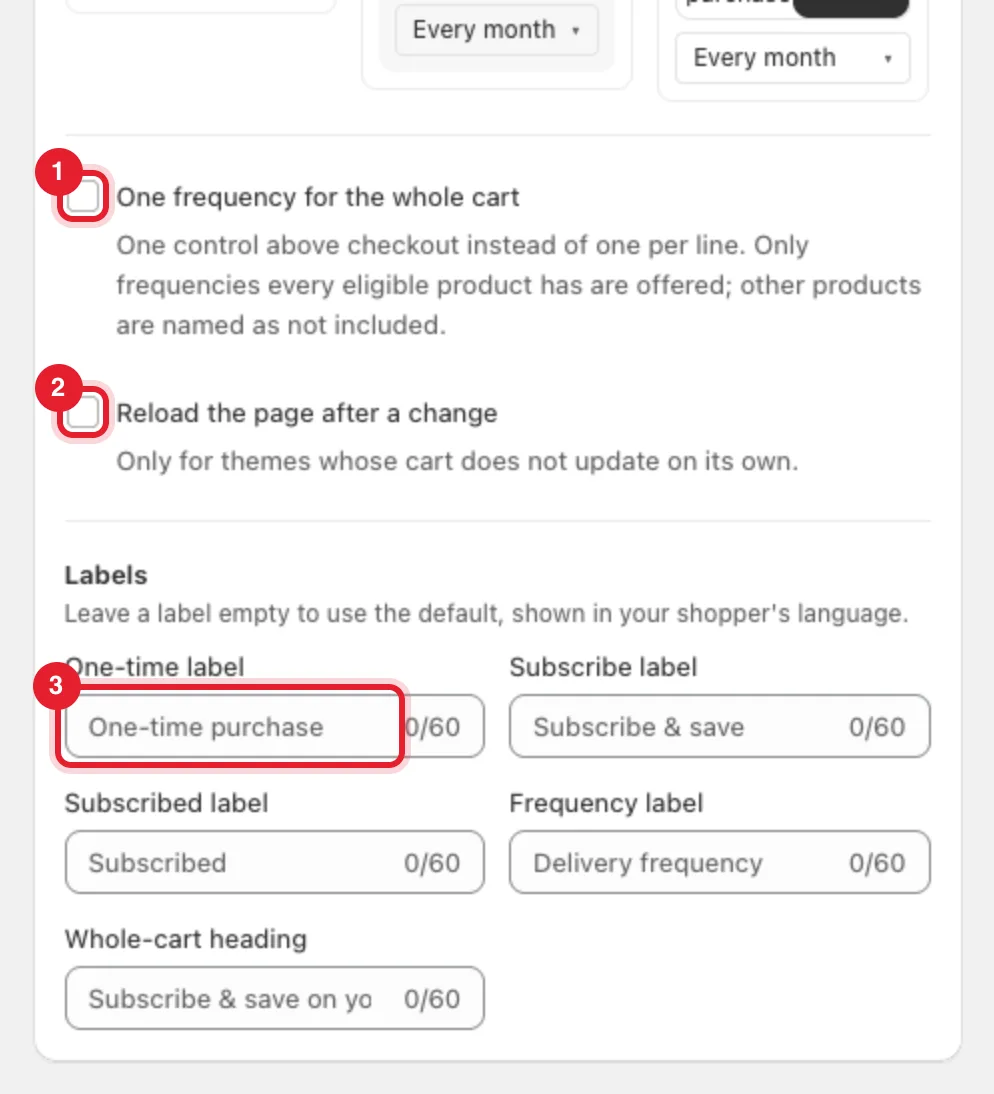
Click Save in the save bar at the top of the page.
Step 5: Check your cart drawer
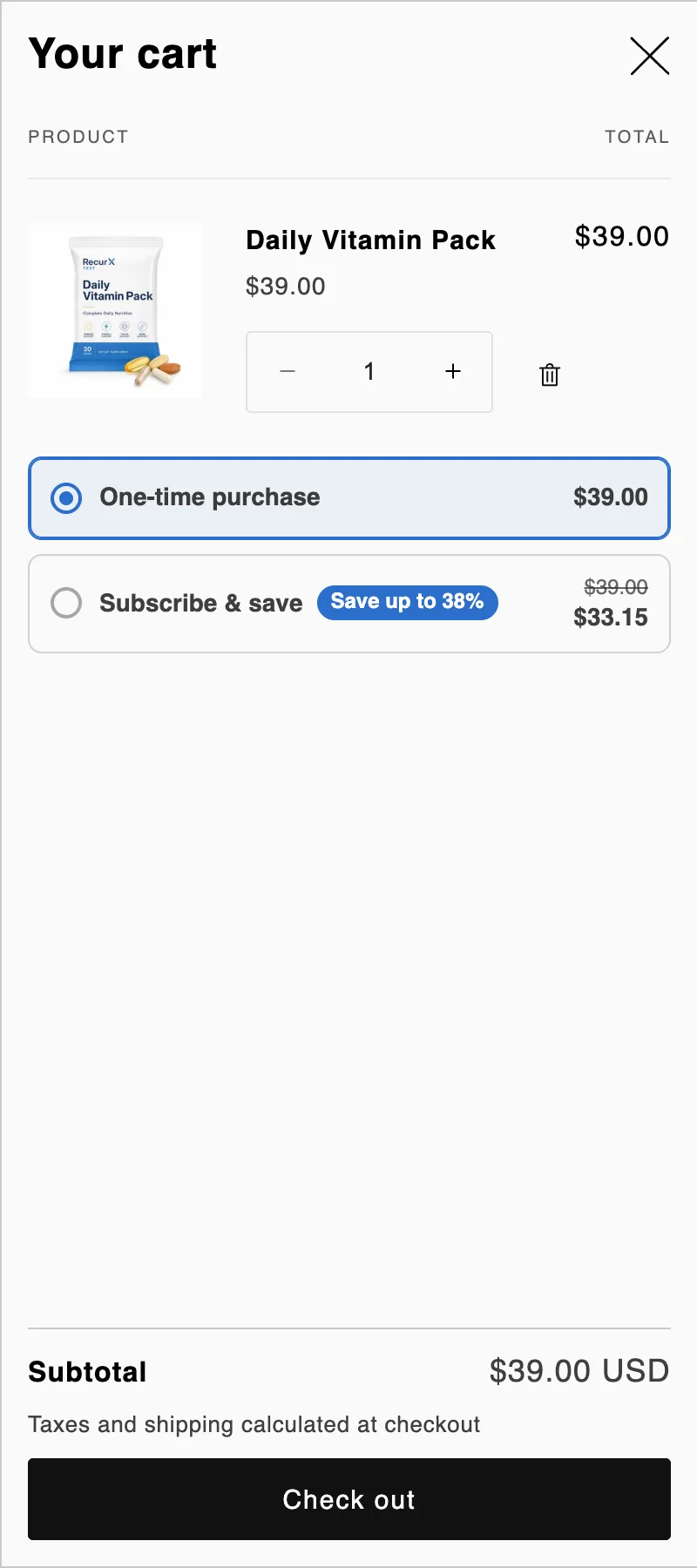
Add a product with a subscription plan to the cart as a one-time purchase and open the cart. Under the line, the shopper sees One-time purchase and Subscribe & save with the saving your plan gives.
When the shopper picks Subscribe & save, the line switches to the subscription price and a Delivery frequency picker appears with every frequency your plan offers.
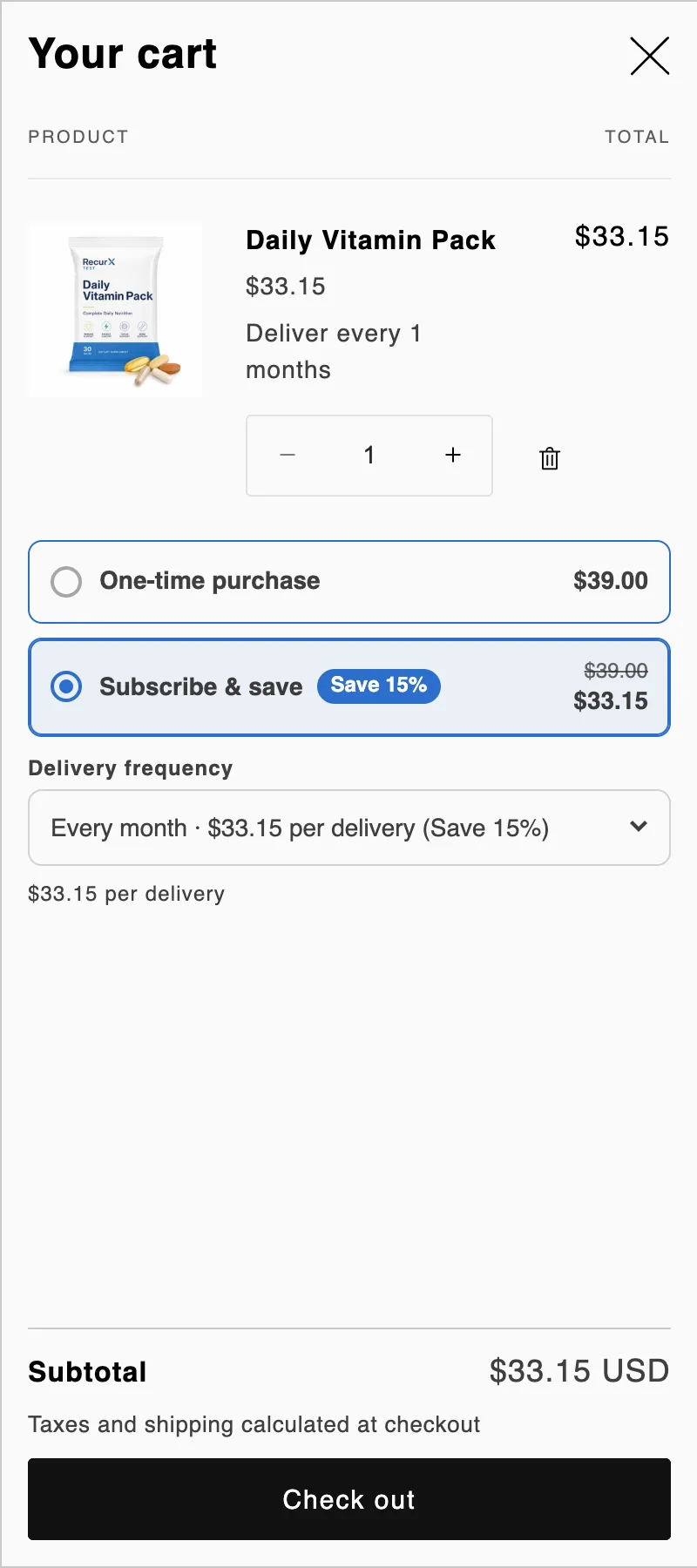
The price shown is the one your plan gives — nothing extra is discounted in the cart.
On the Basic plan: the cart subscription upgrade
On Basic, the Cart widget card is locked and the Cart subscription upgrade card appears in its place on the Behavior tab:
- Tick Show the subscription offer in the cart. When a shopper adds a product as a one-time purchase, the cart offers to switch it to a subscription.
- Optionally change the Offer heading (up to 60 characters). The discount is read from the product's subscription plan.
- Click Save.
Note: The test store used for these screenshots is on Pro, so the Basic card isn't pictured. See RecurX plans and billing to upgrade.
Troubleshooting
- Nothing appears in the cart — check the product has an active subscription plan, the line was added as a one-time purchase, and Enable upsells and cart offers (or the RecurX Upsells app embed) is on in your theme.
- The cart doesn't update after a shopper switches — tick Reload the page after a change.
- "Use 60 characters or fewer." / "Remove the < and > characters." — shorten the label or remove the characters.
For product recommendations inside the same drawer, see Order bumps and add-ons.
Note: Older versions of this article mentioned a separate "RecurX Cart Drawer" app embed, a free-shipping progress bar and a JavaScript API. RecurX doesn't have those: it works inside your theme's own drawer.