
A cross-sell recommends products that go well with the one a shopper is looking at. In RecurX you create it as an offer on the Upsells page. Two offer types are cross-sells:
- Frequently bought together — related products on the product page, with one button to add them all.
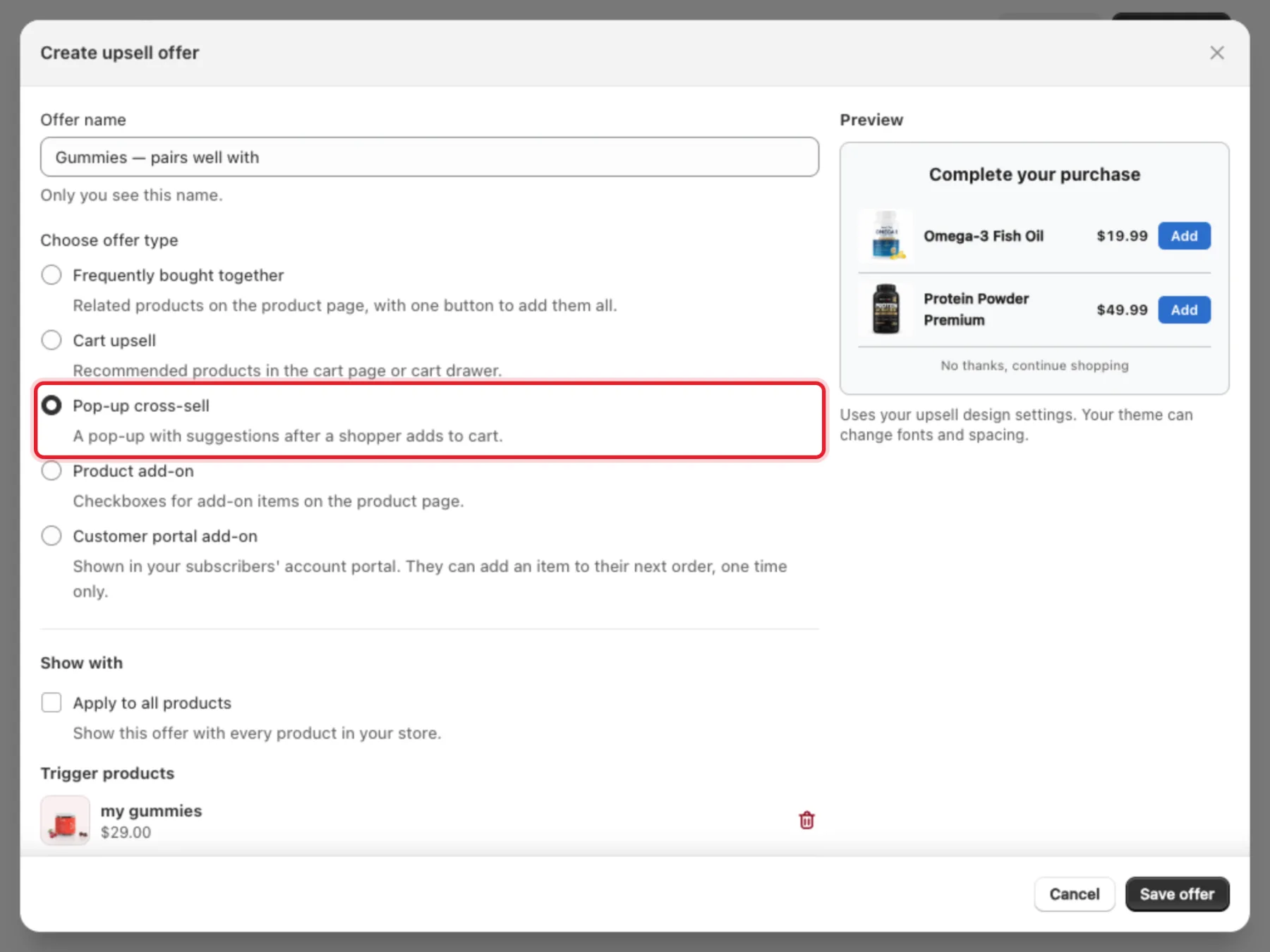
- Pop-up cross-sell — a pop-up with suggestions after a shopper adds to cart.
This guide sets up a frequently-bought-together offer from start to finish. It takes about 3 minutes.
Before you start: offers only show on your storefront while the RecurX Upsells app embed is on in your theme. If it's off, the Upsells page shows a Turn on the RecurX Upsells app embed banner with an Open theme editor button.
Step 1: Open Upsells
- In your Shopify admin, open Apps → RecurX Subscriptions → Growth.
- On the Upsell rules card, click Manage upsell rules.
- Click Create offer in the top right.
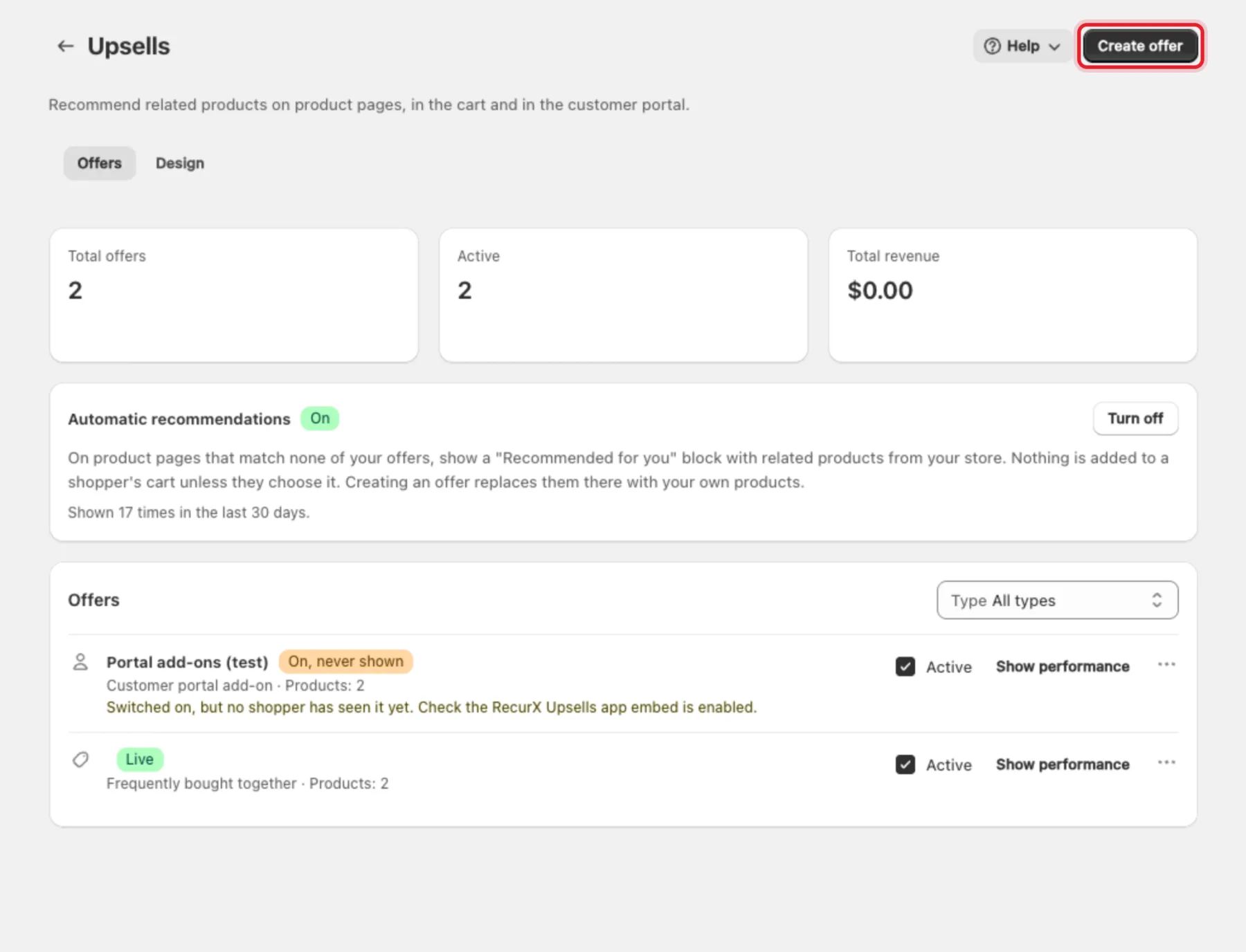
The page shows Total offers, Active and Total revenue, the Automatic recommendations switch and your list of Offers.
Step 2: Name the offer and choose its type
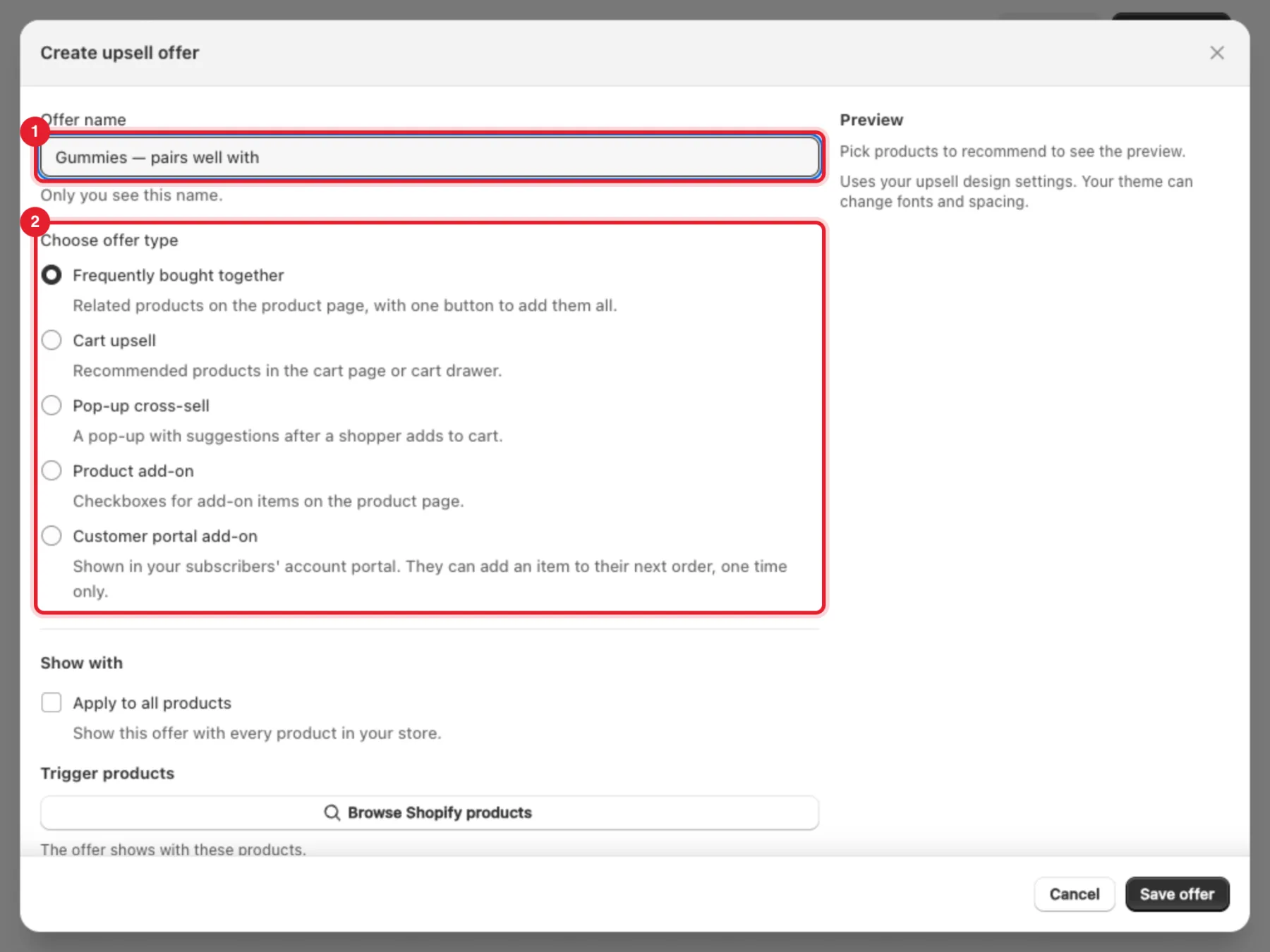
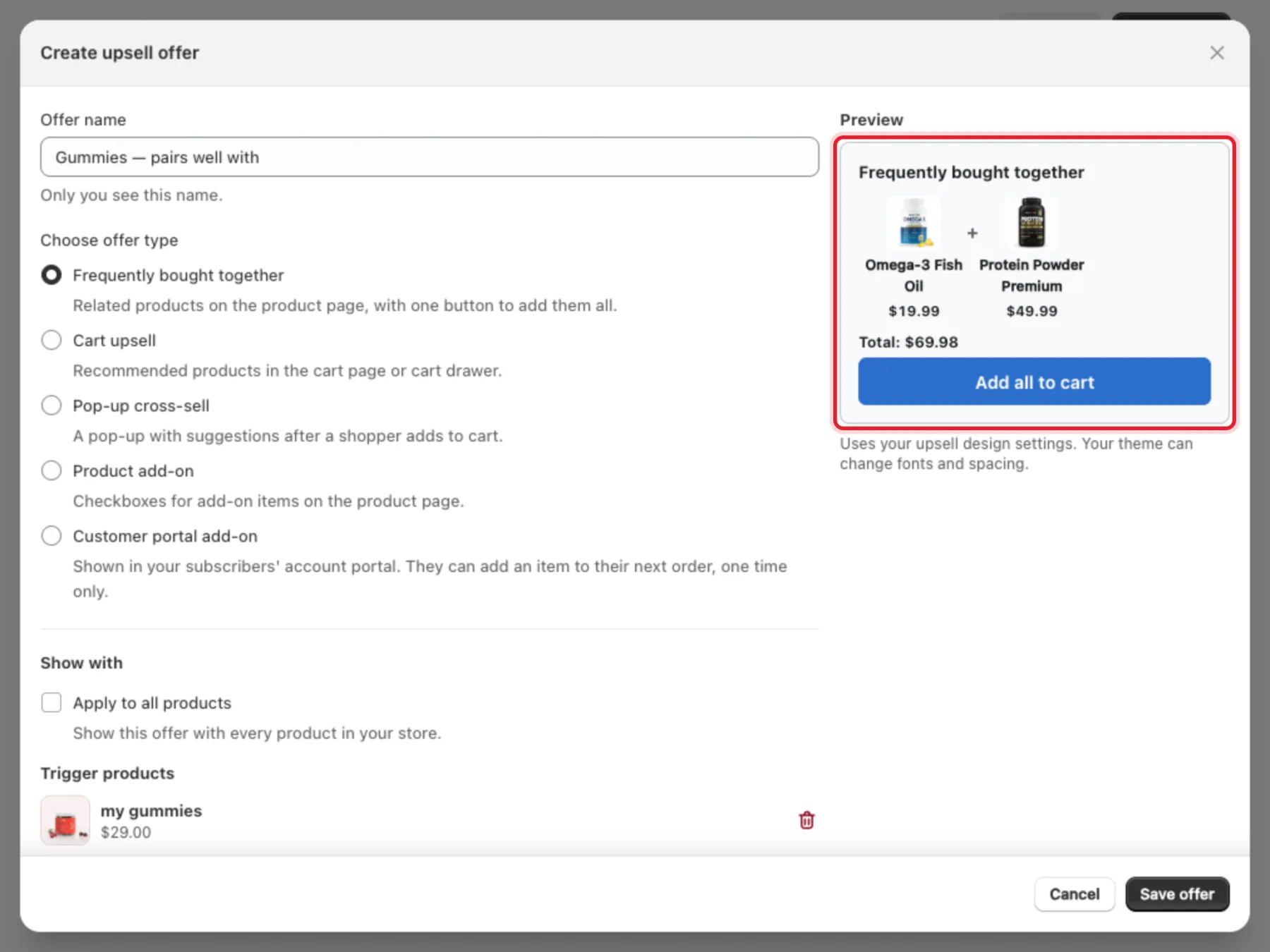
- Offer name — only you see it, for example Gummies — pairs well with.
- Under Choose offer type, select Frequently bought together.
Step 3: Choose which products show the offer
Under Show with:
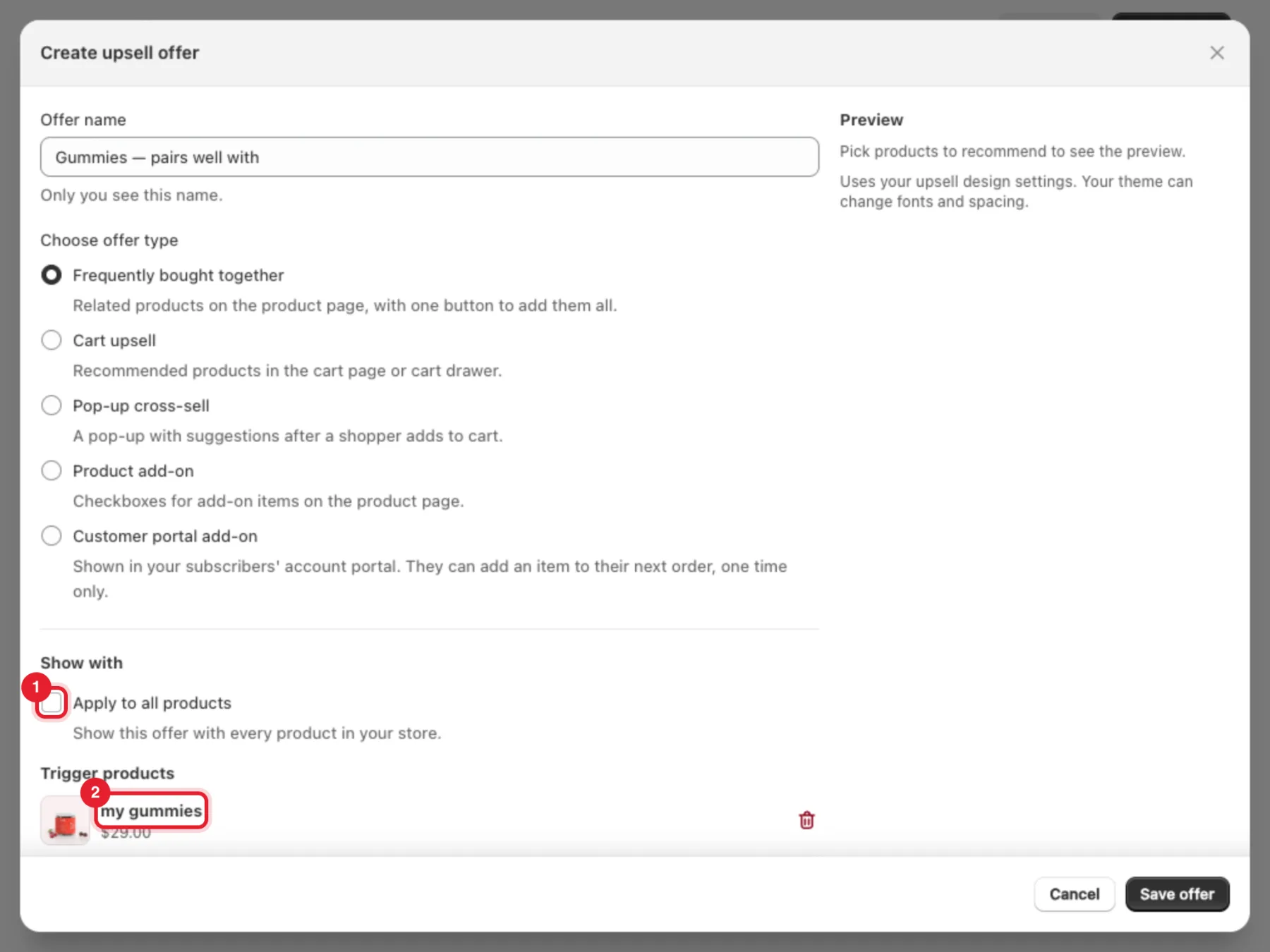
- Tick Apply to all products to show the offer with every product in your store, or leave it unticked.
- If unticked, click Browse Shopify products under Trigger products and pick the products whose pages should show the offer.
Step 4: Pick the products to recommend
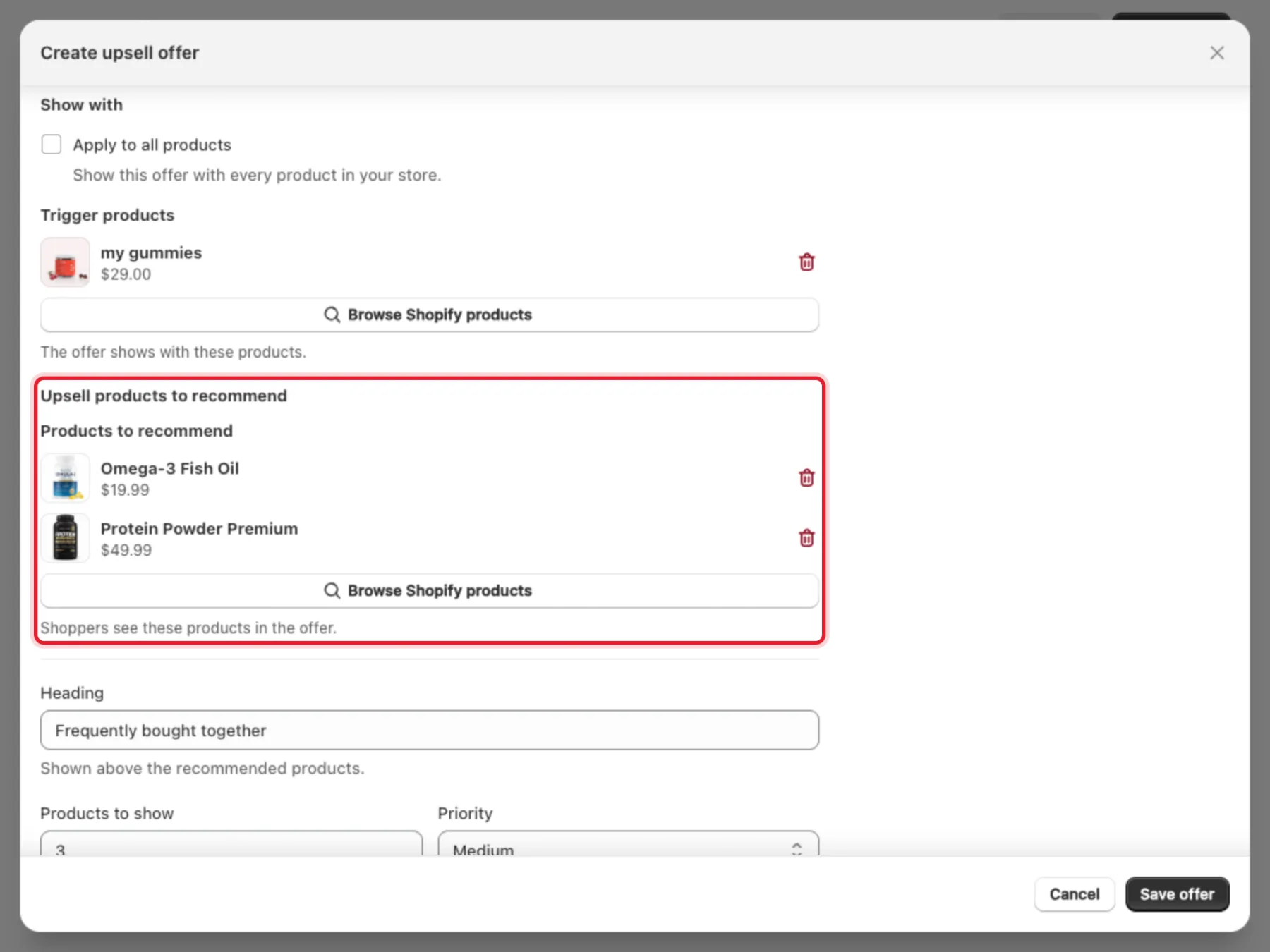
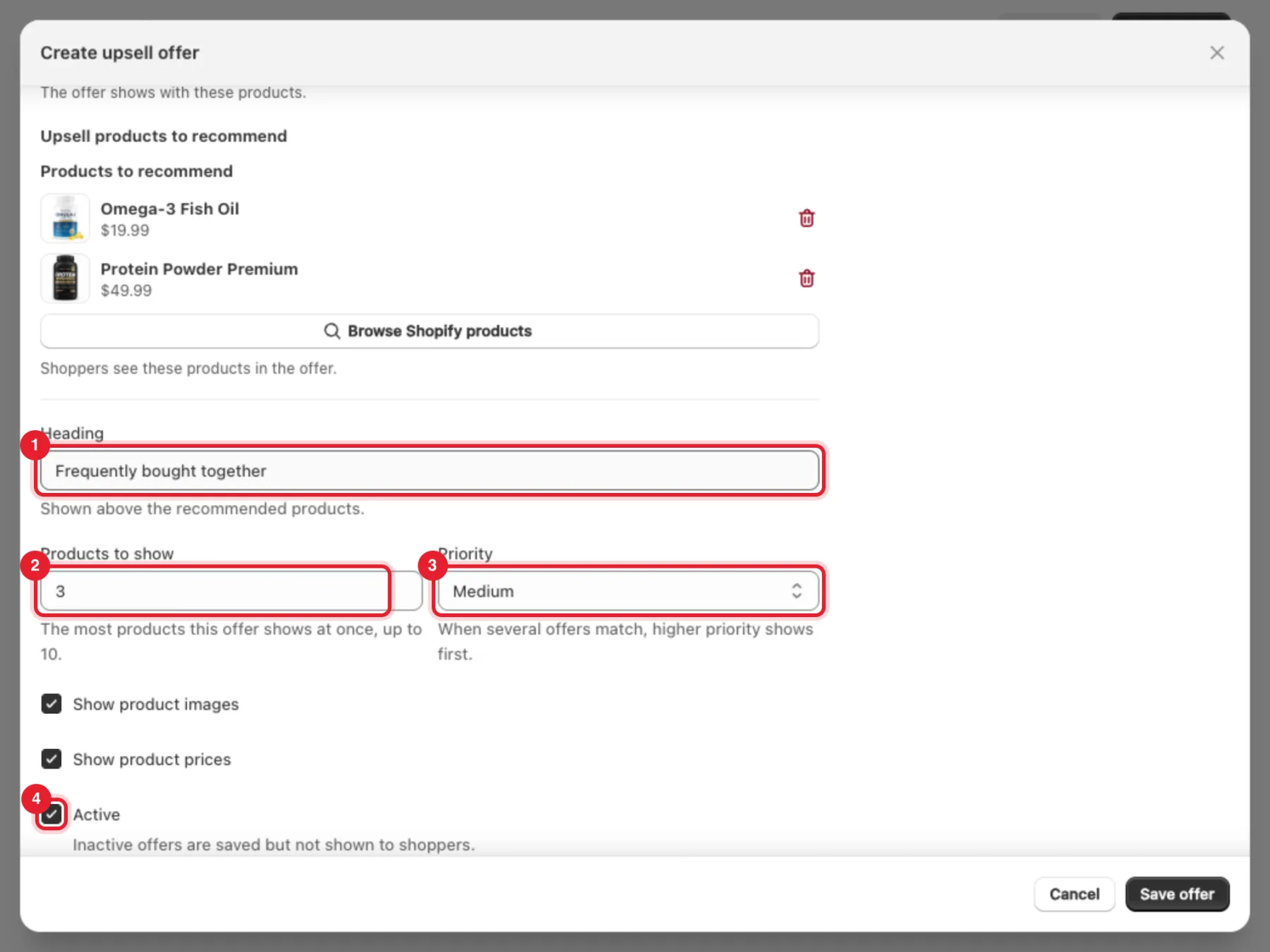
Under Upsell products to recommend, click Browse Shopify products and pick the products shoppers should see (up to 10).
The Preview on the right updates as you go. It uses your upsell design settings; your theme can change fonts and spacing.
Step 5: Set the heading and display options
- Heading — shown above the recommended products. It starts as Frequently bought together.
- Products to show — the most products this offer shows at once, from 1 to 10.
- Priority — Low, Medium or High. When several offers match the same product, the higher priority shows first.
- Active — untick to save the offer without showing it.
Show product images and Show product prices are on by default.
Click Save offer at the bottom of the window.
Tip: Want the suggestions to appear right after a shopper adds to cart instead? Choose Pop-up cross-sell as the offer type. The preview switches to the pop-up, with an Add button per product and No thanks, continue shopping. Its heading starts as Complete your purchase.
Step 6: Check your storefront
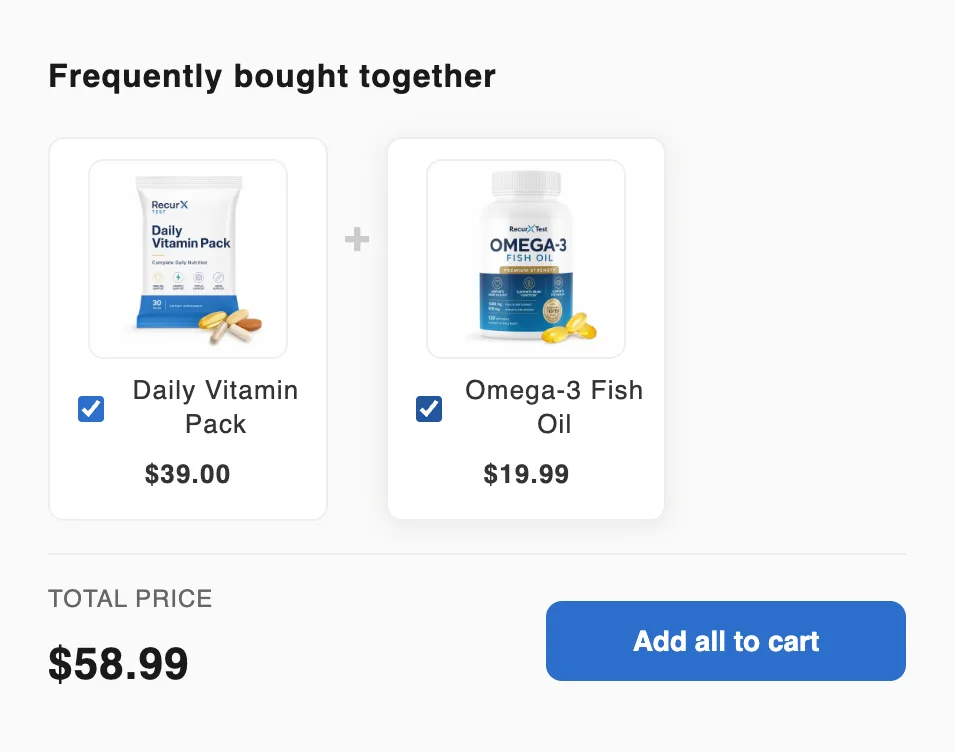
Open one of the trigger products on your storefront. The block shows on the product page, next to the product form. Shoppers tick the products they want — the total updates, for example Total (2 selected) — and click Add all to cart.
Note: Recommended products are added at your normal store price. Upsell offers don't apply a discount.
Automatic recommendations
On product pages that match none of your offers, RecurX can show a Recommended for you block with related products from your store. Click Turn on (or Turn off) on the Automatic recommendations card. Nothing is added to a shopper's cart unless they choose it, and as soon as you create an offer for a product, your own products replace the automatic ones there.

Track performance
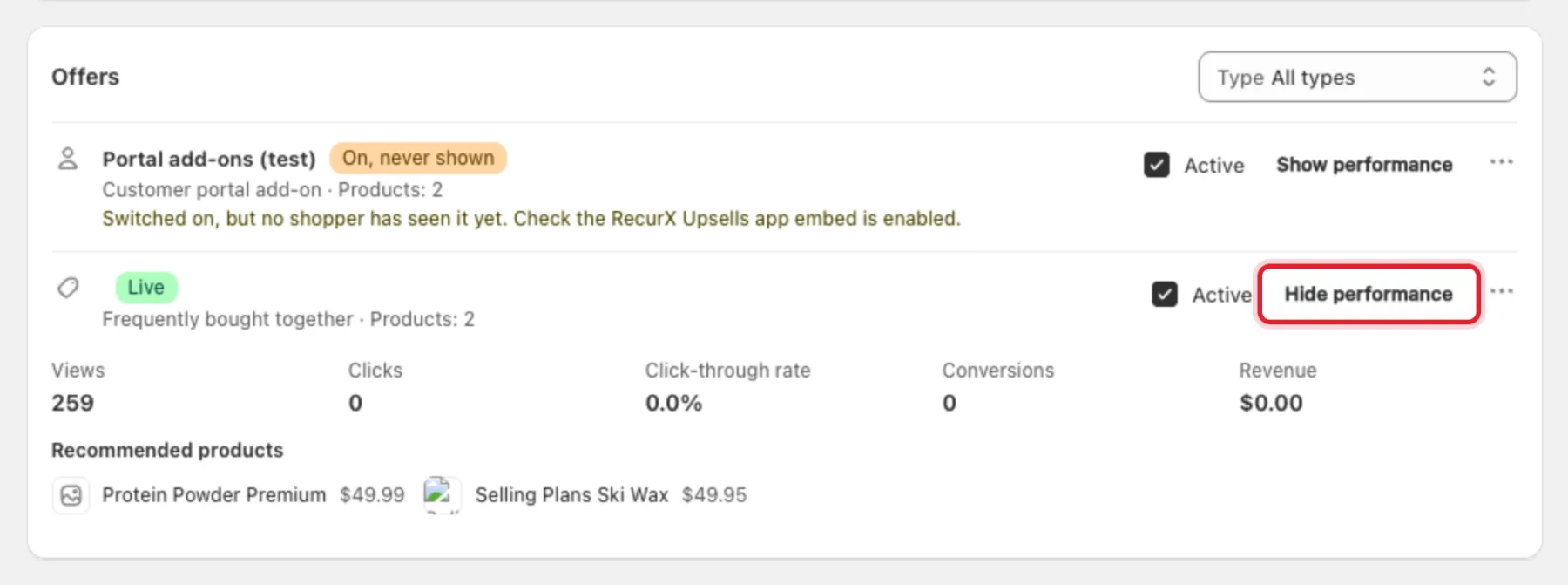
Each offer in the list has a status badge: Live once shoppers have seen it; On, never shown if it's switched on but no shopper has seen it yet (usually the app embed is off); Draft when it's not active; On, but empty or Empty when it has no products. Click Show performance to see Views, Clicks, Click-through rate, Conversions and Revenue for that offer. The ••• menu has Edit, Duplicate and Delete.
Change the look or turn a placement off
Open the Design tab:
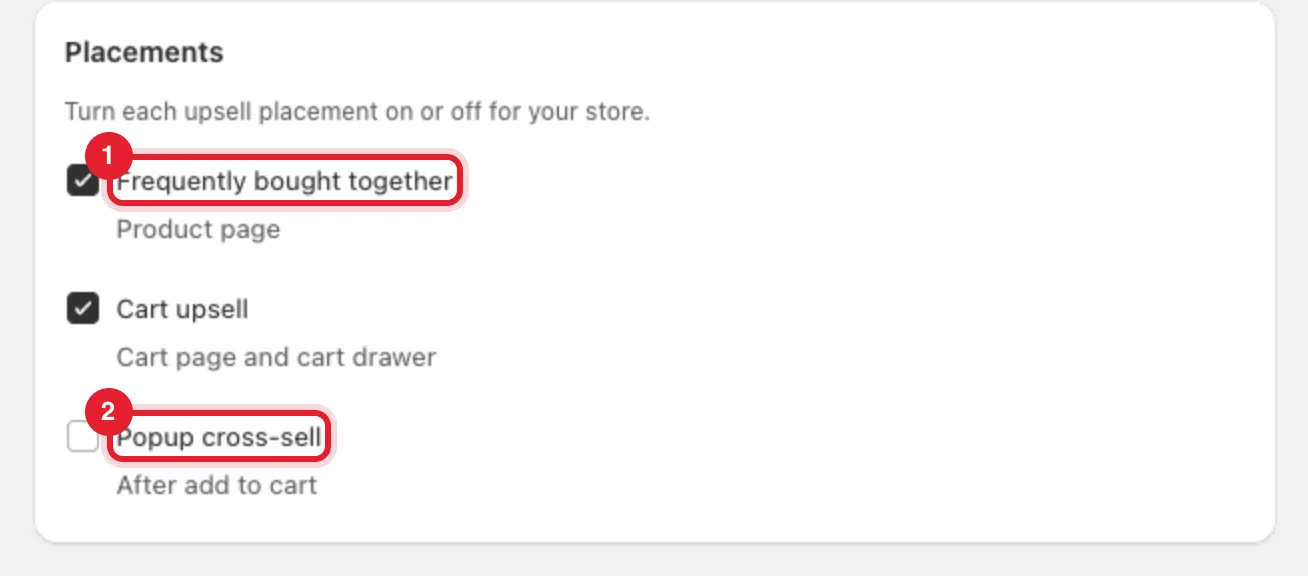
- Under Placements, untick Frequently bought together (product page) or Popup cross-sell (after add to cart) to switch that placement off for your whole store.
- Change the default Heading and Button text for frequently bought together, and the Accent color and Corner radius under Style. Leave them empty to match your subscription widget.
- Click Save in the save bar.
Troubleshooting
- "Pick at least one product, or apply the offer to all products." — choose trigger products in Step 3 or tick Apply to all products.
- "Pick at least one product to recommend." — add products in Step 4.
- "Enter a name for this offer." / "Enter a heading." — fill in Offer name or Heading.
- The block doesn't appear — check the offer is Active, the placement is ticked on the Design tab, and the RecurX Upsells app embed is on.
For add-on checkboxes and cart recommendations, see Order bumps and add-ons.