
Once someone has subscribed, the best time to sell them more is their next delivery — the shipping is already paid for. RecurX gives you three places to do that:
- Customer portal add-ons — products your subscribers can add to their next order while they manage their subscription.
- Add to subscription (Pro plan) — an Add to my next delivery button on your product pages for logged-in subscribers.
- Thank-you page block — right after checkout, tells new subscribers where to pause, skip or cancel.
Note: RecurX doesn't show a one-click upsell between checkout and the thank-you page, and it has no "post-purchase funnel" builder. Older versions of this article described one; that page was removed from the app and its old link now opens Express links.
Step 1: Create a customer portal add-on
- Open Apps → RecurX Subscriptions → Growth, and on the Upsell rules card click Manage upsell rules.
- Click Create offer and enter an Offer name (only you see it).
- Under Choose offer type, select Customer portal add-on.
- Under Upsell products to recommend, click Browse Shopify products and pick the products to offer (up to 10).
- Check the Preview — the heading starts as Goes well with your next order, with an Add button per product — then click Save offer.
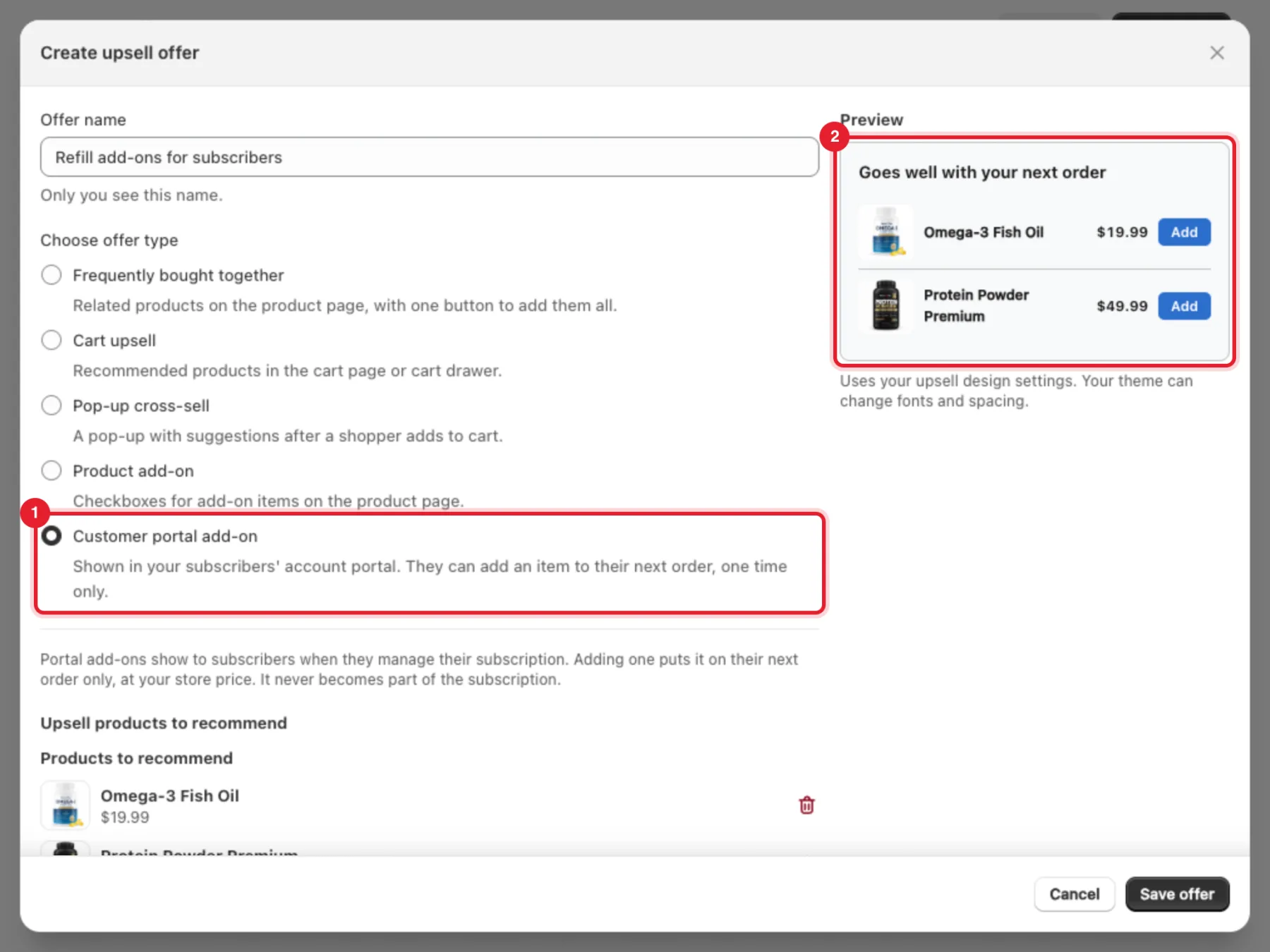
A portal add-on has no Show with products: it shows to every subscriber when they manage their subscription. Adding one puts it on their next order only, at your store price. It never becomes part of the subscription.
Step 2: Check the offer is being seen
The offer appears in the Offers list with the type Customer portal add-on. Its badge turns to Live once subscribers have seen it. On, never shown means no subscriber has seen it in the portal yet.
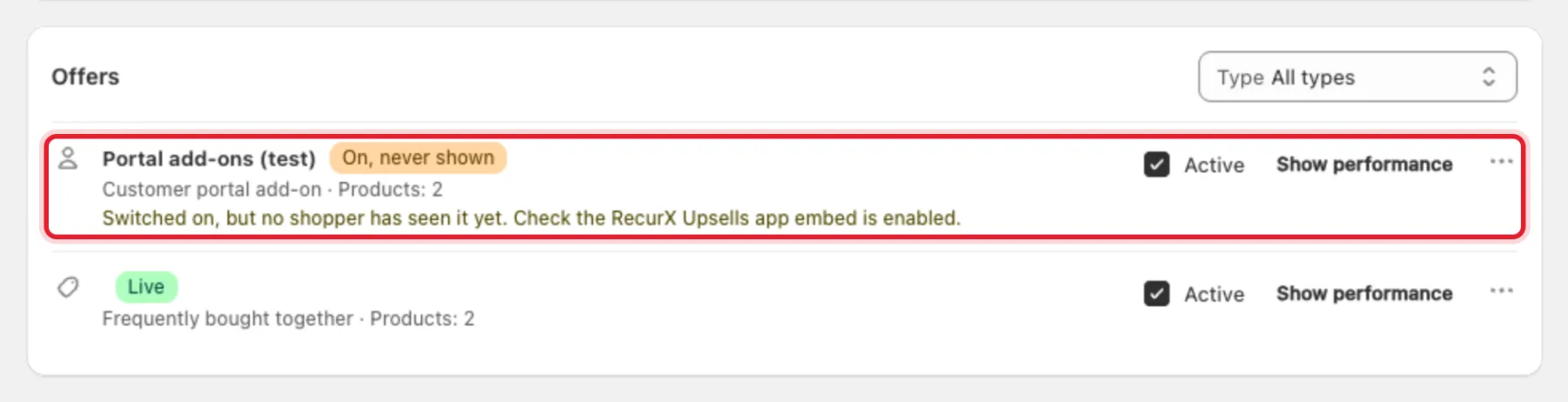
Click Show performance on the row for Views, Clicks, Click-through rate, Conversions and Revenue.
Step 3: Let subscribers add products from your product pages (Pro)
- On the Growth page, click Turn on add to subscription on the Add to subscription card.
- Tick Show "Add to my next delivery" on product pages. With the RecurX app embed on, the button shows under the subscription widget; you can also place the Add to subscription block in your product template.
- Under What customers can add, choose To every delivery or to the next order only, To every delivery only or To the next order only.
- Optionally tick Show a login link to logged-out shoppers and Only on products with a subscription plan, and change the button Labels.
- Click Save in the save bar.
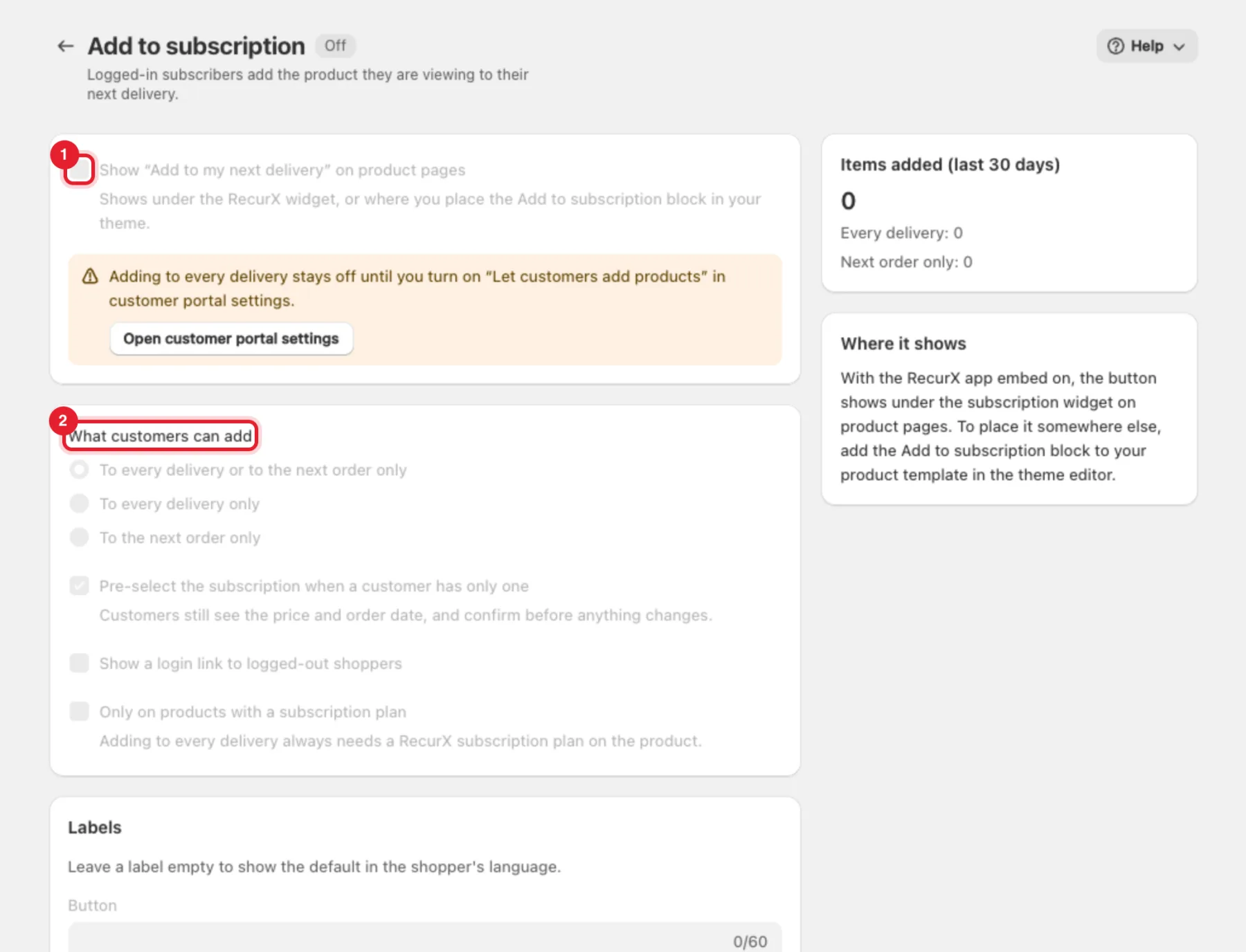
Important: Adding to every delivery stays off until you turn on Let customers add products in the customer portal settings. Click Open customer portal settings on the page to go there — see Set up the customer portal.
The Items added (last 30 days) card counts what subscribers added, split into Every delivery and Next order only.
Step 4: Add the thank-you page block
The RecurX Manage Subscription block shows on Shopify's thank-you page when the order contains a subscription. It tells the customer where to pause, skip or cancel, and links to their account.
- Go to App settings → Extensions in RecurX.
- Find Thank-you page: manage subscription and click Open checkout editor.
- In Shopify's checkout editor, switch to the Thank you page, click Add block and choose the RecurX block.
- Optionally change its Heading, Body copy and Link label in the block settings, then click Save in the checkout editor.
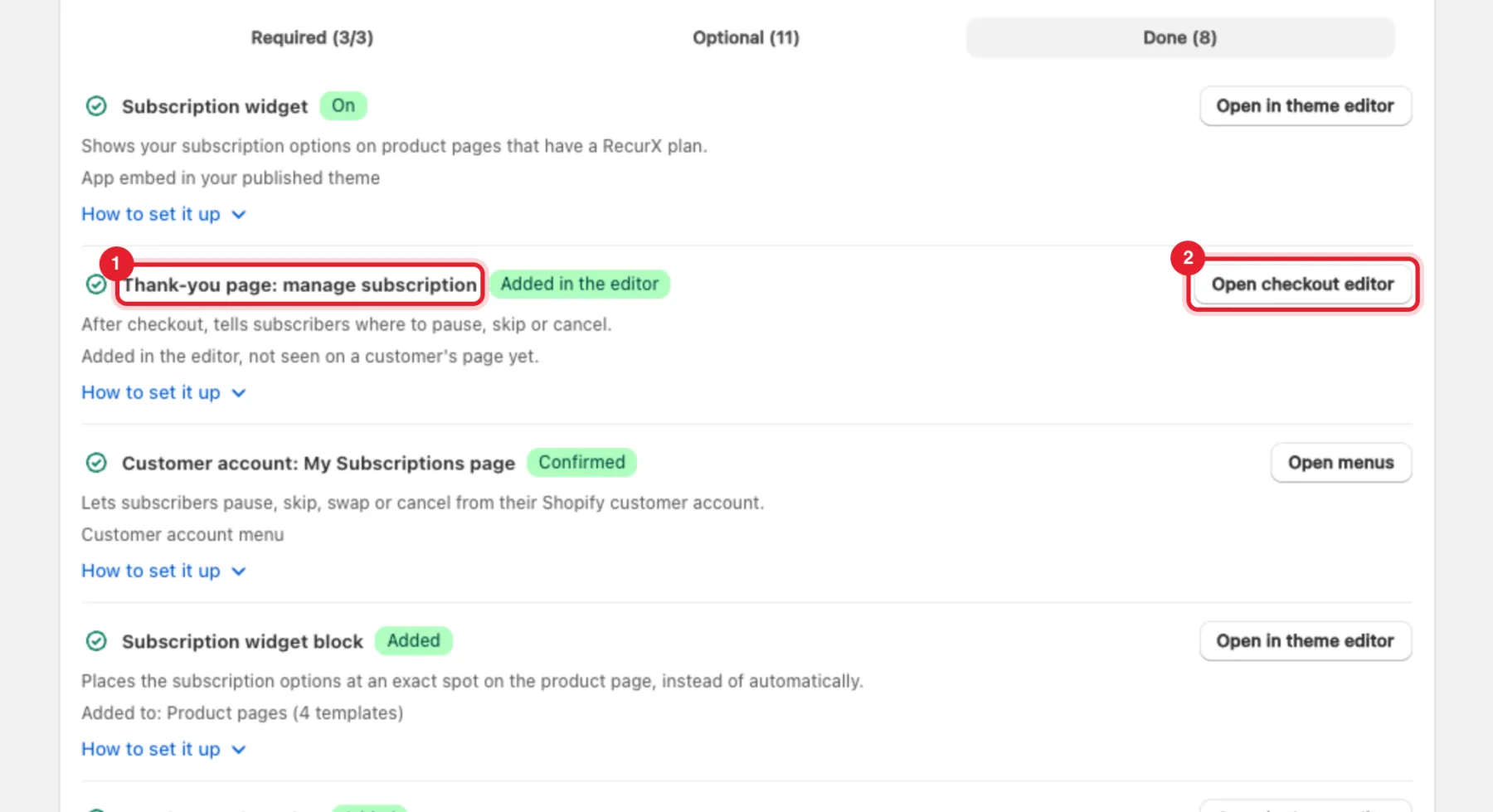
Shopify doesn't tell apps where checkout blocks are placed. The row shows Added in the editor once RecurX has seen the block, and says so if no customer has loaded it yet.
What happens next
- Subscribers see your portal add-ons the next time they open their subscription in the customer portal.
- Items added from the portal or with Add to my next delivery ship with the next order; nothing is charged until that order is billed.
- To grow the first order instead, use Order bumps and add-ons or Cross-sells.