
The Quiz asks shoppers a few questions and recommends products they can subscribe to. Start from a template made for your industry (coffee, pets, supplements, beauty and more), choose which of your products each answer recommends, then add the quiz to your store. Expect 15–20 minutes for your first quiz.
Who it's for: stores with several products or flavours, where shoppers need help choosing. The quiz is on every plan. The Routine discount on the result page is on the Pro plan.
Step 1: Open Quiz
- In your Shopify admin, open Apps → RecurX Subscriptions.
- Click Growth in the sidebar.
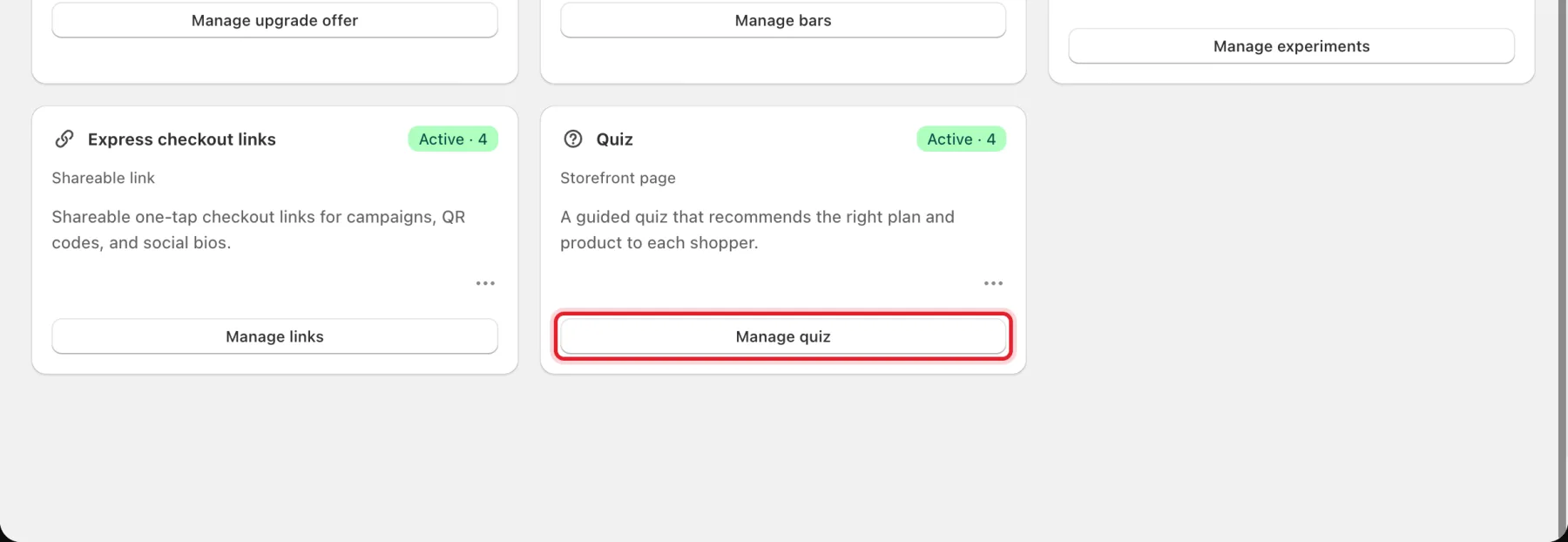
- On the Convert tab, click Manage quiz on the Quiz card.
Step 2: Start from a template
- Under Start from a template, pick your industry tab, for example Coffee.
- Click Use on a template. Click Preview first to see it.
- Or click Create quiz to start from a quiz RecurX builds from your own products.
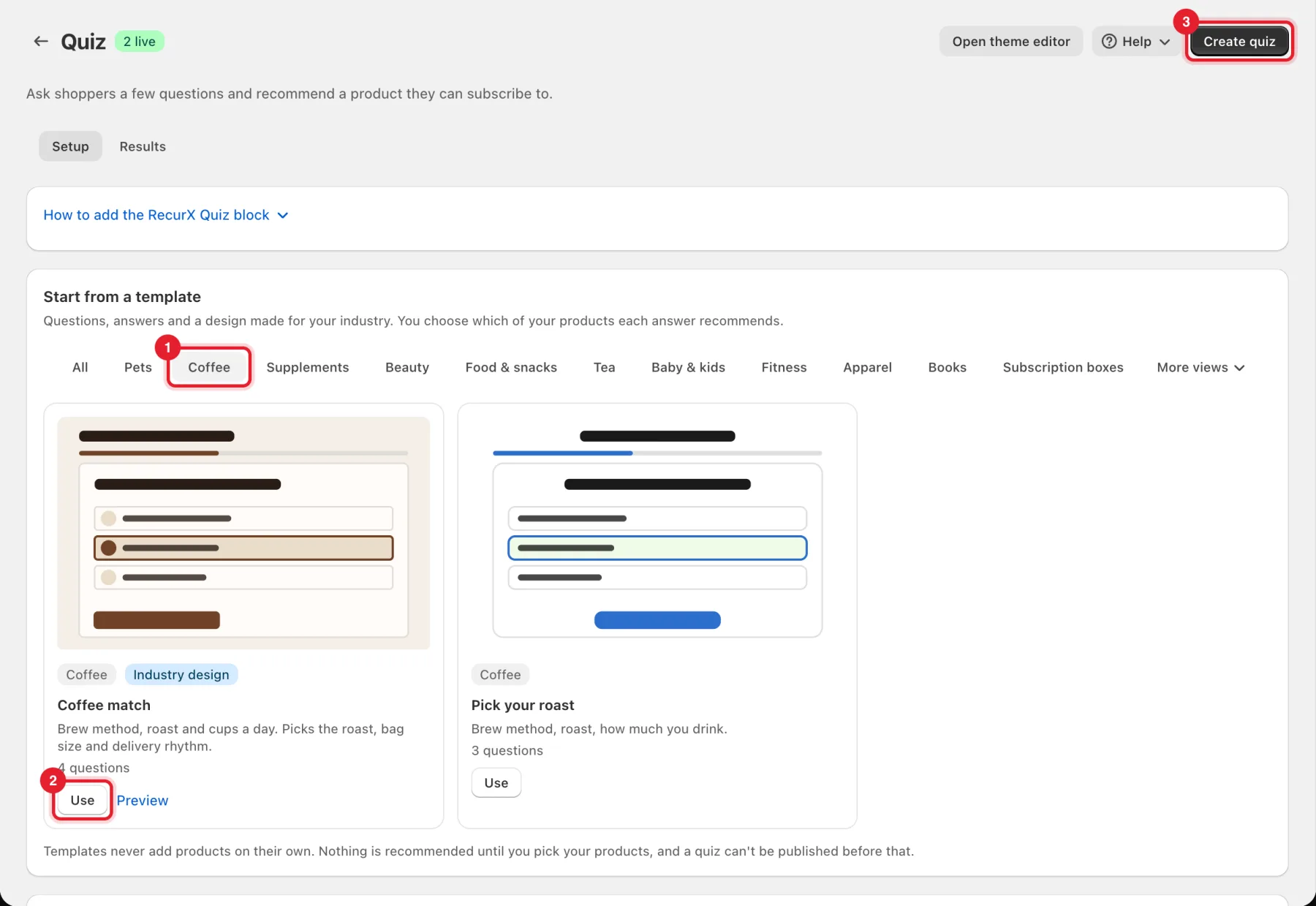
Note: Templates never add products on their own. Nothing is recommended until you pick your products, and a quiz can't be published before that.
Step 3: Fill in the basics
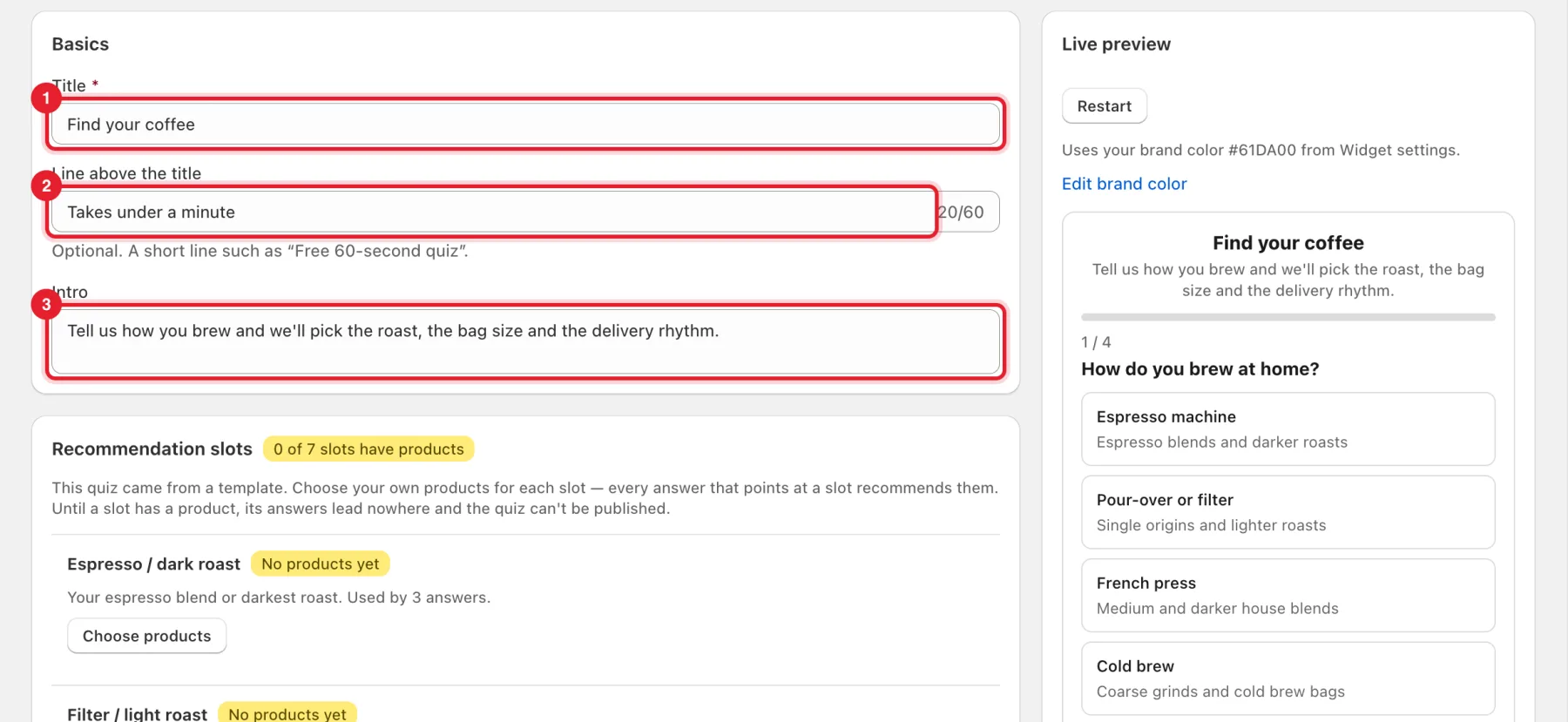
Under Basics:
- Title: the quiz heading.
- Line above the title: optional, such as Free 60-second quiz (up to 60 characters).
- Intro: a sentence under the title.
Step 4: Choose products for each slot
A quiz from a template has Recommendation slots, such as Espresso / dark roast or Decaf. Every answer that points at a slot recommends the products in it.
- The badge shows how many slots have products, for example 0 of 7 slots have products.
- Click Choose products under each slot and pick your products.
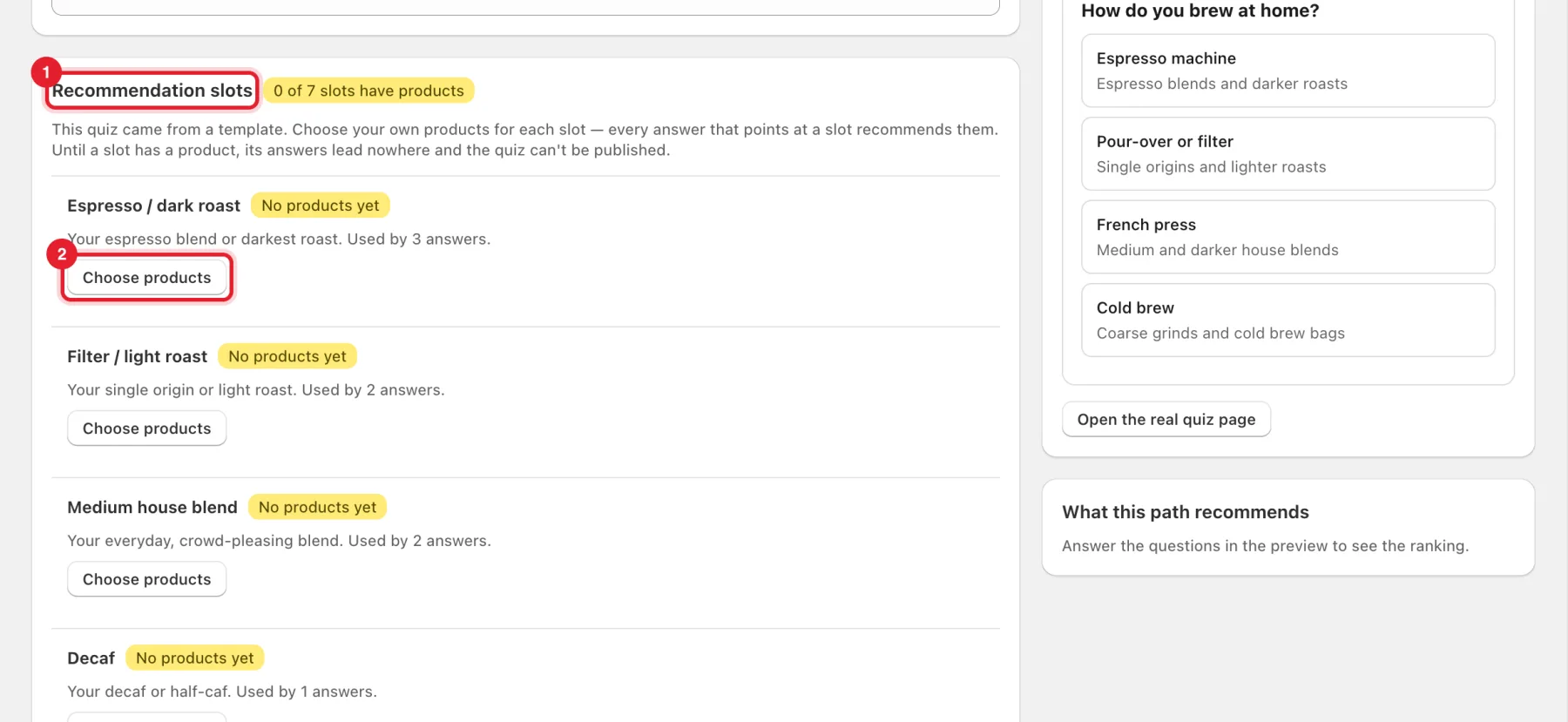
Until a slot has a product, its answers lead nowhere and the quiz can't be published.
Step 5: Fix what the recommendation check finds
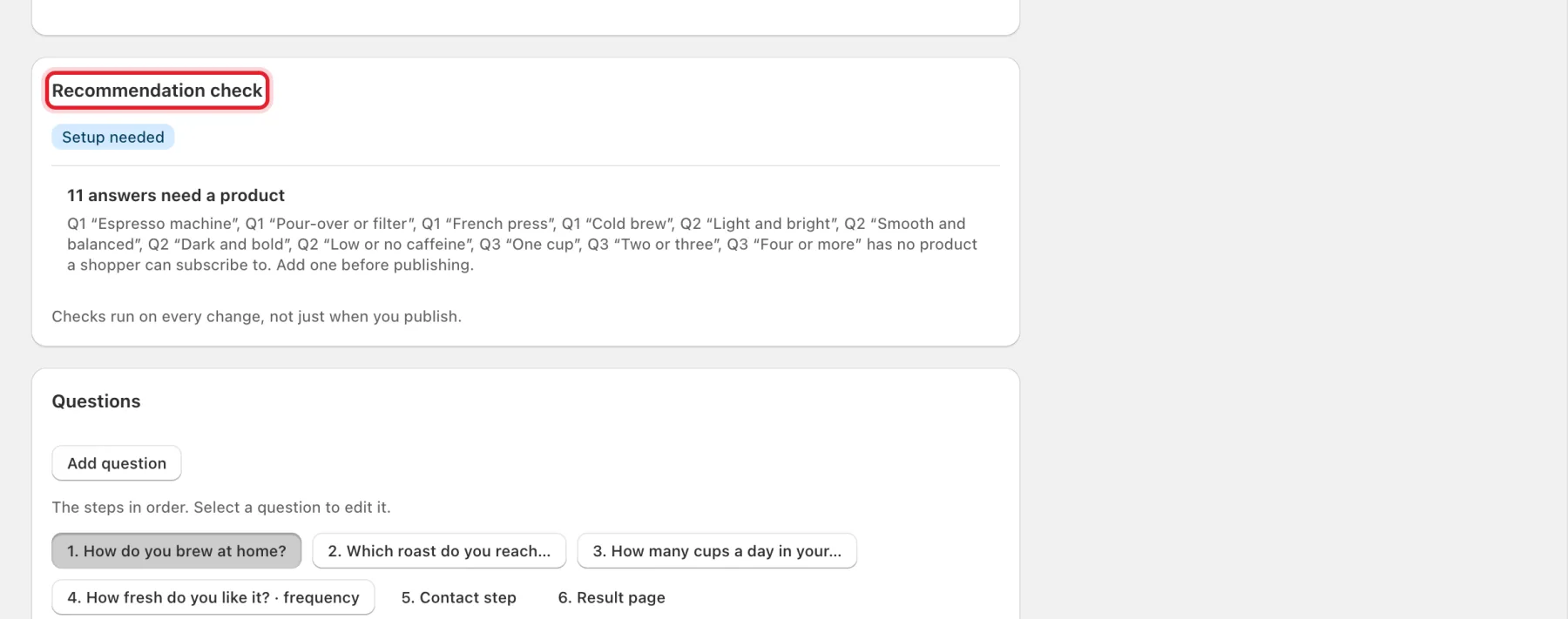
The Recommendation check lists answers that still have no product a shopper can subscribe to, for example 11 answers need a product. The checks run on every change, not just when you publish.
Step 6: Edit the questions
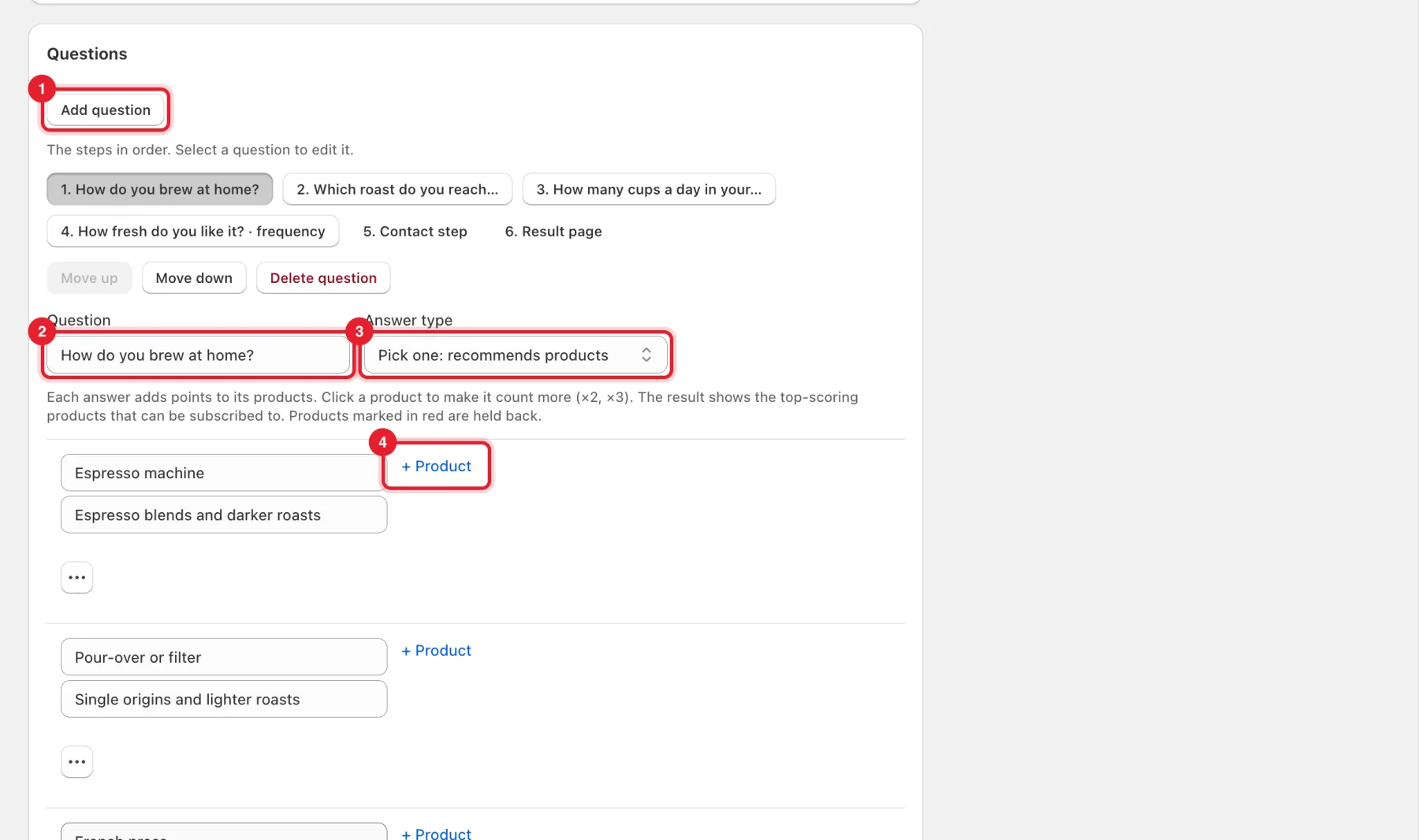
Under Questions, the steps are listed in order. Select one to edit it.
- Click Add question to add a step. Use Move up, Move down and Delete question to reorder or remove it.
- Question: the text shoppers read.
- Answer type: Pick one: recommends products, or Sets delivery frequency for a question that picks how often the order arrives.
- For each answer, click + Product to link products. Each answer adds points to its products. Click a product again to make it count more (×2, ×3). The result shows the top-scoring products that can be subscribed to. Products marked in red are held back.
Click Add answer for more answers.
Step 7: Set up the result page
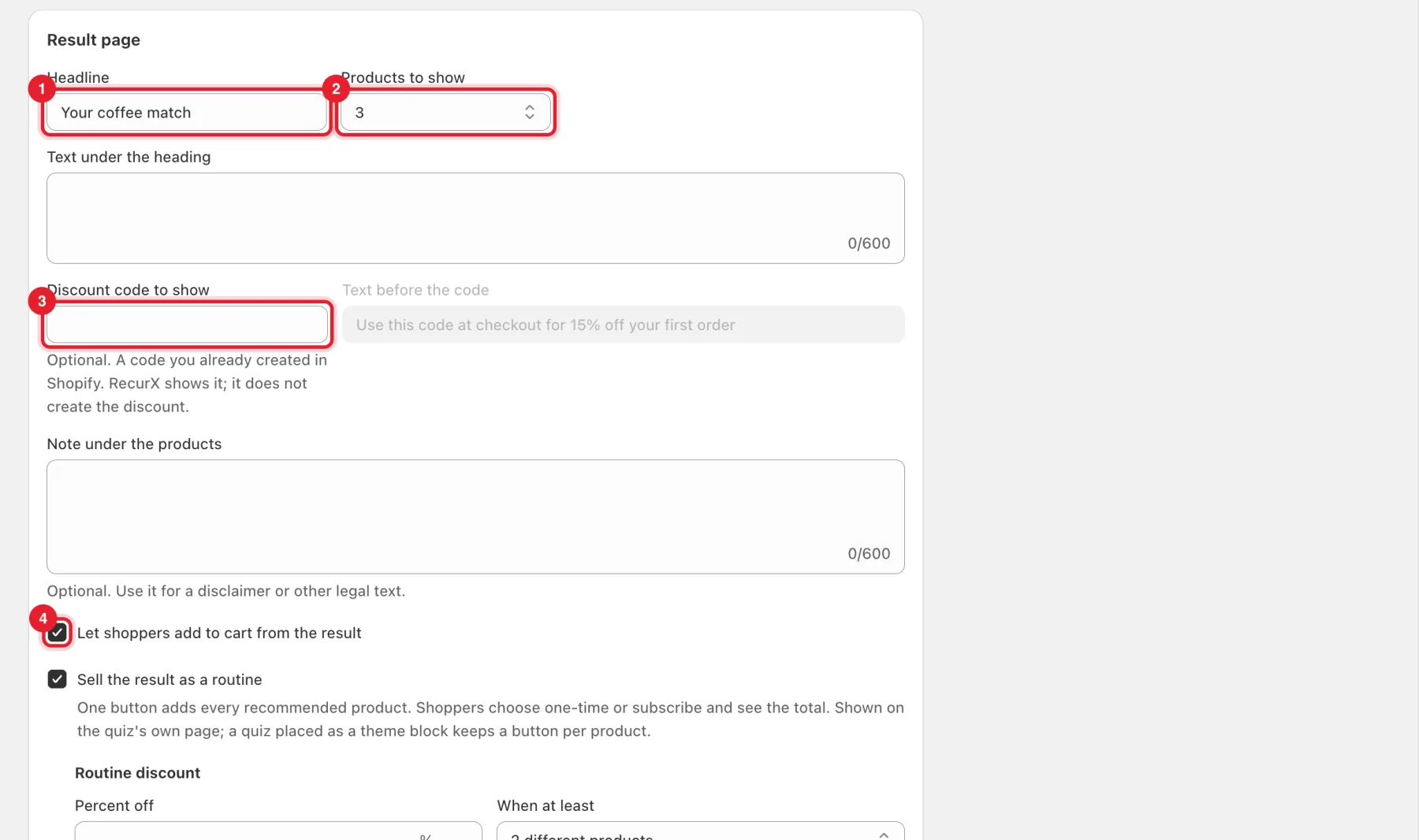
Select Result page in the list of steps:
- Headline: the heading above the recommendations.
- Products to show: from 1 to 4.
- Discount code to show: optional. Enter a code you already created in Shopify. RecurX shows it but does not create the discount.
- Let shoppers add to cart from the result: shows add-to-cart buttons on the result.
You can also fill in Text under the heading and a Note under the products, for example a disclaimer.
Step 8: Choose routine, email and details options
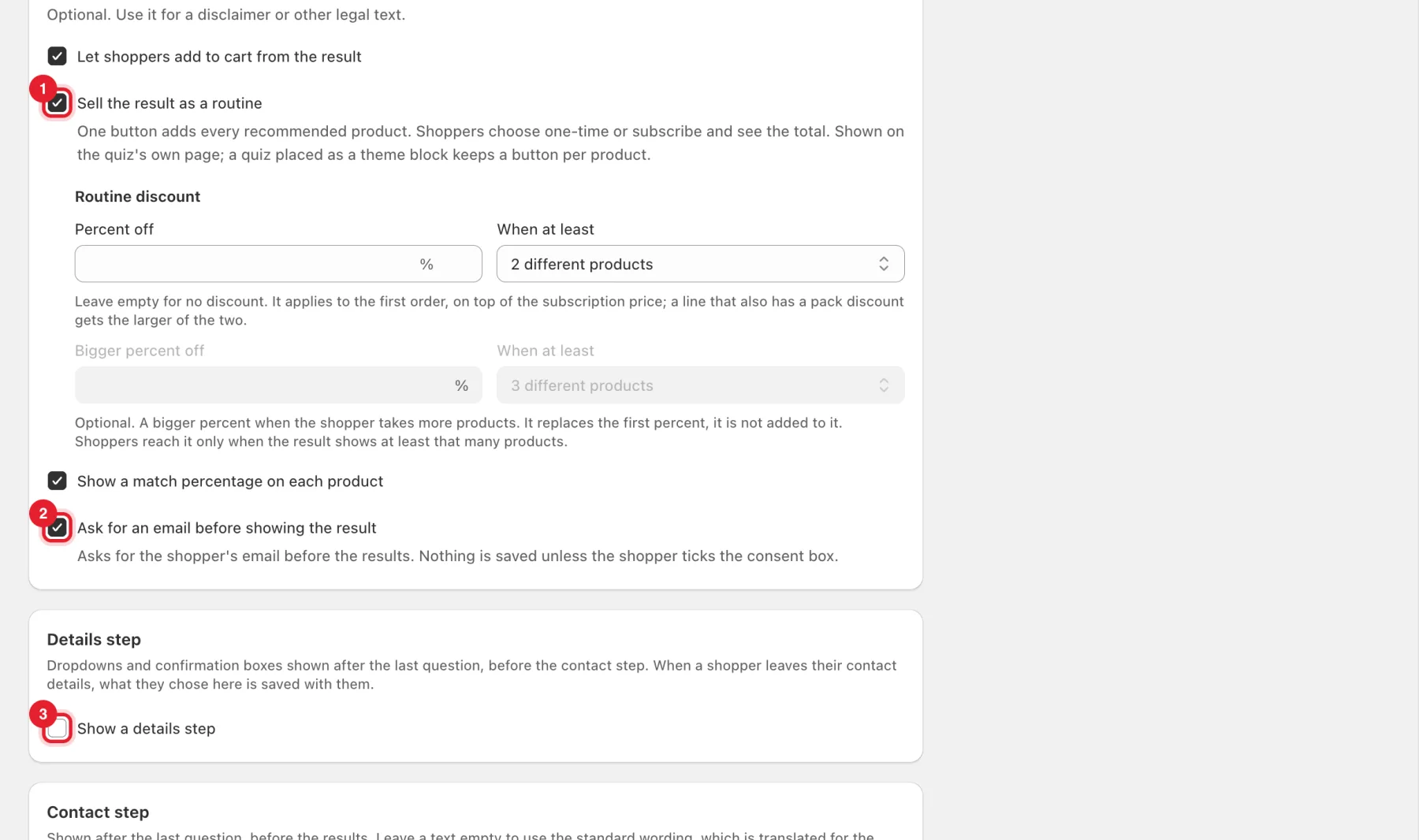
- Sell the result as a routine: one button adds every recommended product. Shoppers choose one-time or subscribe and see the total. It shows on the quiz's own page. A quiz placed as a theme block keeps a button per product. On Pro, set a Routine discount: a Percent off for the first order When at least 2, 3 or 4 different products are taken, and an optional Bigger percent off.
- Ask for an email before showing the result: nothing is saved unless the shopper ticks the consent box.
- Show a details step: adds dropdowns and confirmation boxes after the last question, before the contact step.
Step 9: Try it in the live preview
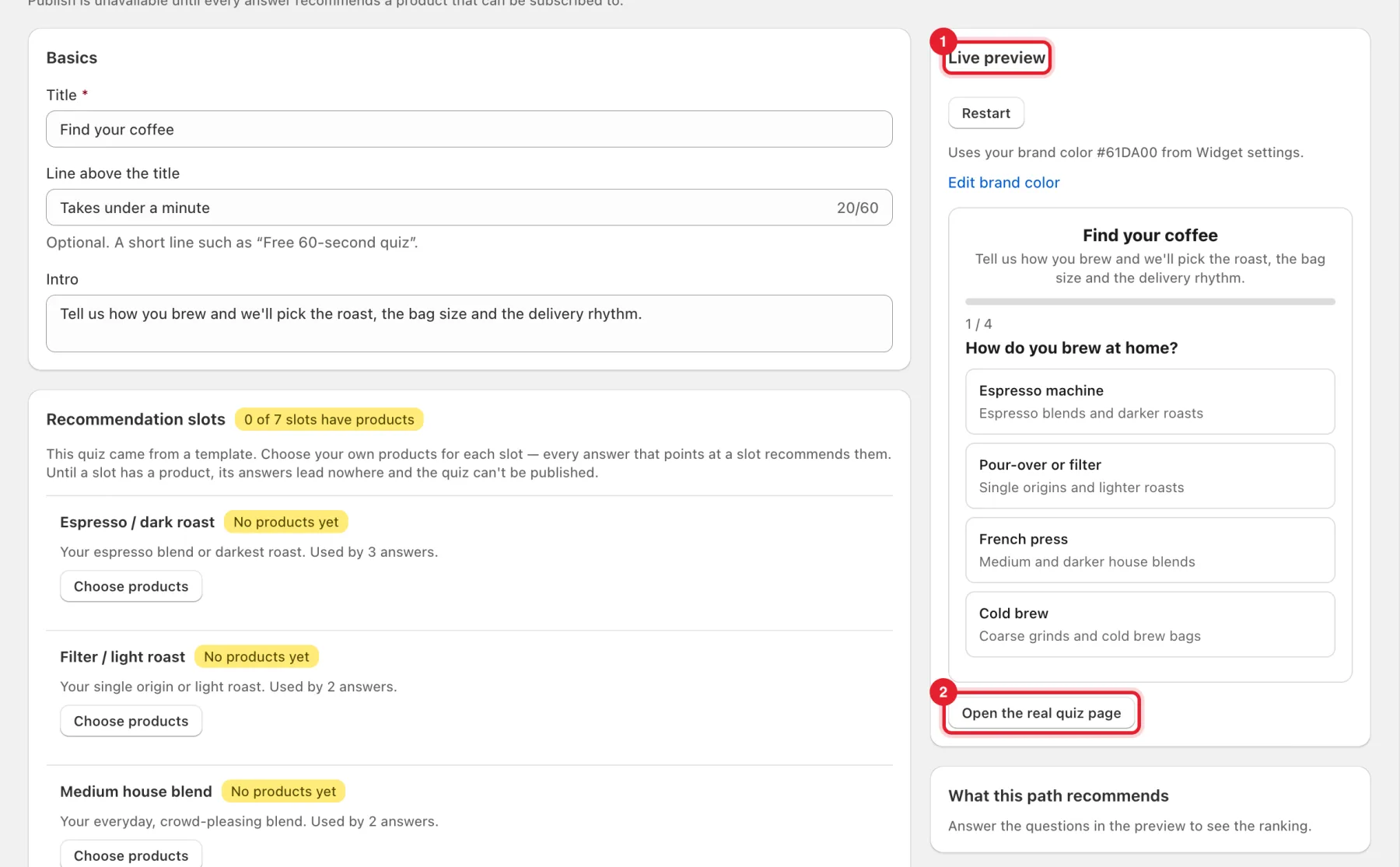
- The Live preview on the right is the quiz shoppers see. Click answers to walk through it, and Restart to begin again. What this path recommends shows the ranking for the answers you picked.
- Click Open the real quiz page to open it on your store.
Step 10: Pick a design
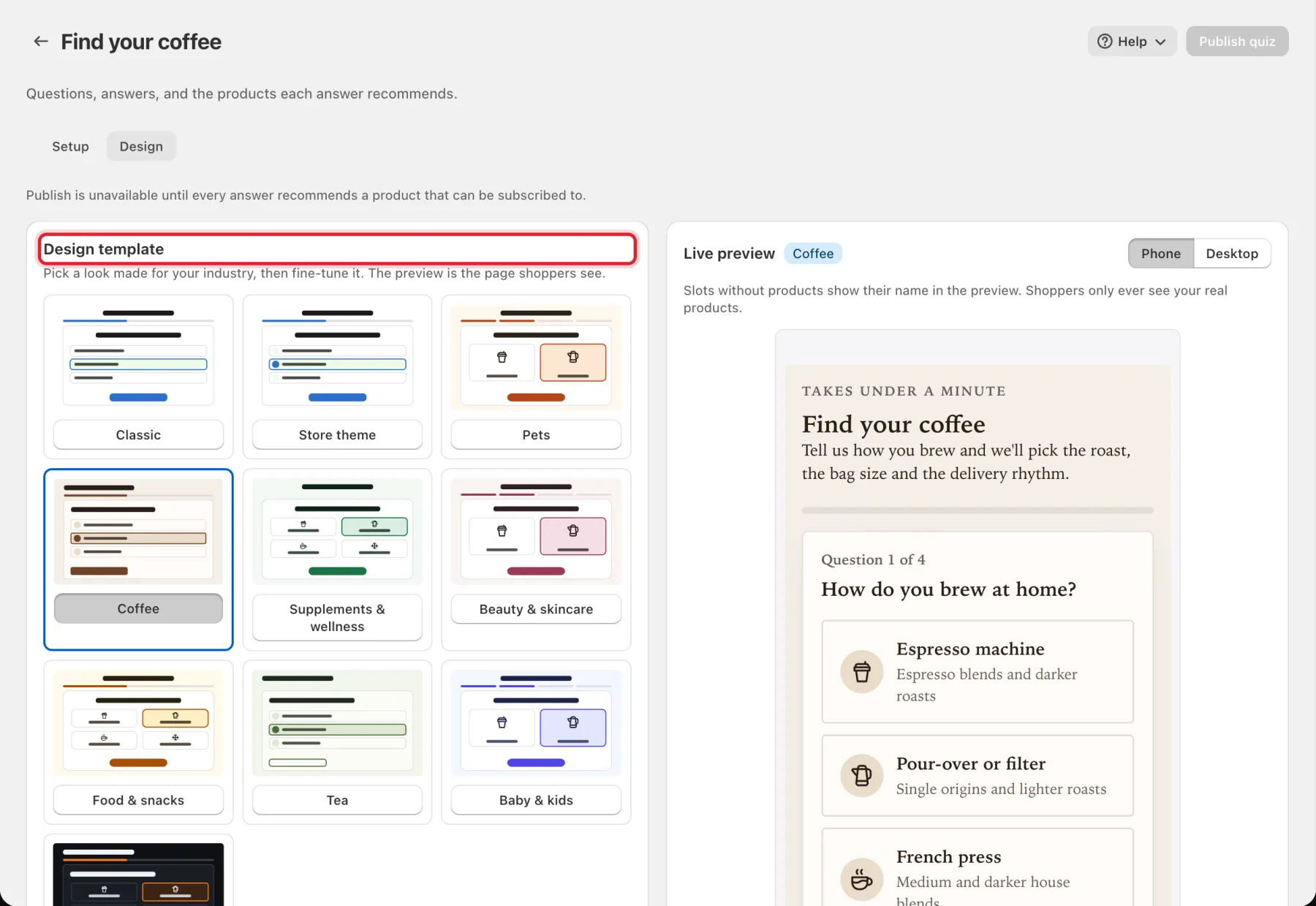
On the Design tab, choose a Design template made for your industry, or Classic or Store theme. Then fine-tune the colors, font, button style and answer layout. Switch the preview between Phone and Desktop.
Step 11: Publish the quiz
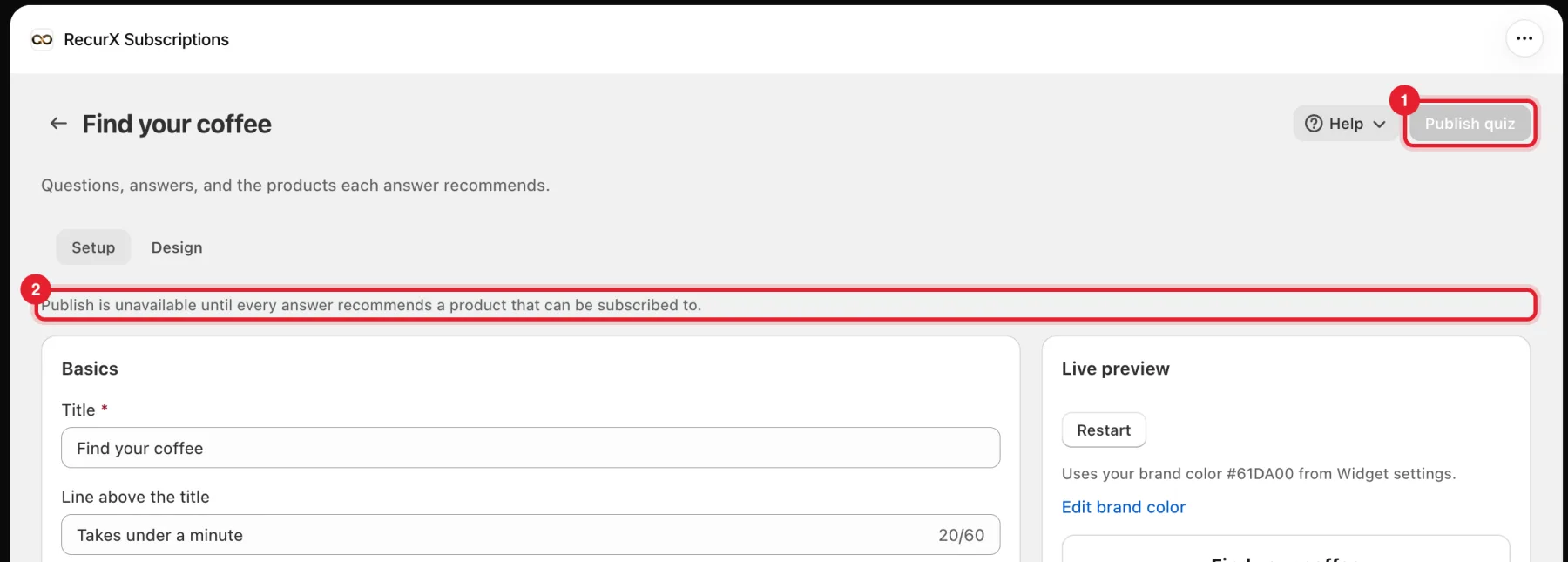
Click Publish quiz at the top of the page. The button stays unavailable, with Publish is unavailable until every answer recommends a product that can be subscribed to., until every answer has a product.
Step 12: Add the quiz to your theme
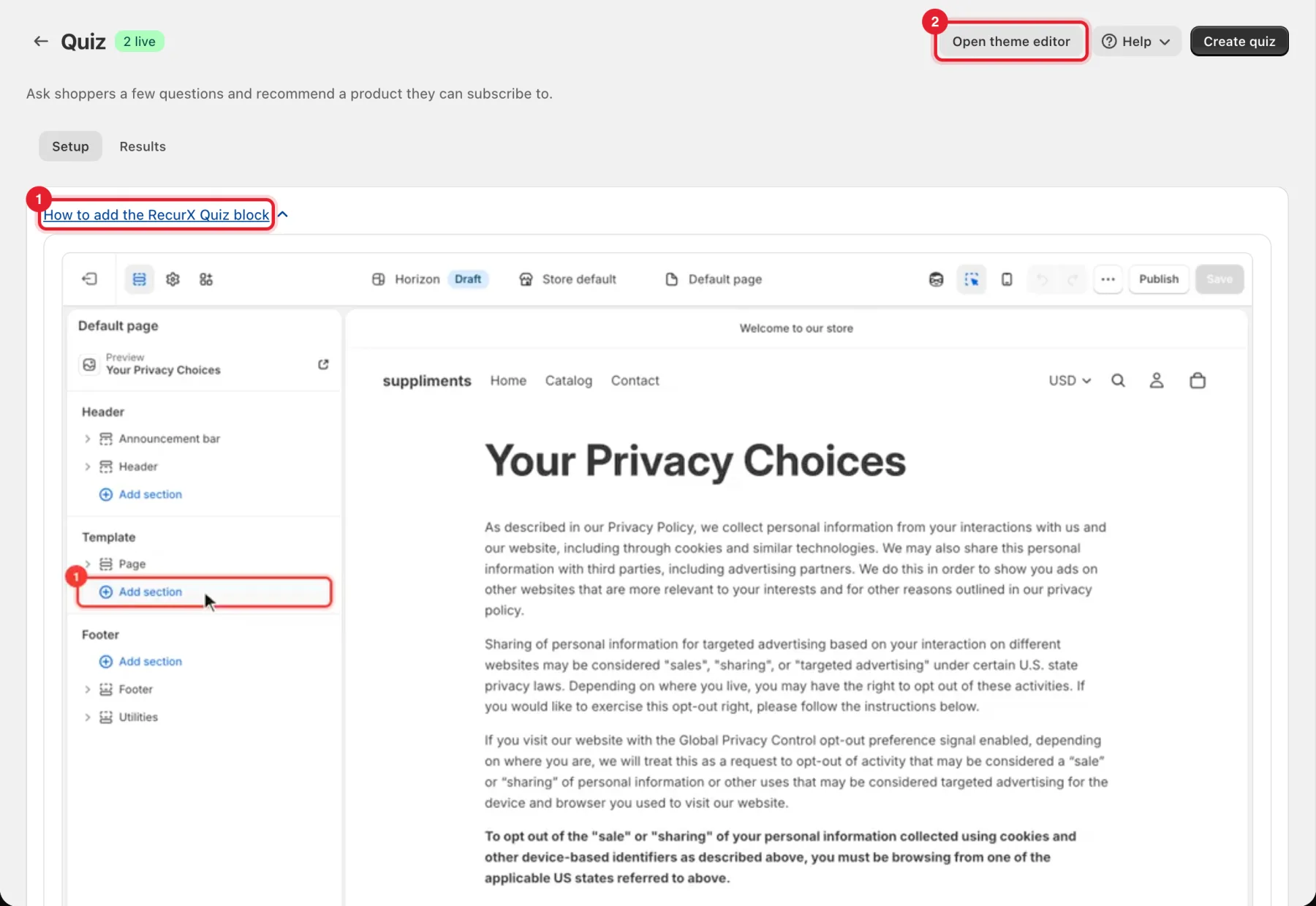
- On the Quiz page, open How to add the RecurX Quiz block for a short video.
- Click Open theme editor. On a page template, select Add section, search for RecurX, open Apps and choose RecurX Quiz. Then select Save in the top right corner.
Step 13: Manage your quizzes
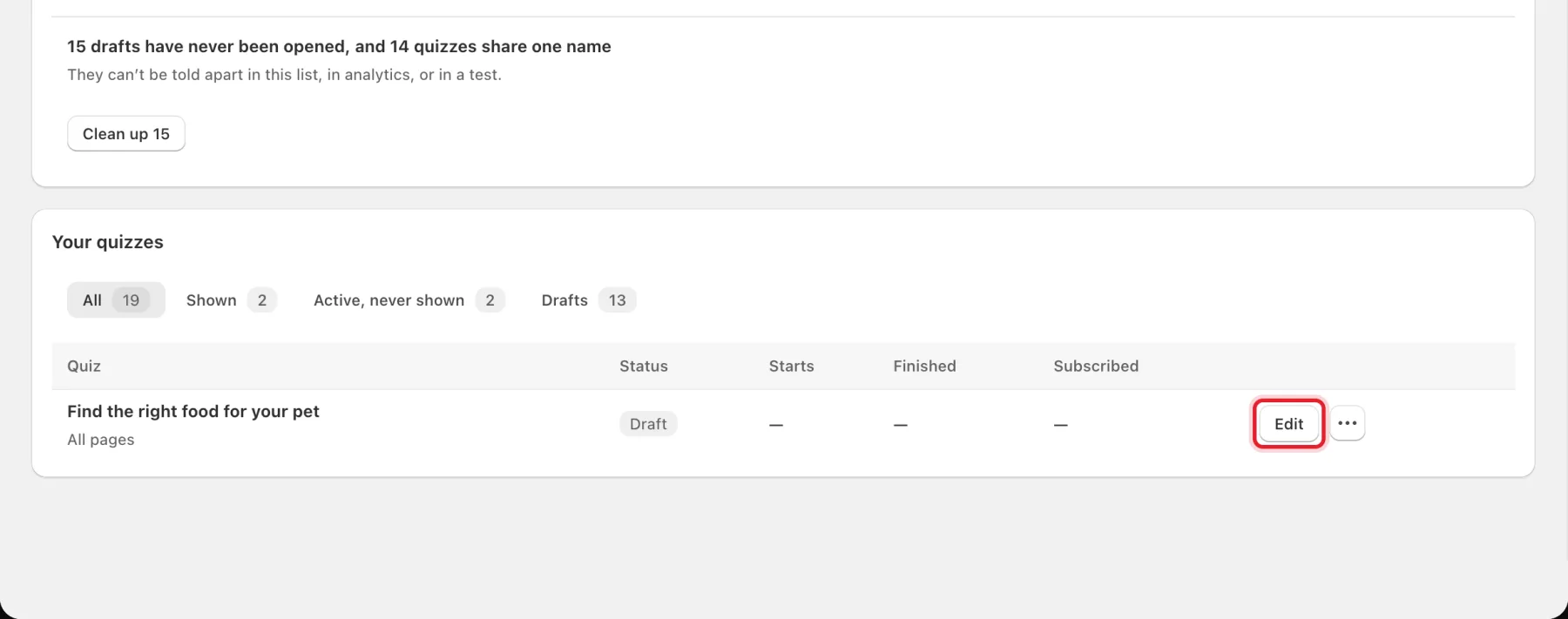
Your quizzes lists every quiz with its status, Starts, Finished and Subscribed. Click Edit to change one. Click … to Turn off, Duplicate, View analytics or Archive it.
Good to know
- Needs attention above the list flags problems. For example, several quizzes may be active in the same place when shoppers can only see one (click Choose which one). Or there may be drafts that were never opened (click Clean up).
- Archived quizzes stop showing on your store and can't be restored.
- Quiz funnels are on the Results tab, under Open Growth analytics. See Growth analytics.
- Contacts from your quizzes (email, first name, top match) are saved only when the shopper agrees.