
Volume & bundles shows quantity breaks as cards on your product page, such as Buy 1, Buy 3 · Save 10% and Buy 6 · Save 15%. The discount is applied at checkout by a Shopify discount that RecurX creates, so the price shoppers see on the card is the price they pay. A bundle can work on its own for one-time purchases, or be attached to a subscription plan. Setting one up takes about 5 minutes.
Who it's for: stores selling consumables that customers buy in multiples, like supplements, coffee or pet food. It's available on every plan.
Step 1: Open Volume & bundles
- In your Shopify admin, open Apps → RecurX Subscriptions.
- Click Growth in the sidebar.
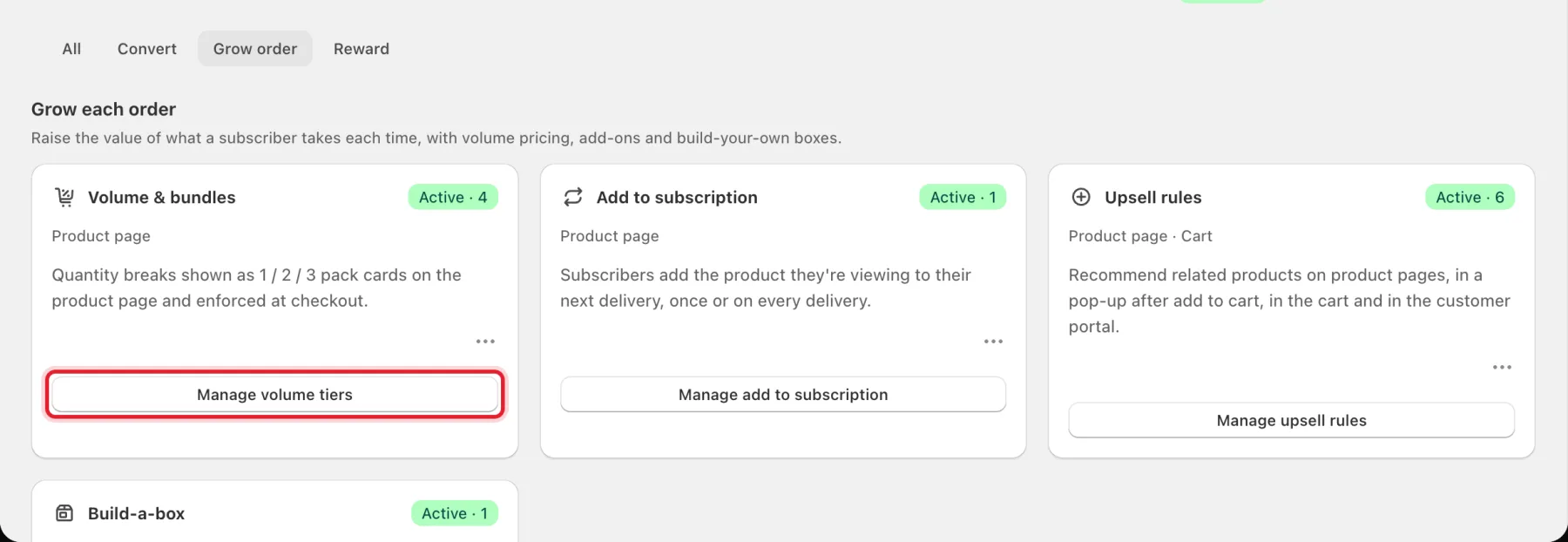
- On the Grow order tab, click Manage volume tiers on the Volume & bundles card.
Step 2: Pick a template or start from scratch
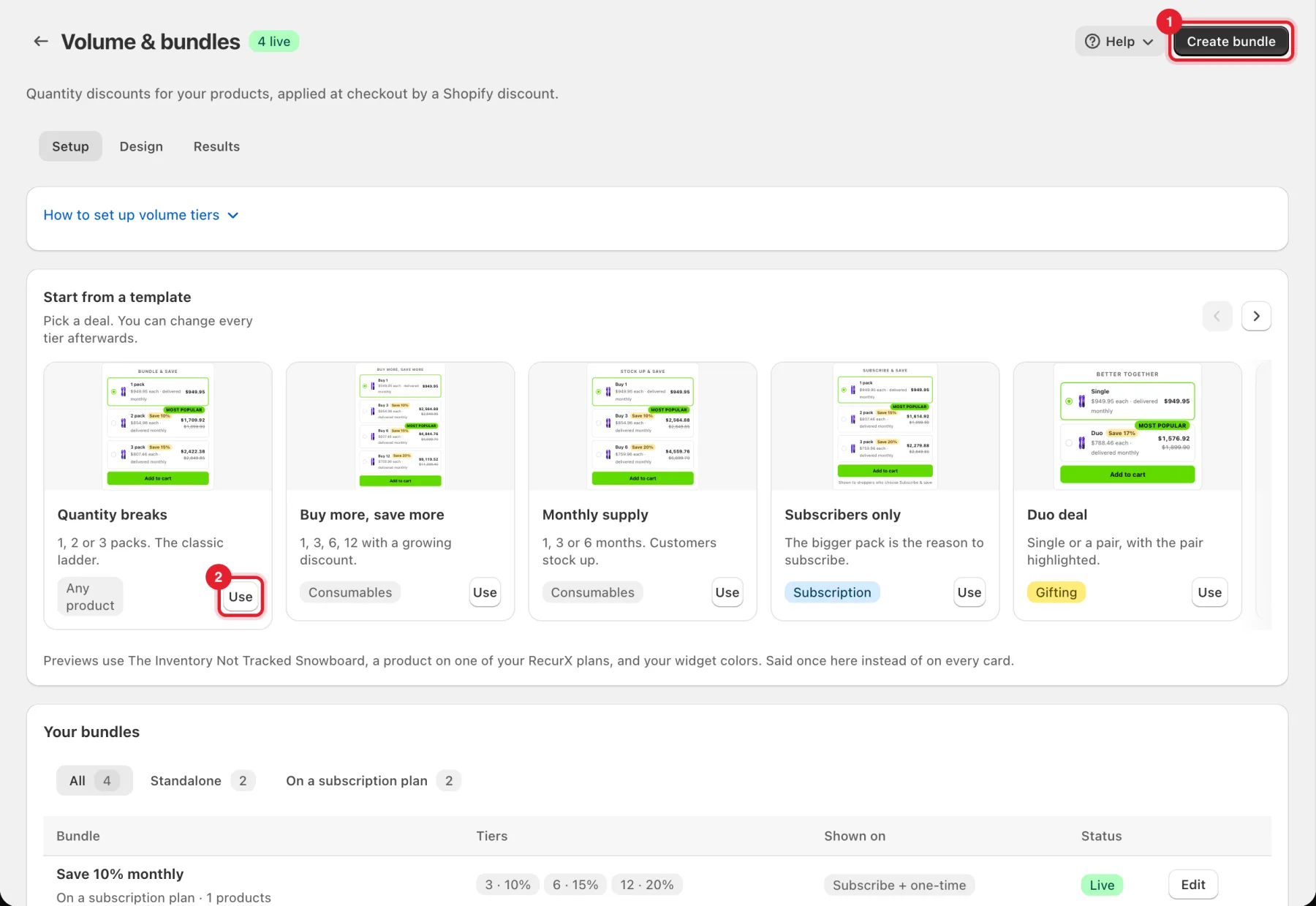
Under Start from a template, each card shows a deal priced with one of your products: Quantity breaks, Buy more, save more, Monthly supply, Subscribers only, Duo deal or Start blank.
- Click Create bundle to start a new bundle.
- Or click Use on a template to start from its tiers.
Step 3: Name the bundle and choose a preset
The editor has four numbered sections and a live preview on the right.
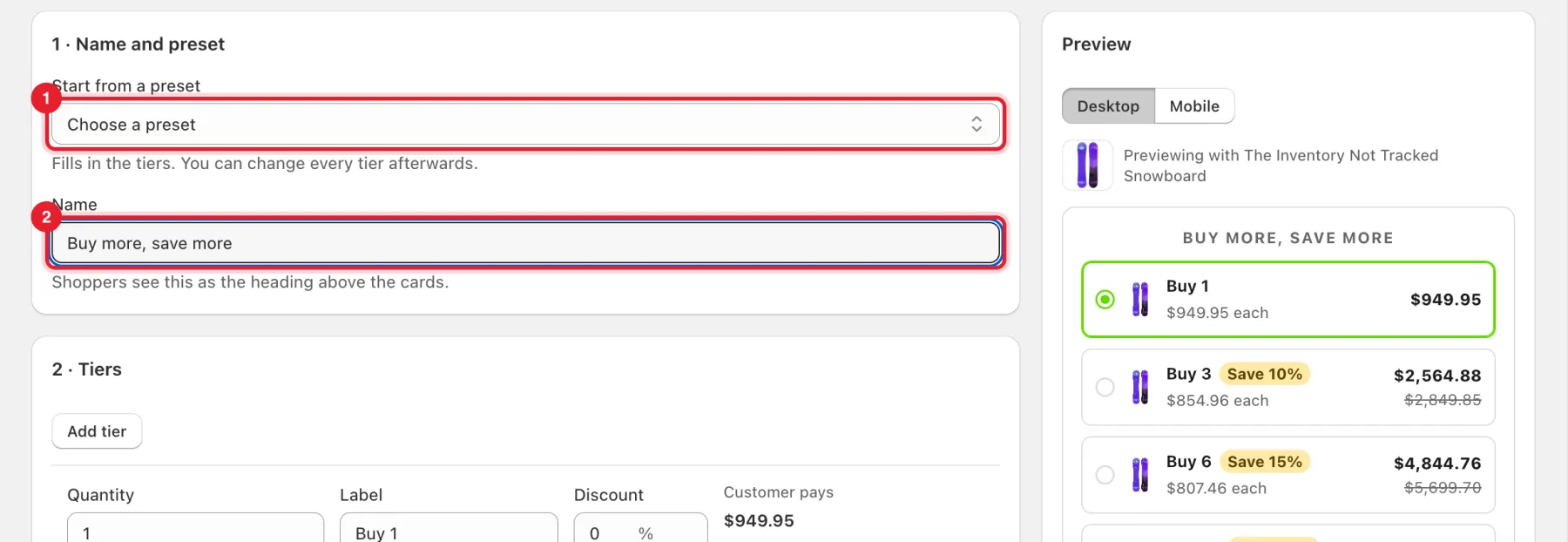
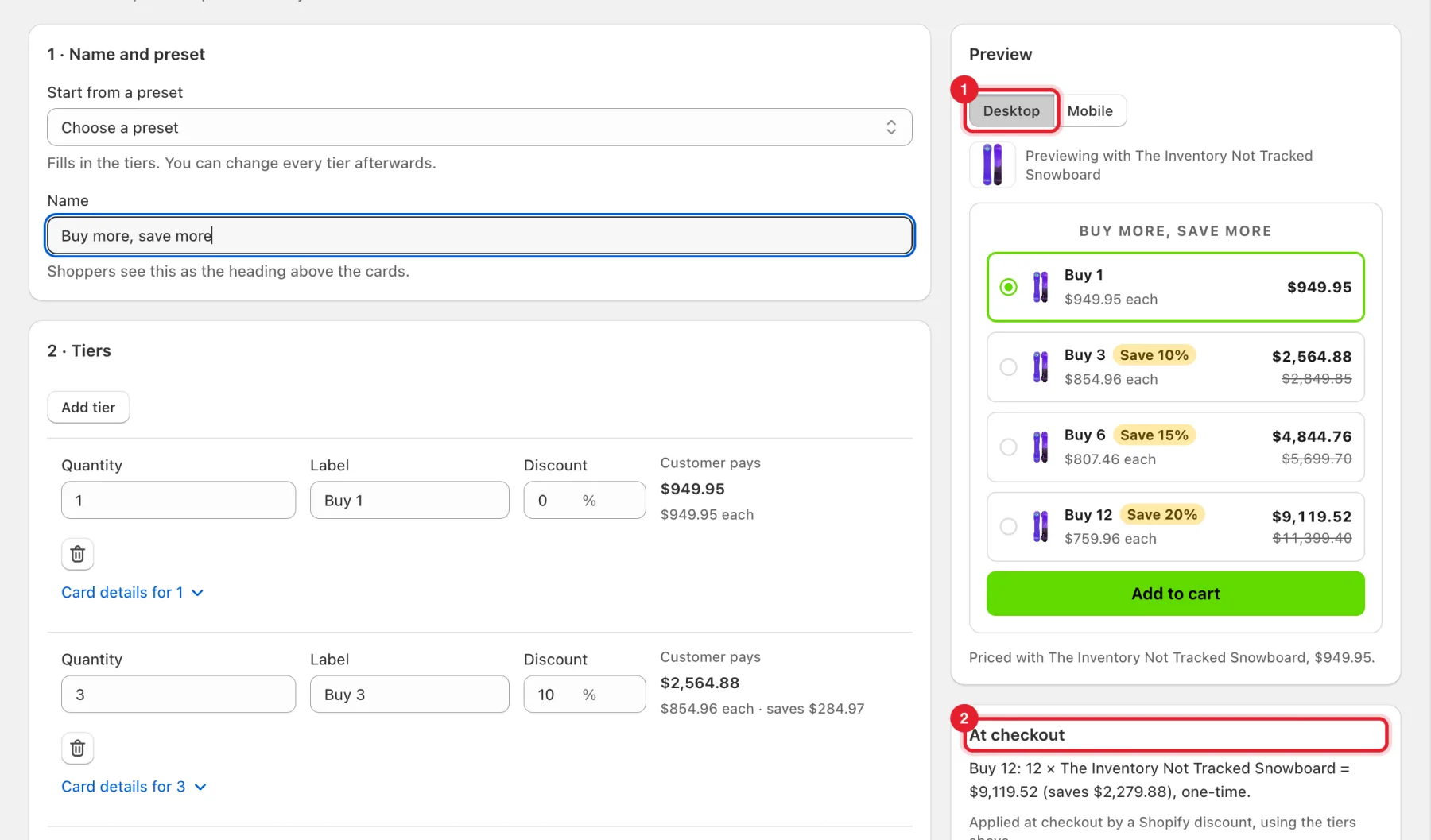
- Under 1 · Name and preset, open Start from a preset and choose one to fill in the tiers. You can change every tier afterwards.
- Enter a Name. Shoppers see it as the heading above the cards.
Step 4: Set the tiers
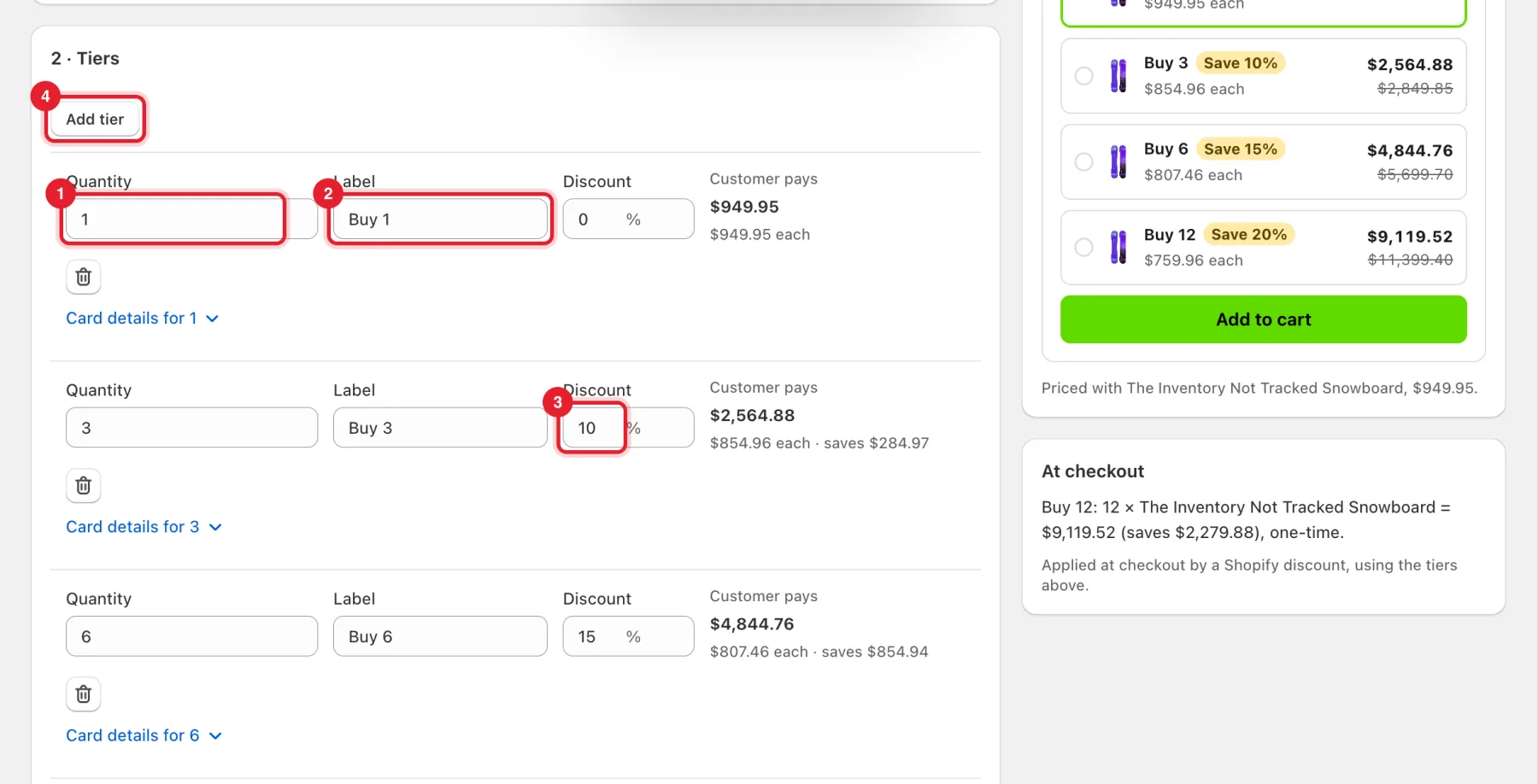
Under 2 · Tiers, each row is one card:
- Quantity: how many units the card is for.
- Label: the card title, for example Buy 3.
- Discount: the percent off for that quantity. Customer pays shows the total and the price per unit.
- Click Add tier for another card. Click the bin icon to remove one.
Important: Each tier must use a new quantity and save more than the one before. Otherwise the page shows Fix the highlighted tiers to save. When the ladder is right, it says Each tier saves more than the one before. Buying more always gets a better price per unit.
Step 5: Choose products and a subscription plan
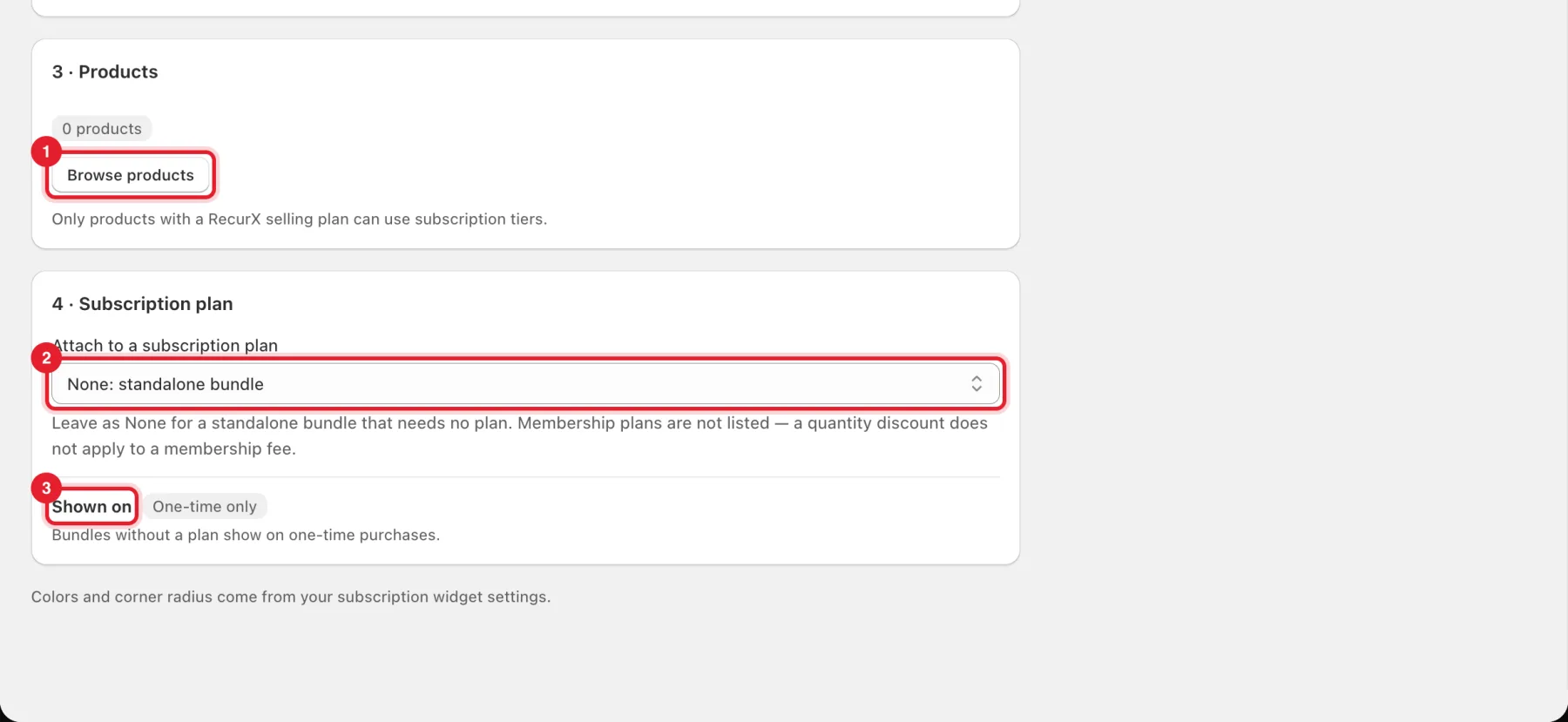
- Under 3 · Products, click Browse products and pick the products the bundle applies to. Only products with a RecurX selling plan can use subscription tiers.
- Under 4 · Subscription plan, choose a plan in Attach to a subscription plan, or leave None: standalone bundle for a bundle that needs no plan. Membership plans aren't listed, because a quantity discount doesn't apply to a membership fee.
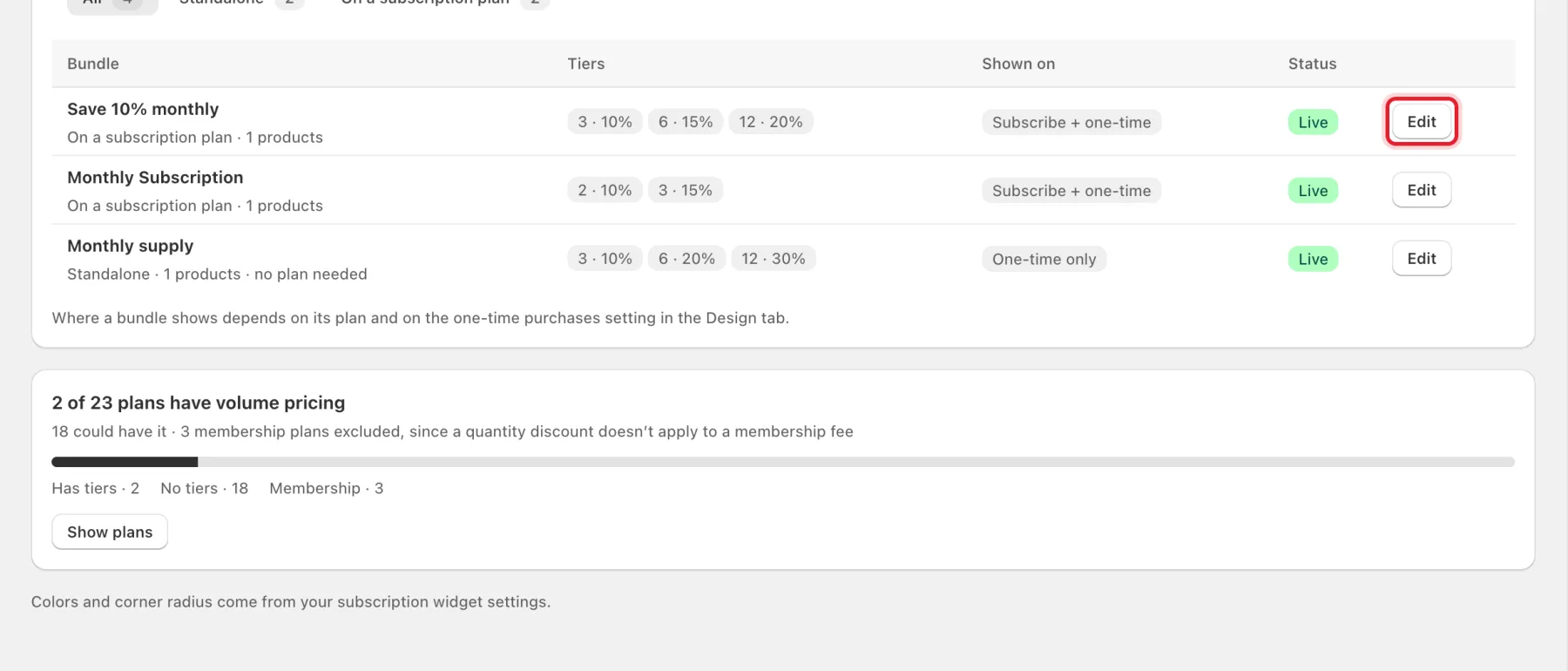
- Shown on tells you where the cards will appear. Bundles without a plan show on one-time purchases. Bundles on a plan show to shoppers who subscribe, and also on one-time purchases when that setting is on in the Design tab.
Step 6: Check the preview
- Switch between Desktop and Mobile to see the cards.
- At checkout spells out one example order, such as Buy 12: 12 × your product = total (saves amount), one-time.
Step 7: Save the bundle
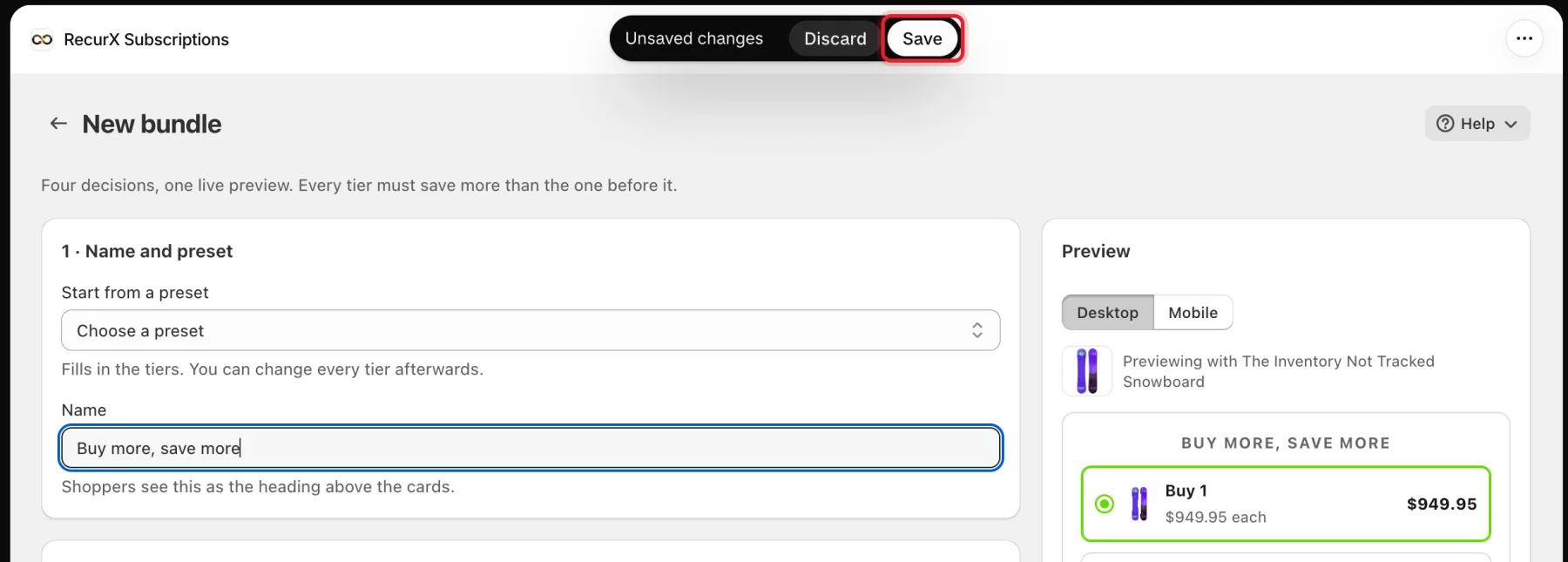
Click Save in the bar at the top of the page. The bundle appears under Your bundles with its status, for example Live.
Step 8: Set the design for all bundles
On the Design tab, the settings apply to every bundle on your store:
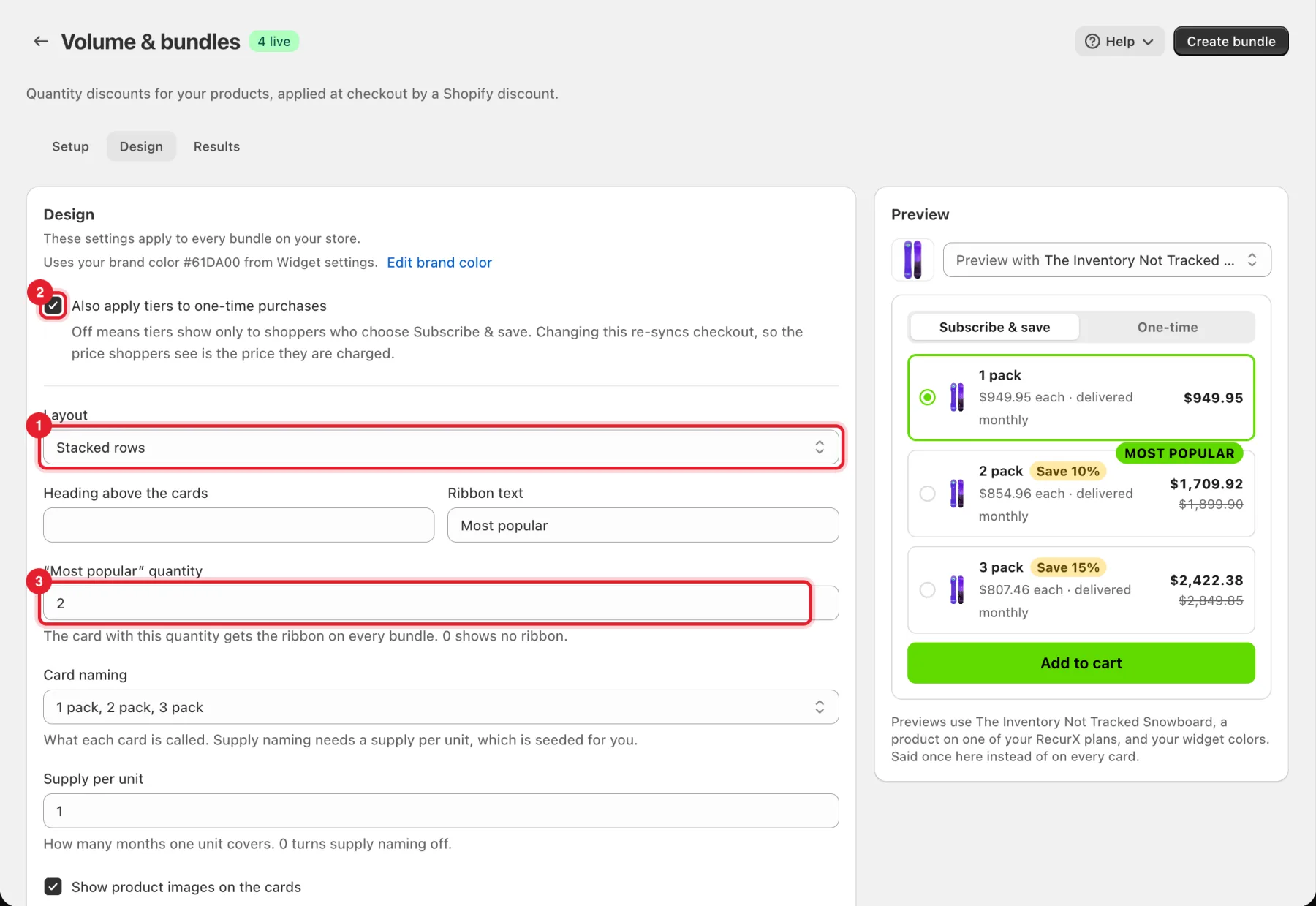
- Layout: Stacked rows, Grid of cards or Vertical cards.
- Also apply tiers to one-time purchases: when it's off, tiers show only to shoppers who choose Subscribe & save.
- “Most popular” quantity: the card with this quantity gets the ribbon on every bundle. 0 shows no ribbon.
You can also set the Heading above the cards, Ribbon text, Card naming and Show product images on the cards. Click Save when you're done. Colors and corner radius come from your subscription widget settings.
Step 9: Manage your bundles
Your bundles lists every bundle with its tiers, where it's shown and its status. Click Edit to change one. The card below the list shows how many of your plans have volume pricing. Click Show plans to add a ladder to a plan.
To see how bundles perform, open the Results tab and click Open Growth analytics.
Good to know
- Checkout isn't charging these bundle prices yet, so the bundle cards are hidden on your storefront. means RecurX is still creating the Shopify discount. If the message stays for more than a few minutes, open the bundle and save it again.
- Your bundle was saved, but checkout could not be updated. Open the bundle and save it again, so shoppers aren't shown a price checkout doesn't apply.
- The cards show on product pages with the RecurX widget. If they don't appear, see Widget not showing.
- For bundles that shoppers build from several products, see Build-a-box.