
Upsells recommends products that go with what a shopper is viewing, on product pages, in the cart and in the customer portal. This guide sets up a Frequently bought together offer (related products with one button to add them all) and the Free-shipping progress bar in the cart. The other offer types work the same way. Each takes about 5 minutes.
Who it's for: stores that want a bigger average order. It's available on every plan.
Step 1: Open Upsells
- In your Shopify admin, open Apps → RecurX Subscriptions.
- Click Growth in the sidebar.
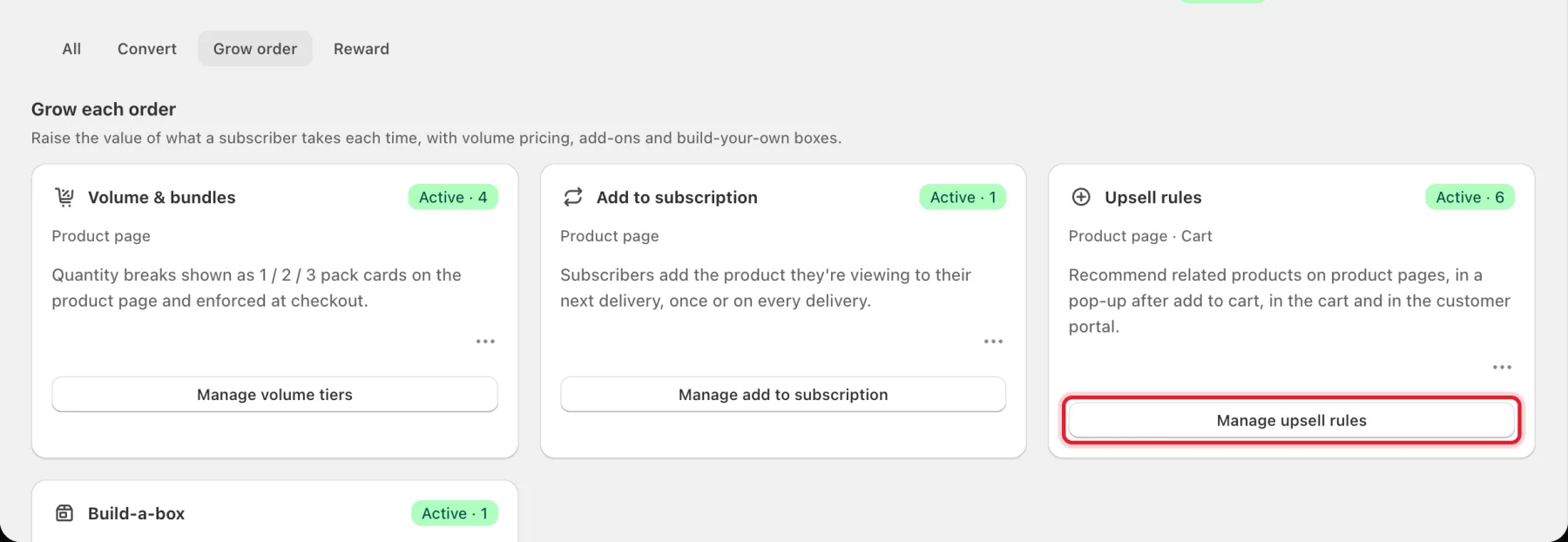
- On the Grow order tab, click Manage upsell rules on the Upsell rules card.
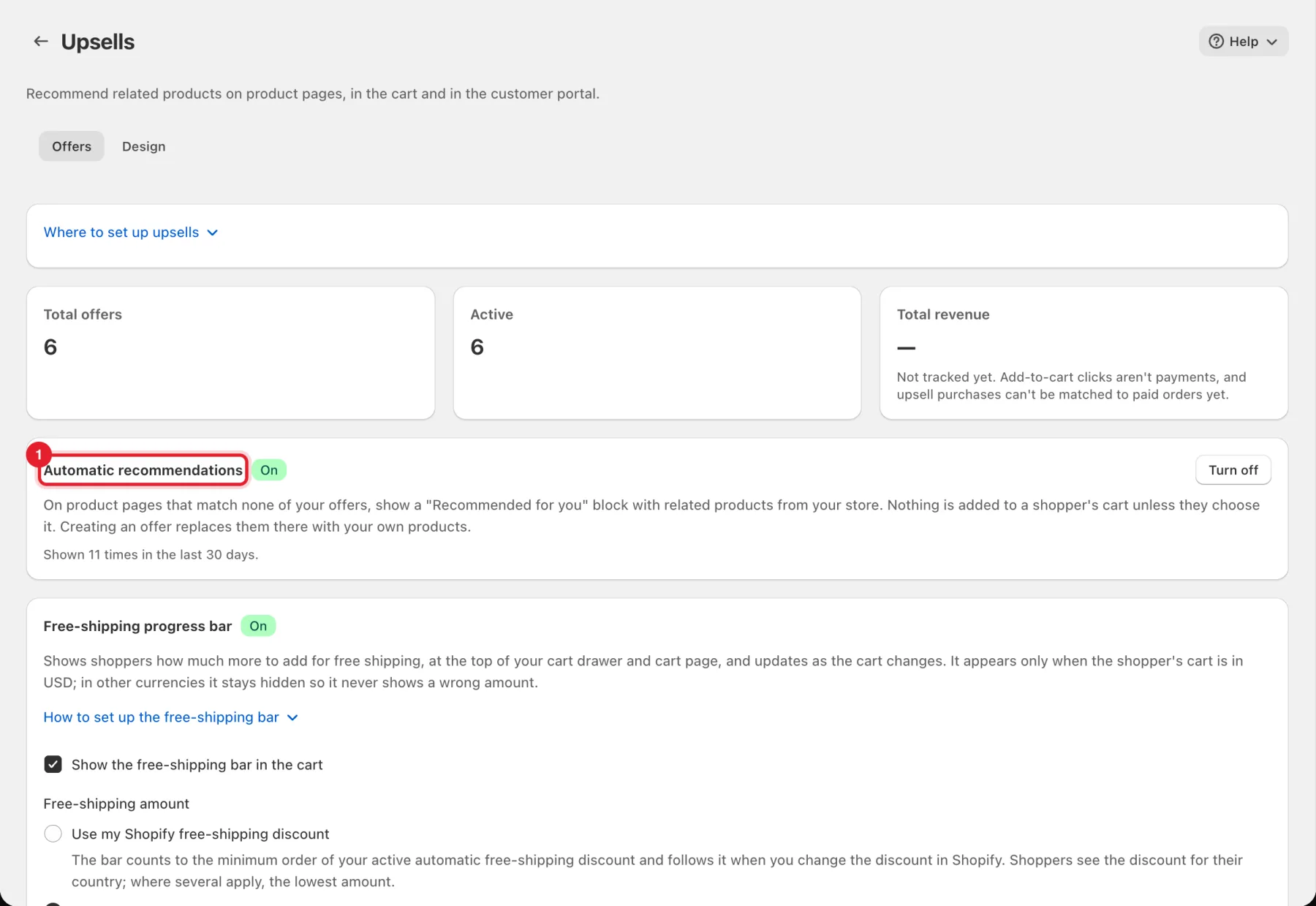
The page shows your Total offers and how many are Active. Automatic recommendations shows a Recommended for you block on product pages that match none of your offers. Nothing is added to a shopper's cart unless they choose it. Click Turn off if you only want your own offers.
Step 2: Create an offer and choose its type
- Scroll to Offers and click Create offer.
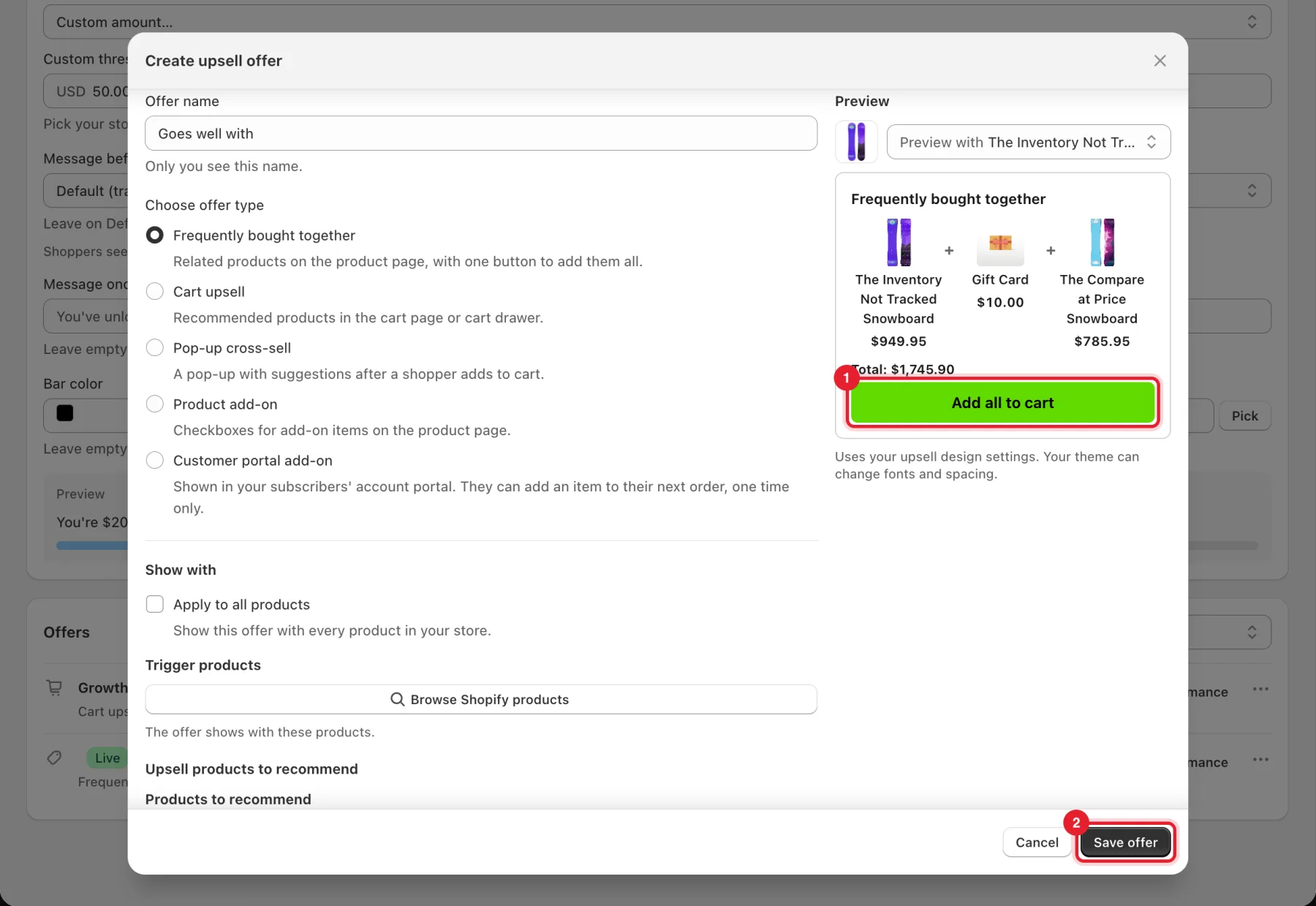
- Enter an Offer name. Only you see this name.
- Under Choose offer type, pick Frequently bought together.
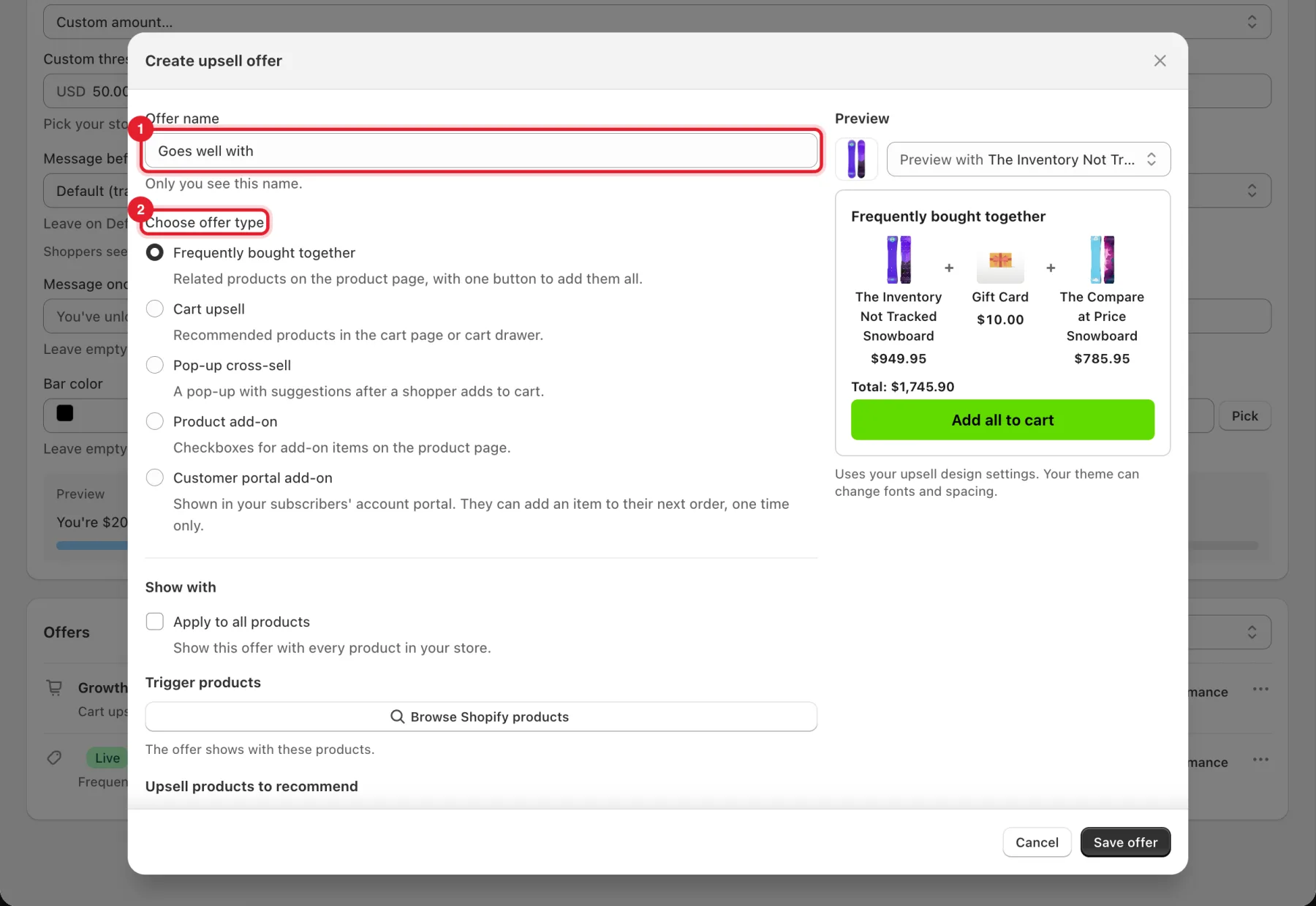
The other types are Cart upsell (recommended products in the cart page or cart drawer), Pop-up cross-sell (a pop-up with suggestions after a shopper adds to cart), Product add-on (checkboxes for add-on items on the product page) and Customer portal add-on (subscribers add an item to their next order, one time only).
Step 3: Choose where it shows and what it recommends
Under Show with:
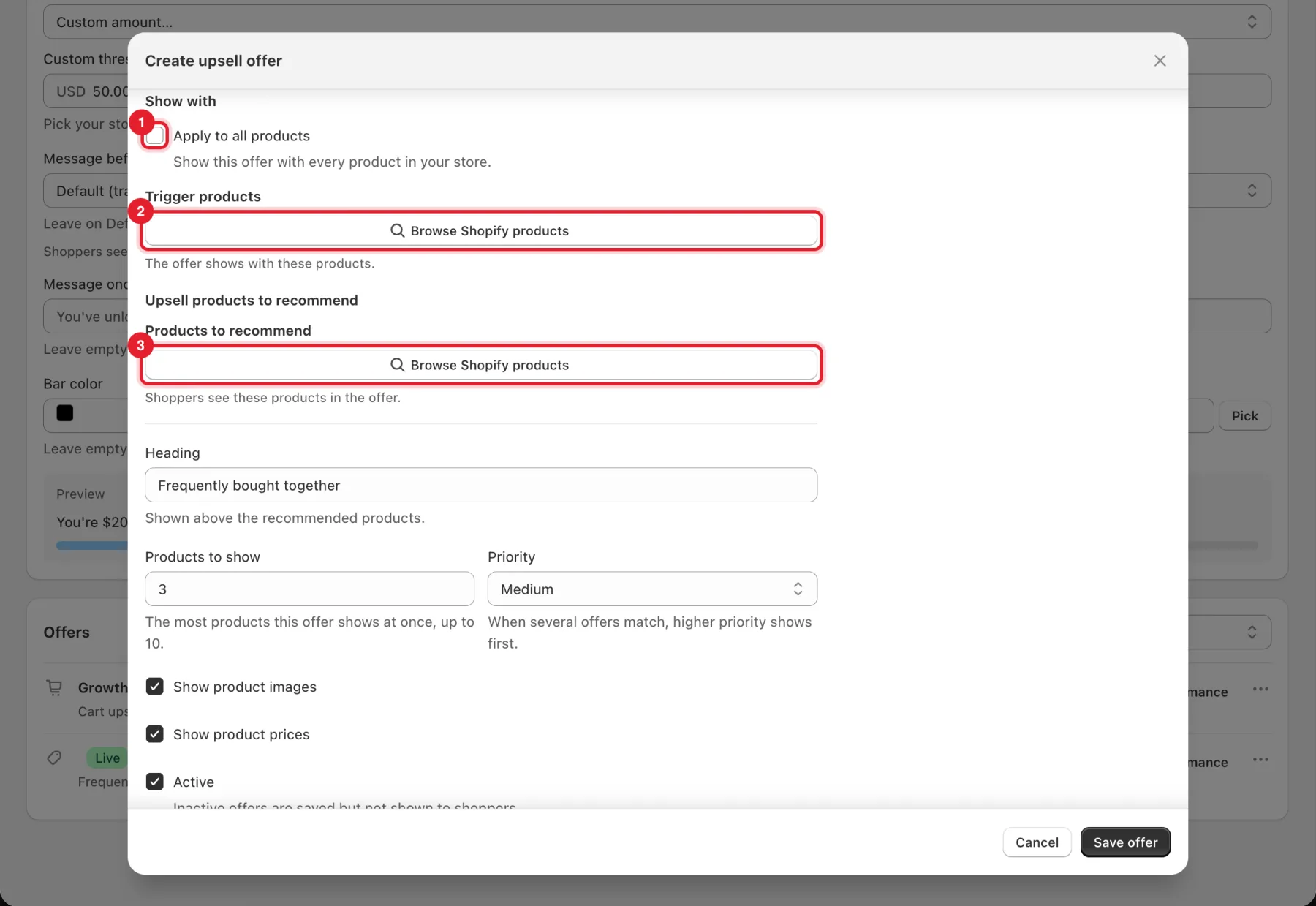
- Tick Apply to all products to show the offer with every product in your store.
- Or, under Trigger products, click Browse Shopify products and pick the products the offer shows with.
- Under Products to recommend, click Browse Shopify products and pick the products shoppers see in the offer.
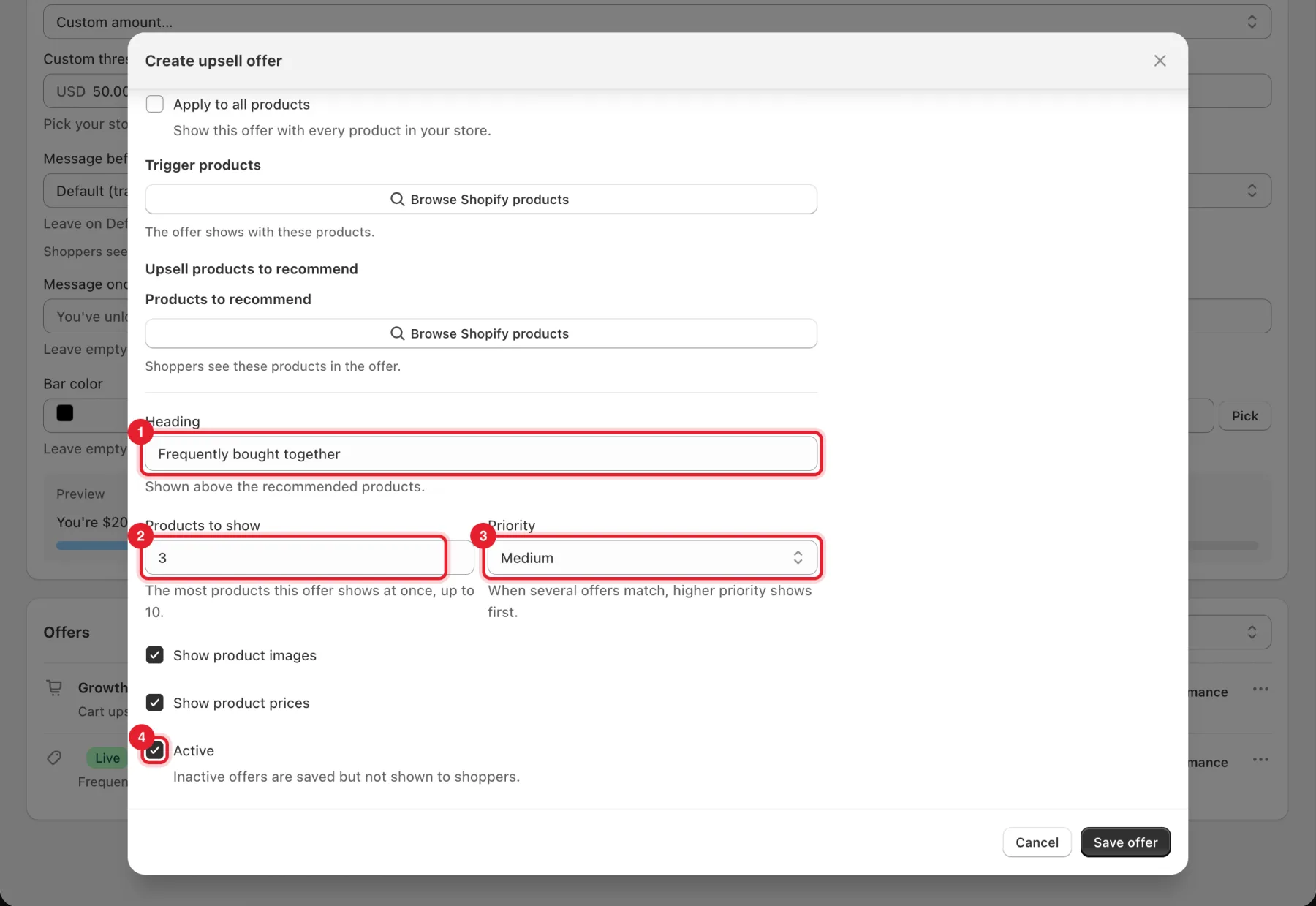
Step 4: Set the heading, count and priority
- Heading: shown above the recommended products, for example Frequently bought together.
- Products to show: the most products the offer shows at once, up to 10.
- Priority: Low, Medium or High. When several offers match, higher priority shows first.
- Active: inactive offers are saved but not shown to shoppers.
Tick Show product images and Show product prices as you like.
Step 5: Check the preview and save
The Preview shows the offer with one of your products. For Frequently bought together, shoppers see the total and an Add all to cart button. Click Save offer.
Step 6: Turn on the free-shipping progress bar
The Free-shipping progress bar shows shoppers how much more to add for free shipping, at the top of your cart drawer and cart page. It updates as the cart changes.
- Tick Show the free-shipping bar in the cart.
- Under Free-shipping amount, choose Use my Shopify free-shipping discount. The bar then counts to the minimum order of your active automatic free-shipping discount, and follows it when you change the discount in Shopify.
- Or choose Set my own amount, then pick a value in Free shipping from (in your store currency) or choose Custom amount… and enter a Custom threshold.
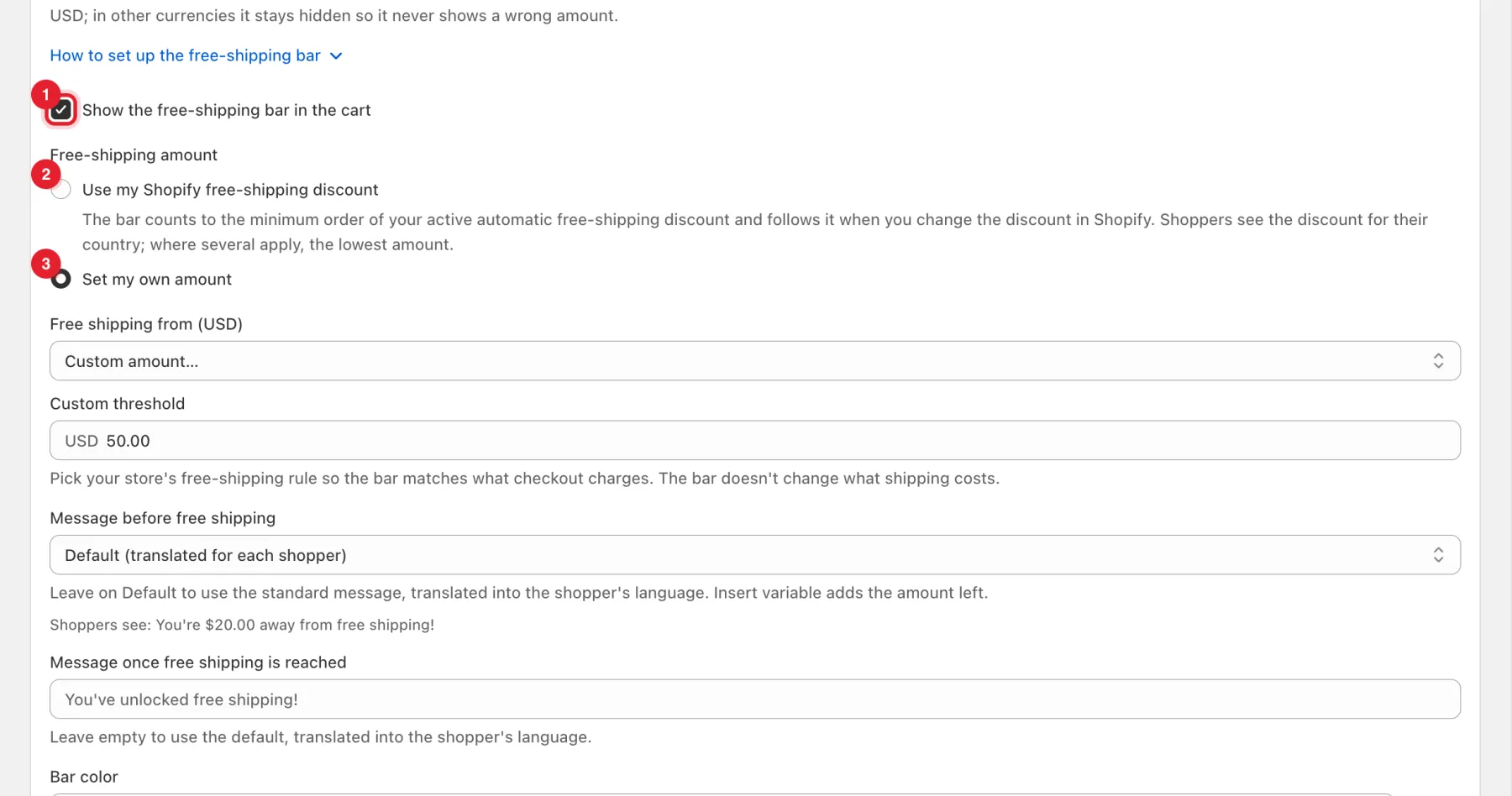
Important: Pick your store's real free-shipping rule so the bar matches what checkout charges. The bar doesn't change what shipping costs.
Step 7: Word and style the bar
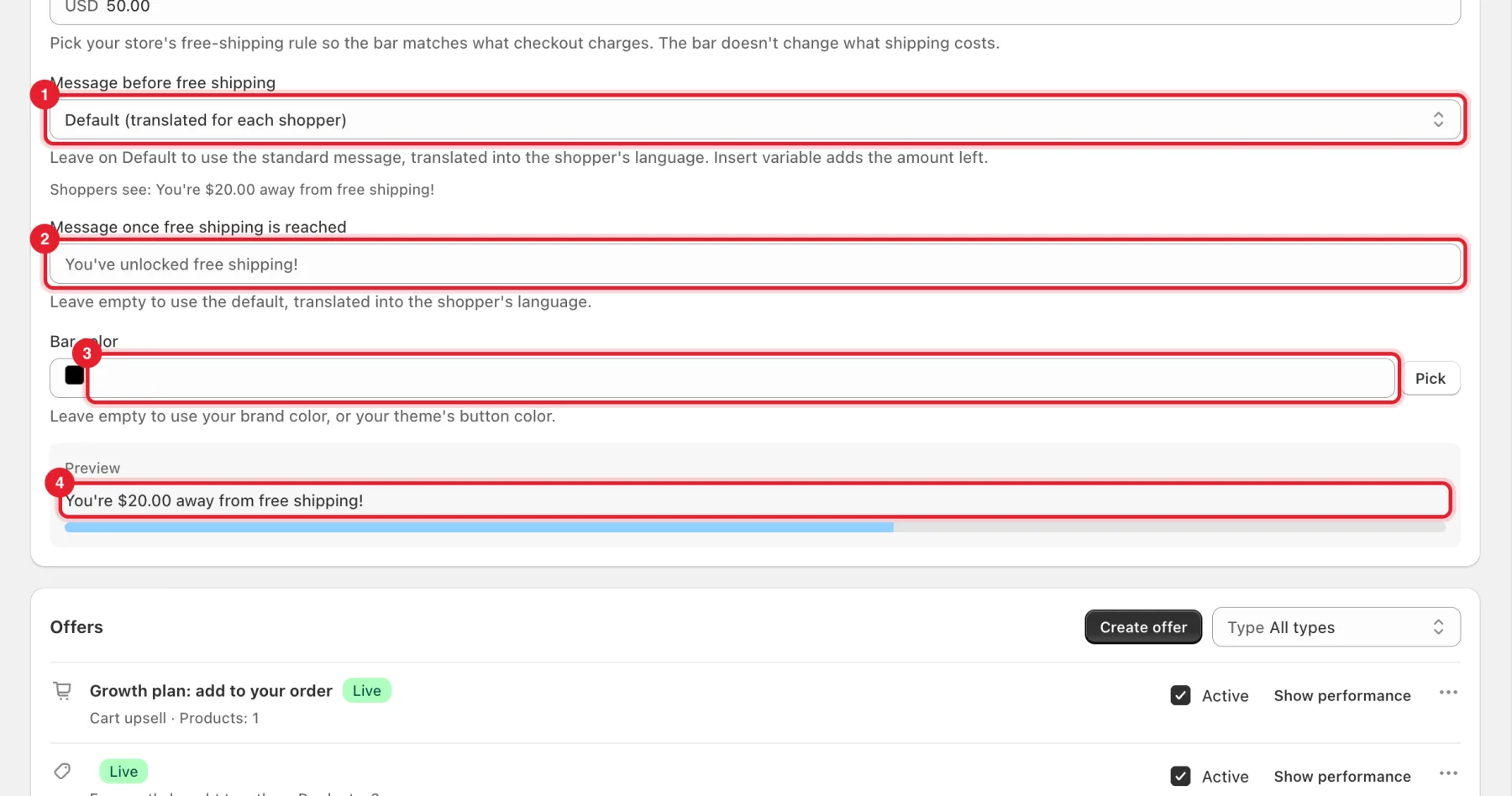
- Message before free shipping: leave Default (translated for each shopper) for the standard message in the shopper's language, or choose another message or Custom…. Insert variable adds the amount left.
- Message once free shipping is reached: leave it empty to use the default.
- Bar color: leave it empty to use your brand color or your theme's button color.
- The Preview shows what shoppers see, for example You're $20.00 away from free shipping!
Click Save in the bar at the top of the page.
Step 8: Choose placements and style
On the Design tab:
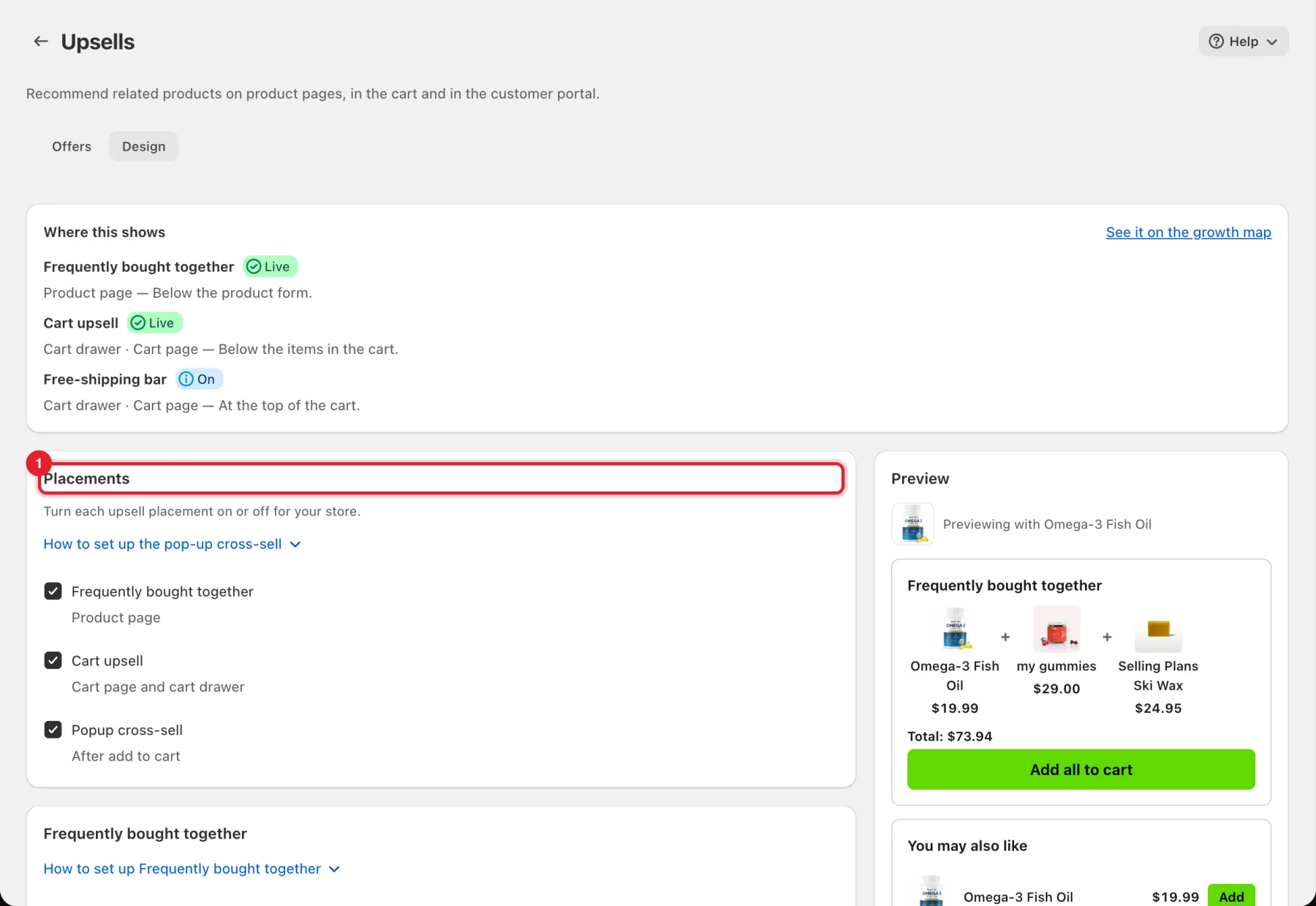
- Where this shows lists each placement and whether it's live.
- Under Placements, turn Frequently bought together (product page), Cart upsell (cart page and cart drawer) and Popup cross-sell (after add to cart) on or off for your store.
Below, set the button text for each placement and the Style (Accent color and Corner radius). Click Save when you're done.
Step 9: Manage your offers
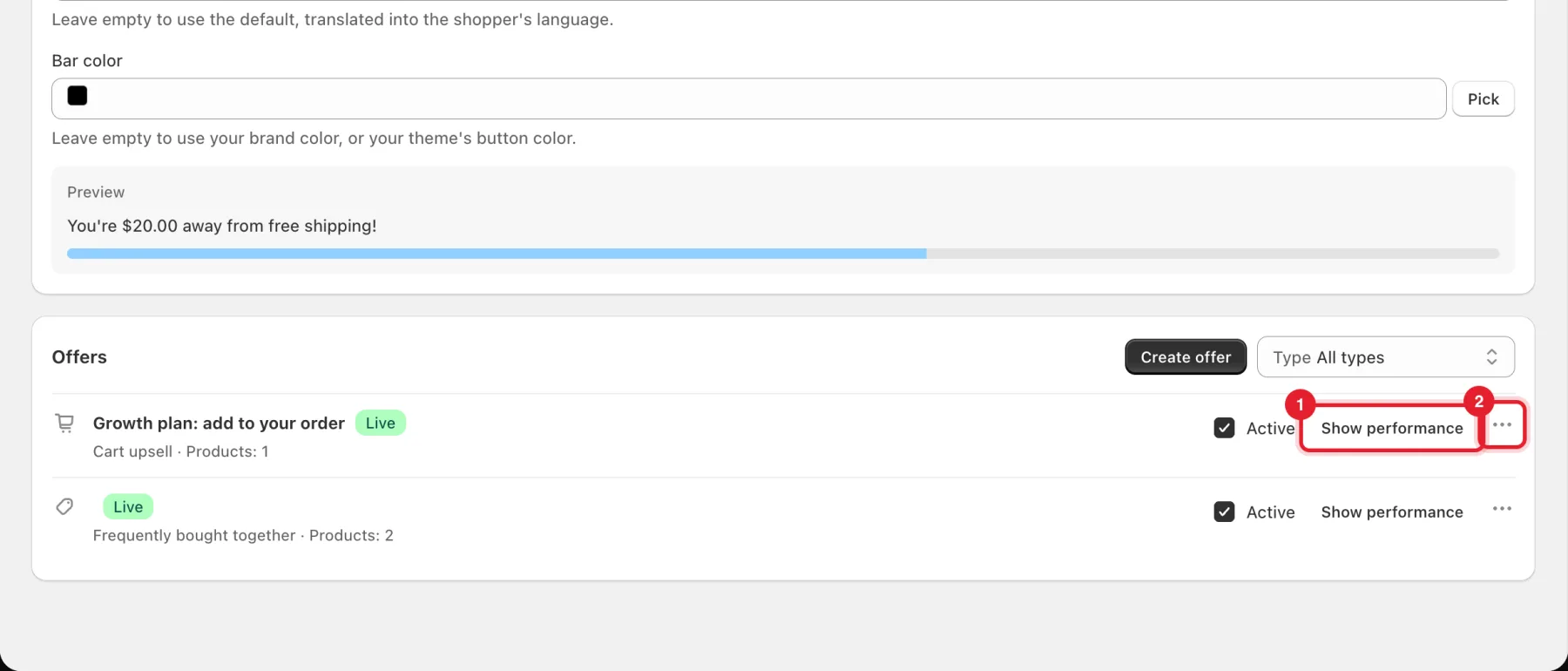
Each offer in Offers shows its type, number of products and status. Untick Active to pause it.
- Click Show performance for its Views, Clicks, Click-through rate and Conversions.
- Click … to Edit, Duplicate or Delete it.
Filter the list by Type.
Good to know
- Offers show on your storefront only while the RecurX Upsells app embed is on. If the page shows Turn on the RecurX Upsells app embed, click Open theme editor, turn the embed on and save.
- Switched on, but no shopper has seen it yet under an offer usually means the app embed is off.
- The free-shipping bar uses your store currency. When a shopper's cart is in a different currency (for example through Shopify Markets), the bar stays hidden, so it never shows a wrong amount.
- Total revenue shows Not tracked yet: add-to-cart clicks aren't payments, and upsell purchases can't be matched to paid orders yet.
- An offer with no products shows nothing on your storefront.