
The Migrate page brings your existing subscriptions into RecurX. For every subscription in your old app or payment processor, RecurX creates a new Shopify subscription contract with the customer, products, quantity, price, billing frequency, next billing date, shipping address and discount. Plan an afternoon for your first import: most of the time goes into exporting from the old app and checking the result.
Before you start:
- Create your plans in RecurX first. An imported contract is linked to your selling plan when exactly one plan matches it. See Create a subscription plan.
- Know that saved cards don't transfer. RecurX can't copy cards or payment tokens from another app or processor, so imported subscriptions start with no payment method. Customers add one in the customer portal (Step 6).
- Want help? Click Book a free migration call at the top of the Migrate page.
Step 1: Open Migrate
- In your Shopify admin, open Apps → RecurX Subscriptions.
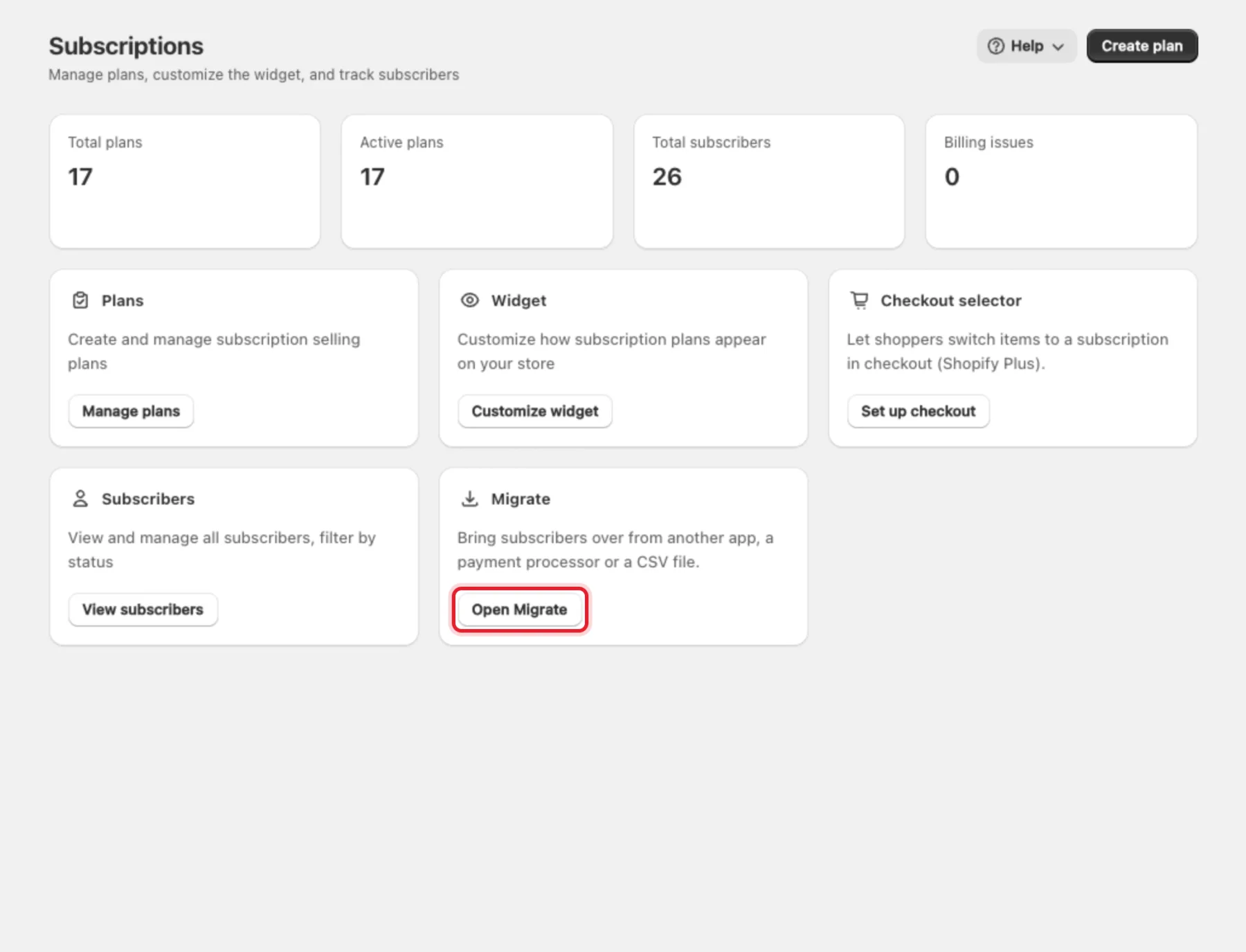
- Go to Subscriptions and click Open Migrate on the Migrate card.
Step 2: Choose where your subscriptions are now
Under Where are your subscriptions now?, open Source and pick one:
| Source | How it imports |
|---|---|
| Recharge | Paste a Recharge API token. RecurX reads subscriptions, customers and addresses |
| Stripe | Paste a Stripe restricted API key, optionally with a list of customer IDs |
| Bold Subscriptions | Paste a Bold API key |
| Smartrr | Upload Smartrr's Subscriptions report export (CSV) |
| PayPal Express, Authorize.net, Braintree | Upload a CSV file in RecurX's template |
| Another app (CSV file) | Upload a CSV file in RecurX's template — use this for any other app |
| Contracts RecurX created in Shopify | Finds RecurX's own contracts that aren't in the subscriber list, for example after a reinstall. It can't read contracts another app created |
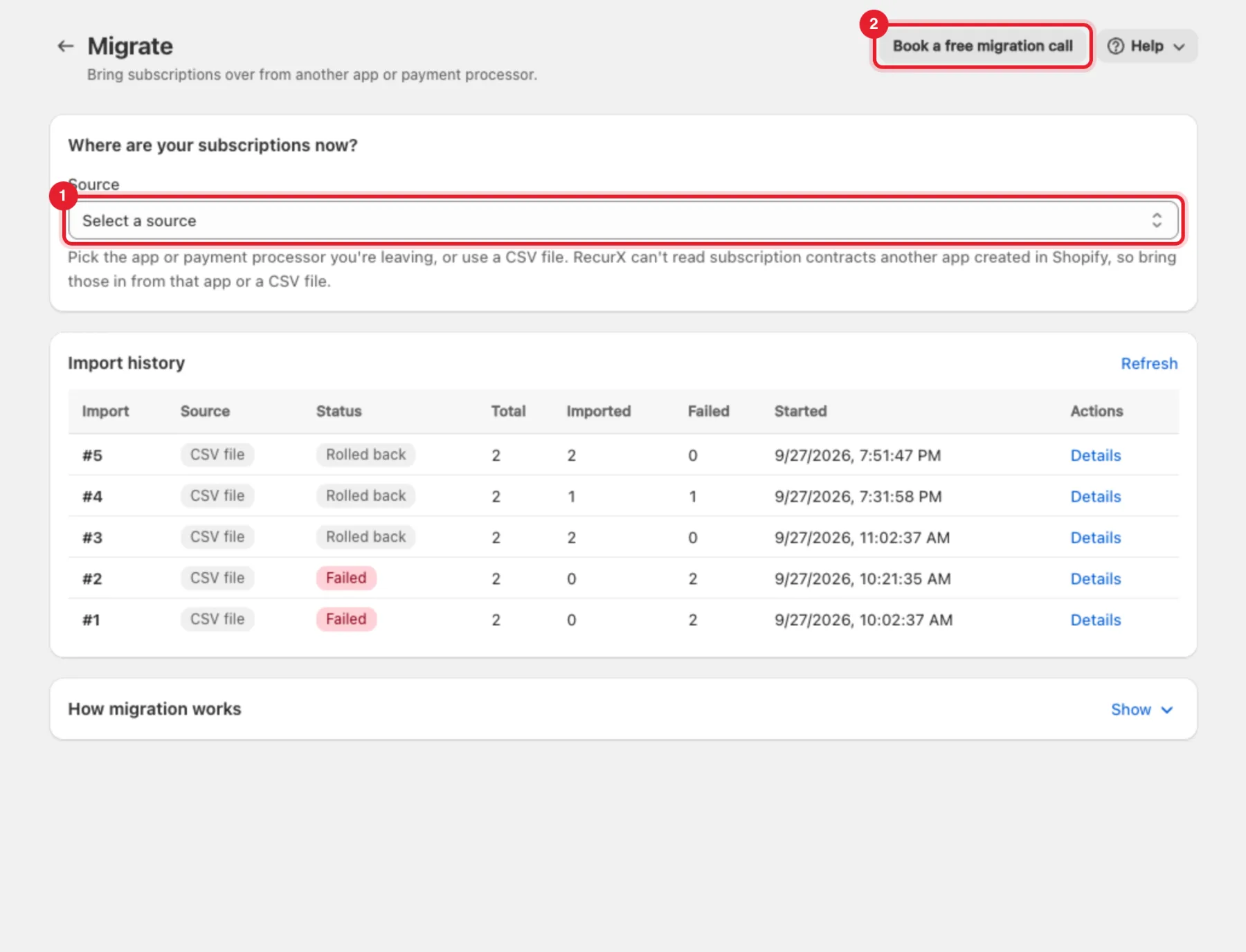
Note: RecurX can't read subscription contracts that another app created in Shopify. Bring those in from that app (API key) or with a CSV file.
Step 3: Check the requirements
A Before you import from … card appears for the source you picked. Both rows must say Ready:
- RecurX can create subscription contracts in your store
- The … importer is available for your store
Under Check these yourself, it reminds you about saved cards and pausing your old app. Click Refresh to check again after fixing something.
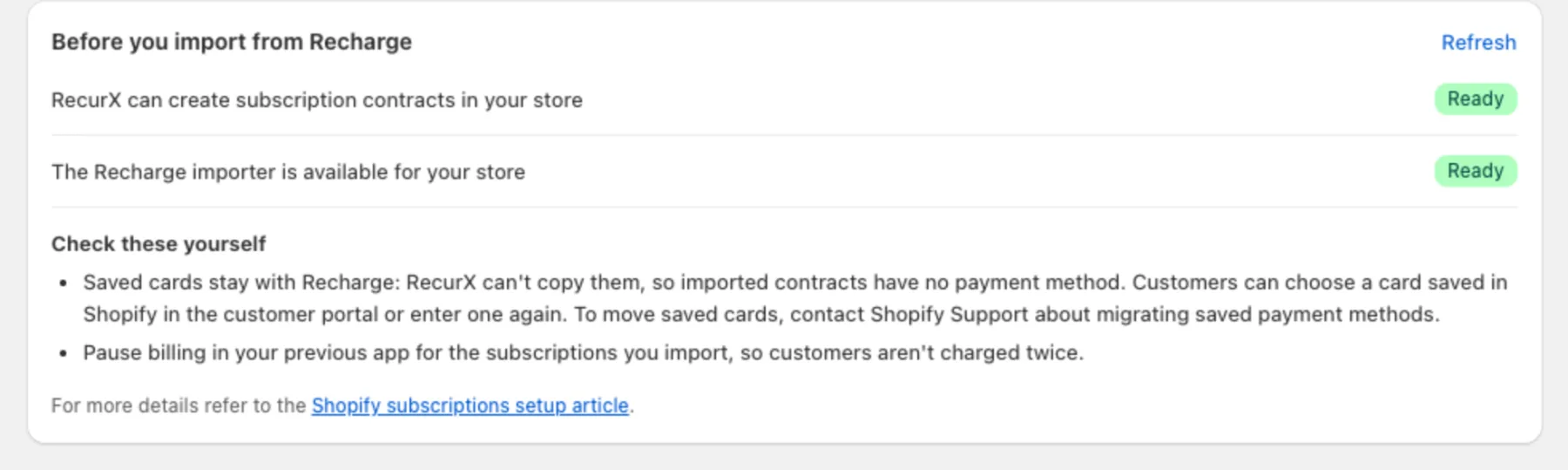
Important: Pause billing in your previous app for the subscriptions you import, so customers aren't charged twice.
Step 4: Import
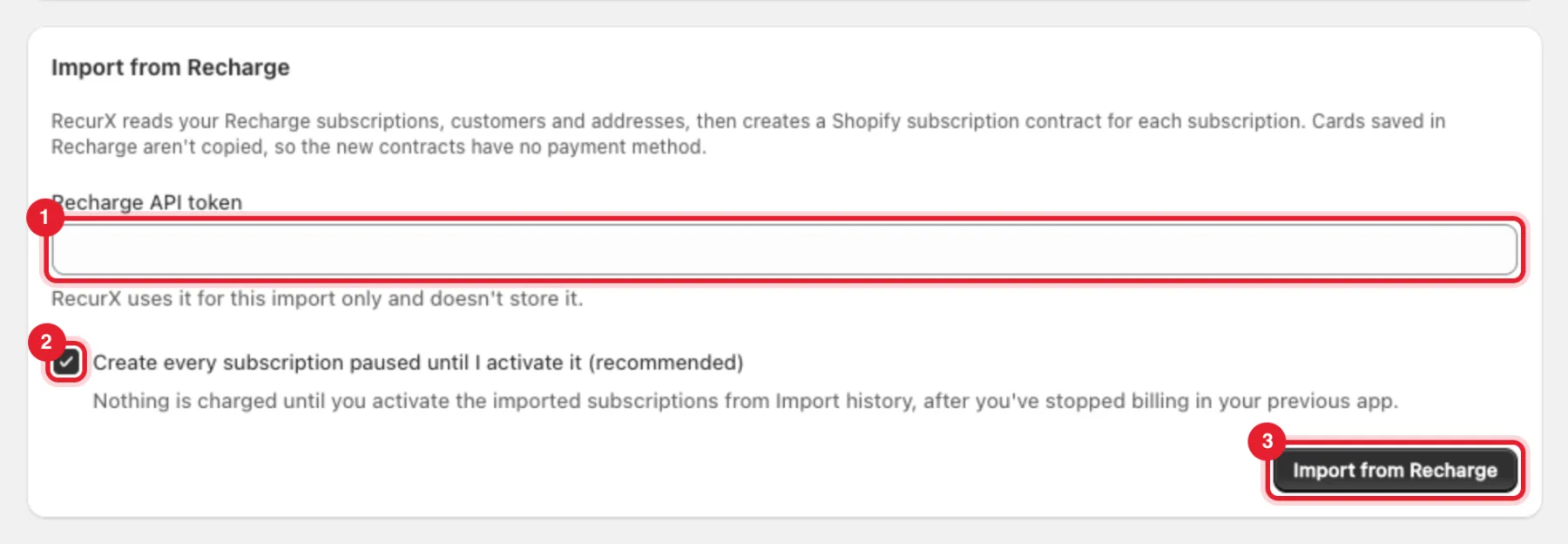
With an API key (Recharge, Stripe, Bold):
- Paste the key or token. RecurX uses it for this import only and doesn't store it.
- Keep Create every subscription paused until I activate it (recommended) ticked. Nothing is charged until you activate the imported subscriptions in Step 5.
- Click Import from ….
With a CSV file:
- Click Download template CSV and fill it in: one row per subscription line. Required columns:
customer_email,variant_id,quantity,interval_unit,interval_count,next_billing_date. Every row also needs aprice(use0only for a free item). - Click Add file and choose your .csv file.
- Keep Create every subscription paused until I activate it (recommended) ticked and click Import from ….
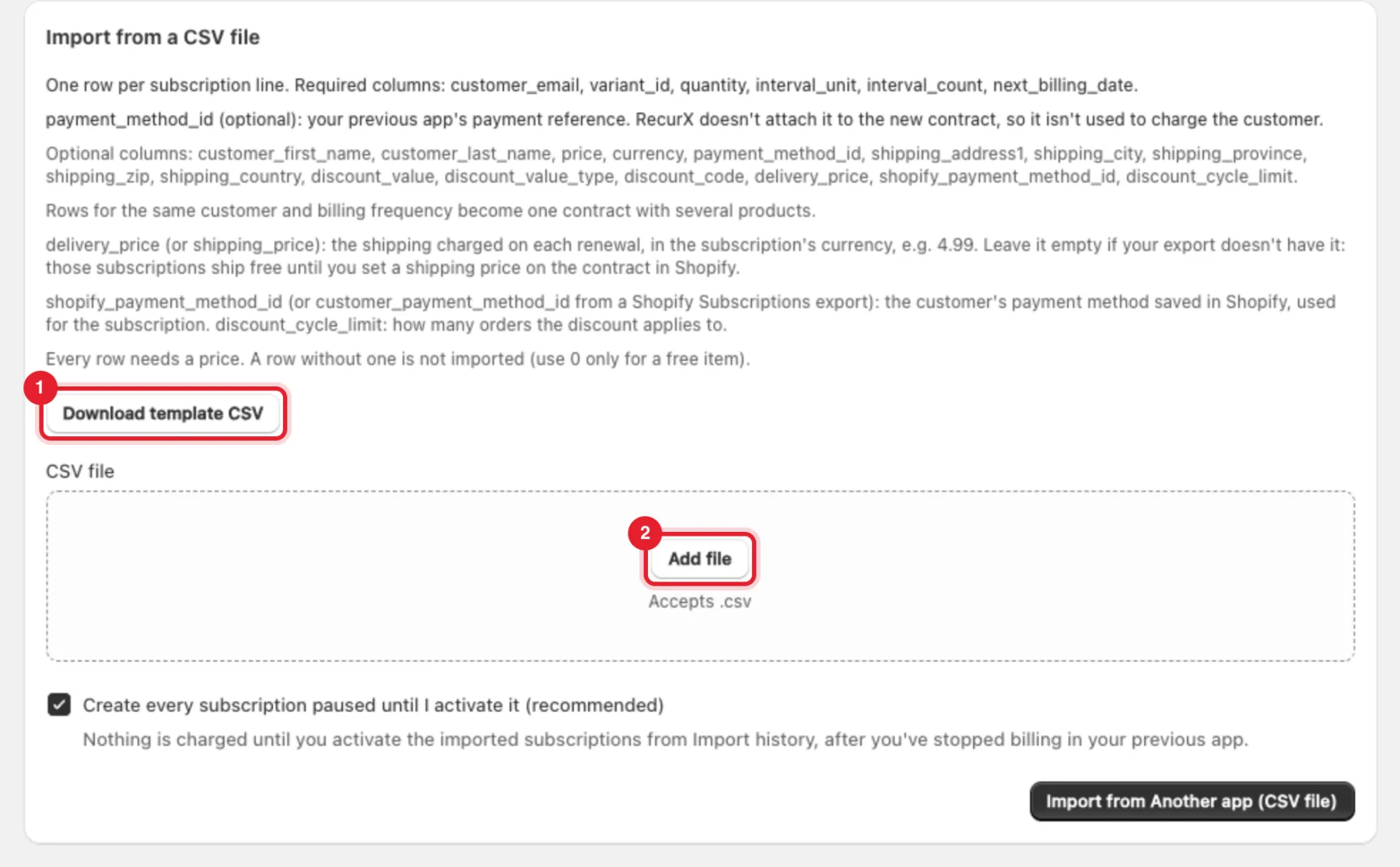
Tip: Rows for the same customer and billing frequency become one contract with several products. Add
delivery_pricefor the shipping charged on each renewal — without it, those subscriptions ship free until you set a shipping price on the contract in Shopify.
Contracts RecurX created in Shopify: click Scan for contracts, tick the contracts to bring back and click Import N contracts. This doesn't create, change or charge anything in Shopify.

Imports run in the background, so large files are fine. You can leave the page and follow progress under Import history.
Step 5: Check the import and activate
- Under Import history, find your import. It shows Total, Imported and Failed.
- Click Details to see each warning and error, or Download report for the full list.
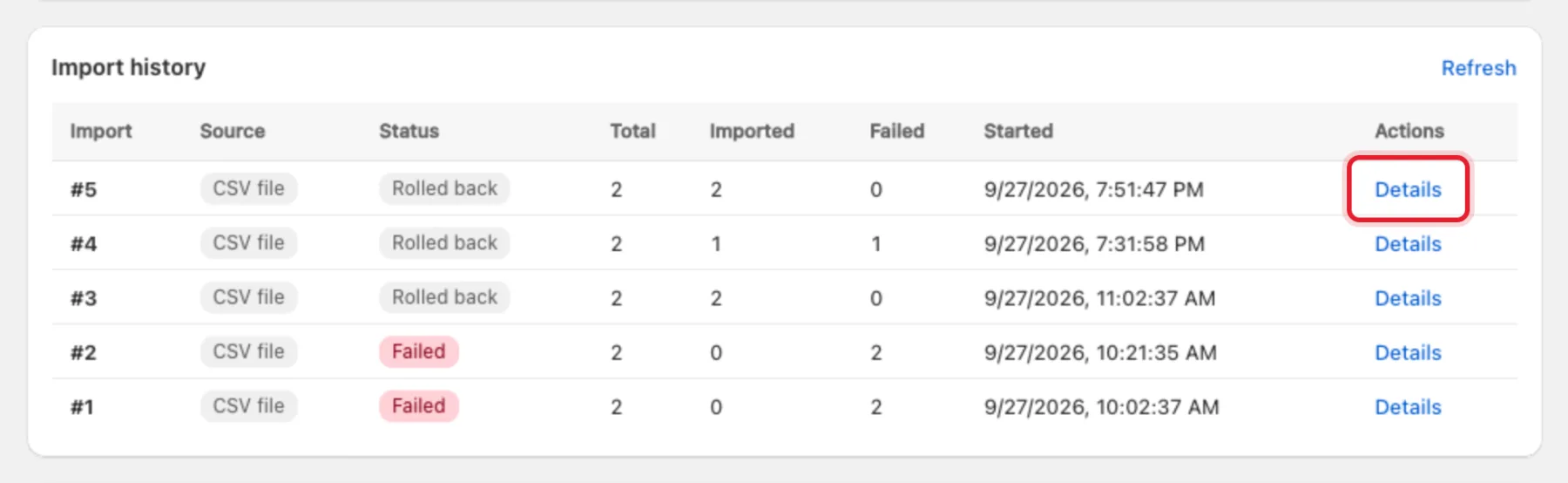
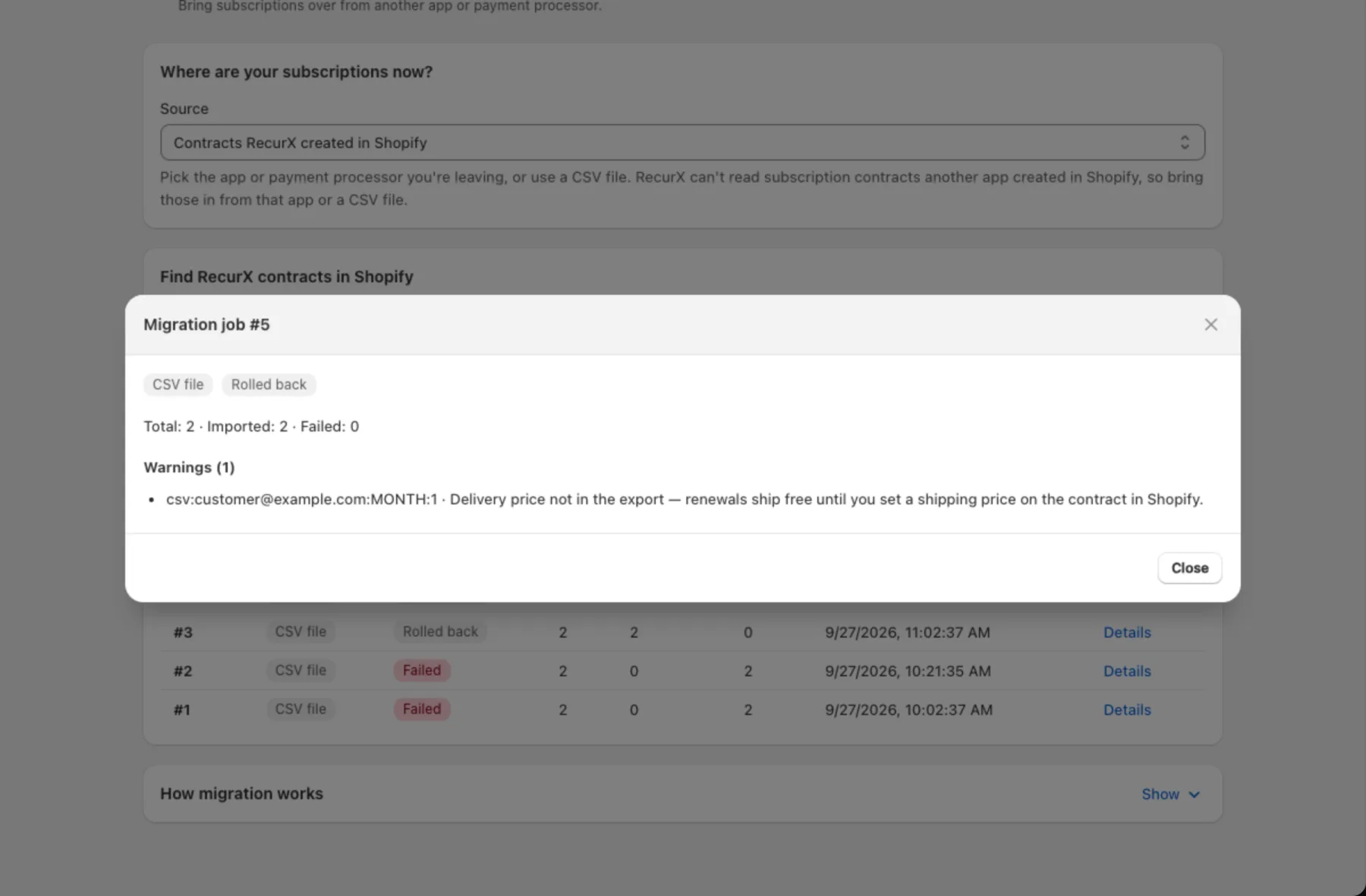
- When your old app no longer bills these customers and they have added a card, click Activate on the import. Type the number of contracts to confirm. Contracts that still have no card stay paused.
Tip: Something wrong? Click Roll back on the import. It cancels the subscription contracts that import created in Shopify. You can't undo a rollback.
Step 6: Get customers to add a card
Imported subscriptions have no payment method, so they can't be charged yet. Customers who have a card saved in Shopify can choose it in the customer portal; others enter a card there. Tell your customers before their next billing date. See Set up the customer portal.
Note: The Send payment-update email bulk action skips subscribers whose contract has no card, so it can't reach imported subscribers yet. To move saved cards from your previous processor, contact Shopify Support about migrating saved payment methods.
How migration works
Click Show on How migration works at the bottom of the page for the full rules.
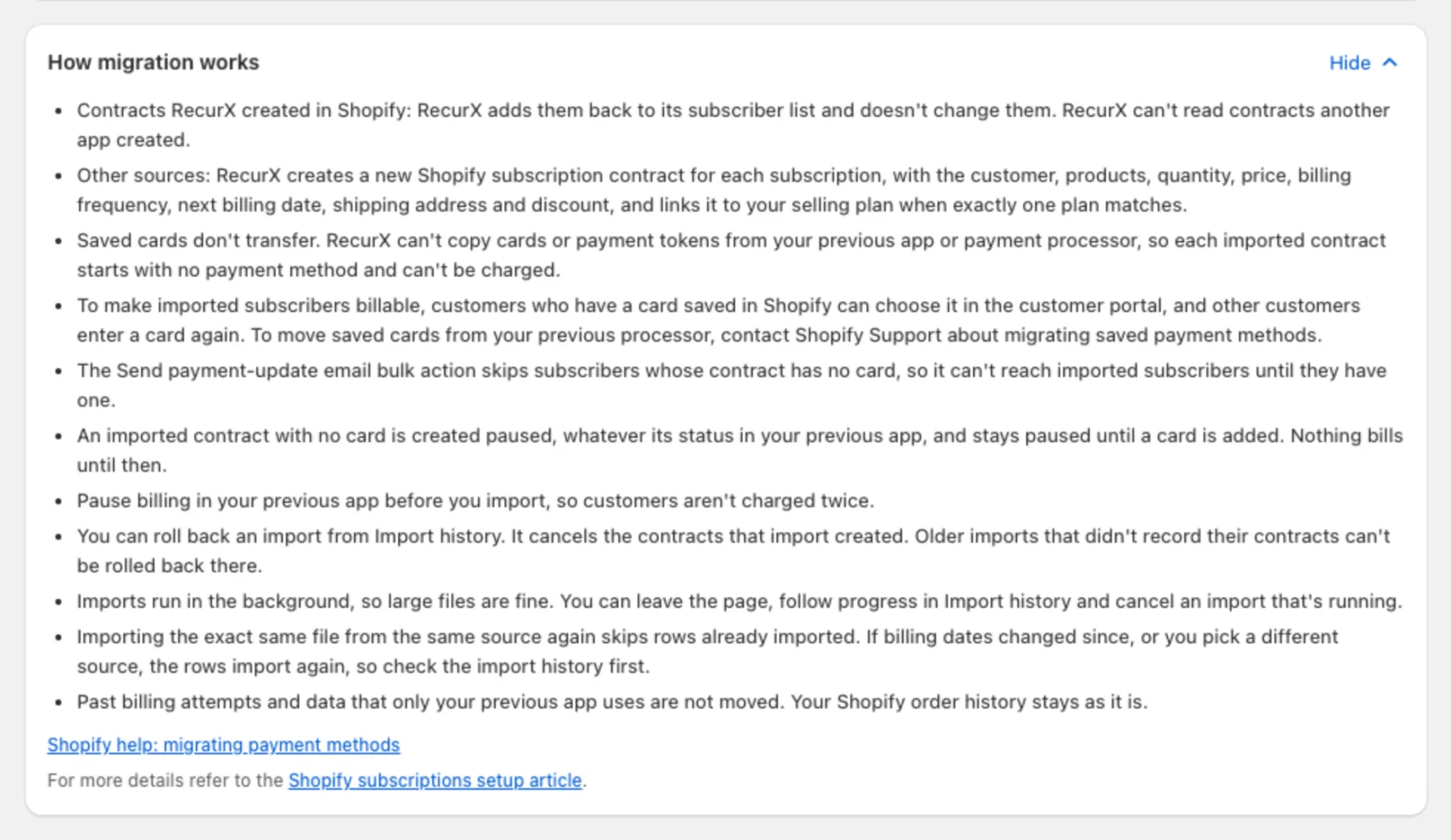
- Not moved: past billing attempts and data that only your previous app uses. Your Shopify order history stays as it is.
- Importing again: the exact same file from the same source skips rows already imported. If billing dates changed, or you pick a different source, the rows import again — check Import history first.
Troubleshooting
- "Importing from … isn't turned on for your store yet. Book a migration call to plan the move." — the importer for that source isn't available on your store. Use Another app (CSV file), or book the call.
- "The file is missing these columns: …" — download the template and match its column names.
- "Another import is still running for your store." — wait for it to finish in Import history, then try again.
- "Stripe customer IDs start with cus_." — check the IDs you pasted, or leave the field empty to import every customer with an active subscription.