
RecurX sends SMS through your own Twilio account and WhatsApp messages through your own Meta WhatsApp Cloud API account. You connect both on the Integrations page. This guide takes about 10 minutes, most of it copying values from Twilio or Meta.
Before you start: you need a Twilio account with a phone number that can send SMS, and/or a WhatsApp Business account set up in Meta Business Suite with a permanent access token. Both connections work on every plan. Twilio and Meta bill you directly for each message.
Note: Twilio (SMS) and the Meta WhatsApp Cloud API (WhatsApp) are the two messaging providers you can connect. There is no provider routing or failover setting; the only fallback is the Default channel choice on the SMS page — see Send SMS and WhatsApp messages to subscribers.
Step 1: Open Integrations
- In your Shopify admin, open Apps → RecurX Subscriptions → App settings → Integrations. (You can also click Connect a provider on Campaigns → SMS.)
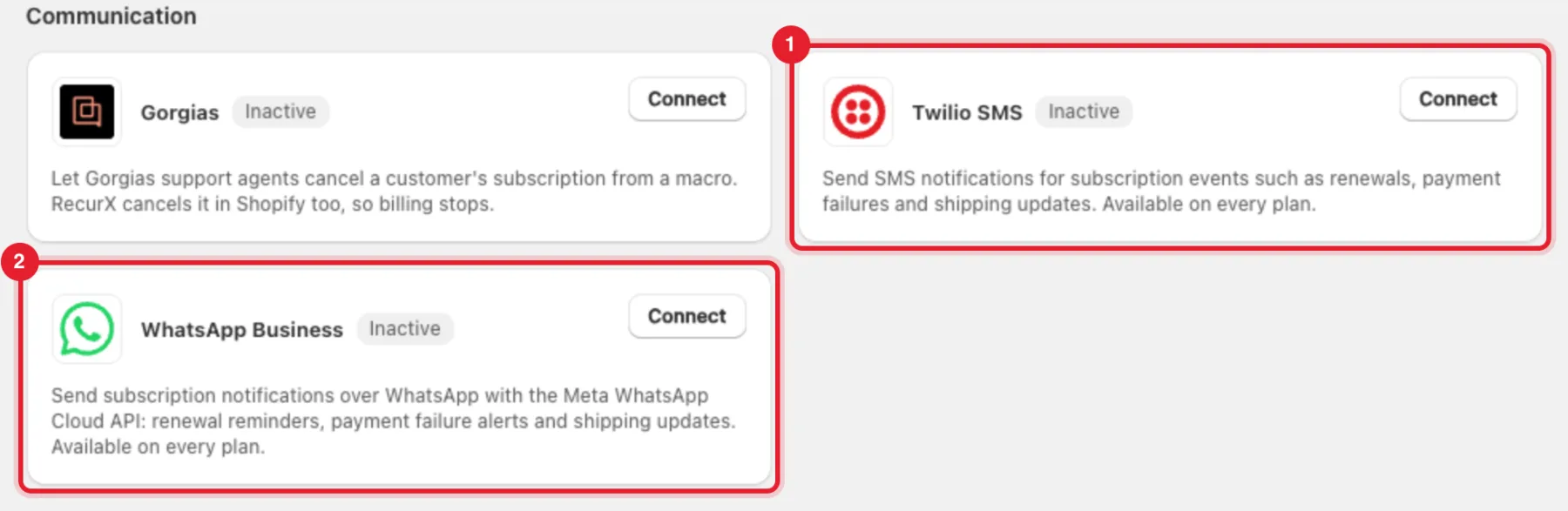
- Scroll to Communication. The two messaging cards are Twilio SMS (1) and WhatsApp Business (2).
Step 2: Connect Twilio for SMS
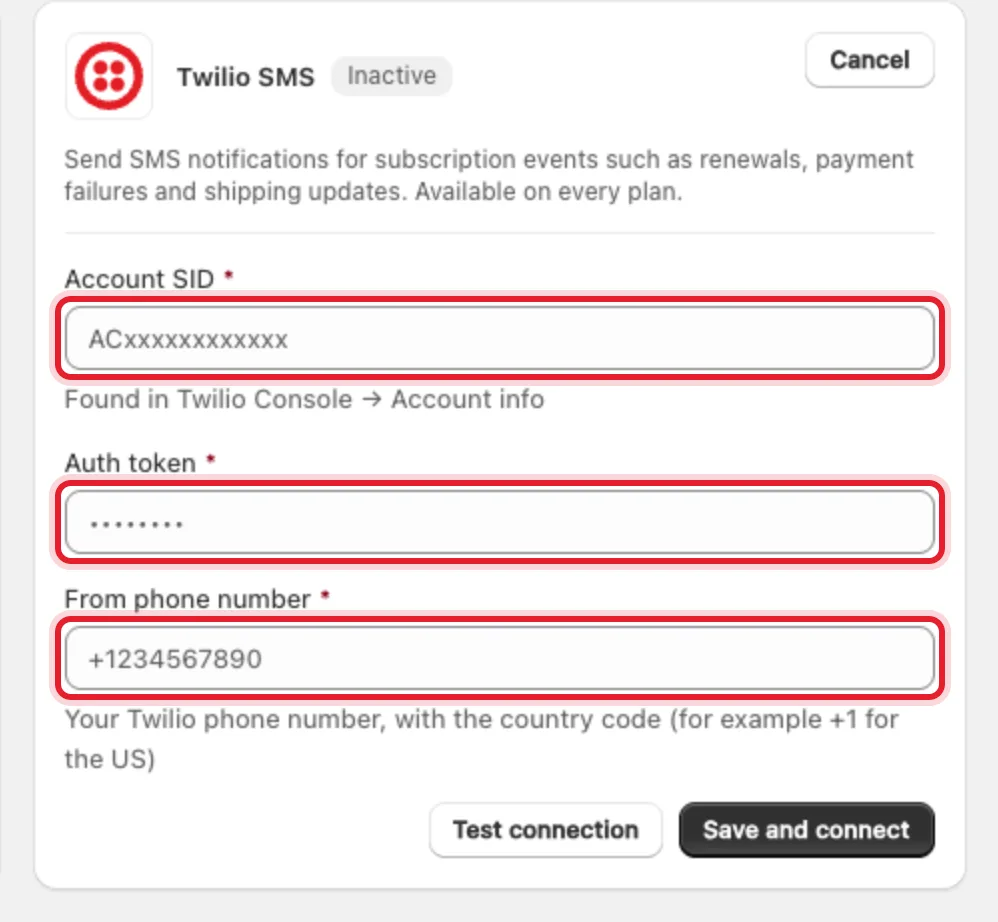
Click Connect on Twilio SMS and fill in the three fields:
- Account SID — in the Twilio Console under Account info.
- Auth token — next to the Account SID in the Twilio Console.
- From phone number — your Twilio number with the country code, for example +1 for the US.
Step 3: Test and save
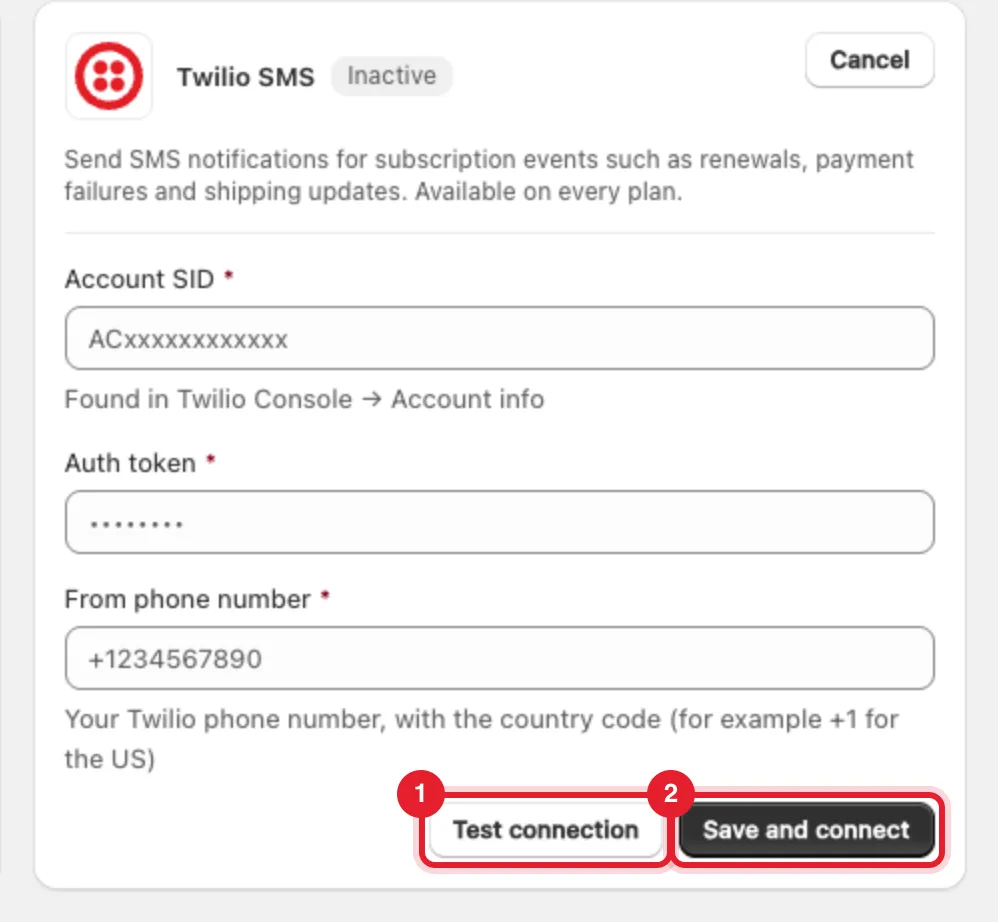
- Click Test connection to check the credentials with Twilio without saving. You see Credentials look good. Save to connect. or These credentials couldn't be verified.
- Click Save and connect.
RecurX checks the credentials again when you save and refuses them if Twilio rejects them. When the save works, the card shows Active. Credentials are stored encrypted and are never shown again in full.
Step 4: Connect WhatsApp Business
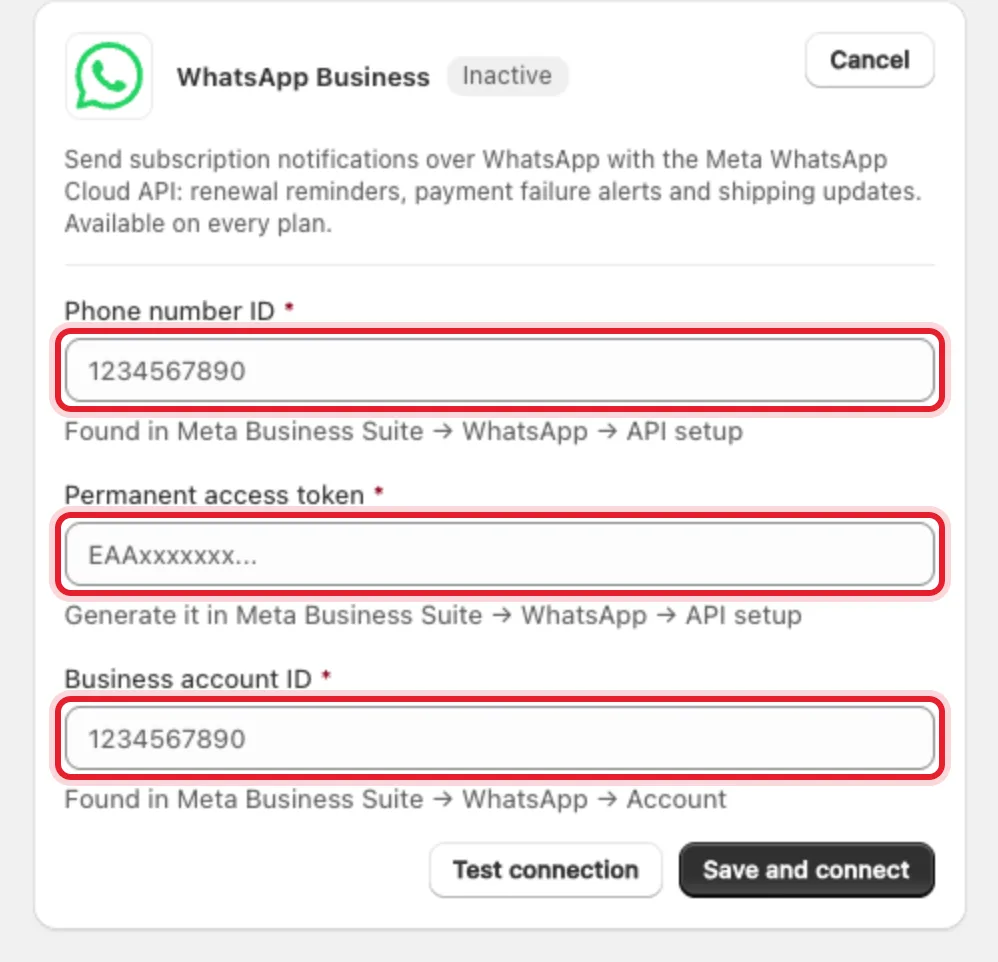
Click Connect on WhatsApp Business and fill in the values from Meta Business Suite:
- Phone number ID — WhatsApp → API setup.
- Permanent access token — generate it in WhatsApp → API setup. Use a permanent system user token; a temporary token stops working.
- Business account ID — WhatsApp → Account. RecurX needs it to list your approved message templates.
Then click Test connection and Save and connect, as for Twilio.
Important: The Meta WhatsApp Cloud API only delivers approved templates to customers who haven't written to you in the last 24 hours. After connecting, choose a template for each message on Campaigns → WhatsApp — see Send SMS and WhatsApp messages to subscribers.
Step 5: Confirm the channels are connected
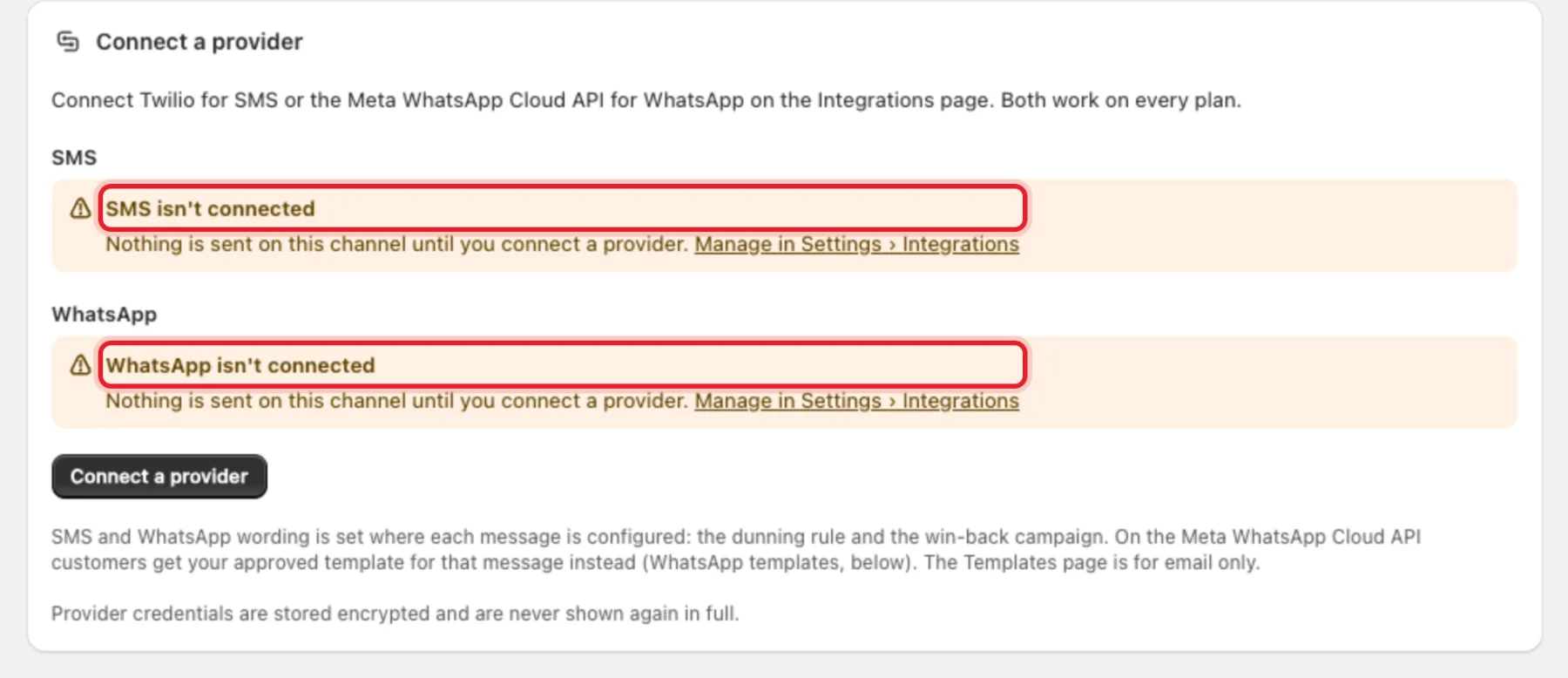
Open Campaigns → SMS. The Connect a provider card shows each channel's state. Before you connect, it reads SMS isn't connected and WhatsApp isn't connected. After you connect, each channel shows Connected and how many subscribers have a phone number and opted in.
Change or disconnect a provider
- If a saved token stops working (for example you rotated it), the card shows Reconnect needed. Click Reconnect and enter the new values.
- To disconnect, click Disconnect on the card and confirm. RecurX stops sending on that channel and deletes the saved credentials. You can connect again at any time.
Troubleshooting
RecurX shows the last delivery problem from Twilio on the Twilio SMS card. The common ones:
- "US carriers blocked the message: your Twilio number is not registered for A2P 10DLC (30034). Register a campaign in Twilio."
- "A carrier filtered the message as spam (30007). RecurX does not retry filtered messages." — check the wording of your messages and your number's registration.
- "Twilio can't send SMS to this country: turn it on in Twilio Console → Messaging → Settings → Geo permissions (21408)."
- "Meta rejected the access token. Reconnect WhatsApp with a permanent system user token." — replace the token on the WhatsApp Business card.