
The Reports page shows lists that are hard to find elsewhere: renewals that were skipped because every payment retry failed, renewals skipped for stock, and renewals that needed 3D Secure. From the same page you can email a summary on a schedule, export every contract, and build your own reports. The Calendar shows upcoming orders by their next billing date.
Who it's for: store owners and finance or operations staff. Reports, the calendar, scheduled email reports and the contracts export are on the Pro plan. On Basic the page shows an upgrade banner.
Step 1: Open Reports
- In your Shopify admin, open Apps → RecurX Subscriptions and click Subscriptions in the sidebar.
- Open the Subscribers page.
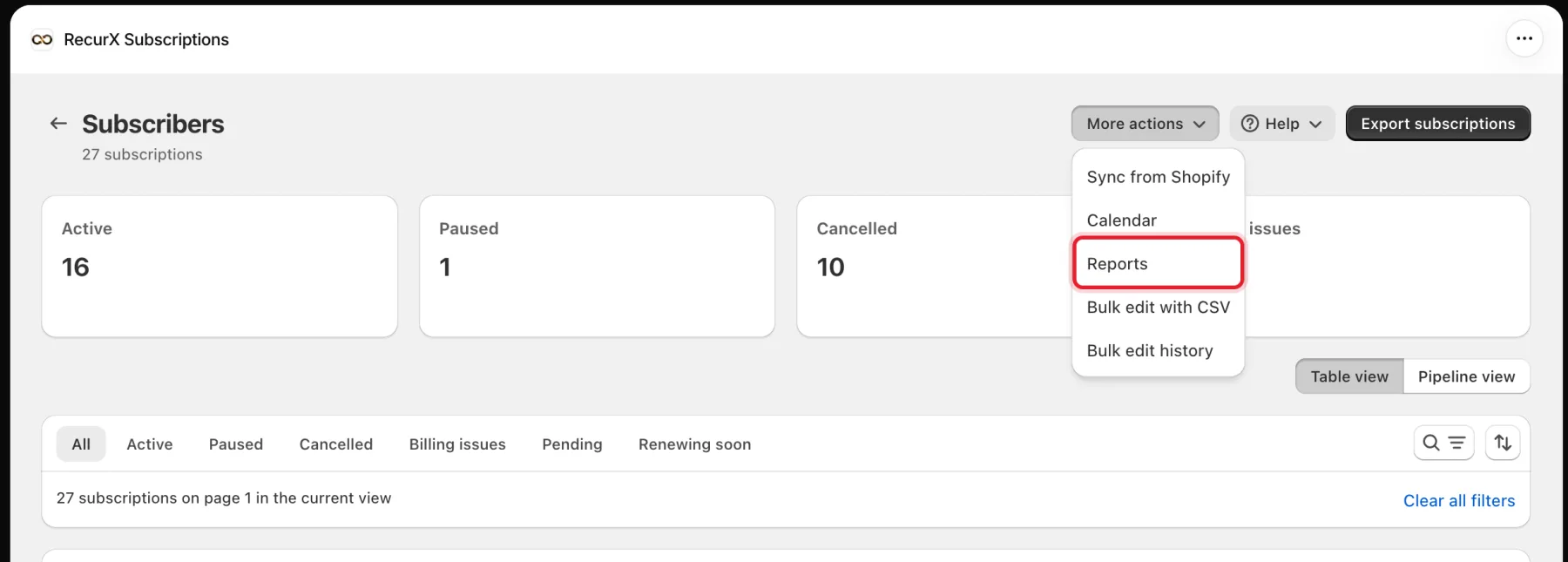
- Click More actions, then Reports.
Step 2: See renewals skipped by failed payments
The Dunning skipped tab lists orders that were skipped or cancelled because every payment retry failed.
- Make sure the Dunning skipped tab is selected.
- Set From.
- Set To.
- Click Export CSV to download the rows.
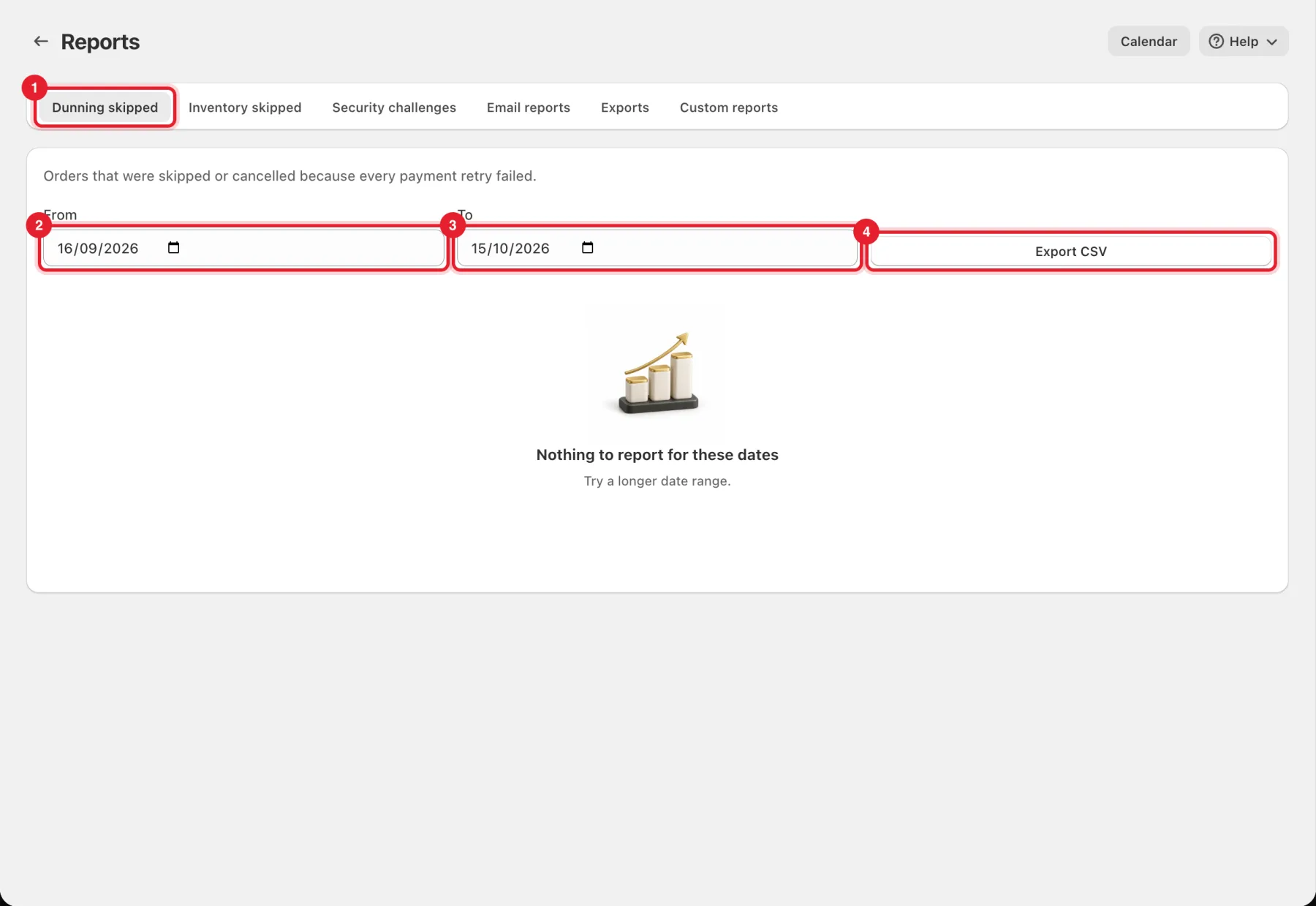
The table shows Customer, Outcome, Retries, Last error, Amount and Date. It shows the most recent 250 rows. The CSV holds up to 10,000.
Step 3: Check stock and 3D Secure skips
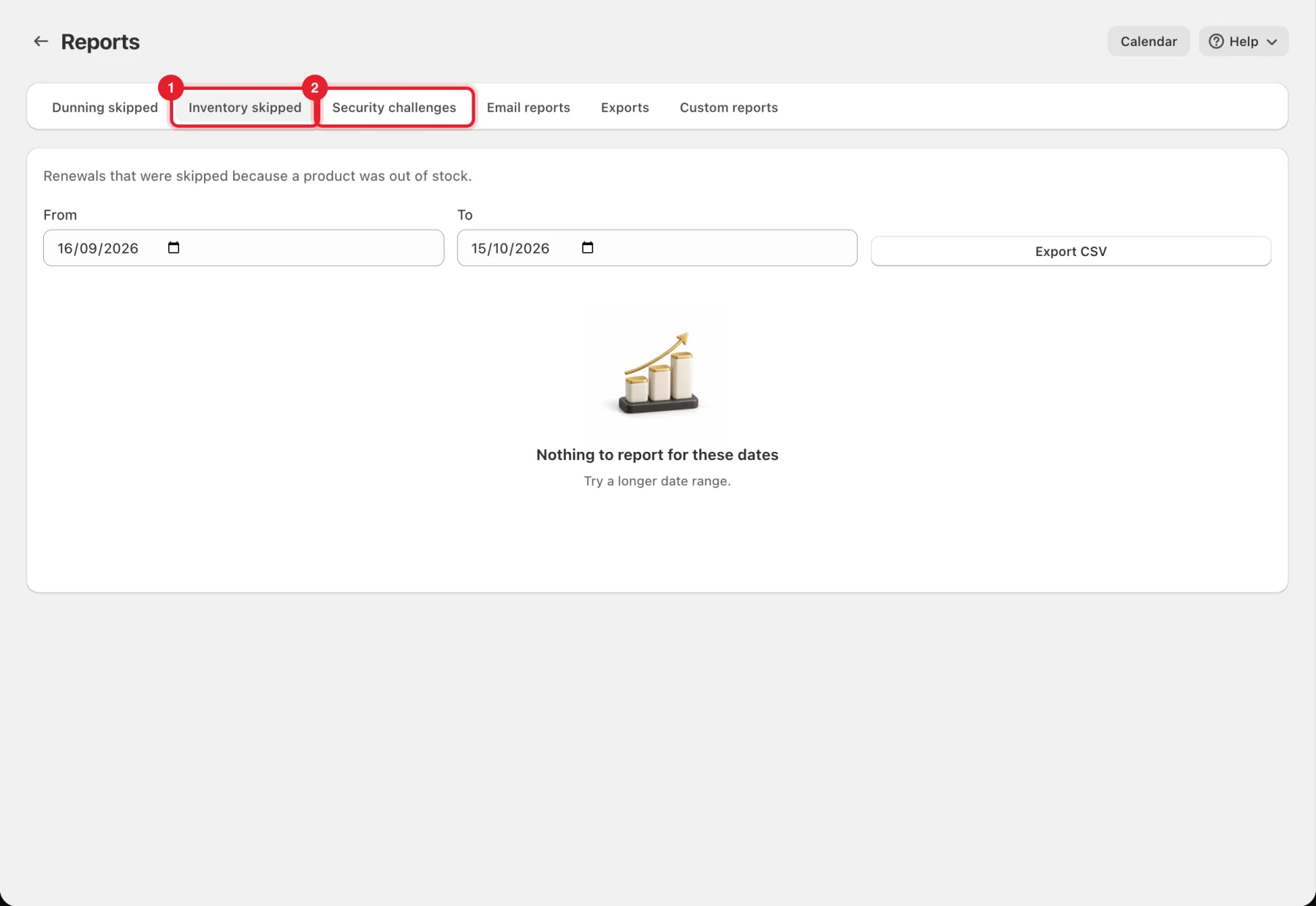
- Inventory skipped lists renewals that were skipped because a product was out of stock. These are recorded once renewal stock checks are on. See Renewal safeguards.
- Security challenges lists renewals that needed the customer to confirm the payment with their bank (3D Secure).
Step 4: Schedule email reports
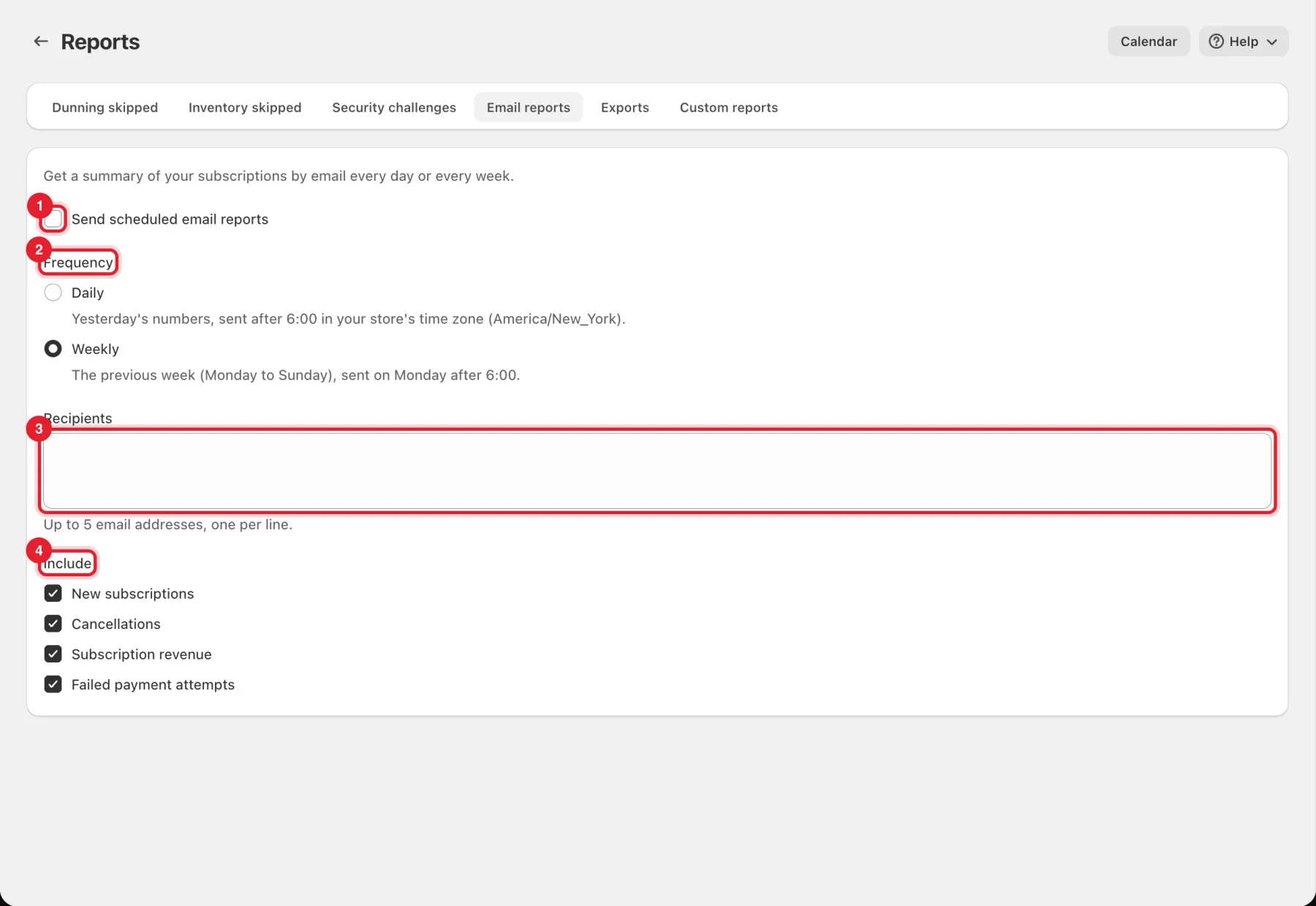
On the Email reports tab:
- Tick Send scheduled email reports.
- Choose a Frequency:
- Daily sends yesterday's numbers after 6:00 in your store's time zone.
- Weekly sends the previous week (Monday to Sunday) on Monday after 6:00.
- Enter up to 5 Recipients, one per line.
- Under Include, tick New subscriptions, Cancellations, Subscription revenue and Failed payment attempts as you need.
Click Save in the bar at the top of the page. RecurX shows Email report settings saved.
Step 5: Export your contracts
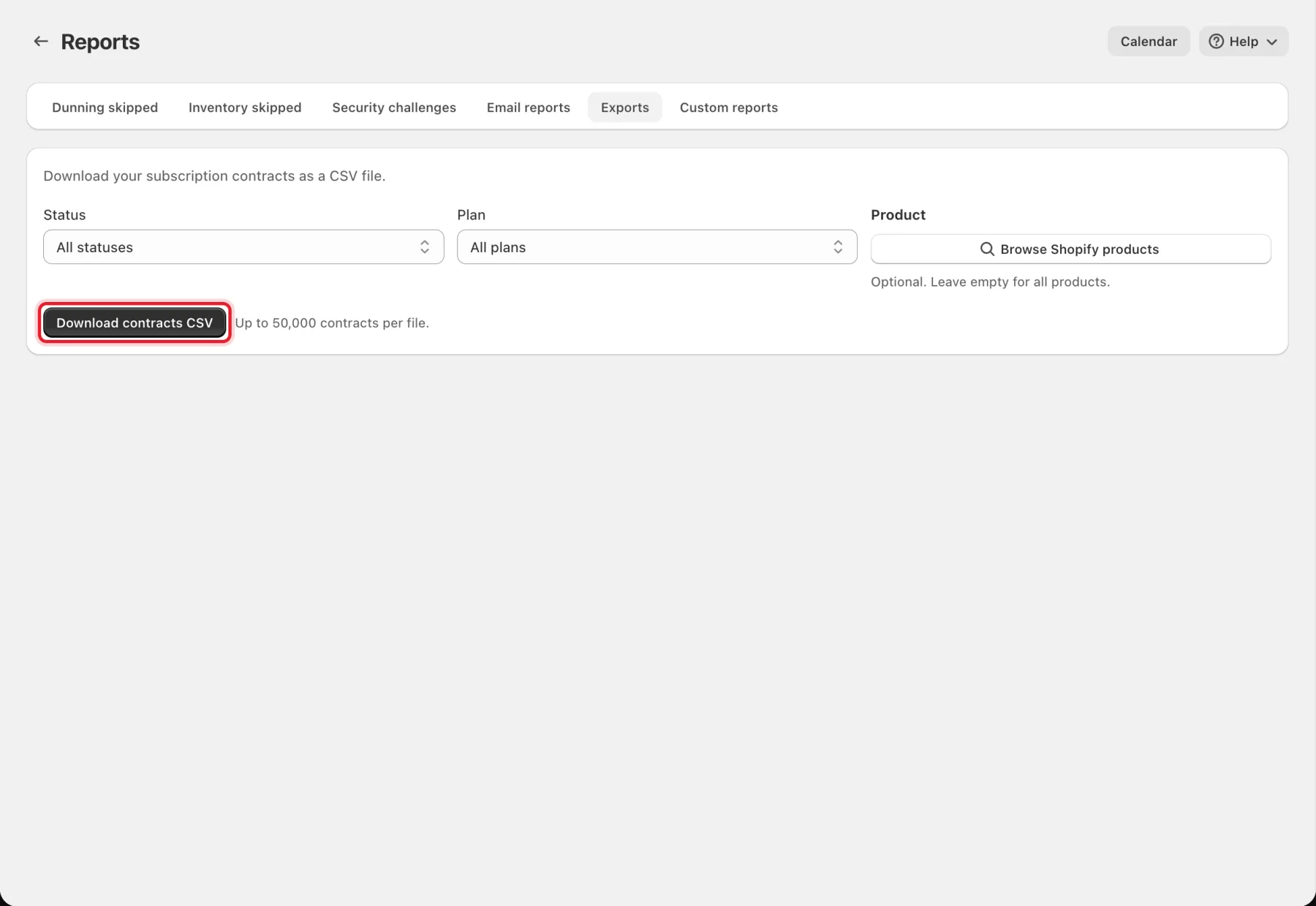
On the Exports tab, click Download contracts CSV to download your subscription contracts as a CSV file. Each file holds up to 50,000 contracts.
Step 6: Build a custom report
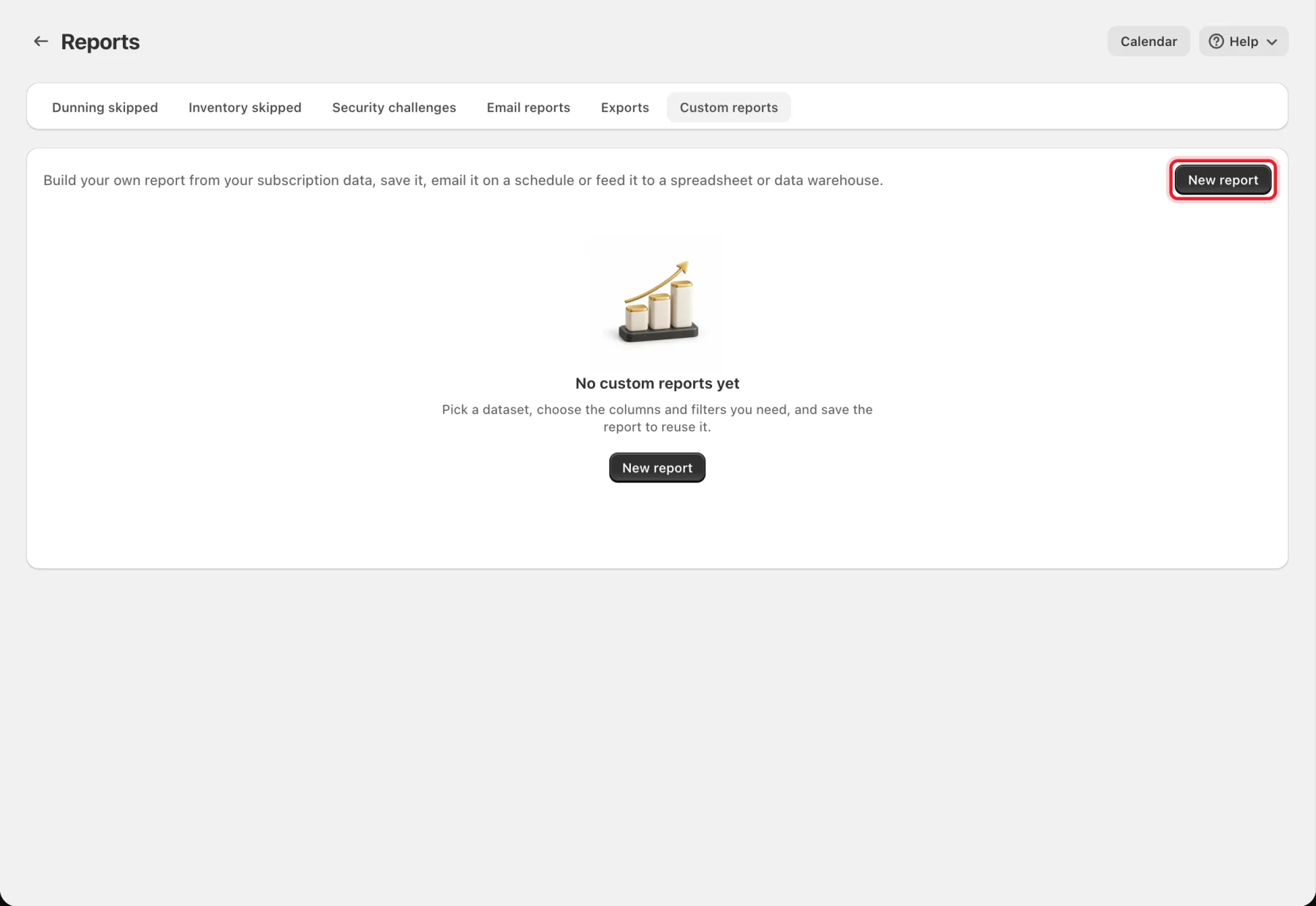
Custom reports lets you build your own report from your subscription data, save it, email it on a schedule or feed it to a spreadsheet.
- On the Custom reports tab, click New report.
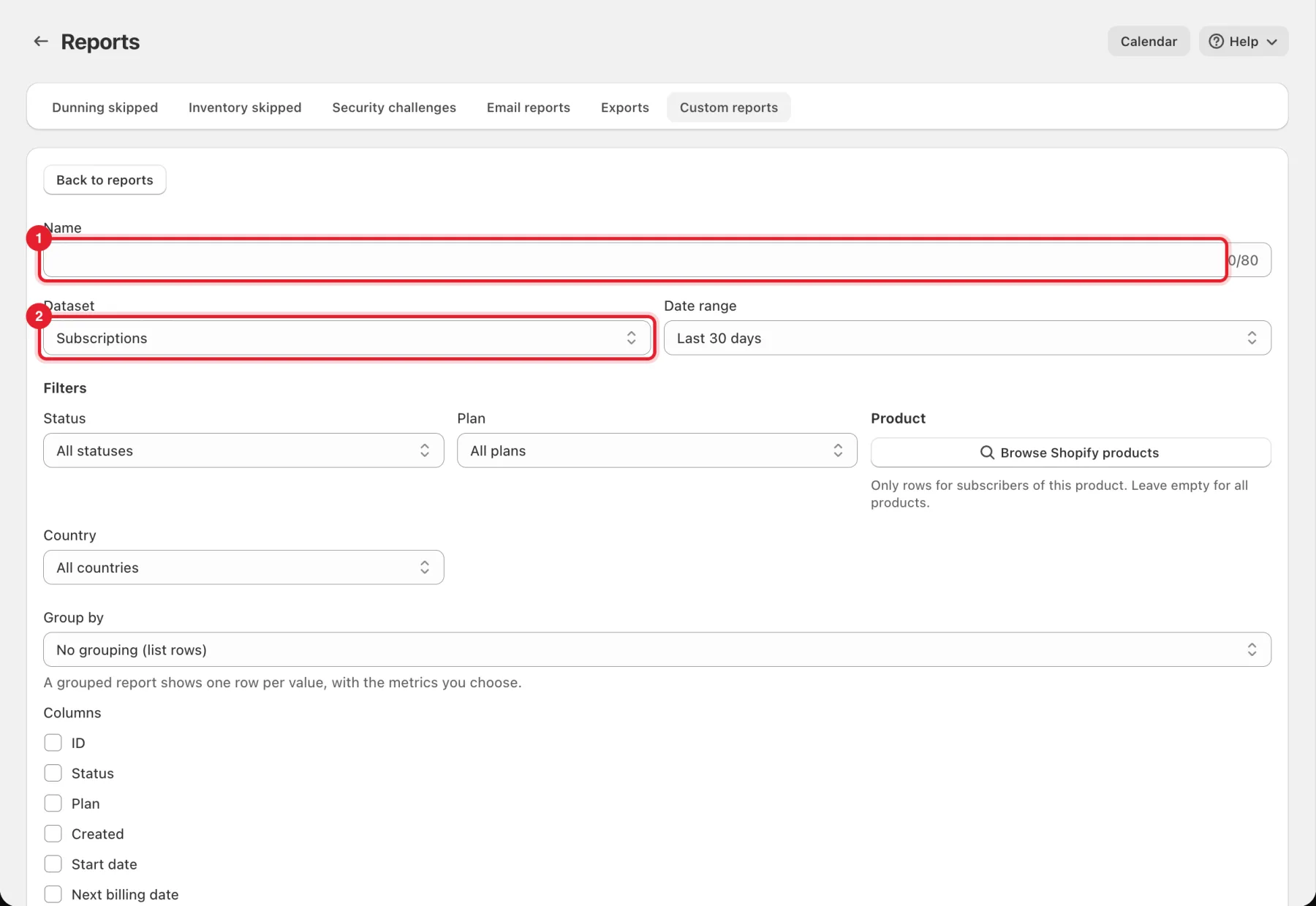
- Enter a Name and choose a Dataset: Subscriptions, Orders and revenue, Churn events, Dunning attempts or Portal actions.
- Choose a Date range, then narrow it with Filters (for example Status, Plan, Product, Country or Channel; each report shows the filters that apply to it).
- Choose Group by, or keep No grouping (list rows). Tick the Columns or Metrics you need.
- Click Preview first 50 rows to check it, Export CSV to download it, and Save in the bar at the top to keep it.
Once a report is saved, Email delivery can send the CSV every week (Monday) or month (the 1st) to up to 5 addresses. A Warehouse sync link returns the report as CSV or JSON for Google Sheets (=IMPORTDATA("link")), BigQuery or other tools. The link expires, and you can revoke it at any time.
Important: Include customer email adds personal data. Anyone who receives the report, its CSV or its sync link will see it. Turn it on only if you need it.
Step 7: See upcoming orders on the calendar
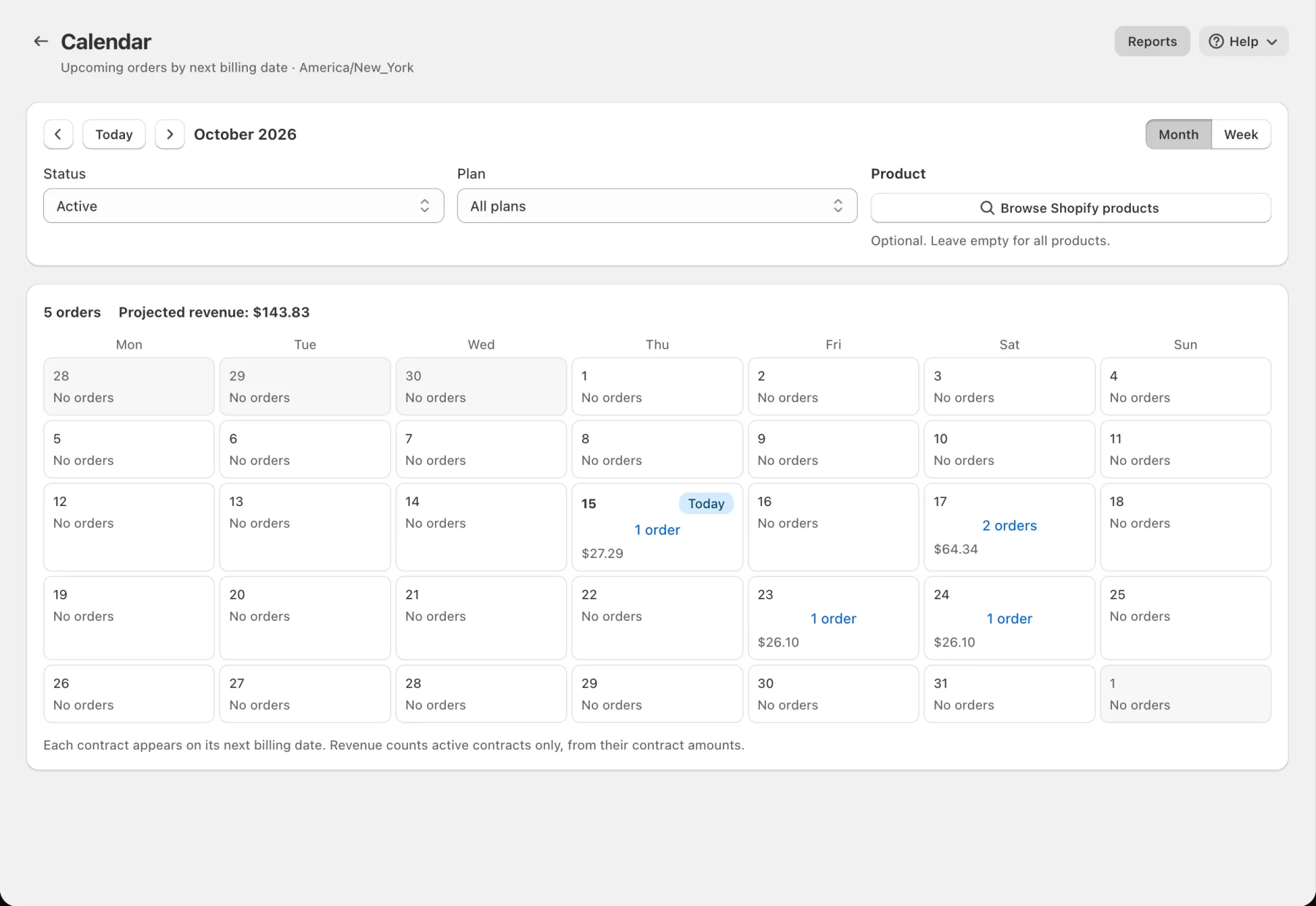
Click Calendar at the top of the Reports page. Each contract appears on its next billing date, with the number of orders and the amount for each day. The top shows the total orders and Projected revenue, which counts active contracts only, from their contract amounts.
Switch between Month and Week, and filter by Status, Plan or Product.
Good to know
- Nothing to report for these dates means no rows match. Try a longer date range.
- The calendar and reports use your store's time zone, shown on the page.
- For revenue, churn and LTV charts, see Subscription analytics. For subscriber and order exports from App settings, see Data export.