
Data export turns your RecurX data into CSV files you can open in a spreadsheet or load into another tool. Each category is its own file, built from your current data when you download it. It takes a few seconds.
Step 1: Open Data export
- In your Shopify admin, open Apps → RecurX Subscriptions → App settings.
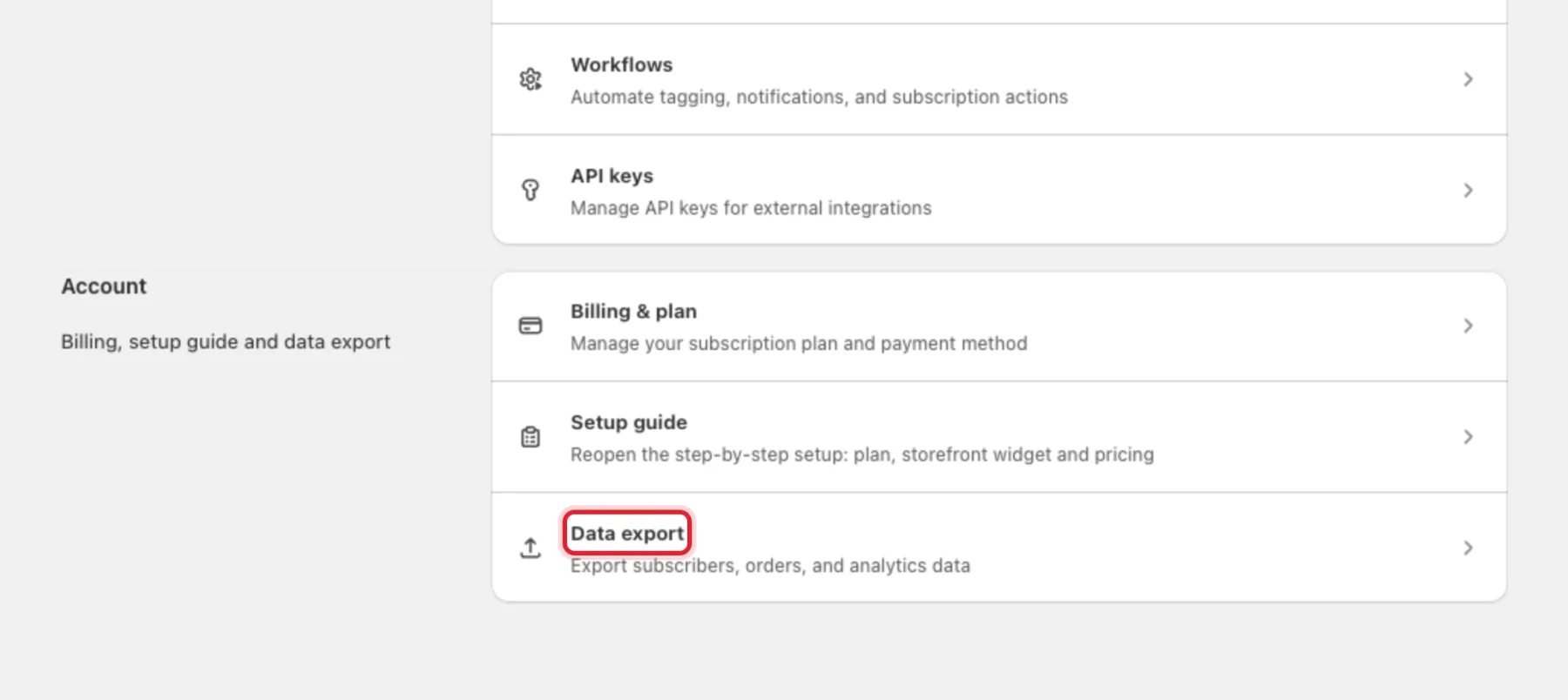
- Under Account, click Data export.
Step 2: Pick a category and generate the export
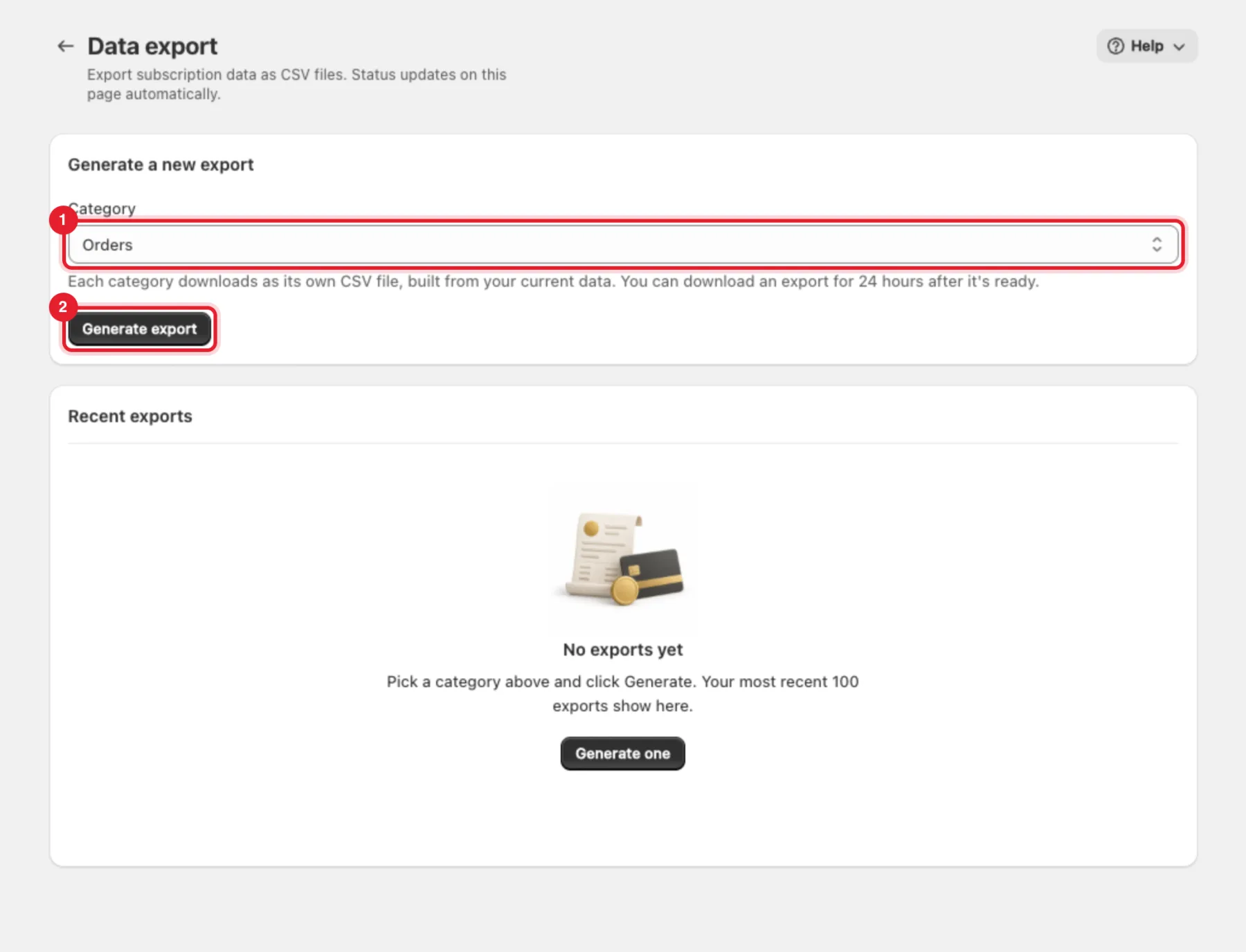
- Under Generate a new export, choose a Category (1).
- Click Generate export (2). A banner says Export started — it will appear below in a few seconds.
The categories and their columns:
| Category | Columns |
|---|---|
| Subscription contracts | id, shop_id, plan_id, customer_email, customer_name, status, start_date, next_billing_date, next_order_date, cancelled_at, total_spent, shopify_contract_id, created_at |
| Customers | shop_id, customer_email, customer_name, first_name, last_name, phone, subscriber_count, total_spent |
| Orders | id, subscriber_id, shopify_order_id, amount, status, payment_date, failure_reason |
| Billing attempts | id, subscriber_id, amount, status, payment_date, failure_reason, retry_count |
| Events log | id, shop_id, subscriber_id, action, actor, details, created_at |
| Subscription plans | id, name, billing_interval, delivery_frequency, delivery_interval, trial_days, discount_amount, discount_type, selling_plan_type, is_active, charge_anchor_type, charge_anchor_day, charge_cutoff_days, first_order_timing, created_at |
Note: The events log never includes customers' IP addresses or browser details.
Step 3: Download the file
The export appears under Recent exports. Its status updates on its own — you don't need to refresh:
- Processing (1) — the rows are being counted.
- Ready — shows the number of rows and Available until a date and time. Click Download (2) to save the CSV.
- Expired — more than 24 hours have passed. Generate a new one.
- Failed — This export couldn't be generated. Generate it again.
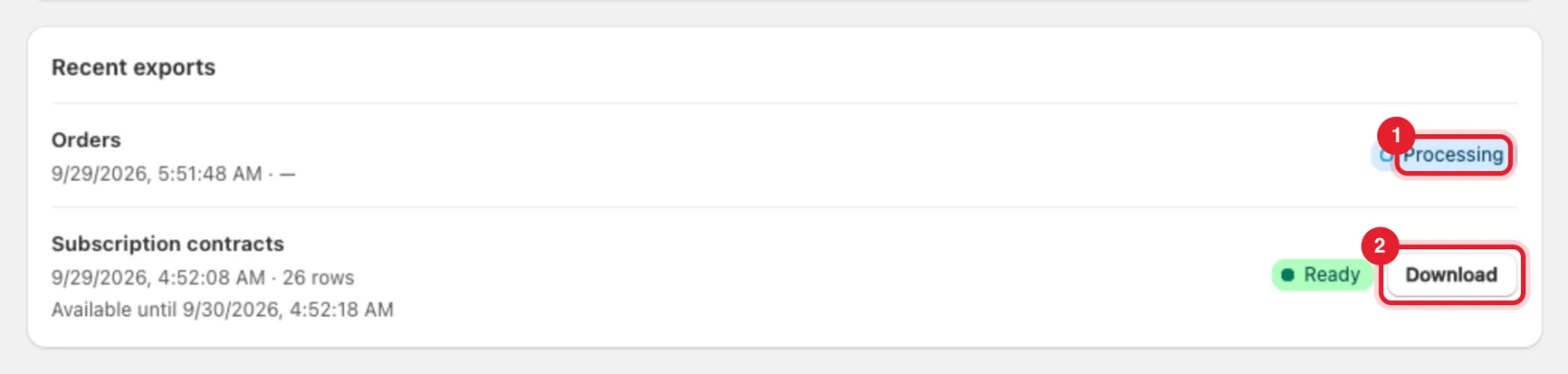
Note: The exports in this screenshot are examples.
The file is named after the category and export number, for example subscribers-901.csv. Your 100 most recent exports are listed.
Other ways to get your data
- Subscribers list: Export subscriptions at the top of Subscriptions → Subscribers downloads the subscriber list straight away.
- Signal Analytics: most reports have an Export CSV button for the table you're looking at — see Signal Analytics.
- Automated exports: exports here are on demand only. For a regular feed into another system, use the API — see API keys.
Troubleshooting
- This export has expired. Generate a new one. — downloads are available for 24 hours after an export is ready.
- This export isn't ready yet. Try again when its status is Ready. — wait for Ready, then click Download.
- The download didn't start. Try again. — click Download again. If it keeps happening, generate a new export.