
When a subscription renewal fails, RecurX retries the charge and reminds the customer to fix their payment method. This is Rescue Sequences: one retry rule per decline reason (expired card, insufficient funds, bank decline and so on), each with its own number of retries, wait time and customer email. This guide shows where it lives, what the figures mean and how to create or change a rule. It takes about 5 minutes.
Before you start: payment recovery is on by default for every store. You don't have to set anything up for failed renewals to be retried — the steps below are for checking and tuning it.
Step 1: Open Payment recovery and check that it's on
- In your Shopify admin, open Apps → RecurX Subscriptions.
- Go to Retention → Payment recovery.
- The Payment recovery card at the top shows On (1) with On — failed renewals are retried and customers get a reminder. The date under it is when recovery started for your store.
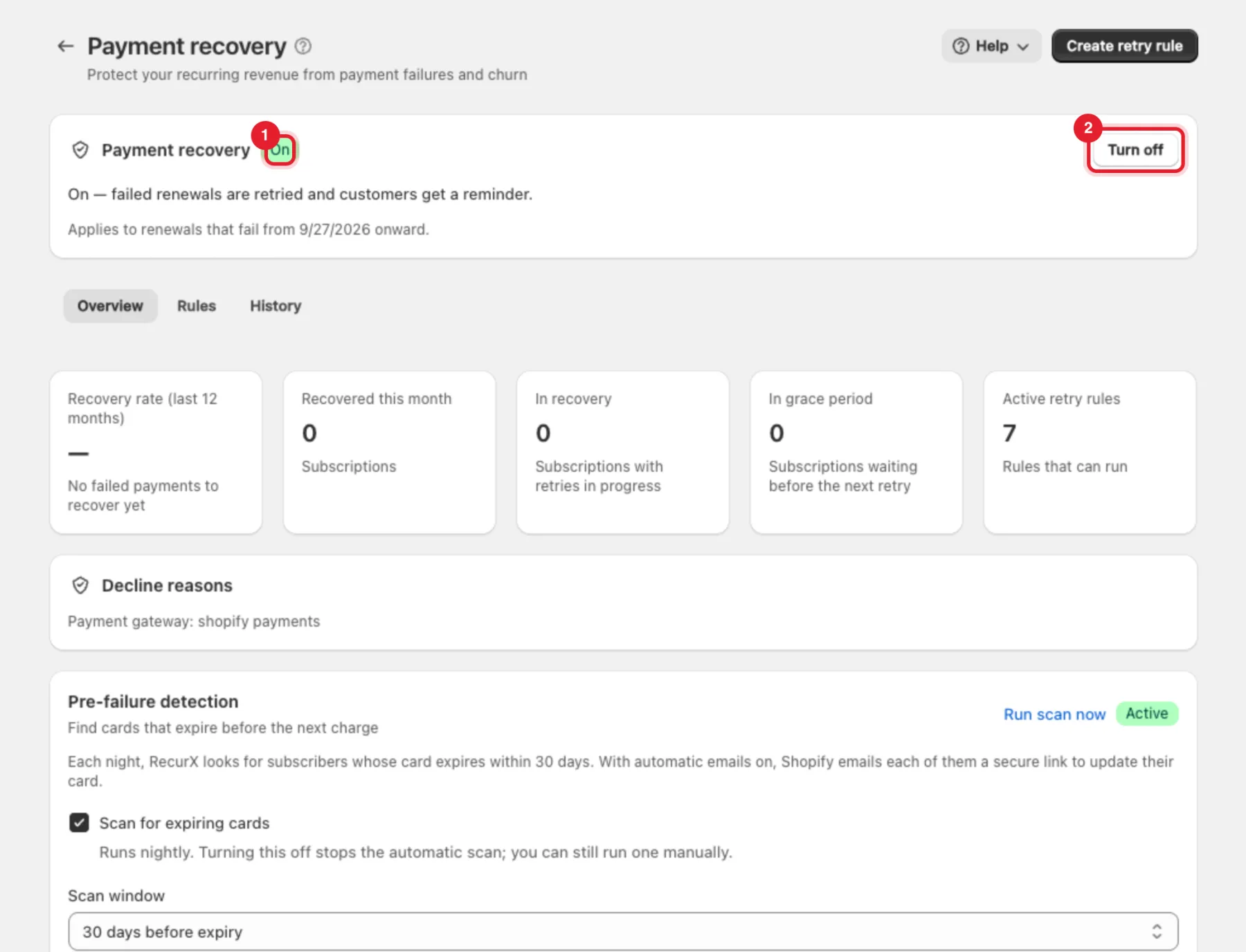
Warning: Turn off (2) stops all retries and reminders. RecurX asks you to confirm first. If you turn it back on later, it only applies to renewals that fail from then on — earlier failures are not picked up again.
Step 2: Read the recovery figures
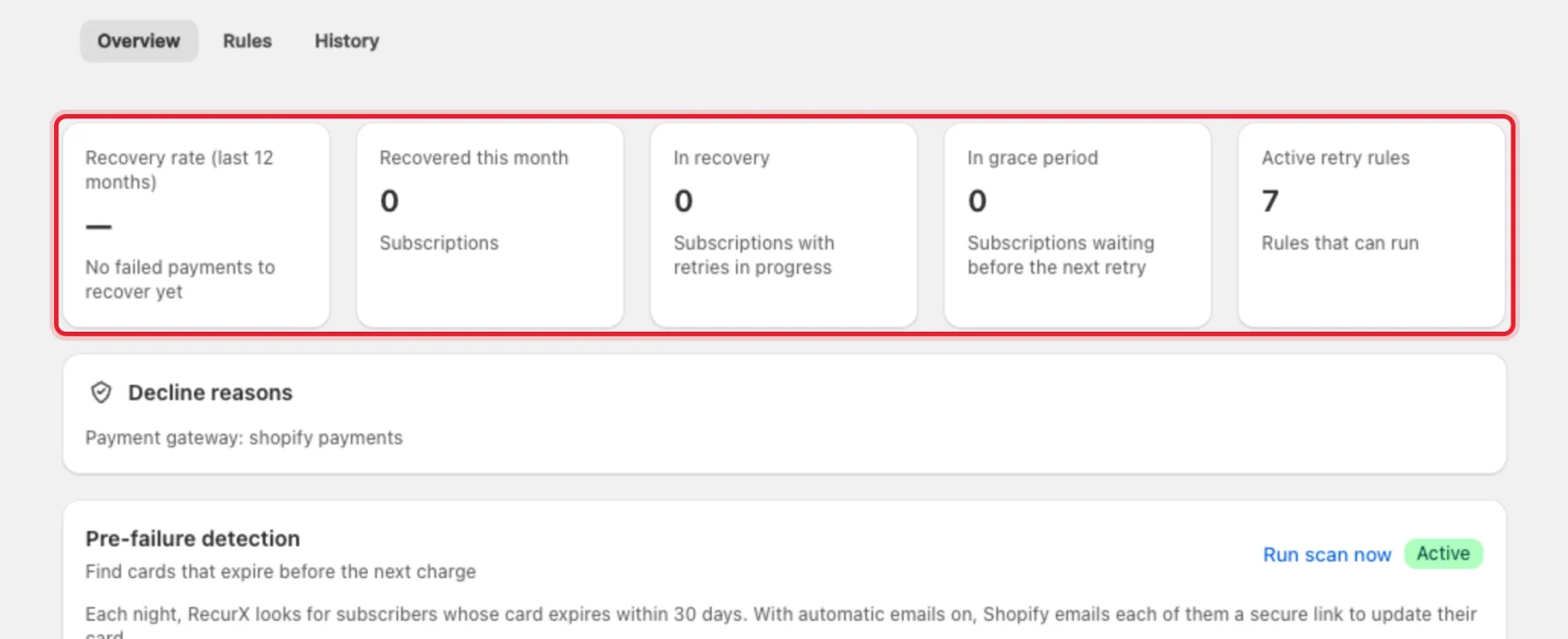
The Overview tab shows how recovery is going:
| Figure | What it counts |
|---|---|
| Recovery rate (last 12 months) | Failed payments that were later paid. Shows a dash until you've had a failed payment. |
| Recovered this month | Subscriptions recovered since the start of the month |
| In recovery | Subscriptions with retries in progress |
| In grace period | Subscriptions waiting before the next retry |
| Active retry rules | Rules that can run |
Under the figures, Decline reasons lists why payments failed (for example Insufficient funds · 3) and the payment gateway RecurX detected.
Note: If you see Payment gateway not detected yet, click Detect gateway. RecurX checks that your gateway supports subscription billing.
Step 3: Review your retry rules
- Click the Rules tab (1).
- Recommended retry rules lists a ready-made rule for each decline reason you don't cover yet. Click Activate on one to add it as it is.
- Your active rules (2) lists the rules you have, with the number of retries, the days between them, what happens after the last retry (Pause or Cancel), whether an email is sent, and the status. Click a row to edit that rule.
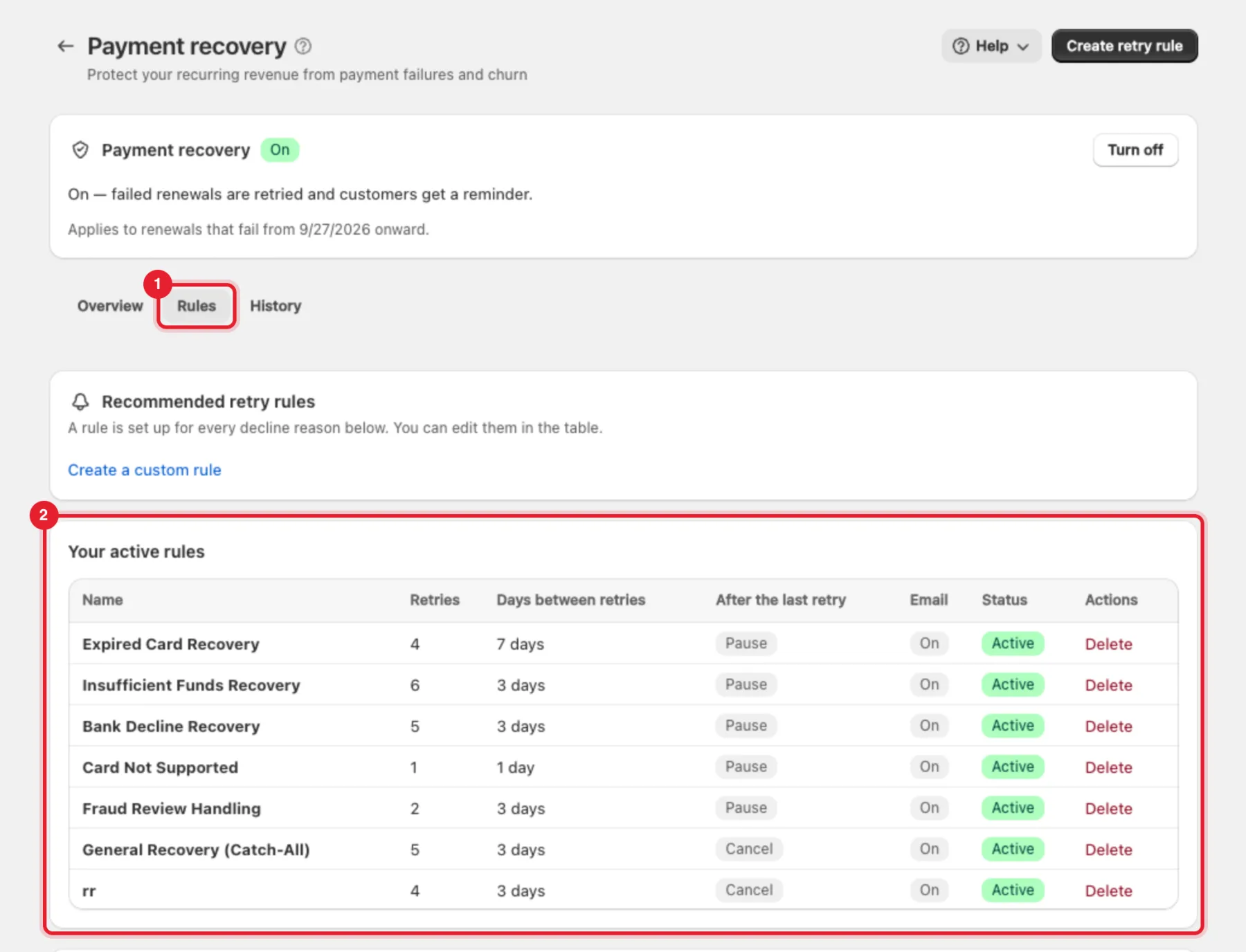
The recommended rules are:
| Rule | Retries | Wait | After the last retry |
|---|---|---|---|
| Expired card | 4 | 7 days | Pause |
| Insufficient funds | 6 | 3 days | Pause |
| Bank decline | 5 | 3 days | Pause |
| Card not supported | 1 | 1 day | Pause |
| Flagged for fraud | 2 | 3 days | Pause |
| Every other decline | 5 | 3 days | Cancel |
Each one emails the customer. Once every decline reason has a rule, the card reads A rule is set up for every decline reason below. You can edit them in the table.
Step 4: Create a retry rule
- Click Create retry rule at the top of the page (or Create a custom rule on the Rules tab).
- Rule name (1) — a name for you, for example Insufficient funds — payday retries.
- Decline category (2) — the kind of failed payment this rule handles: Expired card, Insufficient funds, Bank decline, Card not supported, Flagged for fraud or Catch-all (every other decline). Leave it on Not category-specific and the rule is only used when no category rule matches.
- Maximum retries (3) — how many times RecurX tries the charge again.
- Days between retries (4) — how long it waits between tries.
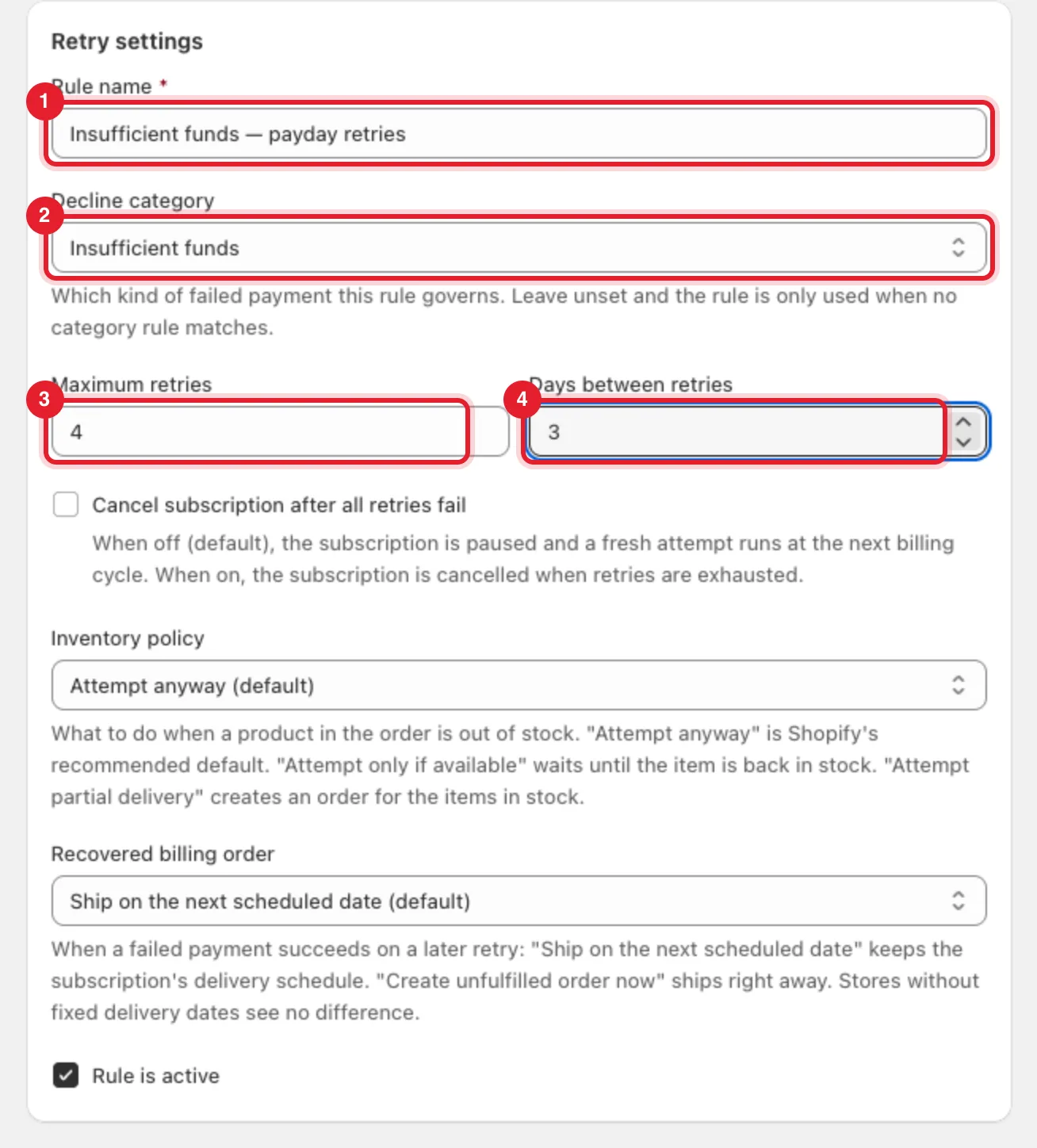
Note: Retries and days must be whole numbers of 1 or more. If not, the field shows Enter a whole number of 1 or more.
Step 5: Choose what happens after the last retry
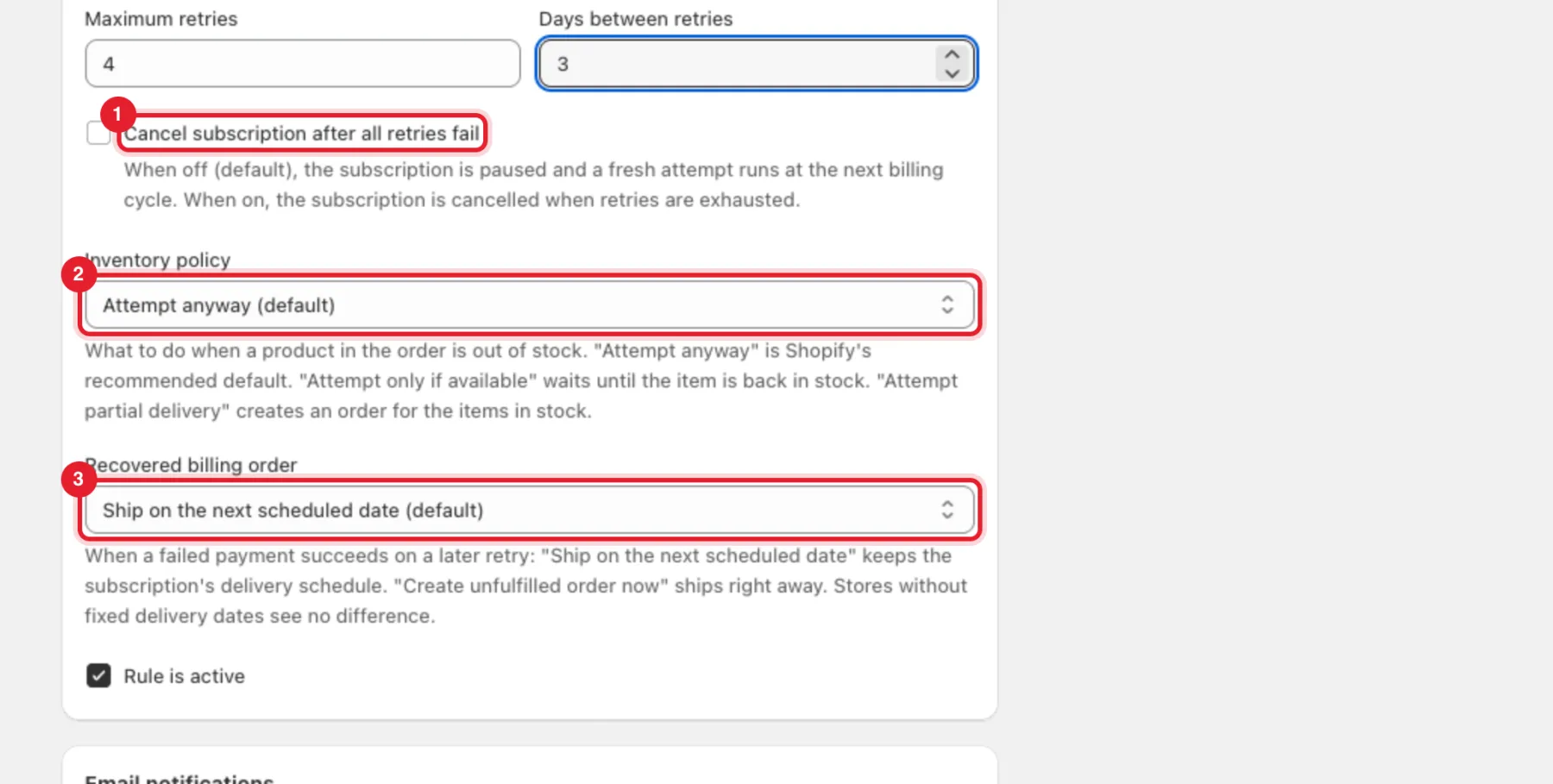
- Cancel subscription after all retries fail (1) — off by default: the subscription is paused and a fresh attempt runs at the next billing cycle. Tick it to cancel the subscription instead.
- Inventory policy (2) — what to do when a product in the order is out of stock: Attempt anyway (default), Attempt only if available (waits until it's back in stock) or Attempt partial delivery (an order for the items in stock).
- Recovered billing order (3) — when a later retry succeeds: Ship on the next scheduled date (default) keeps the delivery schedule; Create unfulfilled order now ships right away.
- Keep Rule is active ticked so the rule can run.
Step 6: Write the customer email
In Email notifications:
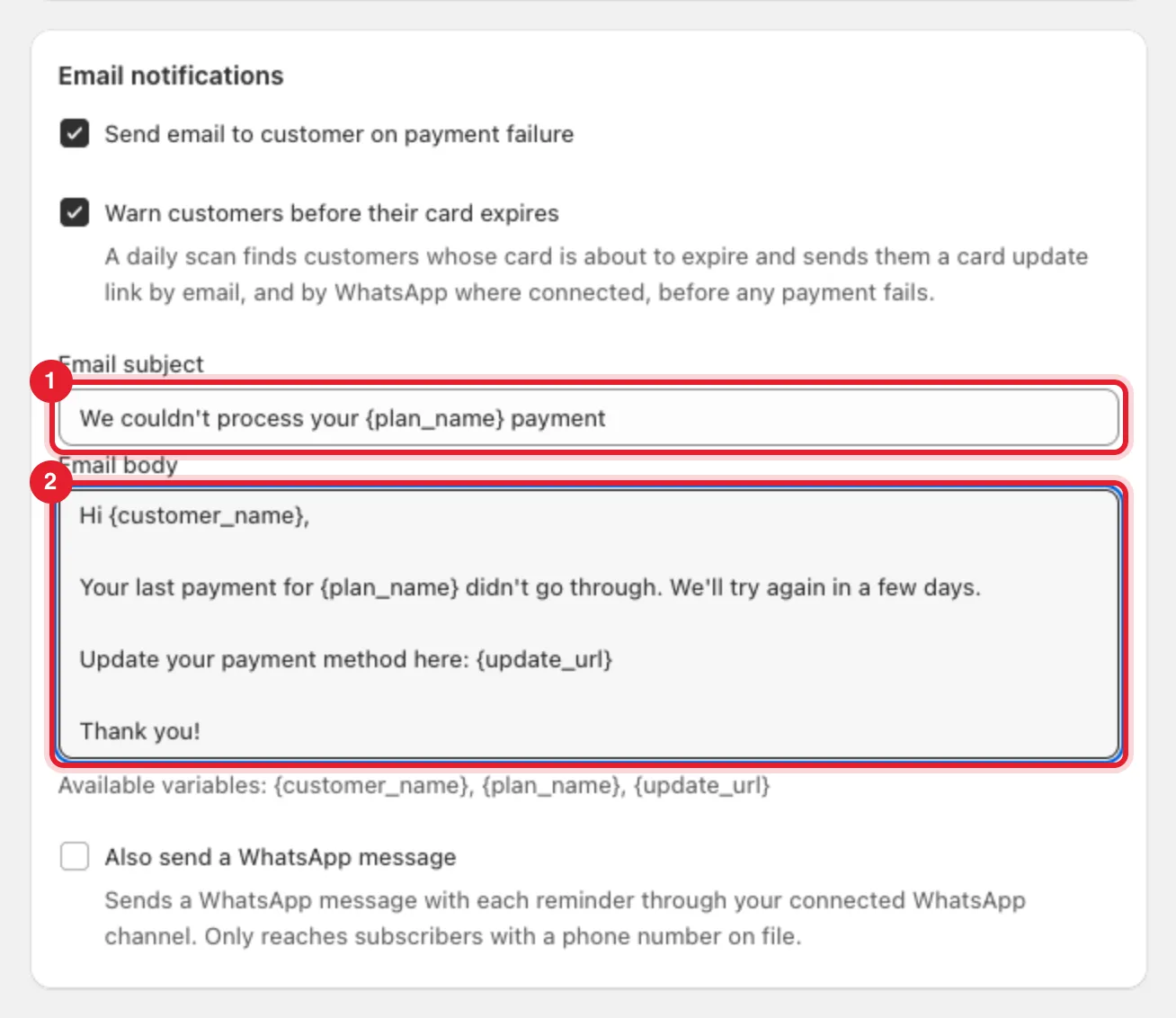
- Keep Send email to customer on payment failure ticked to email the customer when a payment fails.
- Warn customers before their card expires — a daily scan emails customers whose card is about to expire a link to update it, before any payment fails.
- Email subject (1) and Email body (2) — the message the customer gets. You can use
{customer_name},{plan_name}and{update_url}(a link the customer uses to update their payment method). - Also send a WhatsApp message (optional) — sends a WhatsApp message with each reminder through your connected WhatsApp channel. It only reaches subscribers with a phone number on file.
Tip: You can also edit the payment-failed email on Campaigns → Email templates — see Email templates.
Step 7: Check the summary and save
The Summary card (2) repeats the rule in one line — for example Retry up to 4 times, every 3 days. Pause the subscription after the last retry. Customer will be notified. Check it, then click Save (1) in the bar at the top of the page.
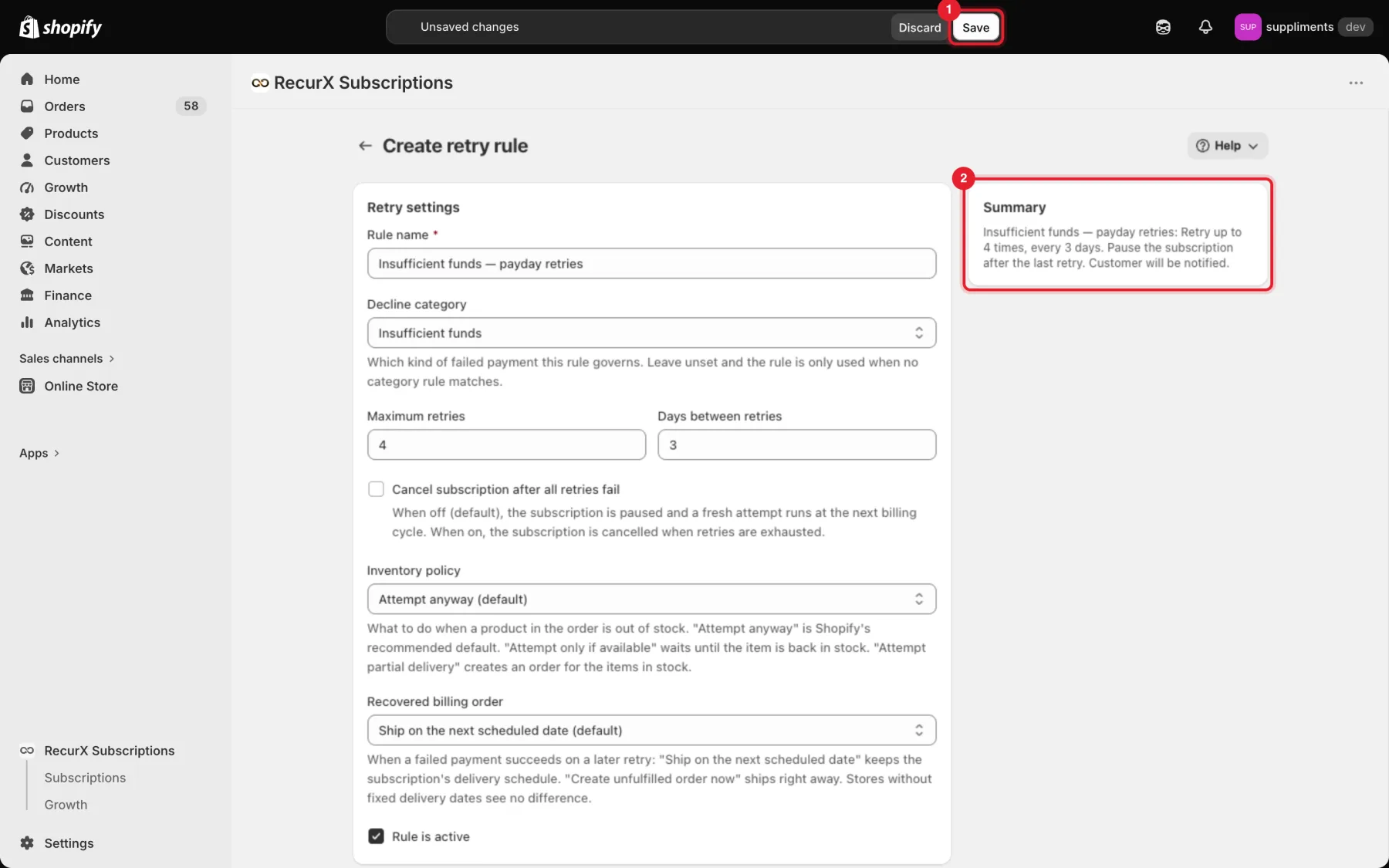
The rule appears under Your active rules. To change it later, click its row. To remove it, click Delete in its row and confirm — retries already scheduled are not affected.
Note: Basic and Pro include unlimited retry rules. On an older plan with a limit, Create retry rule is disabled once you reach it; edit or delete a rule, or upgrade.
Step 8: Catch expiring cards before they fail (optional)
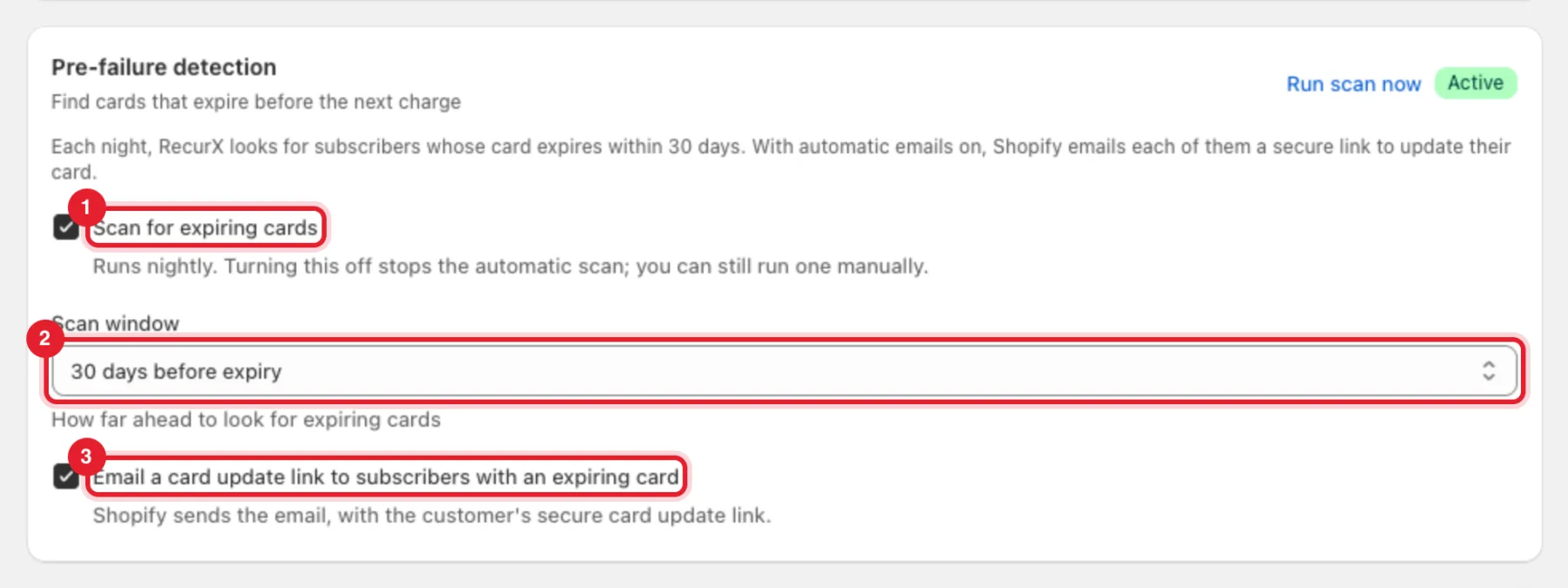
Back on the Overview tab, Pre-failure detection looks each night for subscribers whose card expires before their next charge:
- Scan for expiring cards (1) — on by default.
- Scan window (2) — how far ahead to look: 30, 60 or 90 days before expiry.
- Email a card update link to subscribers with an expiring card (3) — Shopify sends the email, with the customer's secure card update link.
Click Run scan now to scan straight away. A line under the card shows how many subscribers were checked, how many have an expiring card and how many emails were sent.
What happens when a renewal fails
- RecurX reads the decline reason and picks the rule for that category (or the catch-all rule).
- It retries the charge on that rule's schedule and emails the customer, as set in the rule. For card problems (expired or unsupported card), Shopify also emails the customer a secure link to update their card after the first failure.
- If a retry succeeds, the subscription carries on and the order is created as set under Recovered billing order.
- If every retry fails, the subscription is paused or cancelled, as set in the rule.
You can follow each attempt on the History tab and on the subscriber's page — see Read the failed payment and retry history. To send a customer a card-update link yourself, see Get a subscriber's payment method updated.
FAQ
- How many times can a payment be retried? RecurX stops after 25 billing attempts per subscription. Shopify's limit is 30. After that, the subscription needs your attention.
- When do retries happen? After the number of days set in the rule. For insufficient funds, a retry can be moved to the 1st or the 15th of the month.
- What happens after the last retry fails? The subscription is cancelled or paused, as set in the rule.