
Card details are held by Shopify, not by RecurX, so nobody at your store can type in a new card for a customer. Instead, the customer updates it through a secure Shopify link. RecurX gives you three ways to get that link to them: send it yourself from the subscriber's page, send it to many subscribers at once, or let customers do it in the customer portal. RecurX also sends it automatically in some cases (see the end of this guide).
Step 1: Send the payment update link from a subscriber's page
- In your Shopify admin, open Apps → RecurX Subscriptions → Subscriptions → Subscribers and click the subscriber.
- Click More at the top of the page.
- Click Send payment update link.
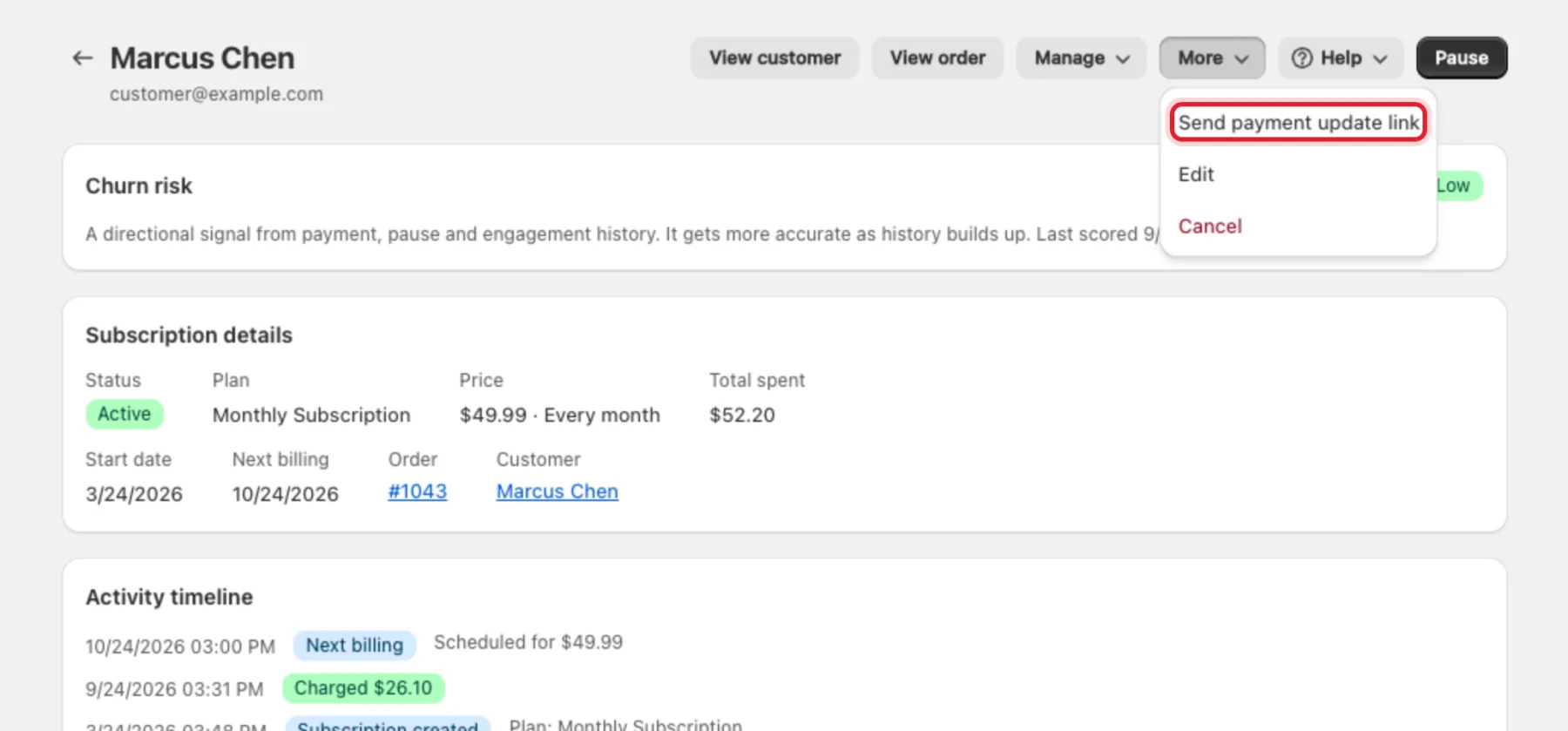
Note: Send payment update link is in the menu for Active and Paused subscriptions. For a subscription whose payment has failed, use the bulk action in Step 3 — it works for one subscriber too.
Step 2: Confirm the email
The Send payment-update email window explains what happens: This will email 1 customer a Shopify-hosted link to update their saved payment method. The email is sent by Shopify on your behalf.
Click Send 1 email to send it, or Cancel to close without sending.
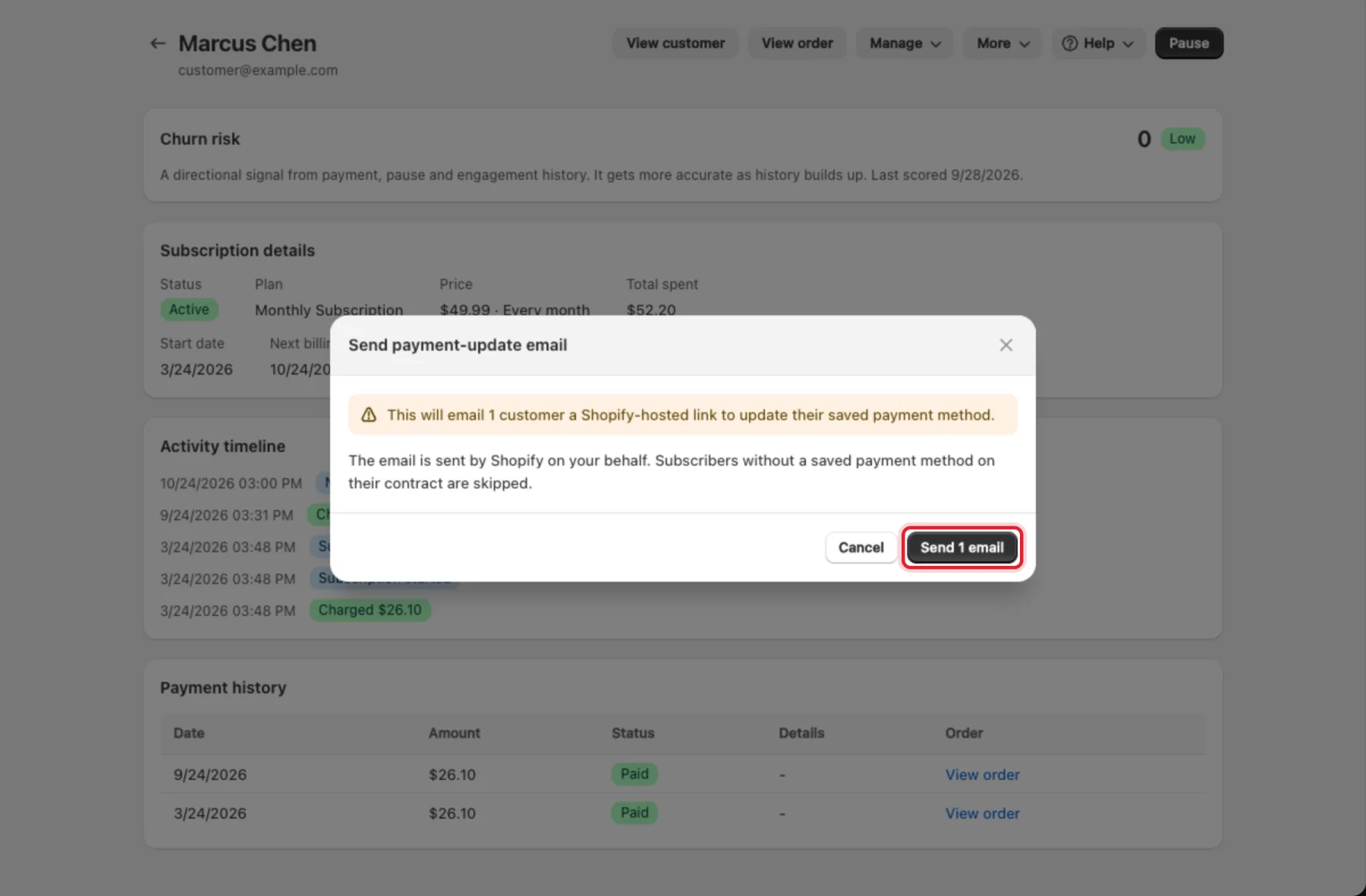
A banner on the page confirms the result. If the subscription has no saved payment method on its contract, nothing is sent and the subscription is skipped.
Step 3: Send it to several subscribers at once (optional)
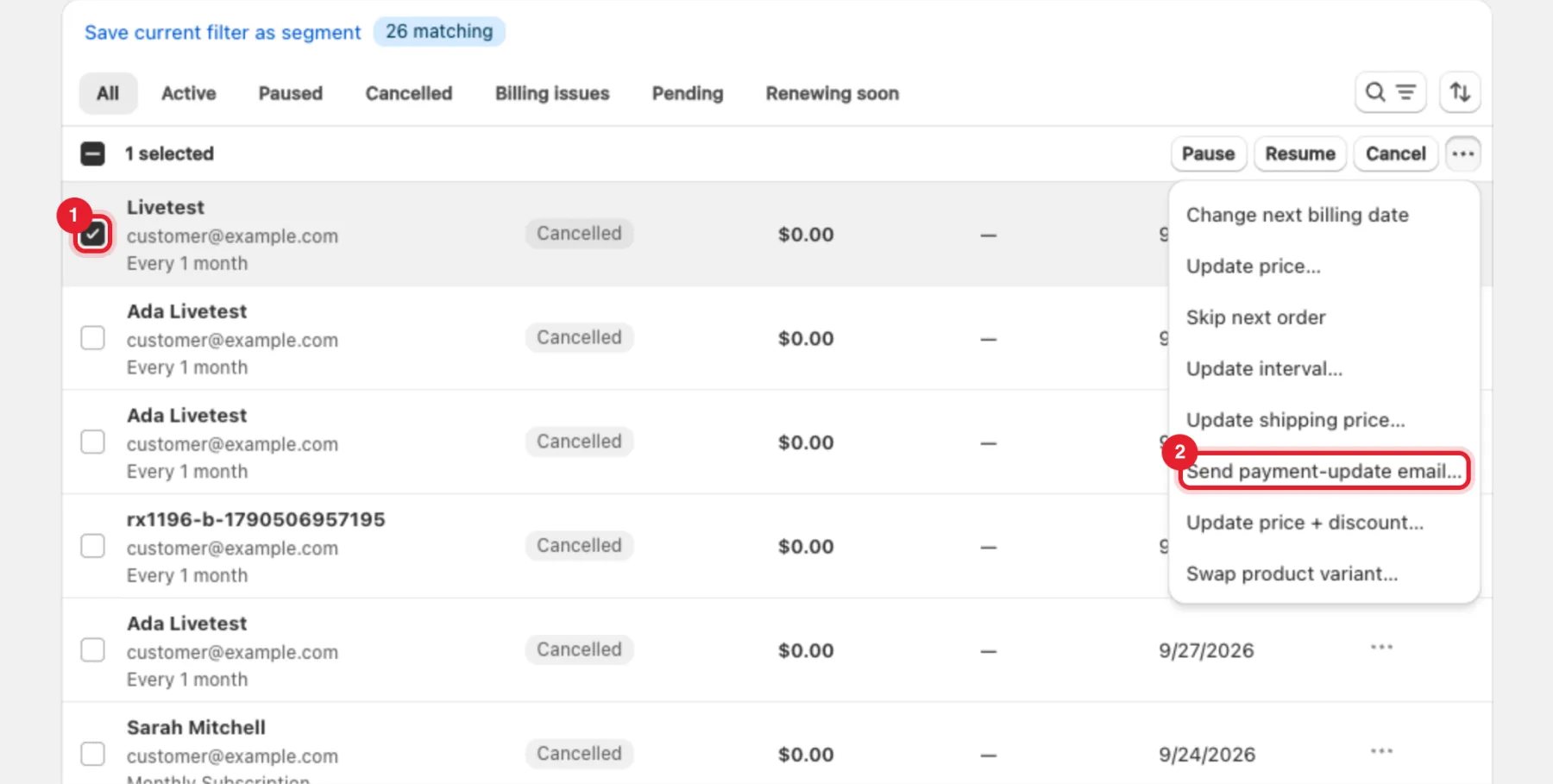
- On Subscribers, tick the checkbox next to each subscriber (1). The Billing issues tab lists the subscriptions whose last renewal failed.
- Click the ⋯ button in the bar that appears above the list.
- Click Send payment-update email… (2).
- The confirmation shows how many customers will be emailed — for example Send 3 emails. Check the number, then confirm.
Step 4: Let customers change their card in the portal
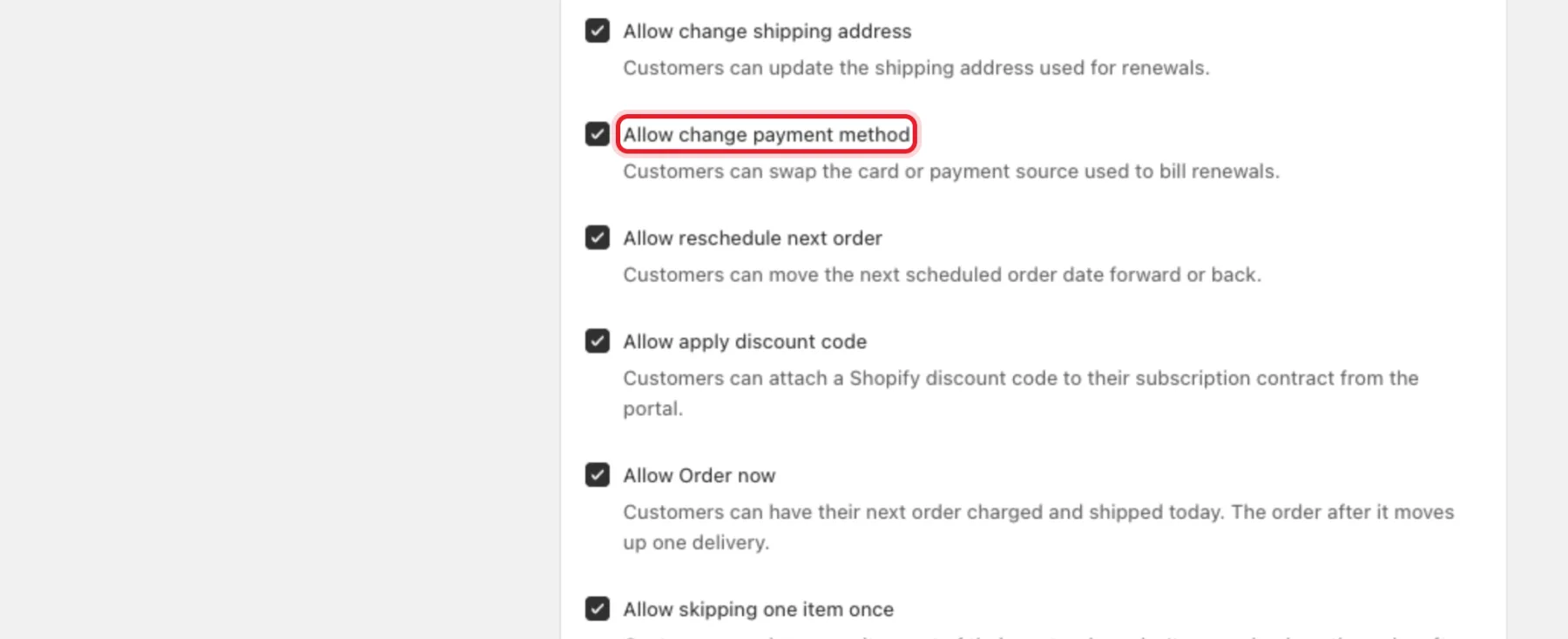
Customers can also update their card themselves in the customer portal. Check the switches in App settings → Self-service capabilities (the Customer portal settings page, Actions tab):
- Allow change payment method — Customers can swap the card or payment source used to bill renewals.
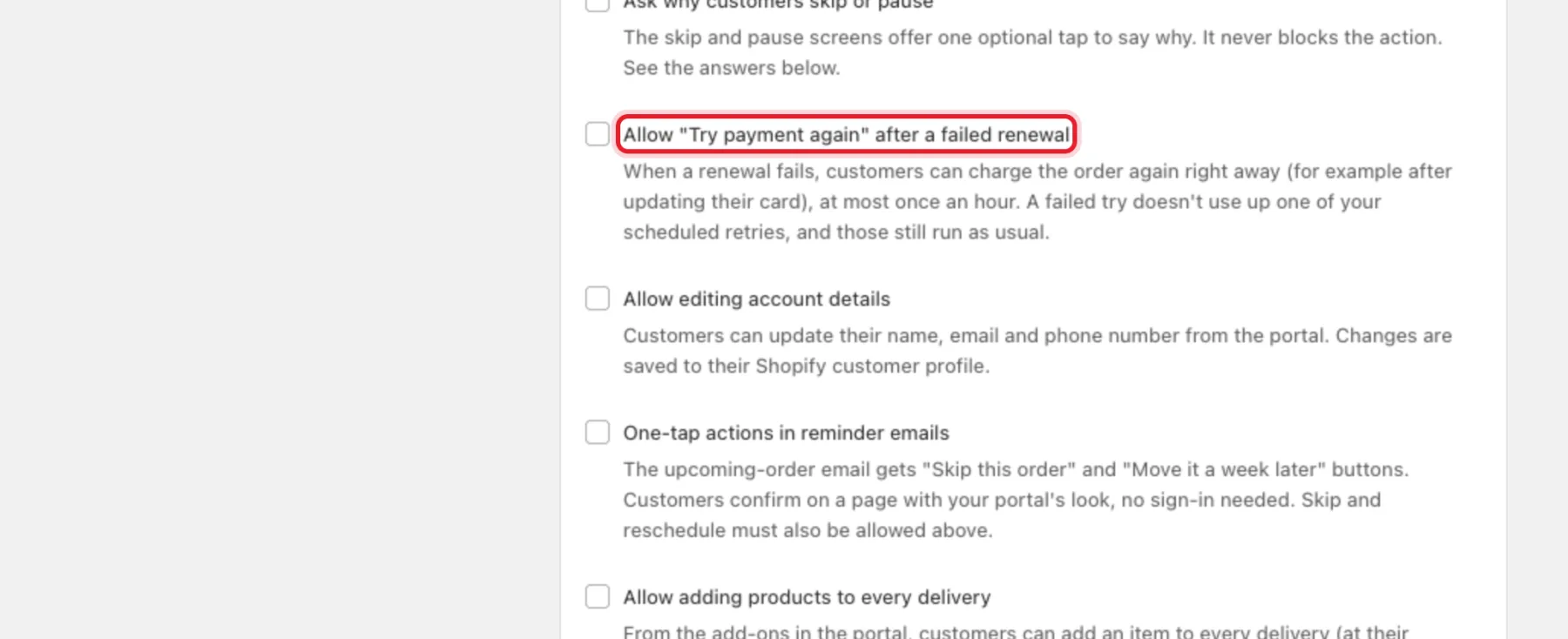
- Allow "Try payment again" after a failed renewal (off by default) — after updating their card, the customer can charge the failed order again right away, at most once an hour. A failed try doesn't use up one of your scheduled retries.
For all portal settings, see Customer portal setup.
What the customer sees in the portal
In the portal, each subscription has a Payment method row with the card on file, for example Visa •••• 5556 · exp 9/27.
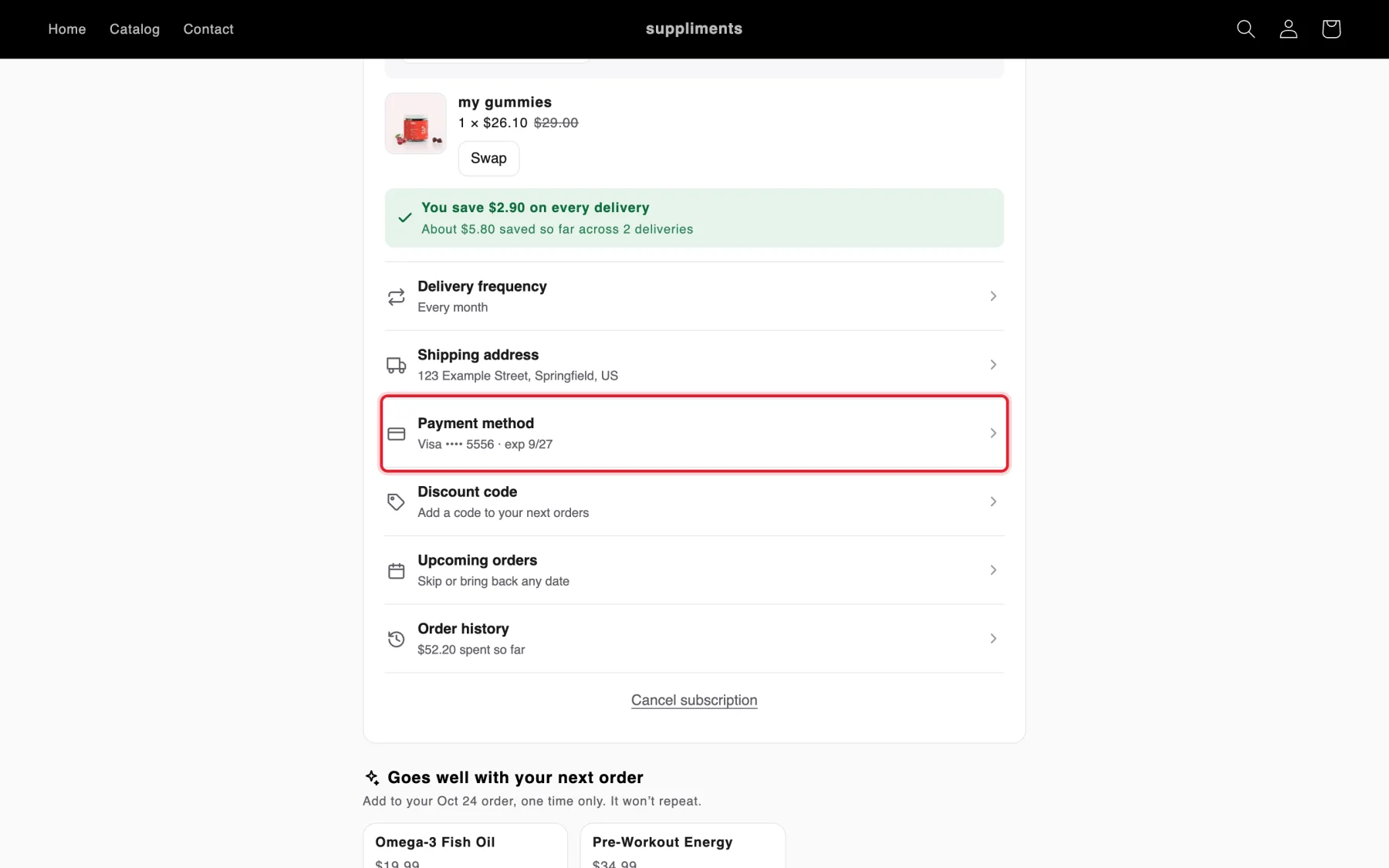
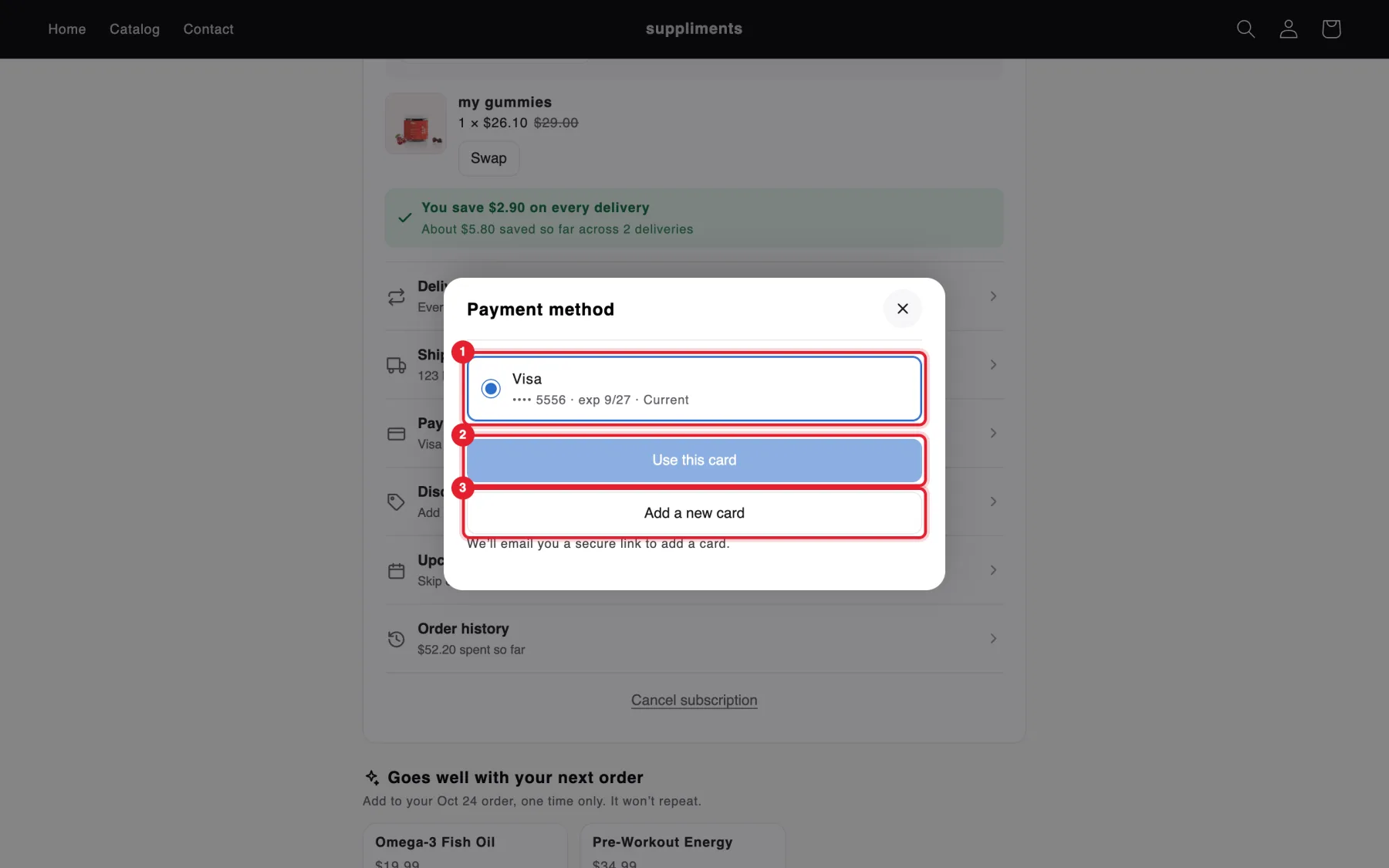
Tapping it opens Payment method:
- The customer's saved cards (1). The current one is marked Current; expired cards can't be picked.
- Use this card (2) — switches the subscription to another saved card straight away.
- Add a new card (3) — We'll email you a secure link to add a card. Shopify sends the email.
When a renewal has failed, the subscription shows payment failed and the message We couldn't take your last payment — Updating your card usually fixes it. with Update payment (1) and, if you allow it, Try payment again (2).
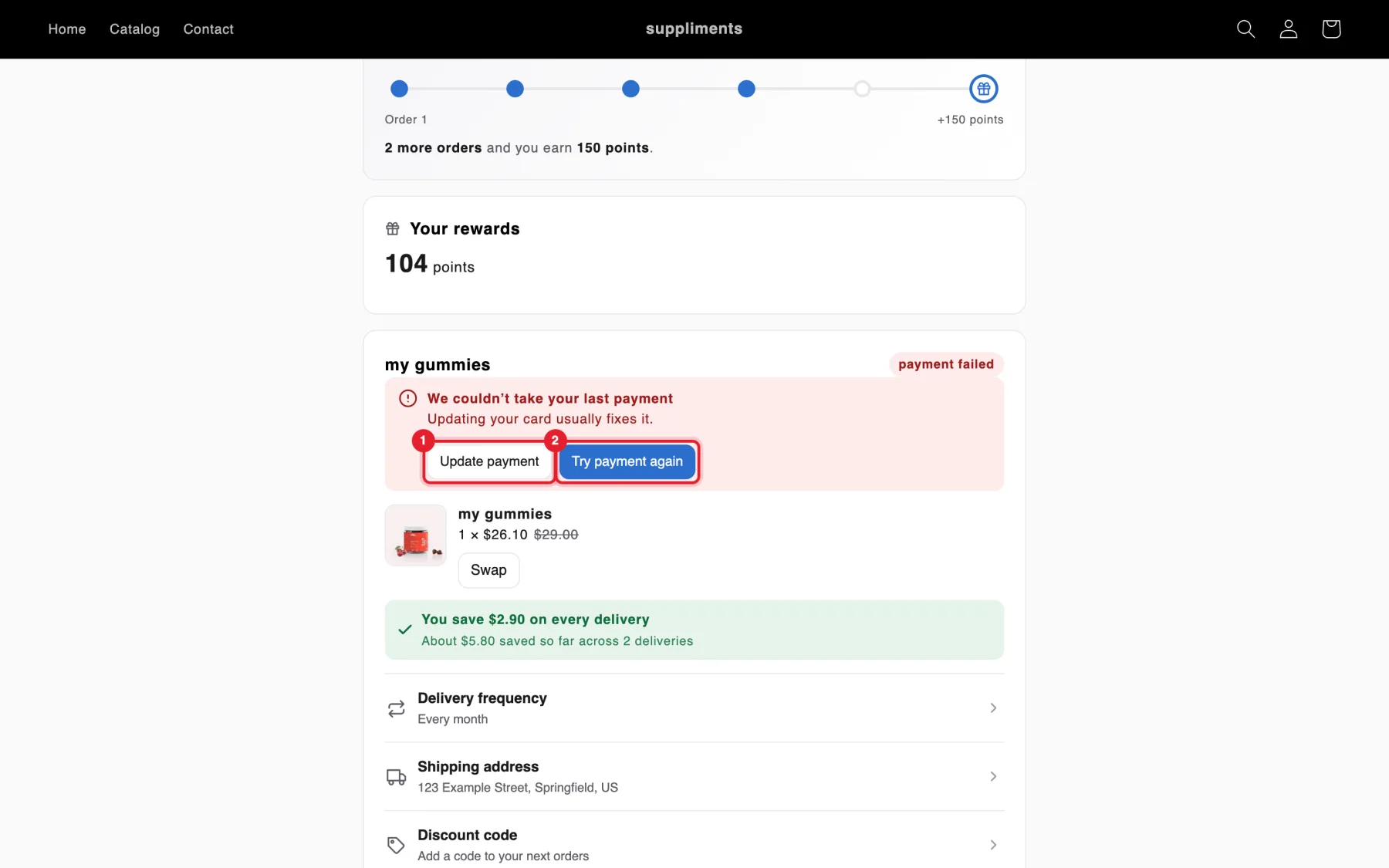
Note: This screenshot shows an example failed renewal. You see this message only when a renewal has actually failed.
What happens next
- The customer opens the link in Shopify's email and enters the new card on a secure Shopify page. RecurX never sees the card number.
- The subscription keeps using that payment method, so the next charge uses the new details. For a failed payment, that's the next scheduled retry from your retry rules. If you don't want to wait, open the subscriber and click Trigger billing now — see Read the failed payment and retry history.
- If you allow it, the customer can also tap Try payment again in the portal.
When RecurX sends the link for you
You don't always have to send it yourself:
- After a failed payment: for card problems such as an expired or unsupported card, Shopify emails the customer a card update link after the first failure. Your retry rule's own email can include the link too, with the
{update_url}variable. - Before a card expires: Pre-failure detection on Retention → Payment recovery finds cards that expire within 30, 60 or 90 days and, with Email a card update link to subscribers with an expiring card ticked, Shopify emails each customer a secure link. See Set up payment recovery.
Troubleshooting
- Nothing was sent — the subscription has no saved payment method on its Shopify contract (for example a subscription imported without one). Ask the customer to place a new order or contact you.
- The customer didn't get the email — Shopify sends it to the email on the Shopify customer. Check it with View customer on the subscriber's page, and ask them to check their spam folder.