
Subscribers change their own subscriptions in the customer portal, so you don't have to do it for them. You choose which actions they get. All of them are in Customer portal settings, and each change applies to every customer.
Open the settings: in your Shopify admin, open Apps → RecurX Subscriptions → Retention, click Manage on the Customer portal card, then click Open customer portal settings. The actions are on the Actions tab. Click Save in the bar at the top of the page after a change.
If you haven't set up the portal yet, start with Set up the customer portal.
Skip, pause, cancel and swap
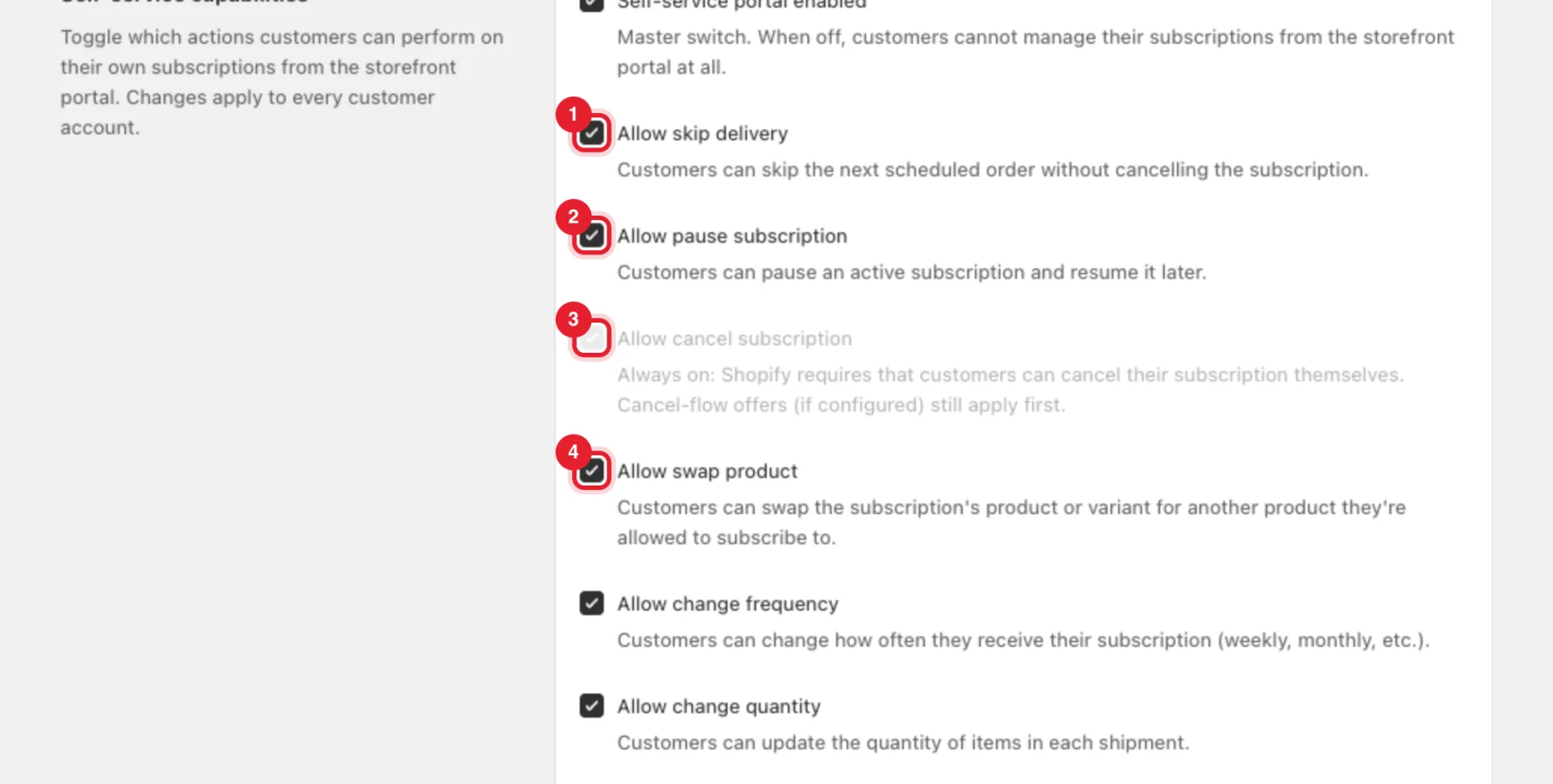
- Allow skip delivery — customers skip the next scheduled order without cancelling. In the portal they click Skip on the subscription card, and Upcoming orders lets them skip or bring back any date.
- Allow pause subscription — customers pause an active subscription and click Resume later.
- Allow cancel subscription — always on. Shopify requires that customers can cancel their subscription themselves. Your cancel flow runs first, and "Cancel anyway" is on every step.
- Allow swap product — customers swap the product or variant for another product they're allowed to subscribe to.
Frequency, quantity and address
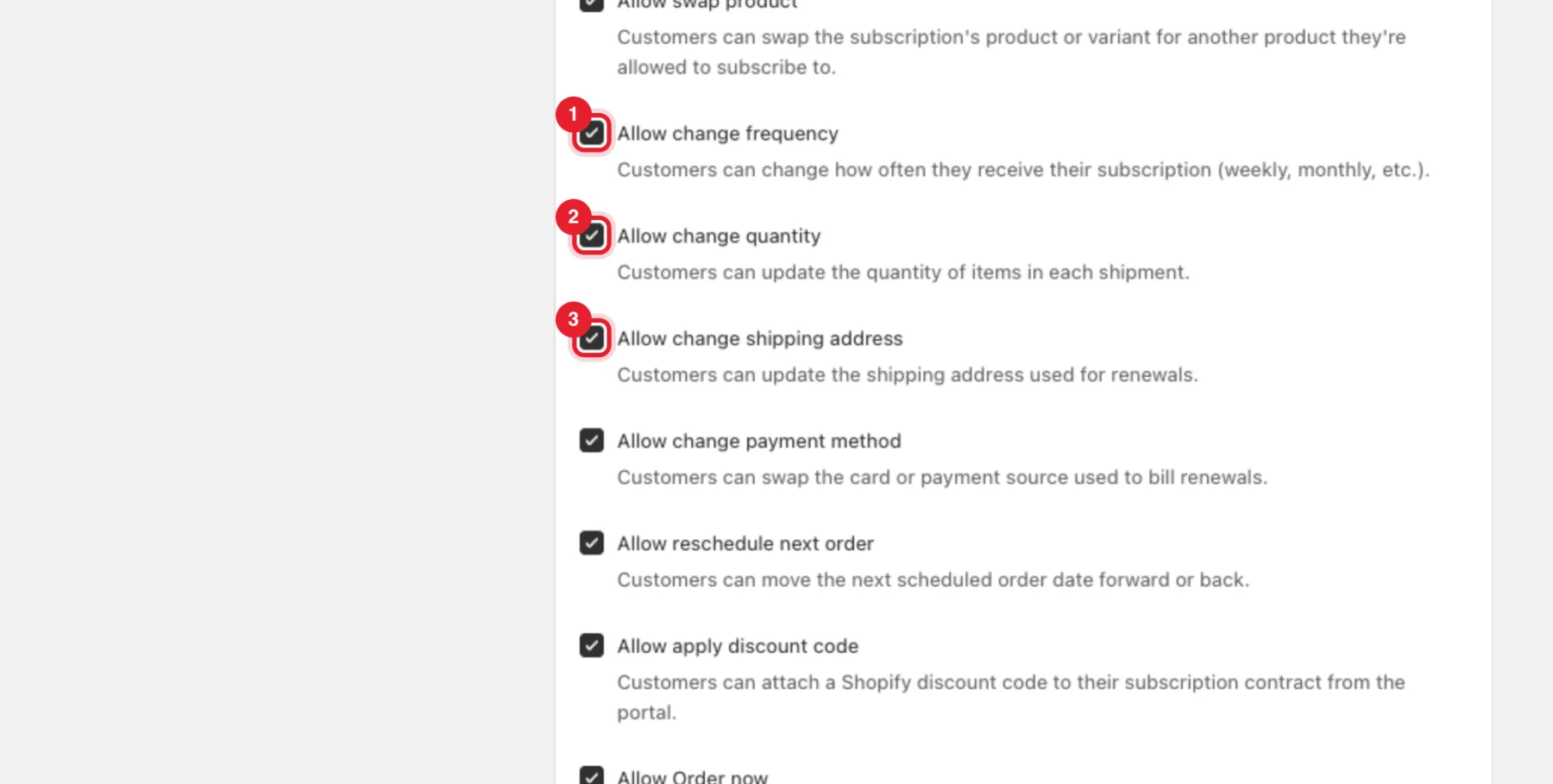
- Allow change frequency — customers change how often they receive the subscription (Delivery frequency in the portal).
- Allow change quantity — customers change the quantity of each item with − and + buttons.
- Allow change shipping address — customers update the address used for renewals (Shipping address in the portal).
Payment method, reschedule and discount codes
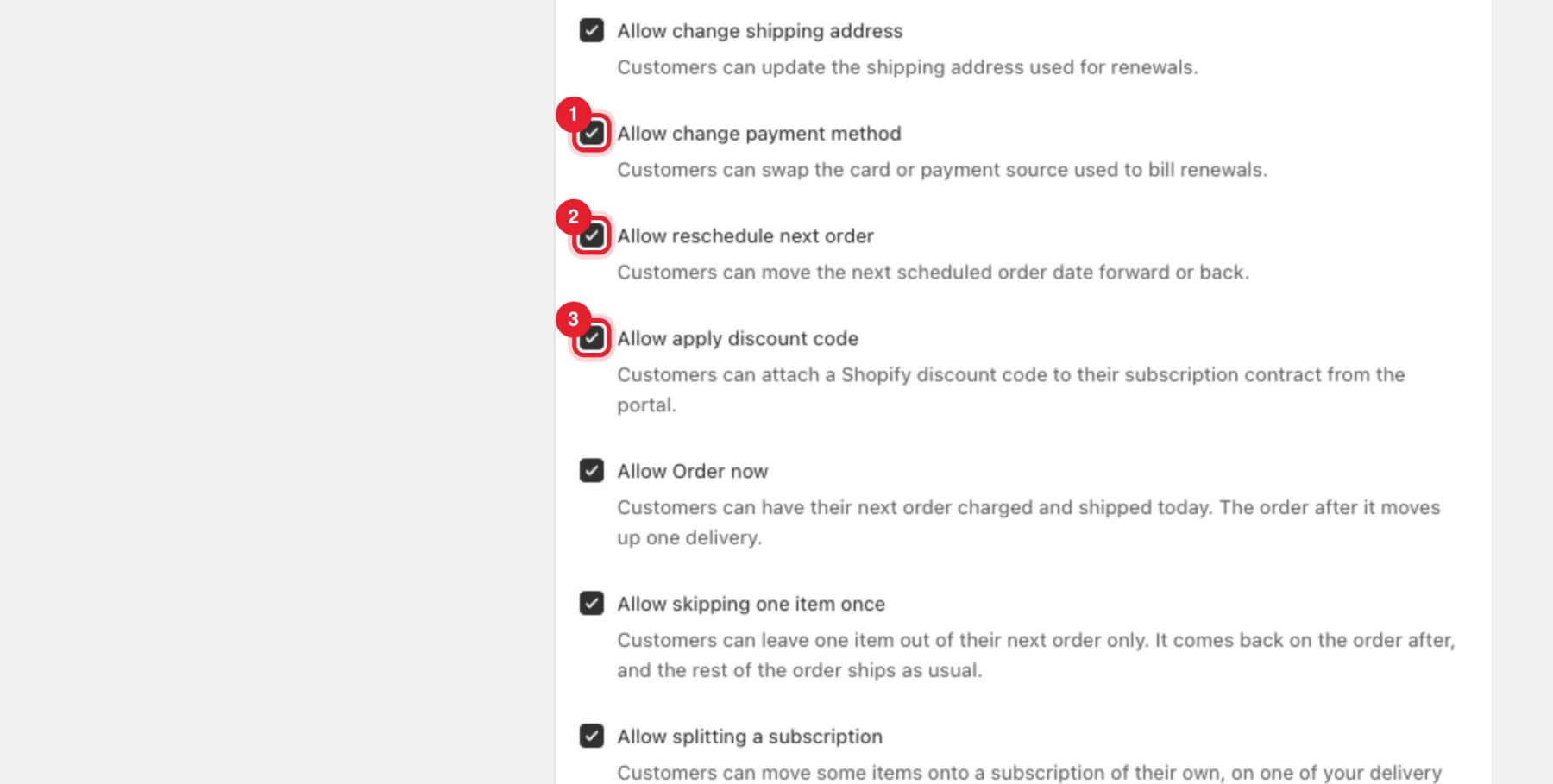
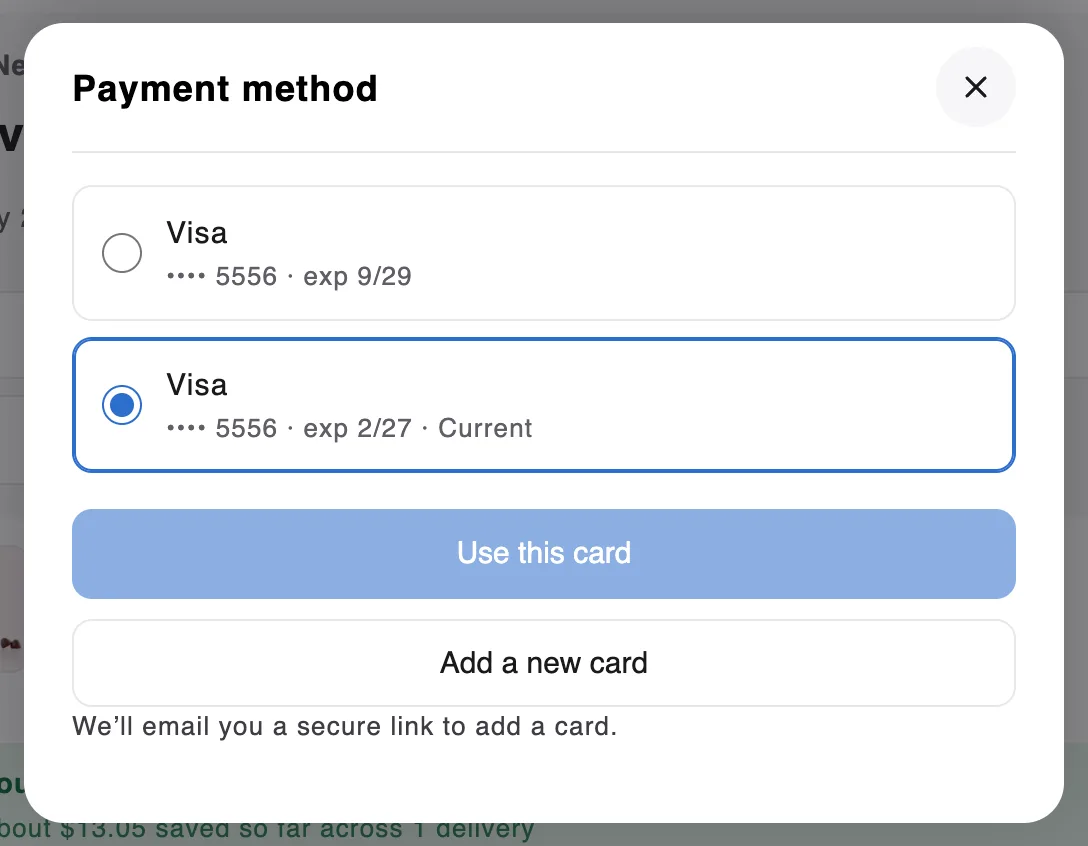
- Allow change payment method — under Payment method, customers pick another saved card and click Use this card, or click Add a new card. A new card is added through a secure link that Shopify emails to the customer.
- Allow reschedule next order — customers move the next order date forward or back (Reschedule).
- Allow apply discount code — customers attach a Shopify discount code to their subscription (Discount code → Apply code).
Order now, skip one item, split and gift
These are off until you turn them on.
- Allow Order now — the next order is charged and shipped today. The order after it moves up one delivery.
- Allow skipping one item once — customers leave one item out of their next order only (Skip once). It comes back on the order after.
- Allow splitting a subscription — customers move some items onto a subscription of their own, on one of your delivery frequencies (Deliver some items separately). Not offered for prepaid or discounted subscriptions.
- Allow sending the next order as a gift — customers send their next order to a friend's address in the same country, with a gift message (Send next order as a gift).
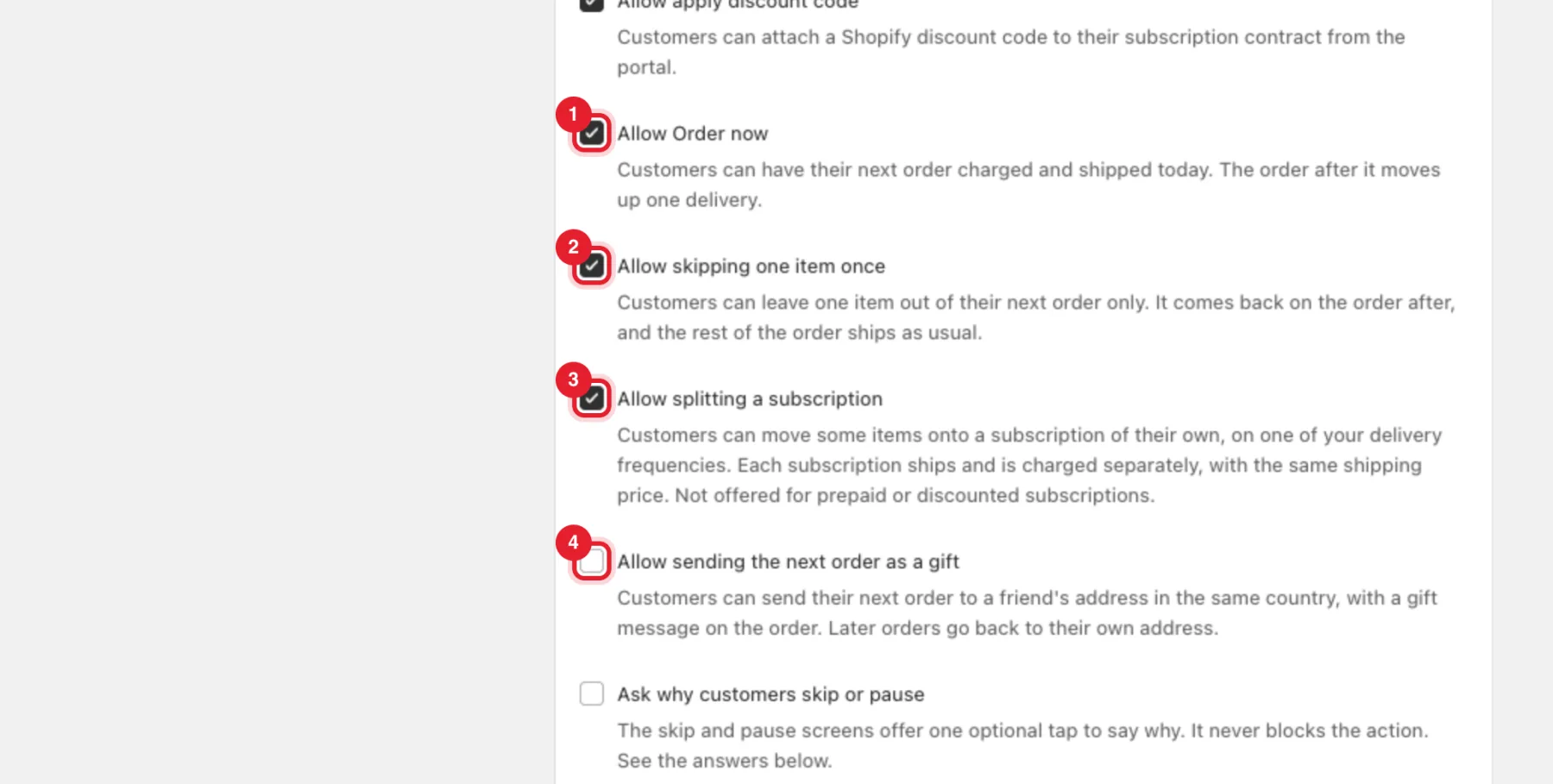
Tip: Tick Ask why customers skip or pause to add one optional question to the skip and pause screens. It never blocks the action, and the answers appear in the Why customers skip or pause card further down this tab.
Failed payments, account details and reminder emails
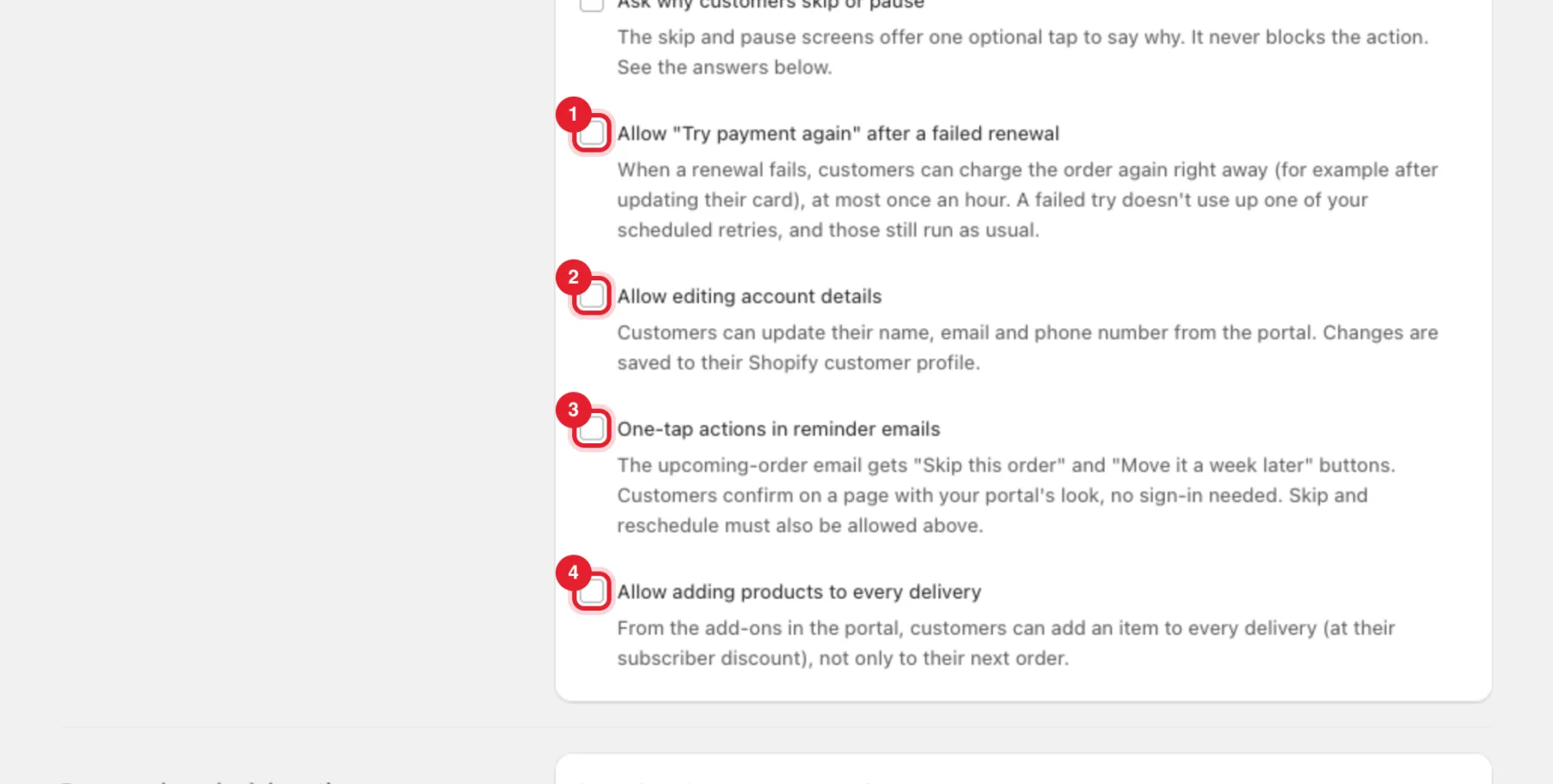
- Allow "Try payment again" after a failed renewal — when a renewal fails, customers can charge the order again right away (for example after updating their card), at most once an hour. Your scheduled retries still run as usual.
- Allow editing account details — customers update their name, email and phone number. Changes are saved to their Shopify customer profile.
- One-tap actions in reminder emails — the upcoming-order email gets Skip this order and Move it a week later buttons. Skip and reschedule must also be allowed.
- Allow adding products to every delivery — from the add-ons in the portal, customers add an item to every delivery, not only to their next order.
Pause lengths and reschedule limits
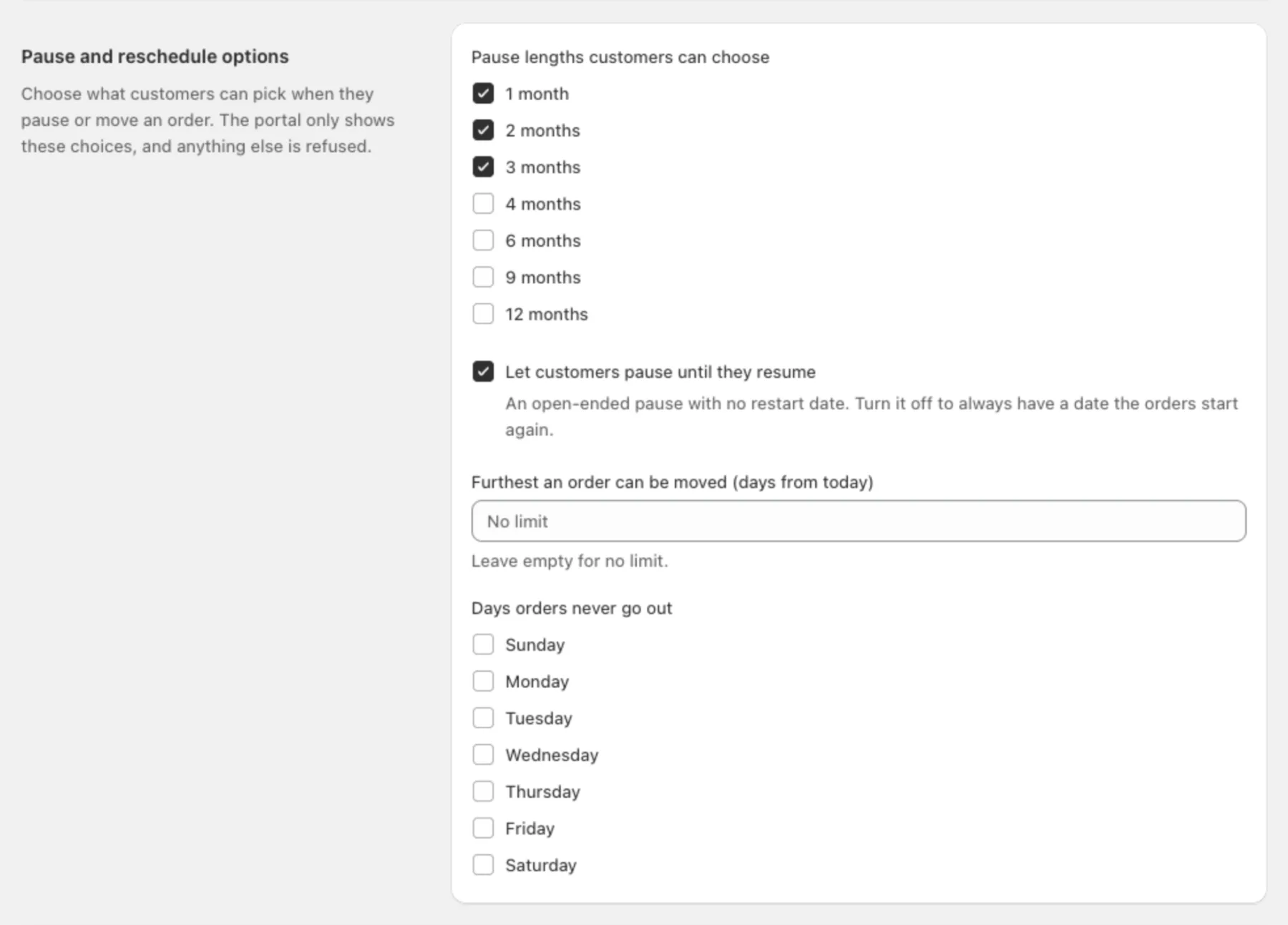
In Pause and reschedule options you choose what customers can pick. The portal only shows these choices, and anything else is refused.
- Pause lengths customers can choose — 1, 2, 3, 4, 6, 9 or 12 months.
- Let customers pause until they resume — an open-ended pause with no restart date.
- Furthest an order can be moved (days from today) — leave empty for no limit.
- Days orders never go out — weekdays customers can't move an order to.
Portal rules (Pro)
Portal rules control when and how customers can change their subscriptions. Every rule is off until you set it. Portal rules are part of the Pro plan.
- Order cutoff — Lock skip, pause and reschedule and Lock product changes a number of days before each order.
- Scheduling and delivery — Processing time, Fastest delivery and Slowest delivery (shown as an estimated arrival next to the next order).
- Products — Let customers change size or color, which products customers can add, and their price.
- Limits — Active subscriptions per customer and Lock changes until this many orders.
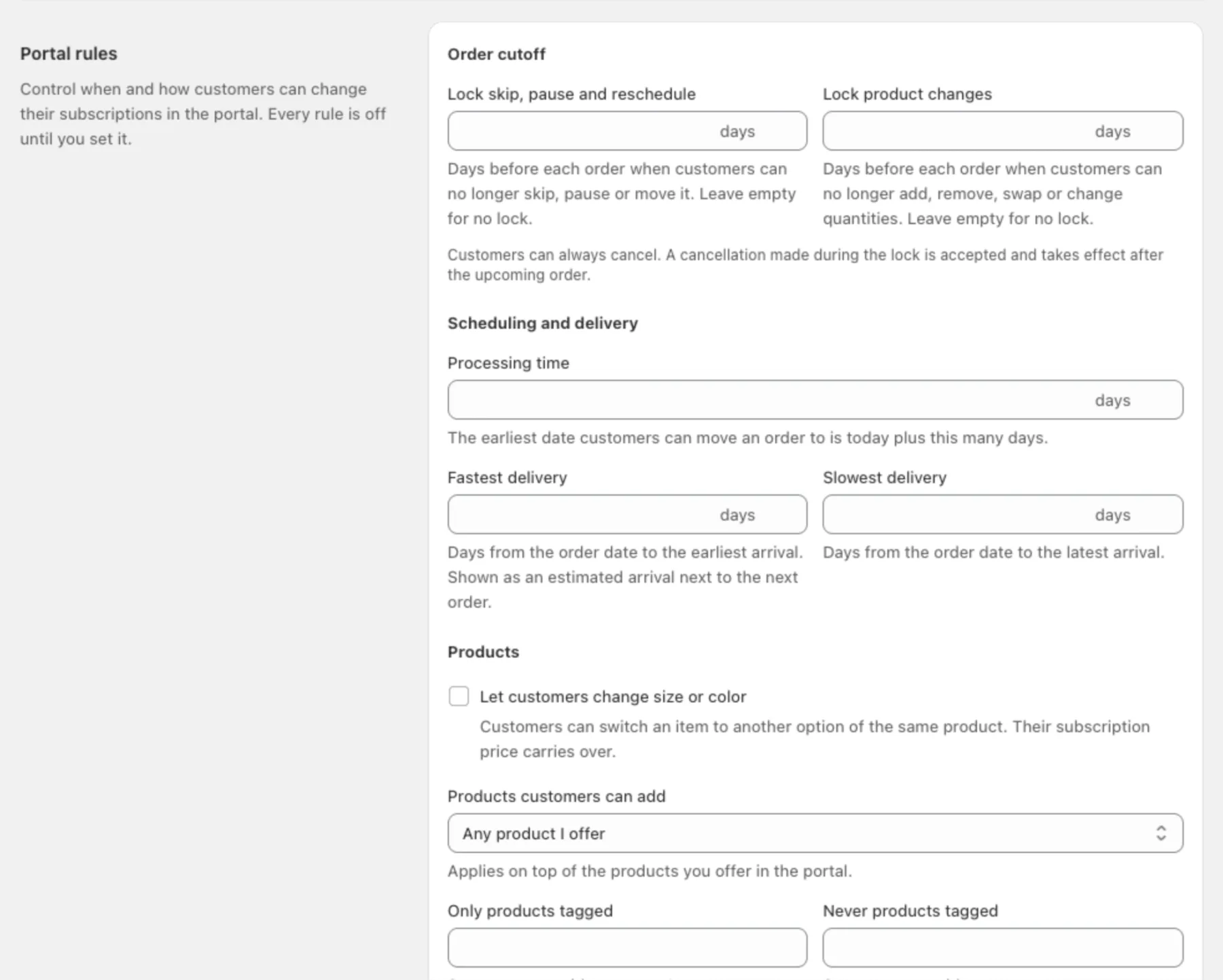
Note: Customers can always cancel. A cancellation made during a lock is accepted and takes effect after the upcoming order.
What the customer sees
This is the real portal of a test subscriber. Buttons for actions you haven't allowed don't appear.
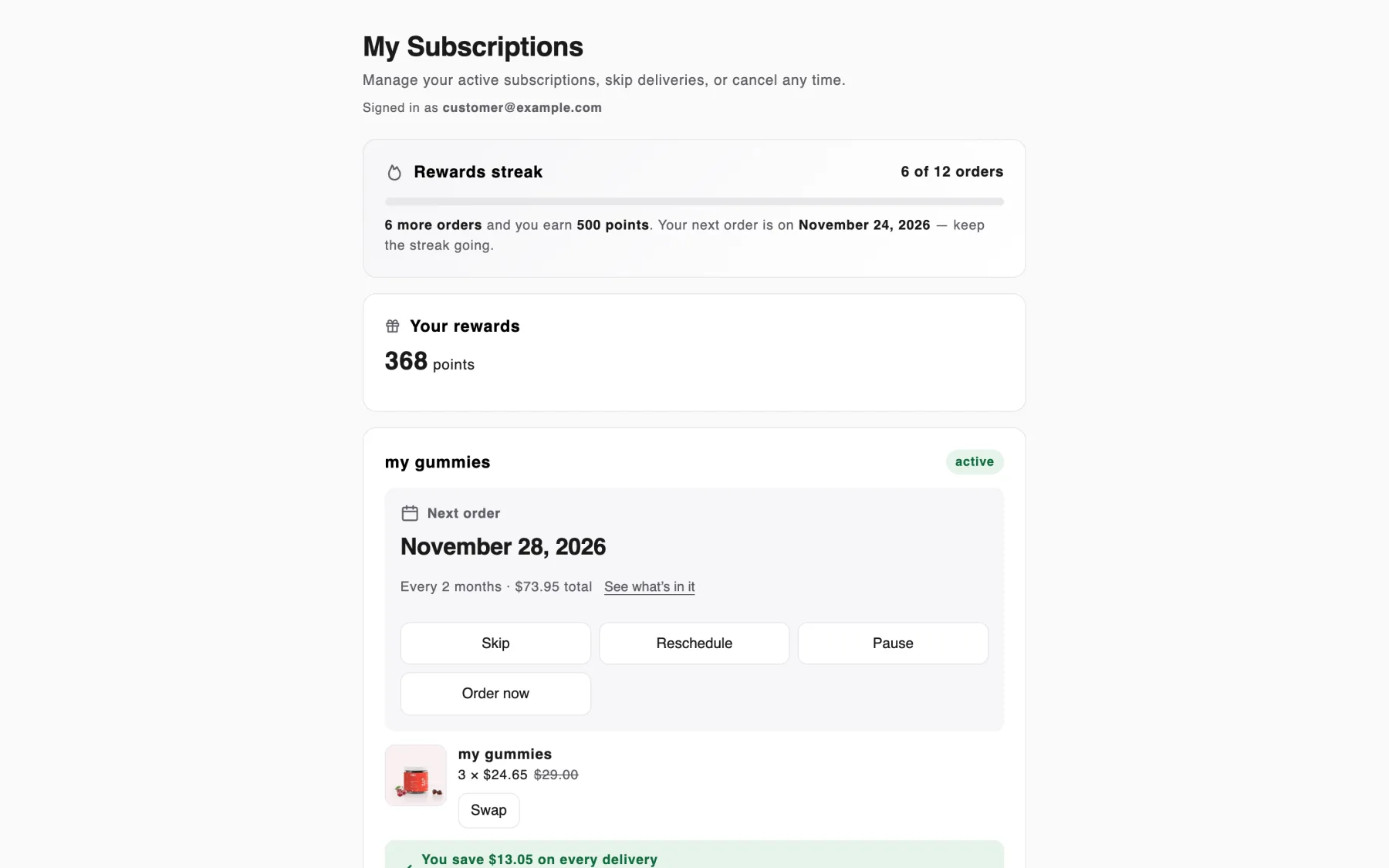
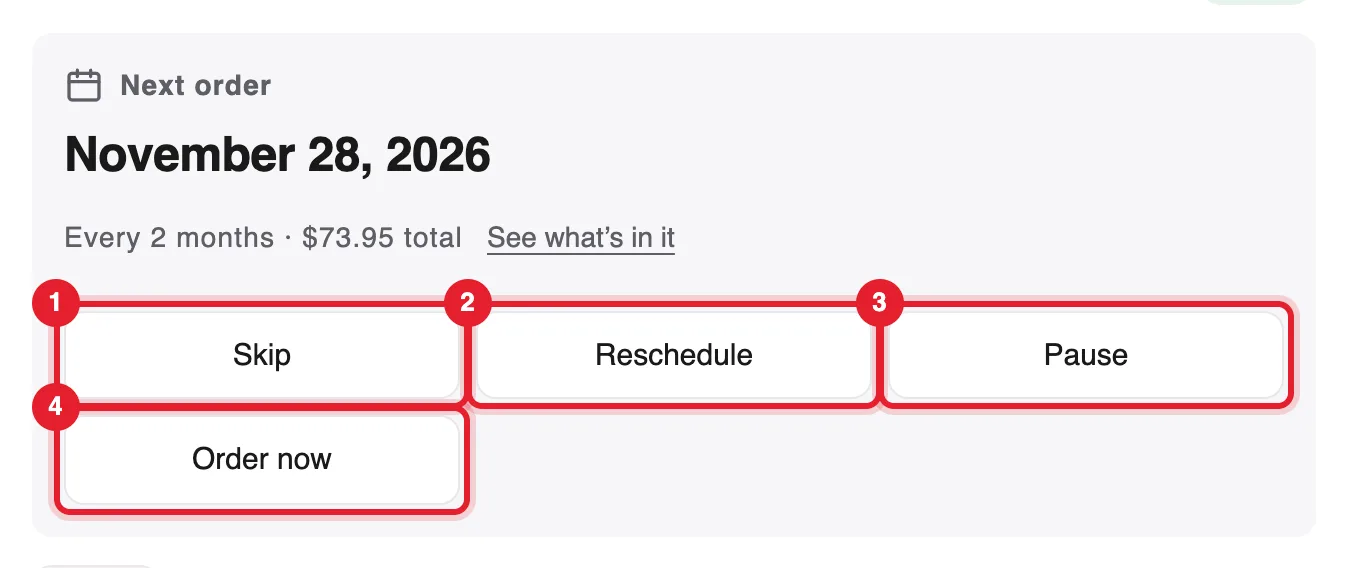
Each subscription card has four quick buttons under Next order:
- Skip
- Reschedule
- Pause
- Order now (when allowed)
A paused subscription shows Resume instead, and a cancelled one shows Restart subscription.
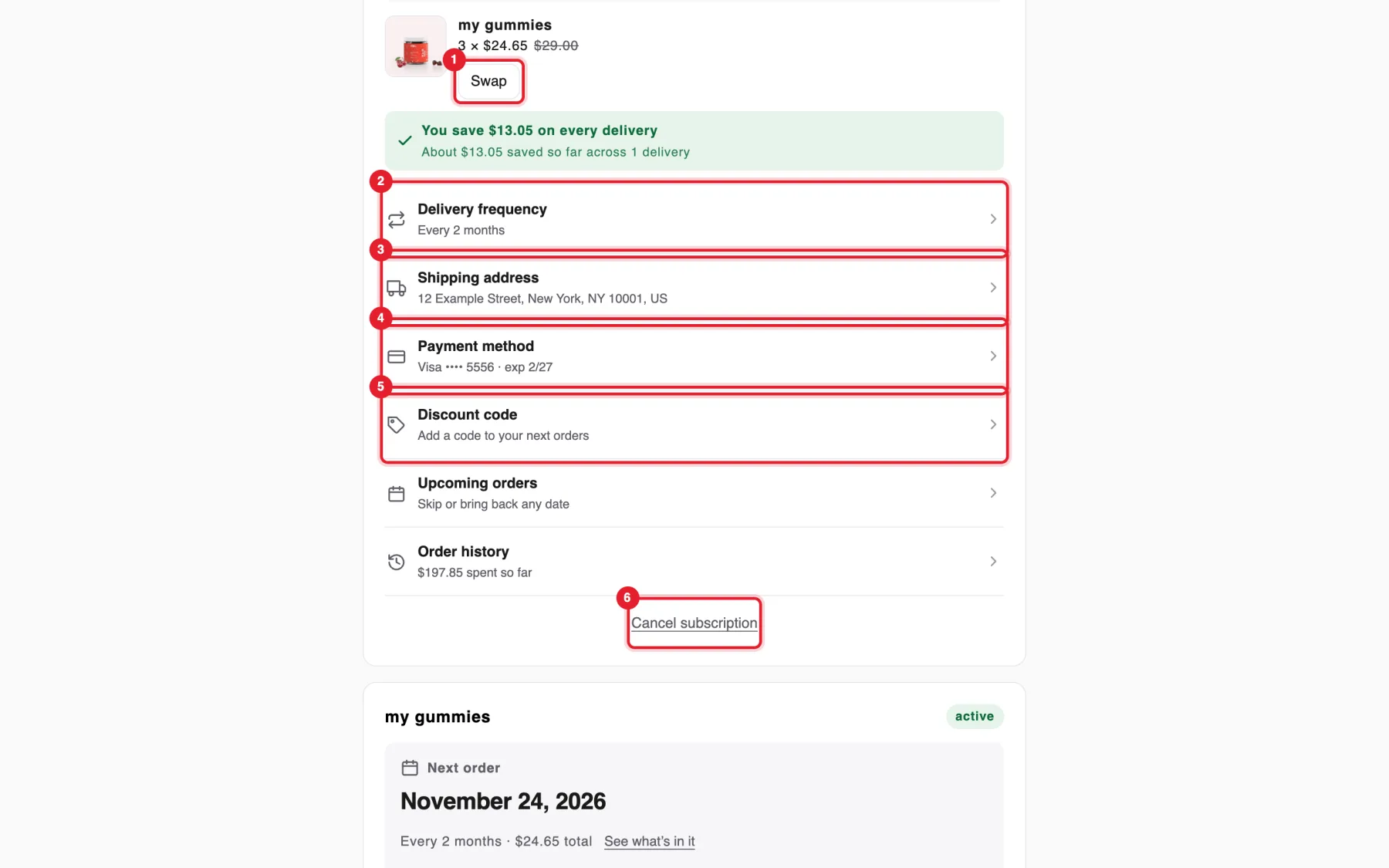
Further down the card:
- Swap next to each item
- Delivery frequency
- Shipping address
- Payment method
- Discount code
- Cancel subscription
Upcoming orders (skip or bring back any date) and Order history are there too.
What each button opens
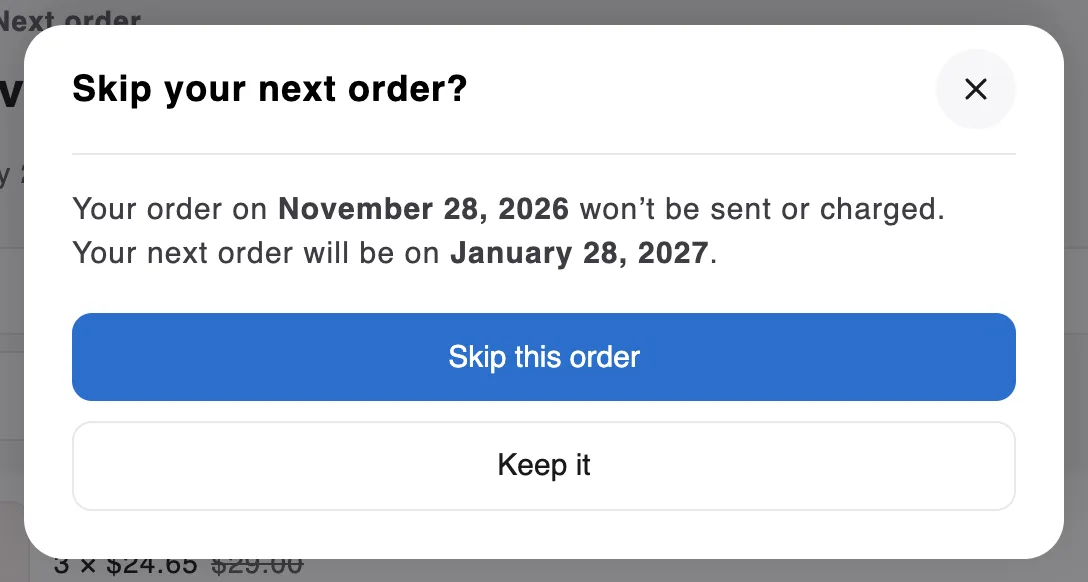
Every change asks the customer to confirm in a sheet first, and they can close it with the X.
Skip — Skip your next order? says which order won't be sent or charged and when the next one will be. The customer clicks Skip this order or Keep it.
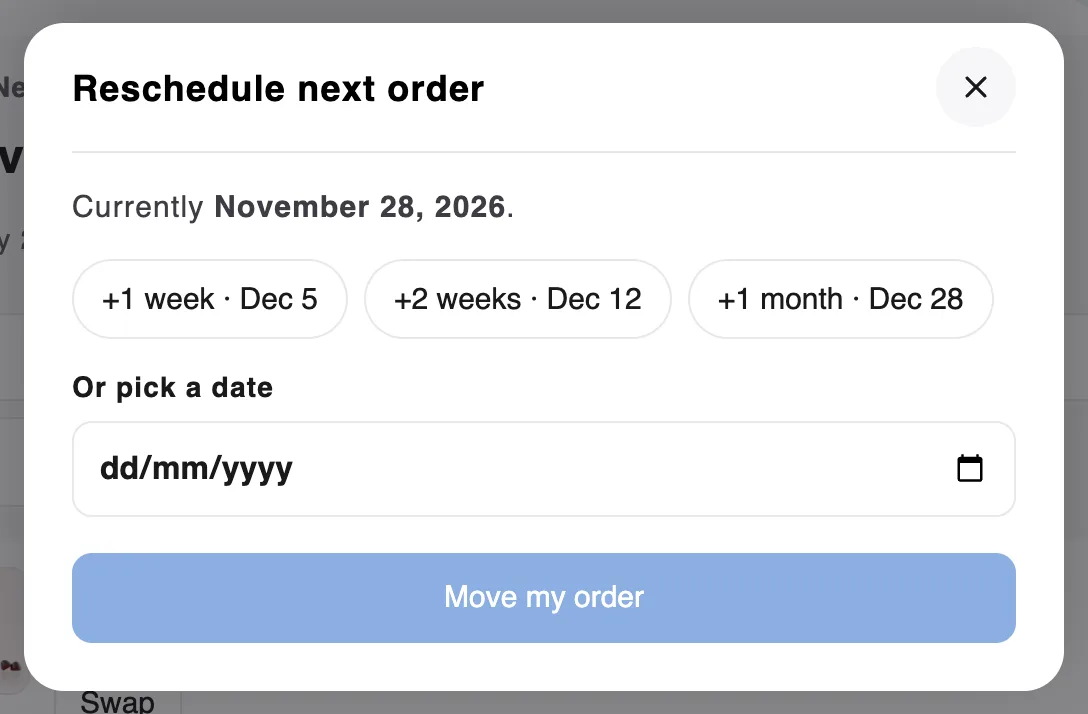
Reschedule — Reschedule next order offers +1 week, +2 weeks and +1 month, or Or pick a date, then Move my order. The dates offered follow your pause and reschedule options.
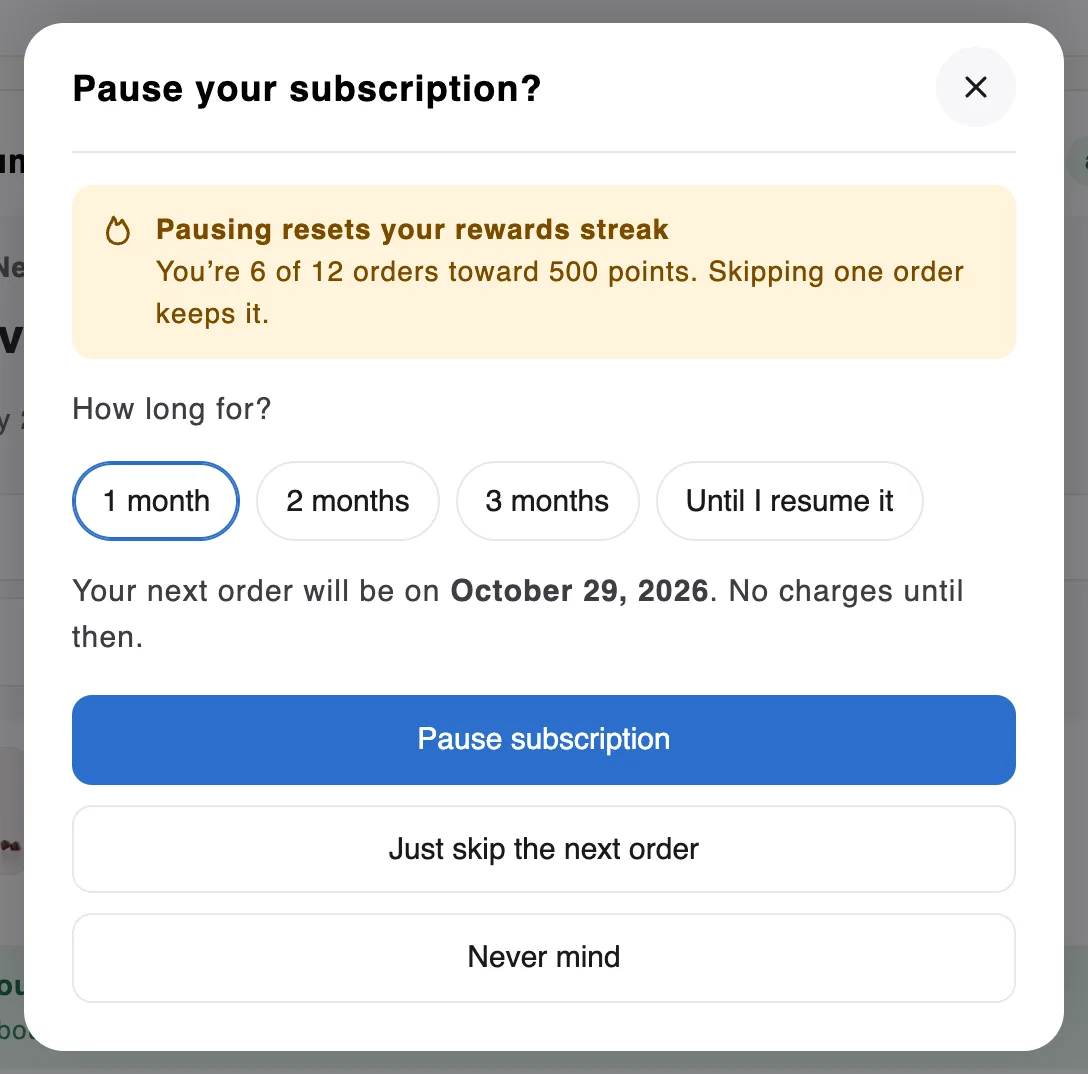
Pause — Pause your subscription? shows the pause lengths you allow (here 1, 2 or 3 months, or Until I resume it) and the date orders restart. If the customer has a rewards streak, it warns that pausing resets it. They can also choose Just skip the next order or Never mind.
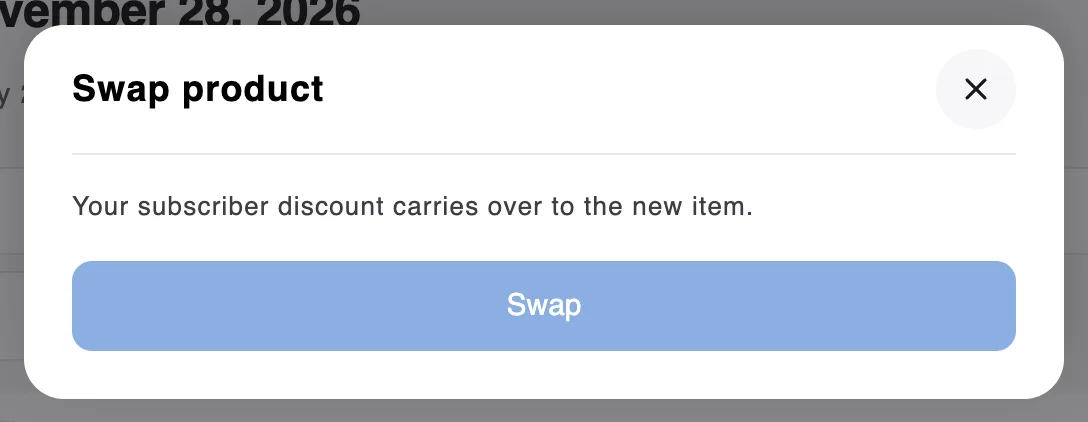
Swap — Swap product lists the products the customer can switch to. Their subscriber discount carries over to the new item. If you offer no other products for the subscription, only this note and a disabled Swap button appear, as on the test store below.
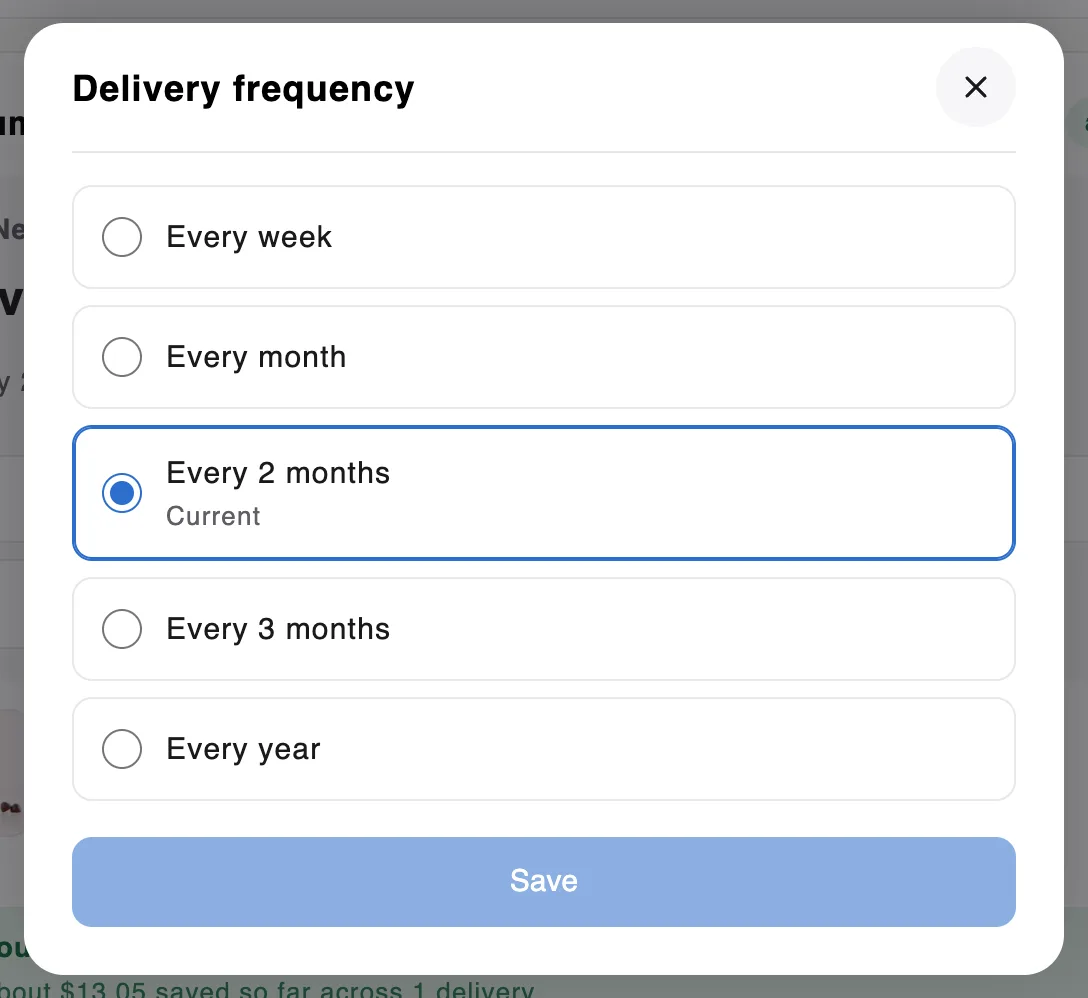
Delivery frequency — the frequencies available for the subscription, with the Current one selected, then Save.
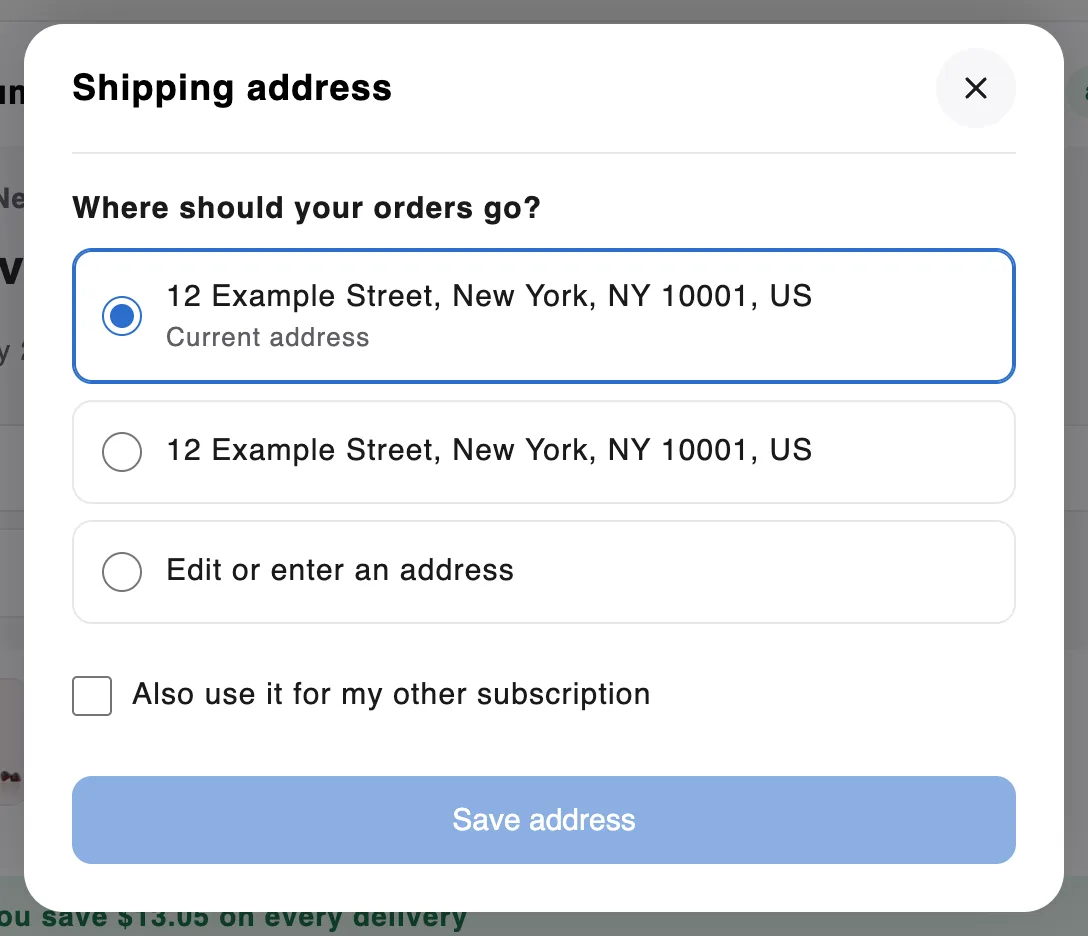
Shipping address — Where should your orders go? lists the customer's saved addresses and Edit or enter an address. With more than one subscription they can tick Also use it for my other subscription, then Save address.
Payment method — the customer's saved cards, with the Current one selected. Use this card switches the subscription to another saved card. Add a new card sends the customer a secure link by email to add one.
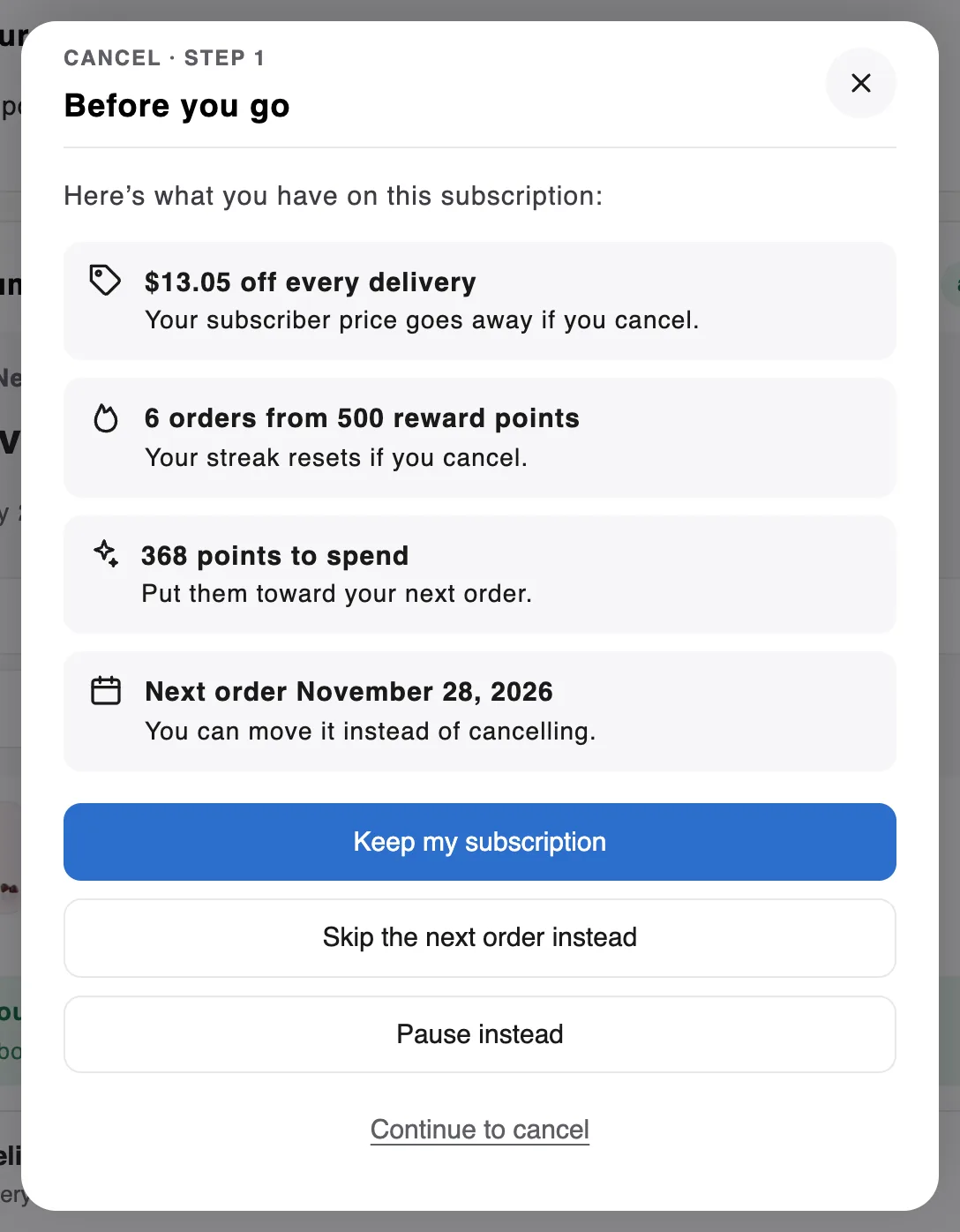
Cancel subscription — the first screen of your cancel flow. Before you go reminds the customer what they keep (their subscriber discount, their rewards streak and points, the next order date) and offers Keep my subscription, Skip the next order instead and Pause instead. Continue to cancel takes them to the next step.
Cancel rules for some regions
On the Cancel and compliance tab:
- EU right of withdrawal — who sees a Withdraw from contract option on the cancel screen. It cancels straight away and keeps a record you can download as CSV.
- Direct cancel by region — for the regions you pick, Cancel subscription goes straight to one confirmation, with no survey or offers. Use direct cancel for every customer does this for everyone.
- Video on the cancel screen and Auto-renewal disclosure — a short video and the recurring-charge terms shown to customers.
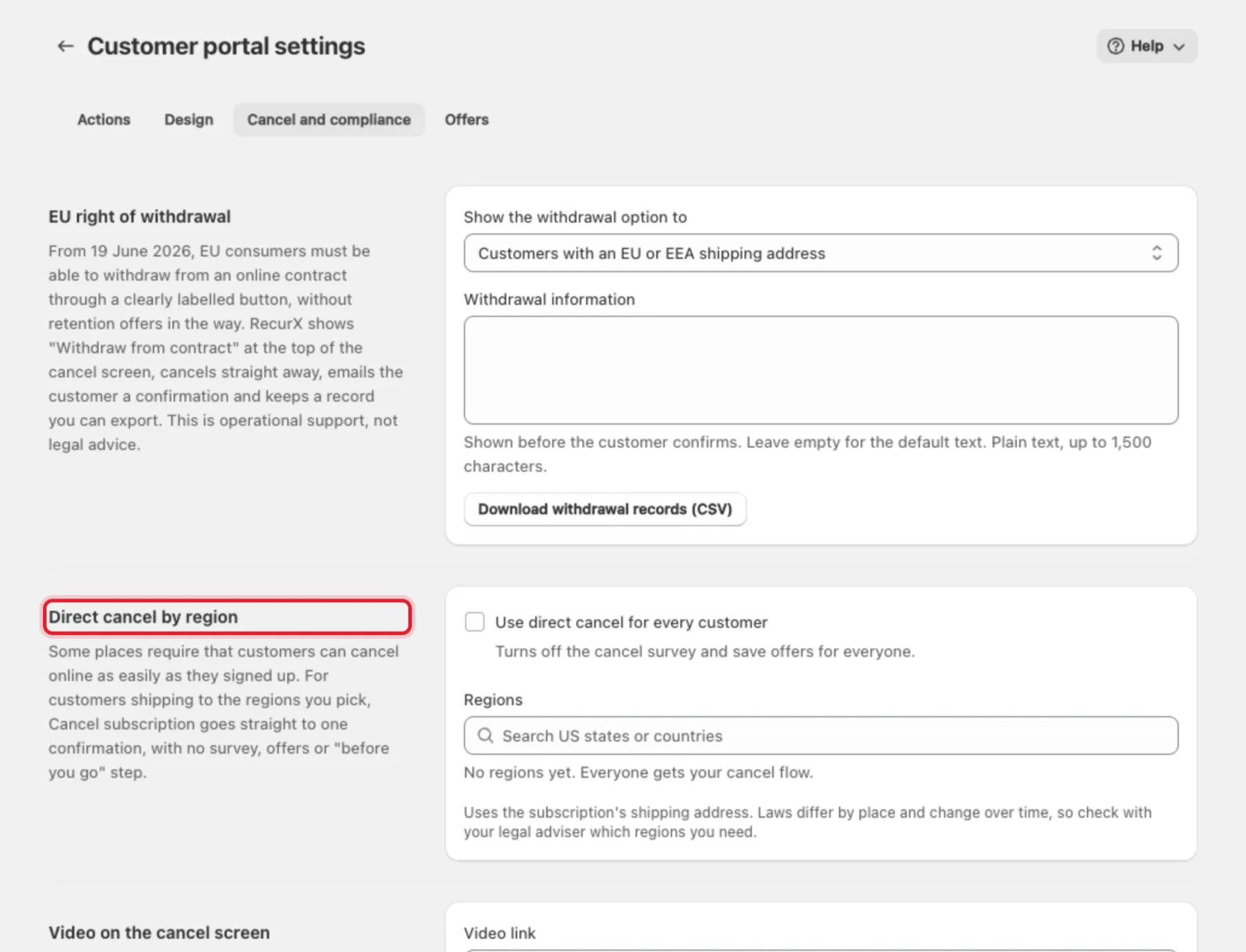
Important: RecurX calls this operational support, not legal advice. Check with your legal adviser which regions need direct cancel.
FAQ
- Can I stop customers from cancelling? No. Shopify requires self-service cancellation. You can show a cancel flow first, or set a minimum number of orders on the plan — see Create a subscription plan.
- Where do I see a subscriber's current schedule and items? On their page in Subscriptions → Subscribers, which also has an Activity timeline. See Manage subscribers.