
Renewal safeguards are checks RecurX runs right before a renewal is charged. You choose the time of day renewal orders are placed, what happens when a product is out of stock, whether expired discount codes are removed, and whether a renewal is held when its shipping price jumps. Every check is off until you turn it on. Setup takes about 5 minutes.
Who it's for: stores that sell limited stock, run time-limited discount codes, or ship with rates that can change.
Note: Renewal safeguards are on the Pro plan. On Basic the page shows the settings but they are locked, and your subscriptions keep renewing as they do today. See RecurX billing.
Step 1: Open Renewal safeguards
- In your Shopify admin, open Apps → RecurX Subscriptions.
- Click App settings in the sidebar.
- Under Store settings, click Renewal safeguards.
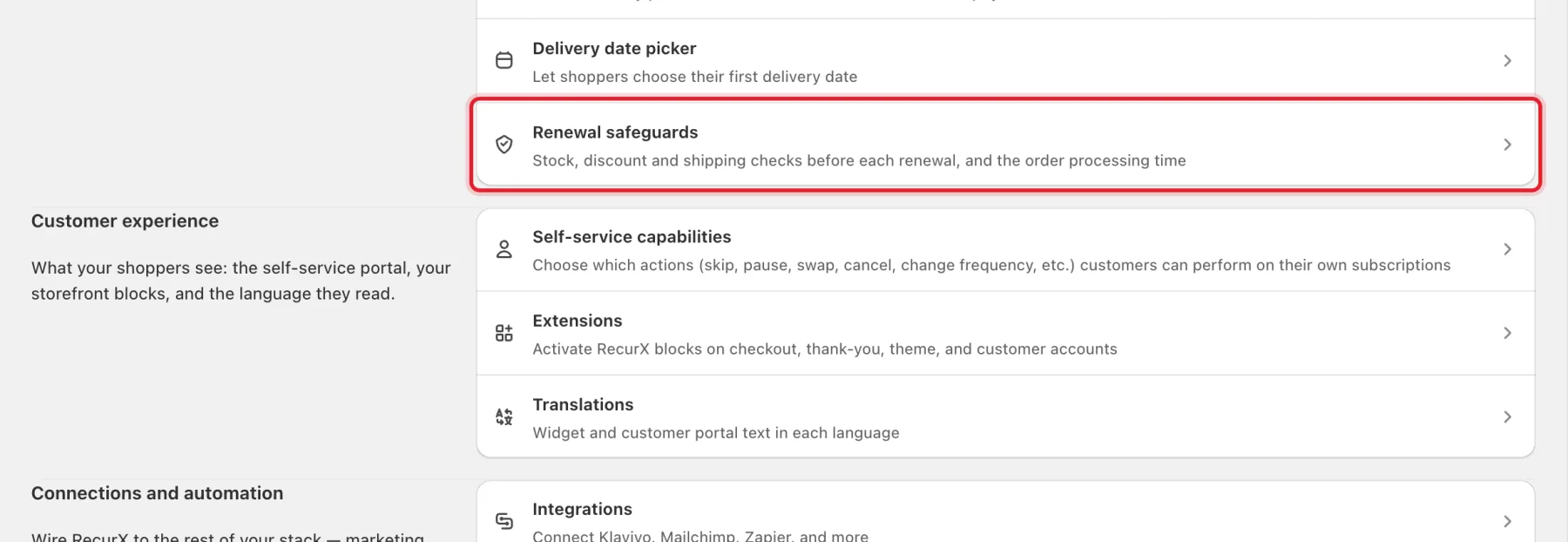
Step 2: Choose the order processing time
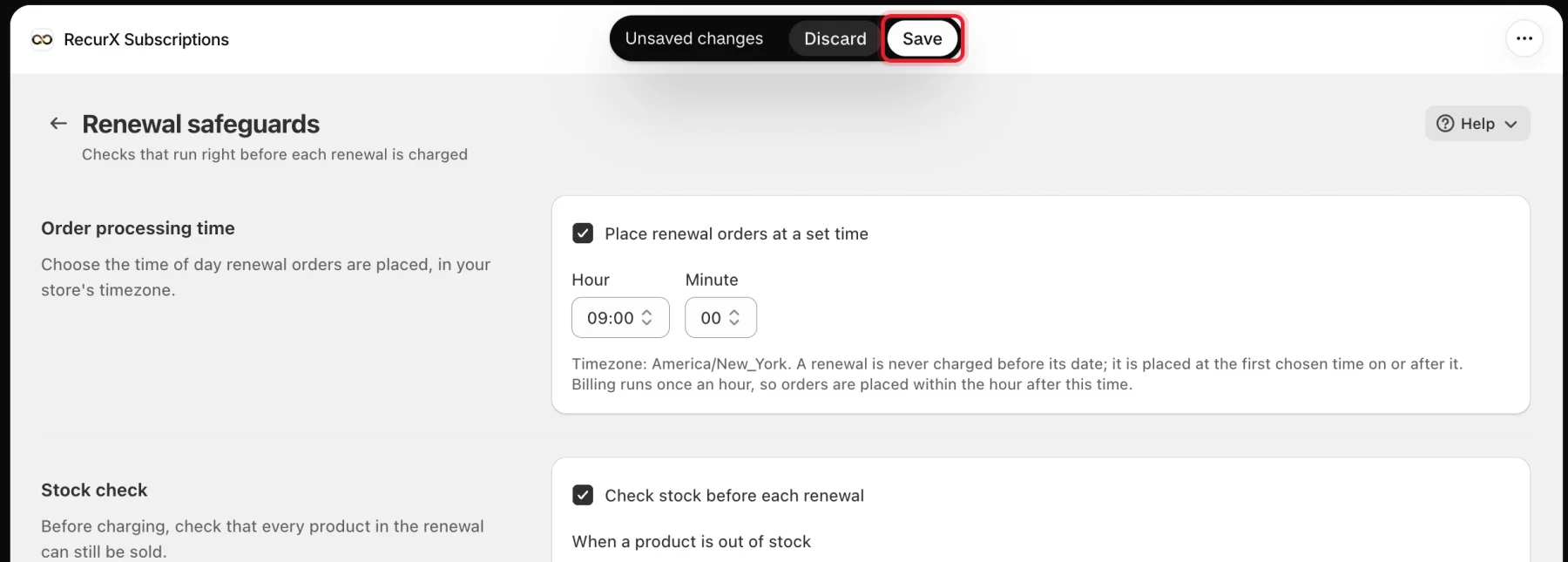
- Tick Place renewal orders at a set time.
- Choose the Hour.
- Choose the Minute.
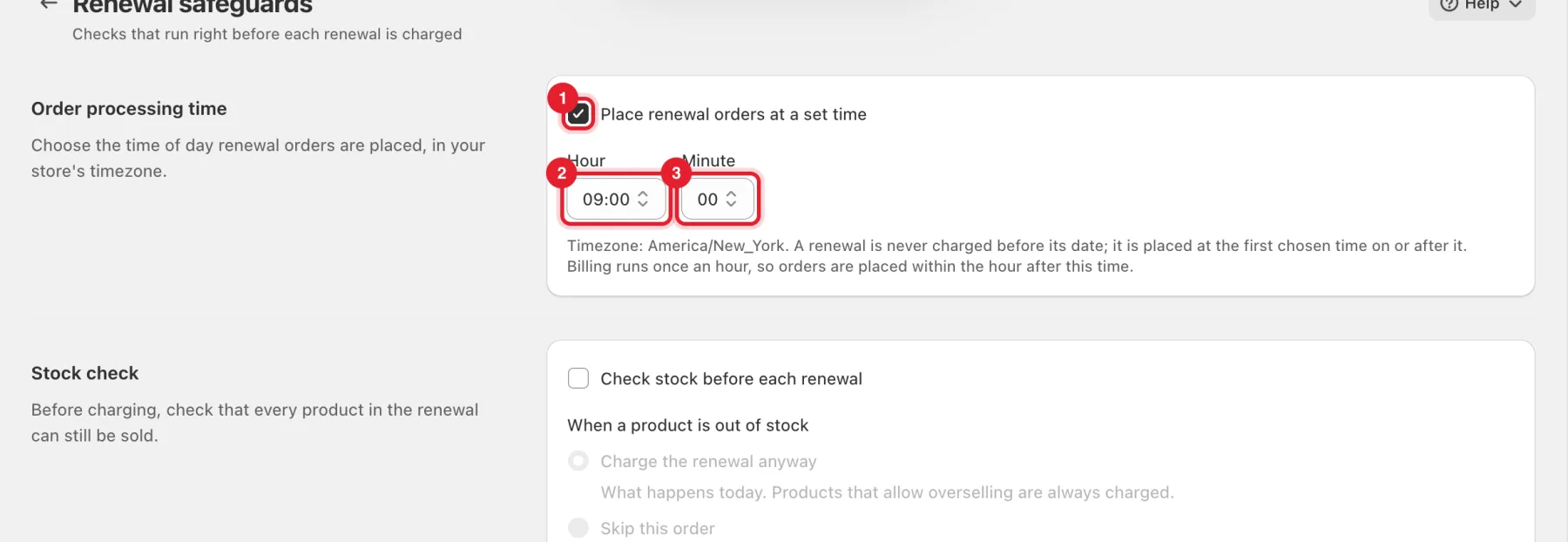
The time is in your store's timezone, which is shown under the fields. A renewal is never charged before its date. It is placed at the first chosen time on or after that date. Billing runs once an hour, so orders are placed within the hour after this time.
Step 3: Decide what happens when a product is out of stock
- Tick Check stock before each renewal.
- Under When a product is out of stock, choose one:
- Charge the renewal anyway: what happens today. Products that allow overselling are always charged.
- Skip this order: the customer isn't charged and the next order stays on schedule.
- Pause the subscription: the customer gets the usual paused email and can resume from their portal.
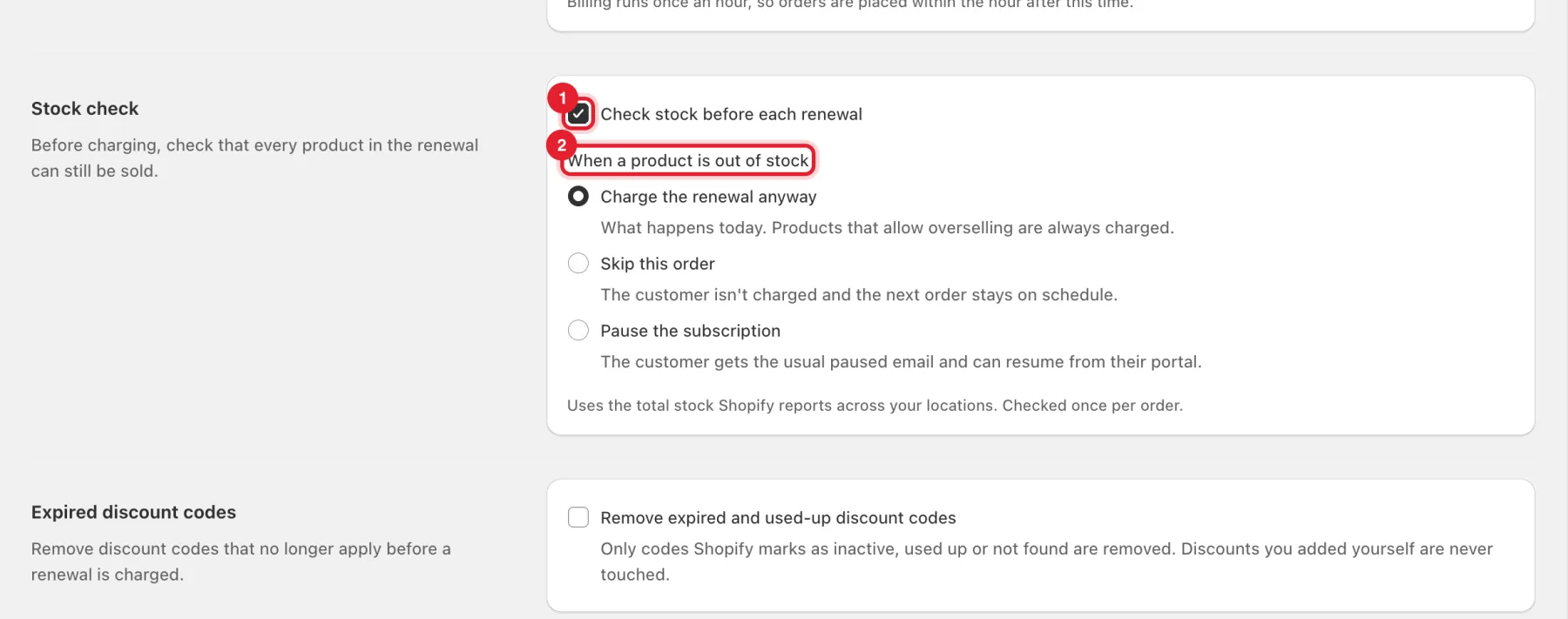
RecurX uses the total stock Shopify reports across your locations, and checks once per order.
Step 4: Clean up discount codes and guard against shipping increases
- Tick Remove expired and used-up discount codes. Only codes Shopify marks as inactive, used up or not found are removed. Discounts you added yourself are never touched.
- Tick Hold renewals with a large shipping increase.
- Enter a percentage in More than (percent), for example 25.
- Or enter an amount in More than (amount), in the subscription's currency. You can set either one or both.
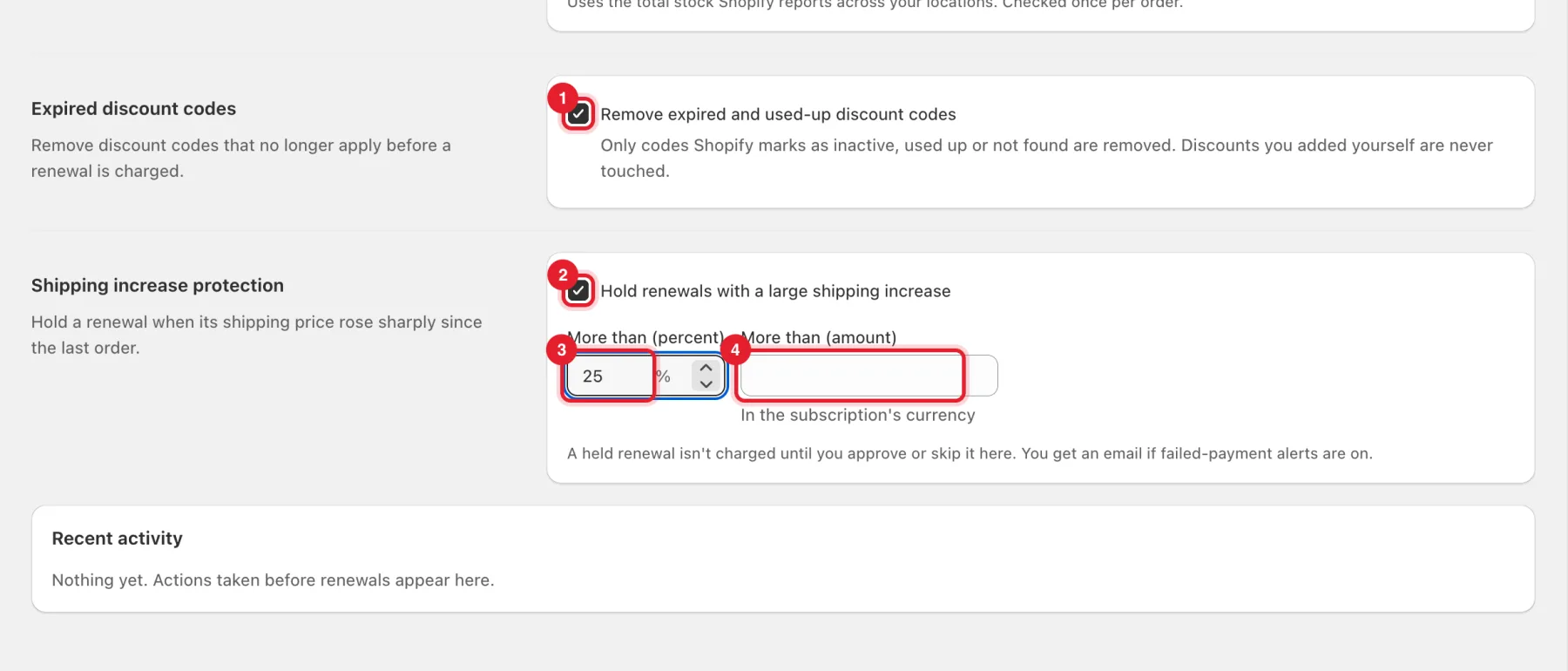
Tip: If you tick the shipping check but leave both fields empty, the page shows Set a percentage, an amount, or both. and won't save.
Step 5: Save
Click Save in the bar at the top of the page. To undo your edits, click Discard. RecurX shows Renewal safeguards saved.
Step 6: Check what the safeguards did
The Recent activity card lists what the checks did before each renewal, for example Out of stock: order skipped, Expired discount codes removed or Renewal on hold: shipping increase. Until a check has acted, it shows Nothing yet. Actions taken before renewals appear here.

Approve or skip a held renewal
When the shipping check holds a renewal, a Renewals on hold card appears at the top of this page. Held renewals aren't charged until you act on them. For each one:
- Click Approve and charge to charge it at the new shipping price.
- Click Skip order to skip this order without charging.
Click the customer's name to open their subscription. If failed-payment alerts are on, you also get an email when a renewal is held.
Good to know
- Nothing changes until you save. Every check is off by default.
- "Waiting: Shopify couldn't be read" in Recent activity means RecurX couldn't read stock or shipping from Shopify at that moment.
- "Expired codes kept (one-order changes pending)" means the subscription had a one-order change waiting, so RecurX left the codes in place for that order.
- Shipping prices come from your Shopify delivery profiles. See Shipping profiles.
- To see the orders a renewal creates, see Subscription orders.