
When a customer subscribes, Shopify works out shipping from the delivery profile the product belongs to. That shipping price is saved on the subscription. The Shipping profiles page creates that delivery profile for you and lists the ones you have. A profile's products and rates are always set in Shopify, and RecurX doesn't keep its own copy of them. Setting one up takes about 5 minutes.
Who it's for: stores that want subscription products to ship at their own rate, for example free shipping for subscribers. It's available on every plan.
Step 1: Open Shipping profiles
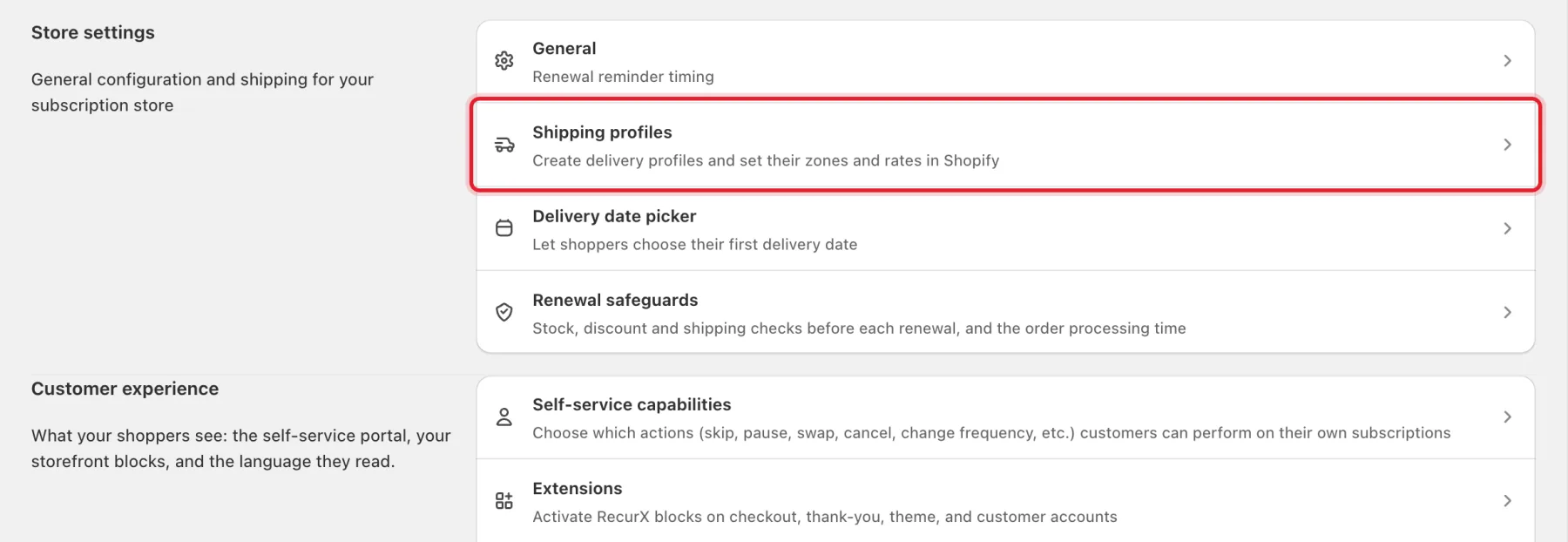
- In your Shopify admin, open Apps → RecurX Subscriptions.
- Click App settings in the sidebar.
- Under Store settings, click Shipping profiles.
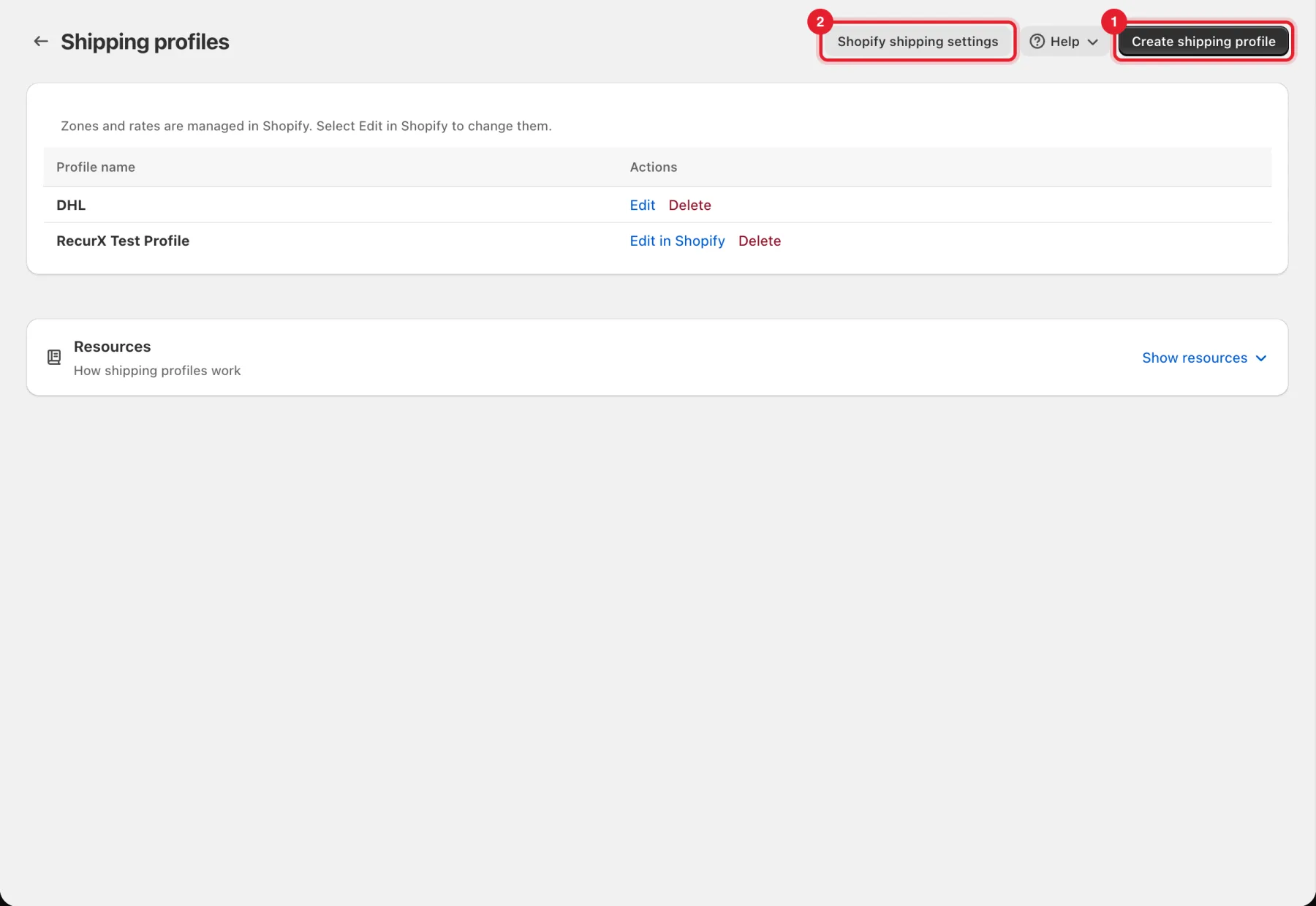
The page lists your profiles:
- Create shipping profile adds a new one.
- Shopify shipping settings opens Settings → Shipping and delivery in your Shopify admin.
Step 2: Create a shipping profile
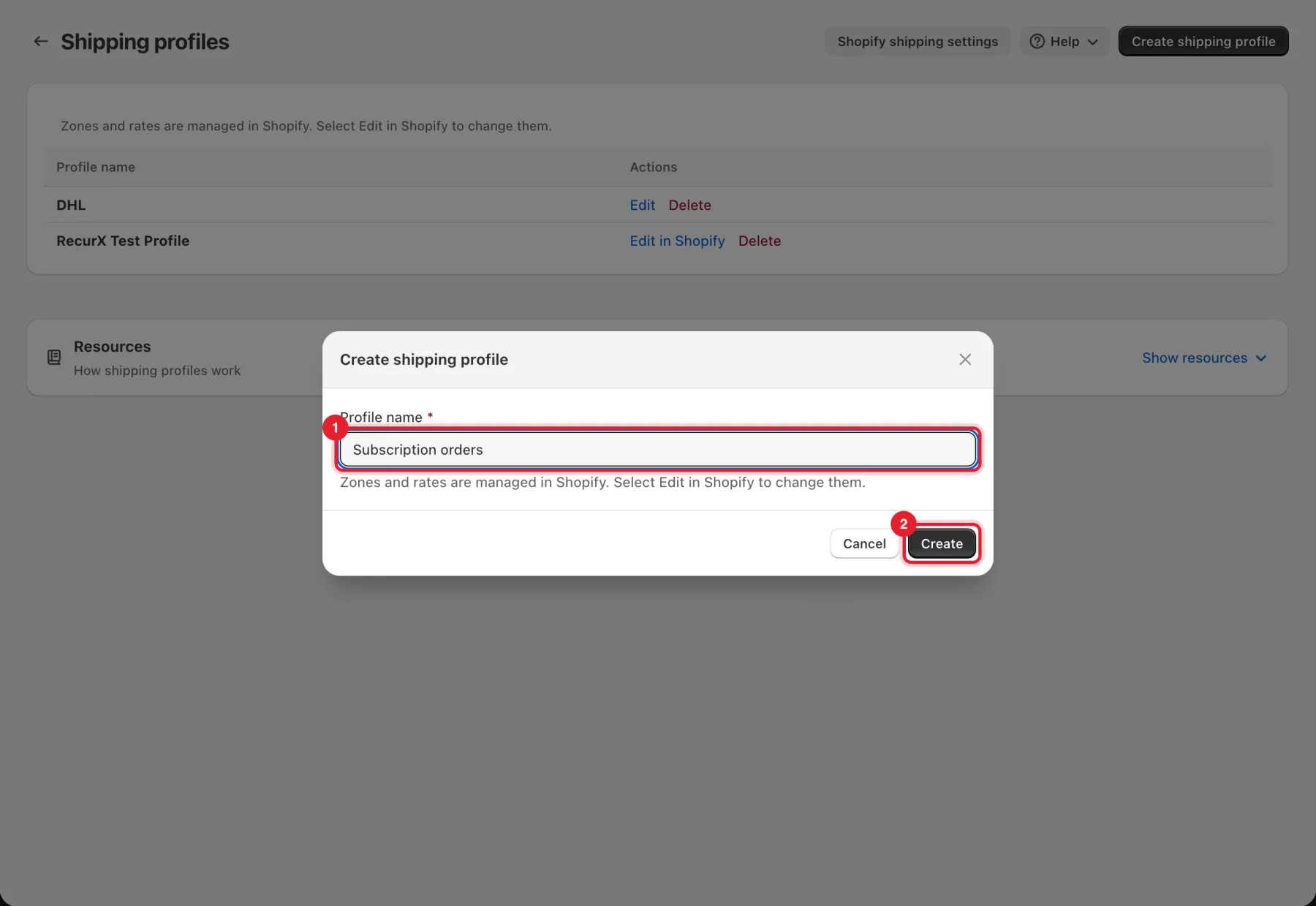
- Click Create shipping profile.
- Enter a Profile name, for example Subscription orders.
- Click Create.
RecurX creates a matching delivery profile in Shopify and shows Profile created. Add its zones and rates in Shopify., with an Edit in Shopify button.
Note: The new profile is empty. Until you add products and rates to it in Shopify (Step 3), it changes nothing at checkout or on renewals.
Step 3: Set it up in Shopify
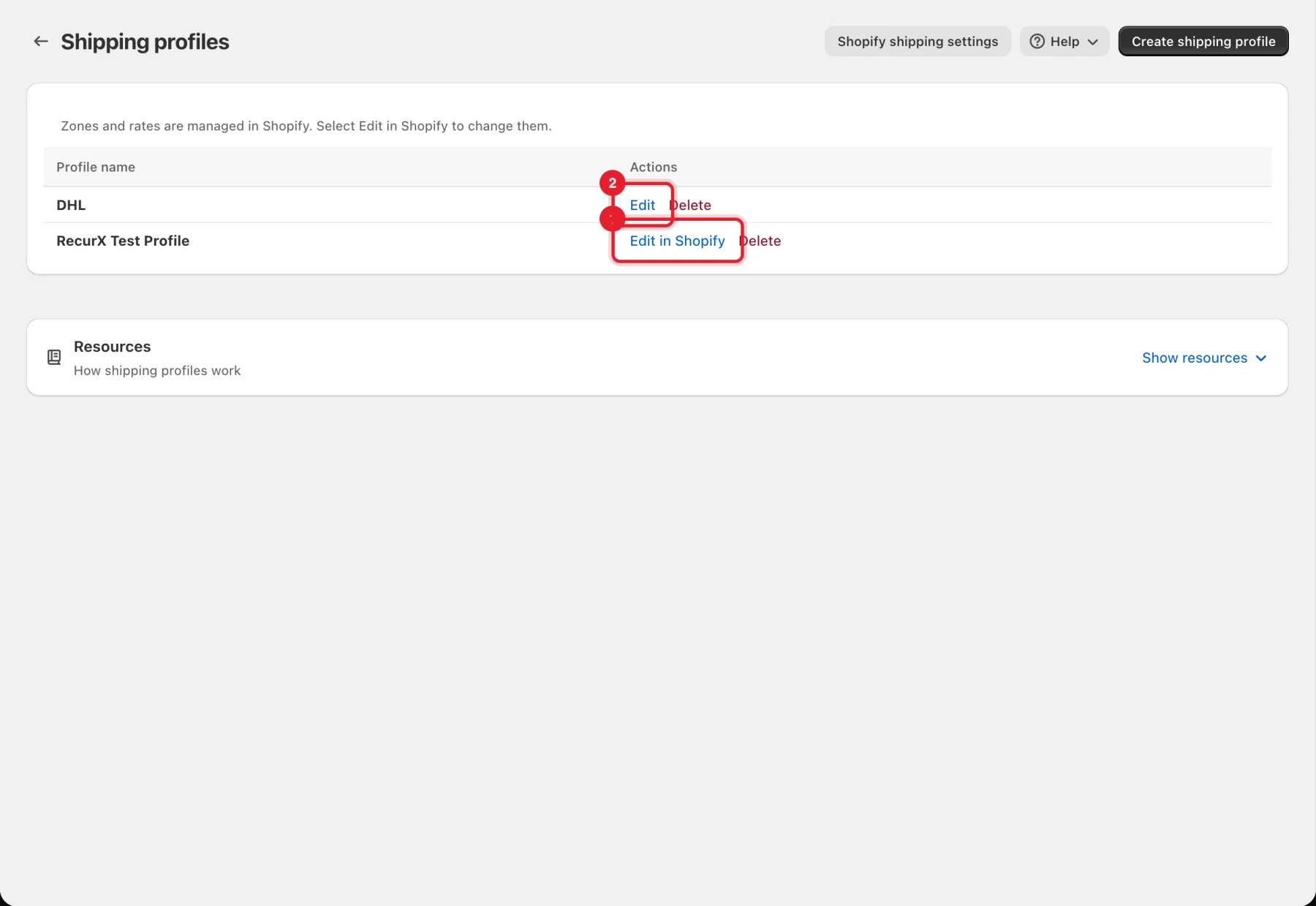
- Click Edit in Shopify next to the profile. Shopify's delivery profile editor opens.
- Add the products that should use this profile.
- Add shipping zones and rates, then save in Shopify.
A profile that isn't linked to Shopify yet shows Edit instead, which lets you rename it.
Tip: To charge subscribers a flat or free shipping rate, put your subscription products in their own profile with that rate. The rate at checkout is the one saved on the new subscription.
If your store sets shipping rates per market
Some stores set shipping rates per market in Shopify, under Settings → Markets. On those stores the page says so, and a delivery profile holds only products and locations. The page then reads Products and locations are managed in Shopify; shipping rates are set per market in Settings → Markets.
- Create the profile the same way. RecurX shows Profile created. Choose its products and locations in Shopify. Shipping rates are set per market in Settings → Markets.
- Click Edit in Shopify to choose the profile's products and locations.
- Click Markets settings at the top of the page to set the shipping rates for each market.
Delete a profile
Click Delete next to the profile, then confirm in Delete shipping profile?
Warning: Deleting a profile that is linked to Shopify also removes that delivery profile from Shopify. Its products move back to Shopify's general profile and its rates are gone. This can't be undone.
Good to know
- Why can't I edit zones and rates in RecurX? Shopify calculates shipping from the delivery profile, so zones and rates are edited where Shopify reads them.
- Do existing subscriptions pick up a rate change? No. Each subscription keeps the shipping price saved on its contract when it started. New rates apply to new subscriptions. See Subscription orders.
- To hold a renewal when its shipping price jumps, see Renewal safeguards.
- Shopify couldn't create the profile, so nothing was saved. Try again, or create it in Shopify's shipping settings.