
Stuck on something? RecurX has three ways to get help: the RecurX Assistant answers straight away, the support chat reaches the RecurX team, and the help center has a guide for every page. This guide shows where each one is and what to expect. It takes about 2 minutes to read.
Who it's for: everyone using RecurX, on every plan.
Step 1: Open the Help menu
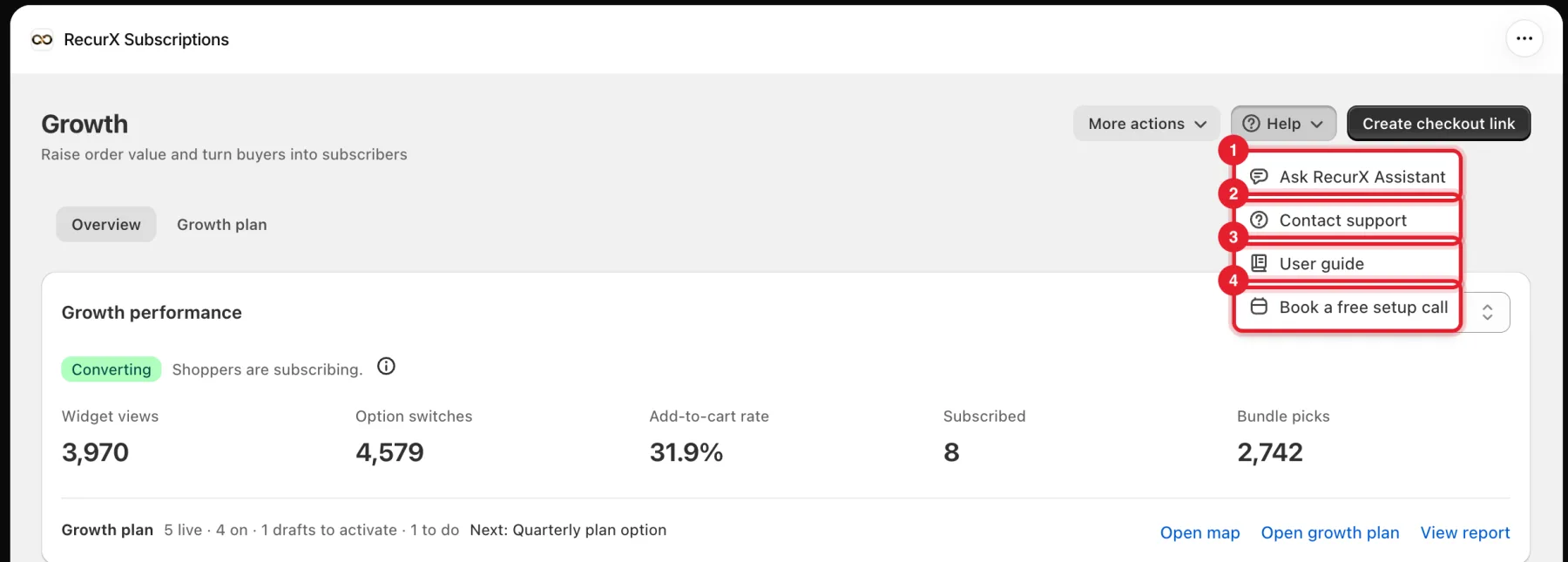
Every RecurX page has a Help button in the top right. Click it to see four options:
- Ask RecurX Assistant: instant answers inside the app.
- Contact support: the support chat with the RecurX team.
- User guide: opens this help center in a new tab.
- Book a free setup call: pick a time to set up RecurX with us.
On a phone, the Help options sit in the page's More actions menu.
Step 2: Ask the RecurX Assistant
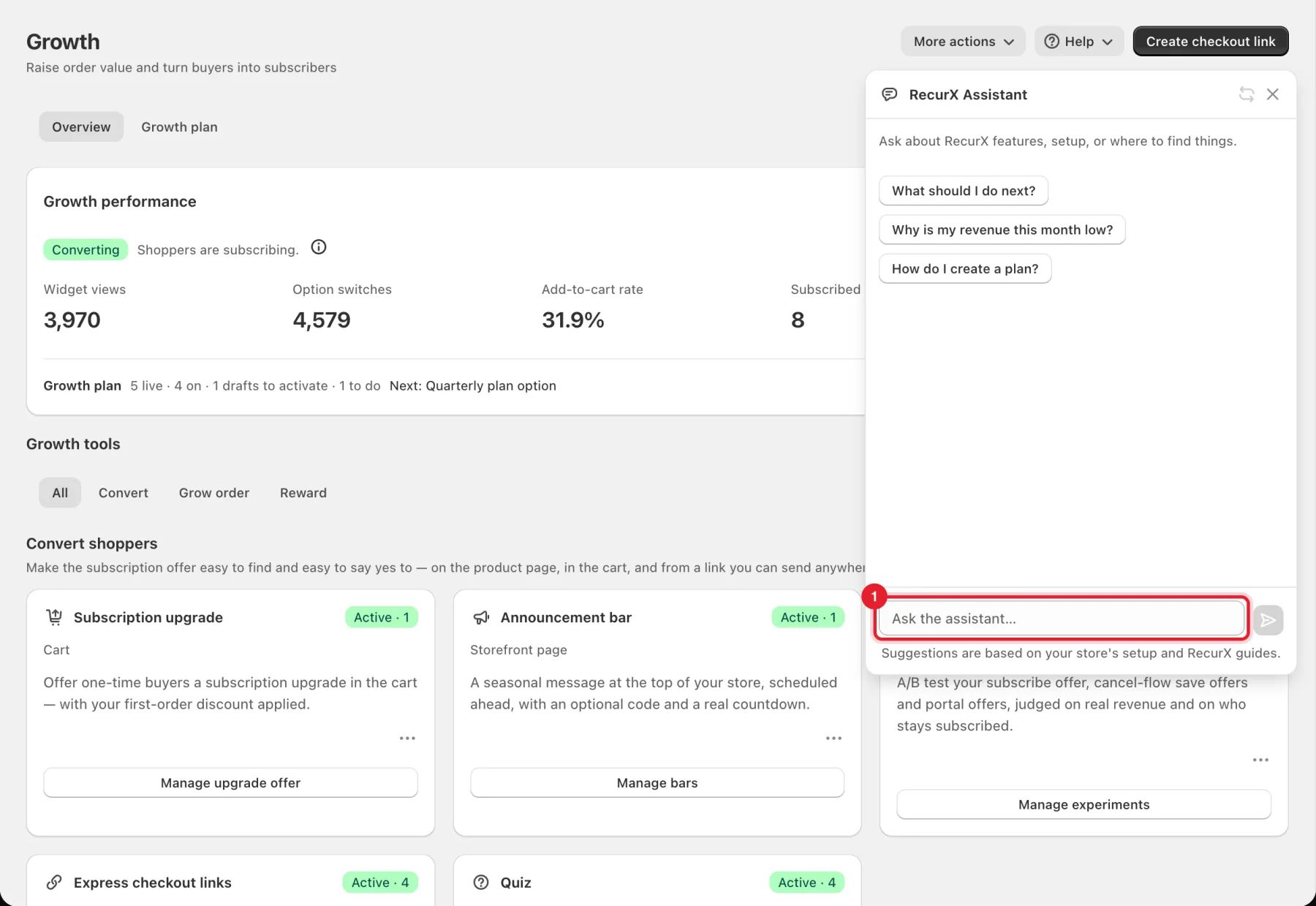
Click Help → Ask RecurX Assistant. The RecurX Assistant panel opens on the right, on top of the page you're on.
- Ask about RecurX features, setup, or where to find things. Type in Ask the assistant… (1) and press Enter, or click one of the suggested questions. The suggestions change with the page you're on.
- Suggestions are based on your store's setup and RecurX guides.
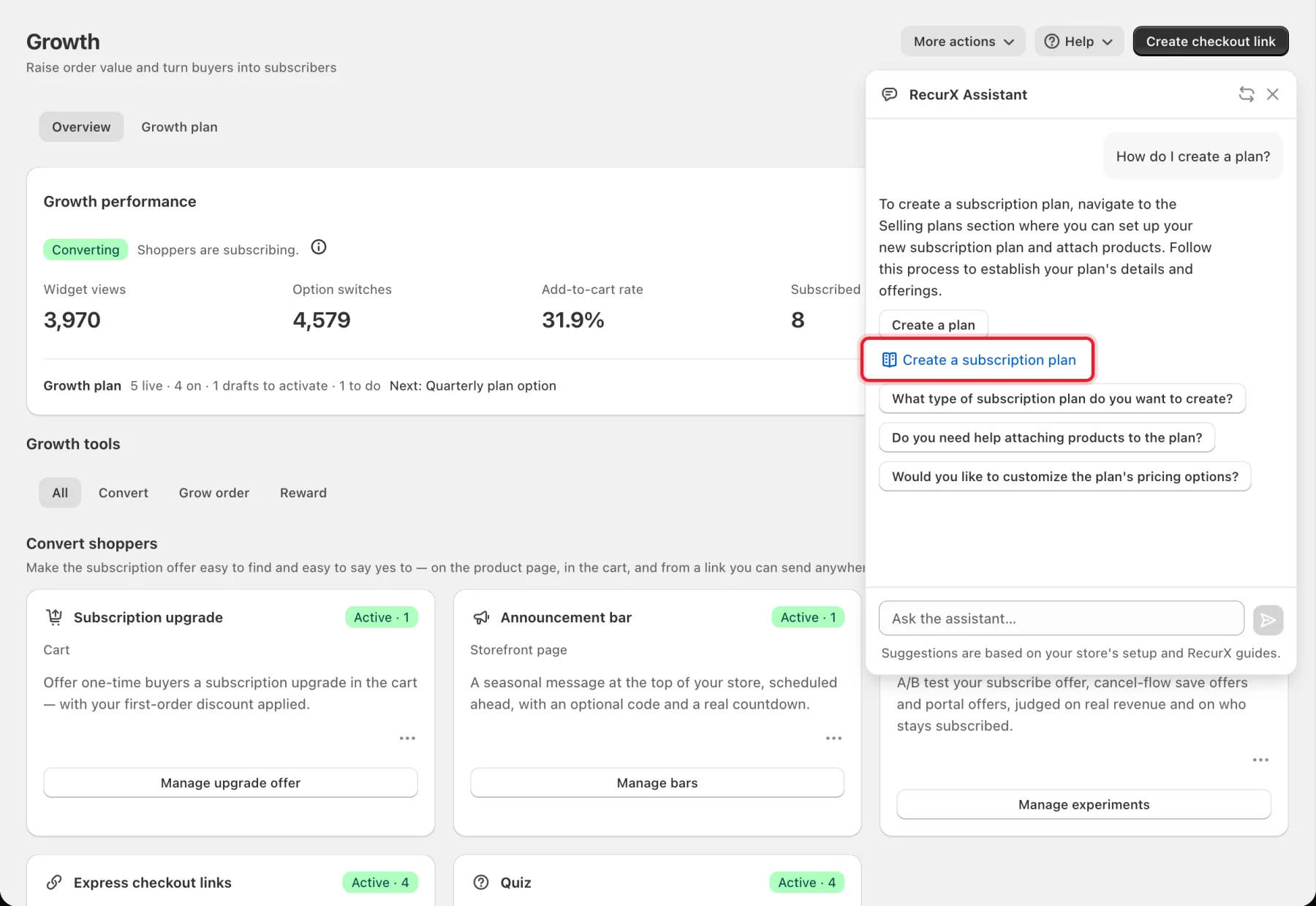
Each answer can come with:
- buttons that take you to the right page in RecurX (for example Create a plan);
- a guide link with a book icon (highlighted) that opens the step-by-step guide on help.recurx.app;
- follow-up questions you can click.
Use the arrows icon in the panel header to Reset conversation, and the × to close the panel. Your conversation stays when you close and reopen the panel.
Note: On stores where the assistant can also make changes, a Permissions line shows at the top of the panel, and proposed changes wait for your Approve. You choose what it may do on its own in Assistant permissions.
Limits: a message can be up to 600 characters. If you send many in a row you may see I'm rate-limited, try again in a minute.
Step 3: Contact support
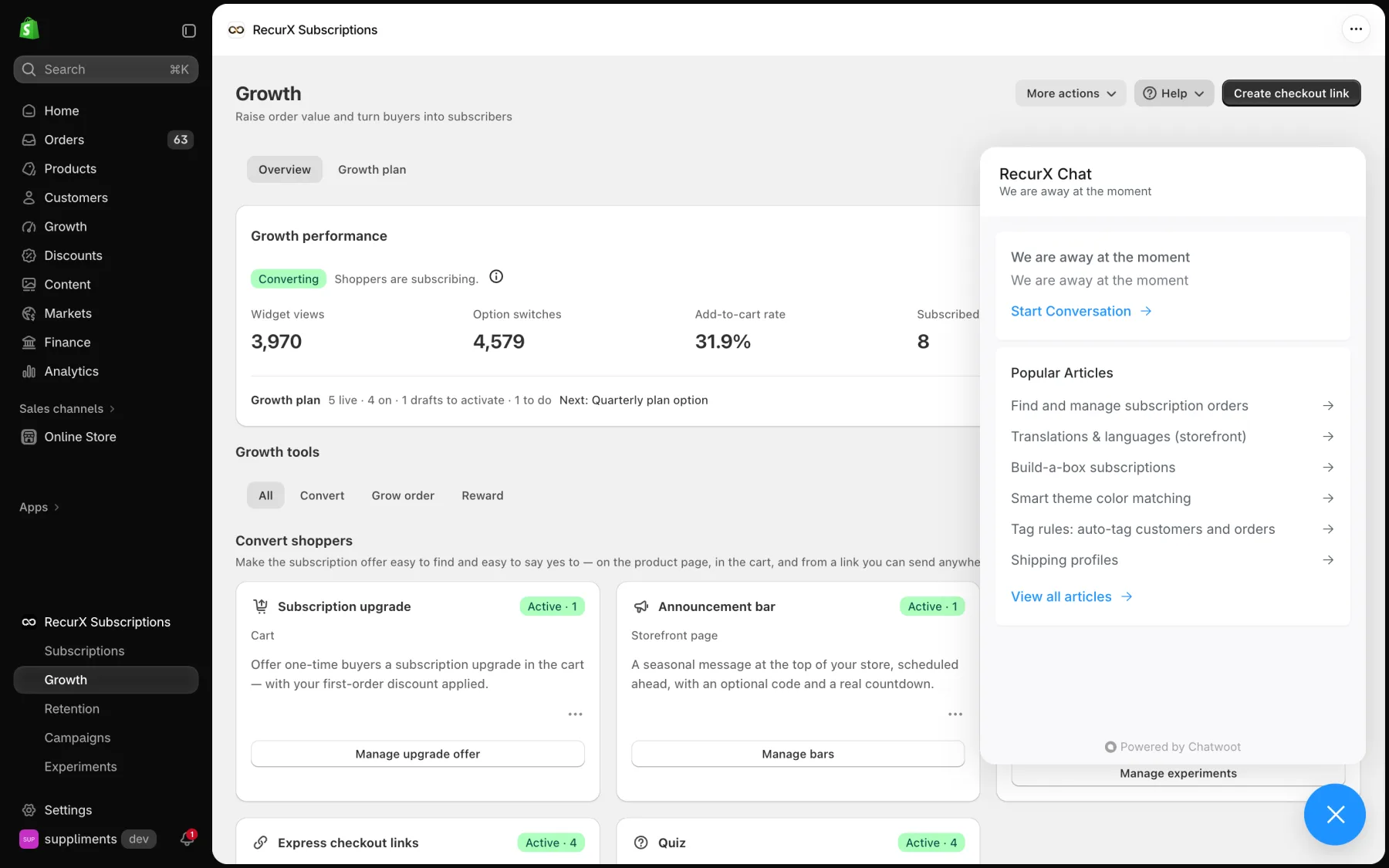
Click Help → Contact support. The RecurX Chat window opens in the corner, with popular help articles and Start Conversation. When the team is offline it says We are away at the moment: write anyway, and we reply in the same chat.
What happens after you write:
- The RecurX support assistant answers first, from these guides, with the steps and a link to the guide.
- Under the answer you get buttons:
- Yes, this helped: closes the question.
- Report a bug: shows when your message sounds like something is broken. The assistant asks for a screenshot (use the paperclip), the page you were on and what you clicked, and what you expected versus what happened. If you can't add a screenshot, tap Send without screenshot. You then get a report number, and a teammate looks into it — see Report a problem to RecurX support.
- Talk to a human: hands the chat to the RecurX team at any time.
- A teammate replies in the same chat. We typically respond within a few hours during business hours (Dubai, GMT+4).
Important: RecurX support never asks for passwords, card numbers, API keys or access tokens. Leave them out of messages and screenshots.
If the chat can't load (for example a browser extension blocks it), a Contact support window opens instead, with Email support ([email protected]) and a link to the Help center.
Step 4: Chat from help.recurx.app
You can also reach us without opening your Shopify admin, for example if you can't log in.
- Go to help.recurx.app and click the chat bubble in the bottom right corner.
- Click Start Conversation and type your message.
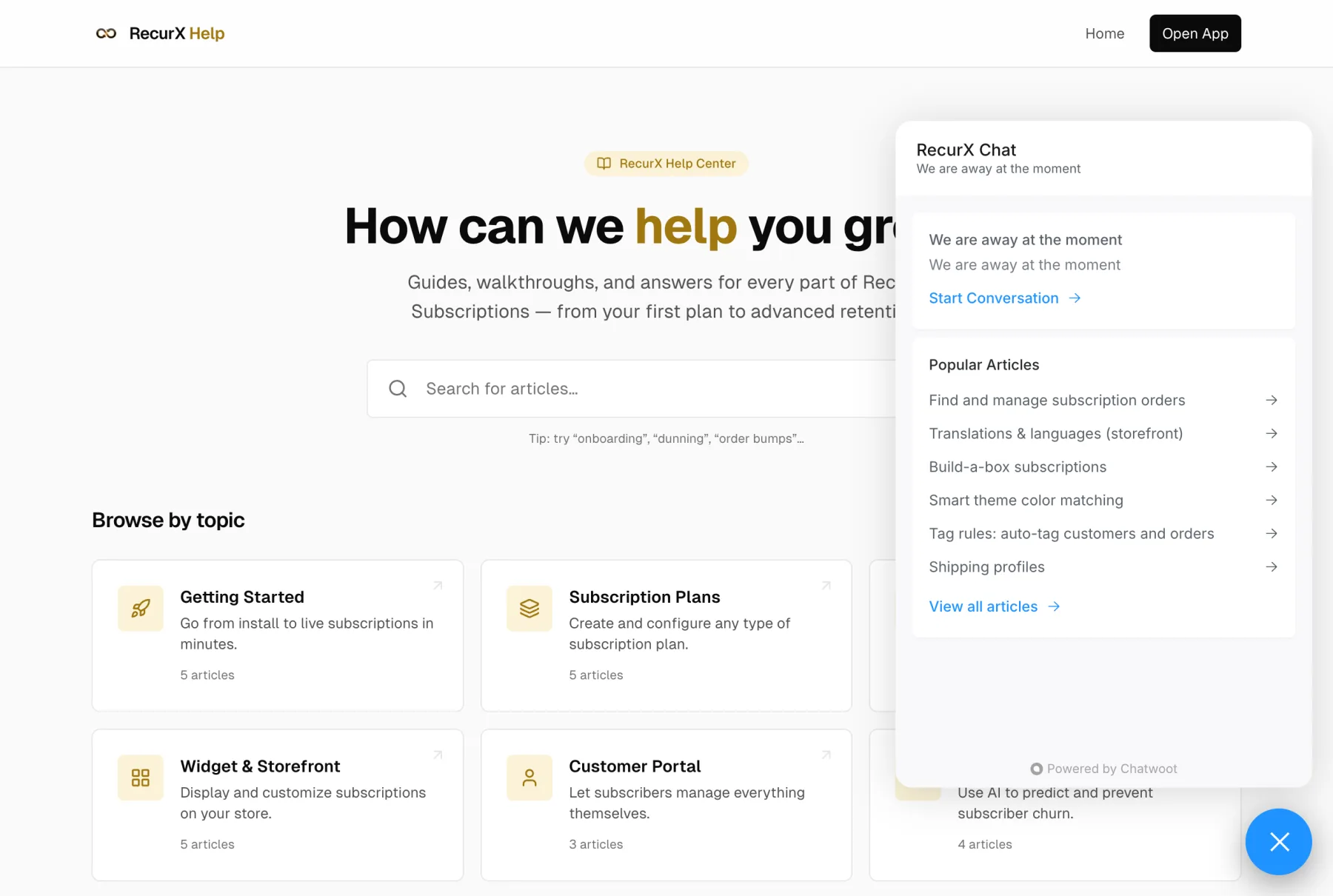
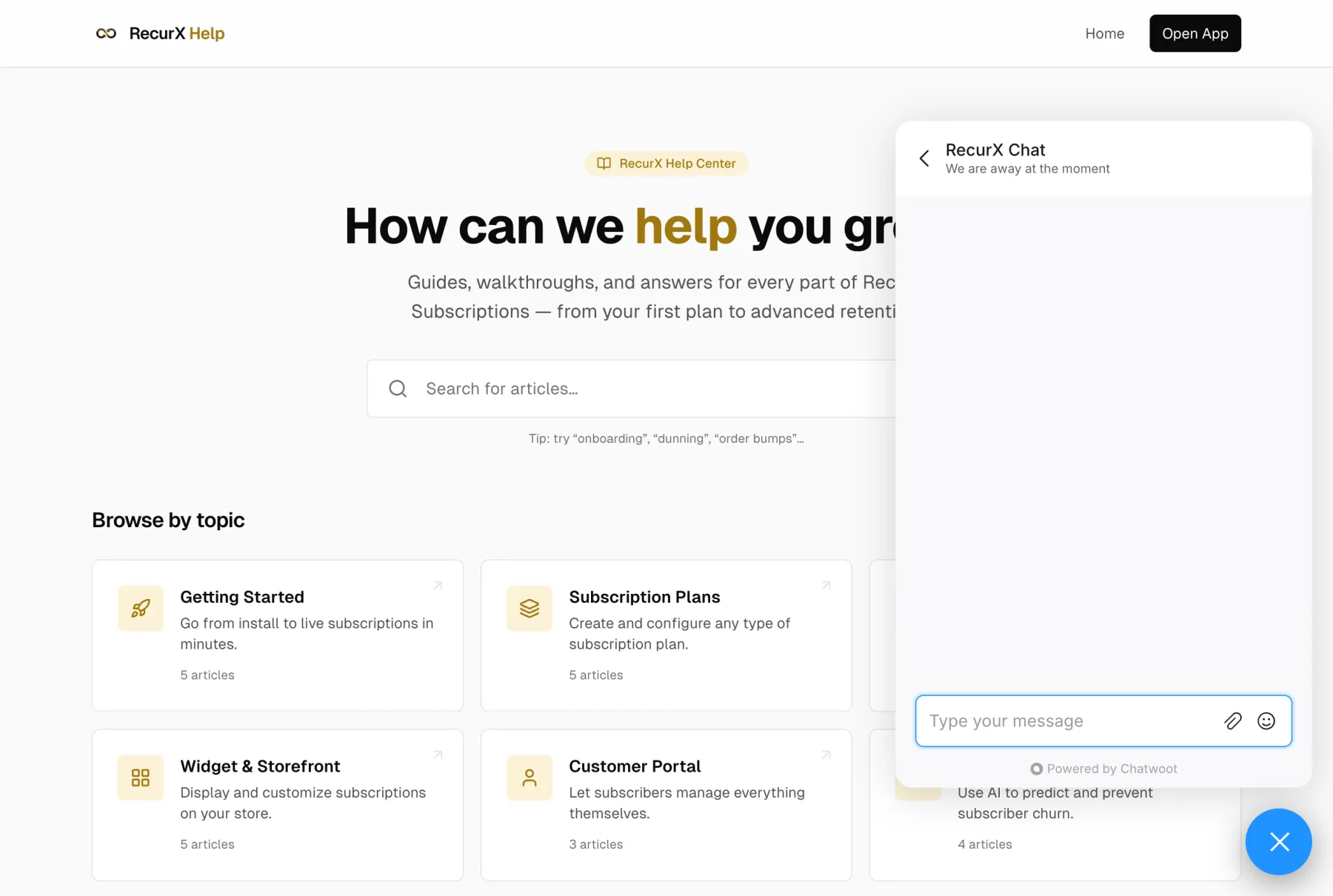
Here we don't know which store you're on, so if it matters, the assistant asks for your store's myshopify.com address. The same assistant and team answer both chats, with the same buttons, including Report a bug.
Good to know
- The fastest answers come from the assistant and the guides. For a person, tap Talk to a human in the support chat.
- Want something RecurX doesn't do yet? Use Feature requests.
- Book a free setup call opens a booking page where you pick a time.