
With Gift subscriptions, a This is a gift option appears under the subscription widget. The shopper enters the recipient's name, email, a send date and a message. On that date the recipient gets an email and confirms where the deliveries should go. It takes about 5 minutes to set up.
Who it's for: stores that sell prepaid subscriptions (for example 3 or 6 deliveries paid up front) and want to sell them as gifts. Gifting on prepaid plans is on every RecurX plan. Gifting on pay-as-you-go plans and paid gift notes are on the Pro plan.
Step 1: Open Gift subscriptions
Go to Growth and click Set up on the Gifts & groups card. The page opens on the Gifts tab (1), which lists every gift bought on your storefront. Click Settings (2) to set it up.
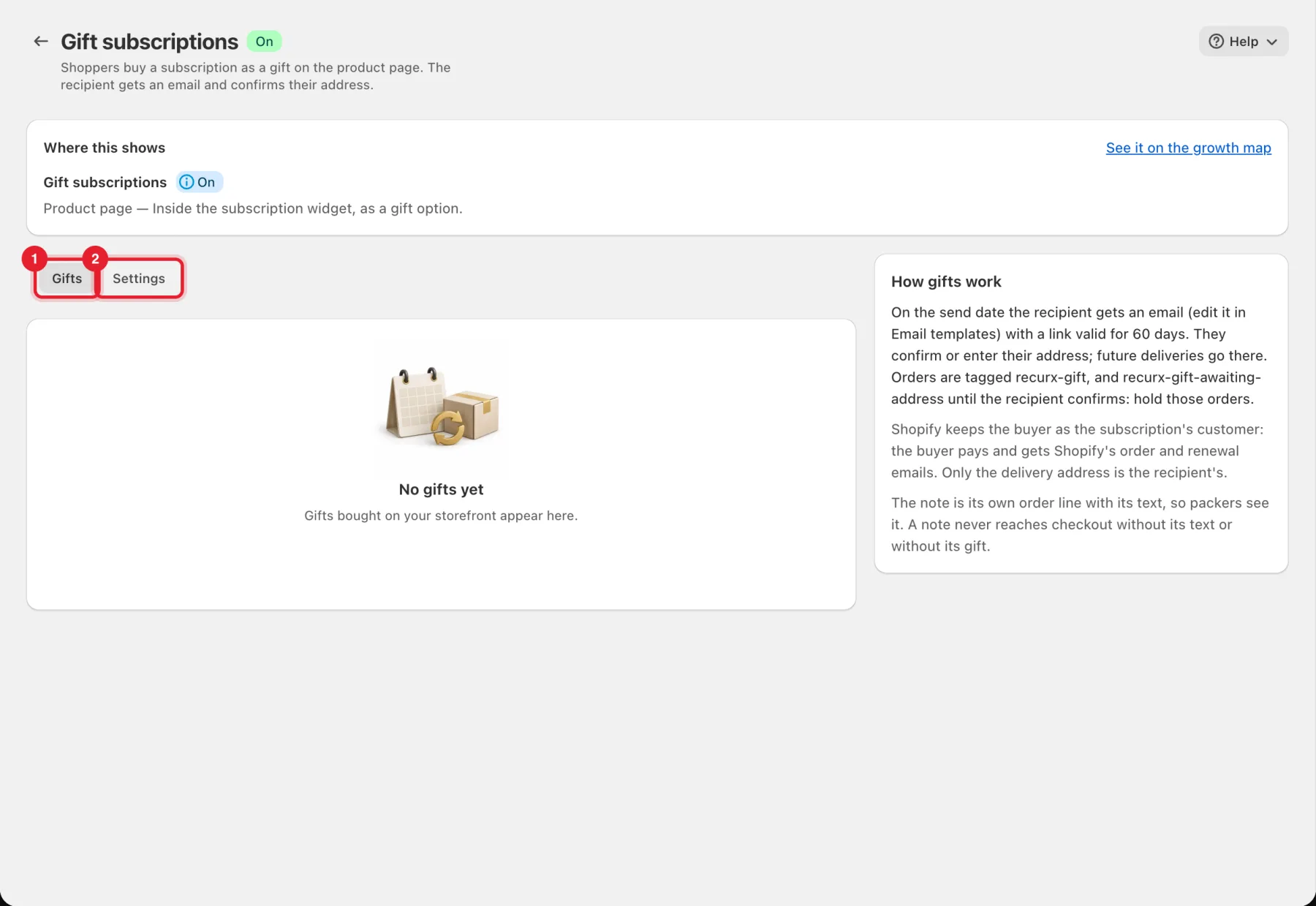
Where this shows confirms the place on your store (Product page — Inside the subscription widget, as a gift option). Click See it on the growth map to check it on the Growth map.
Step 2: Turn gifting on
On the Settings tab:
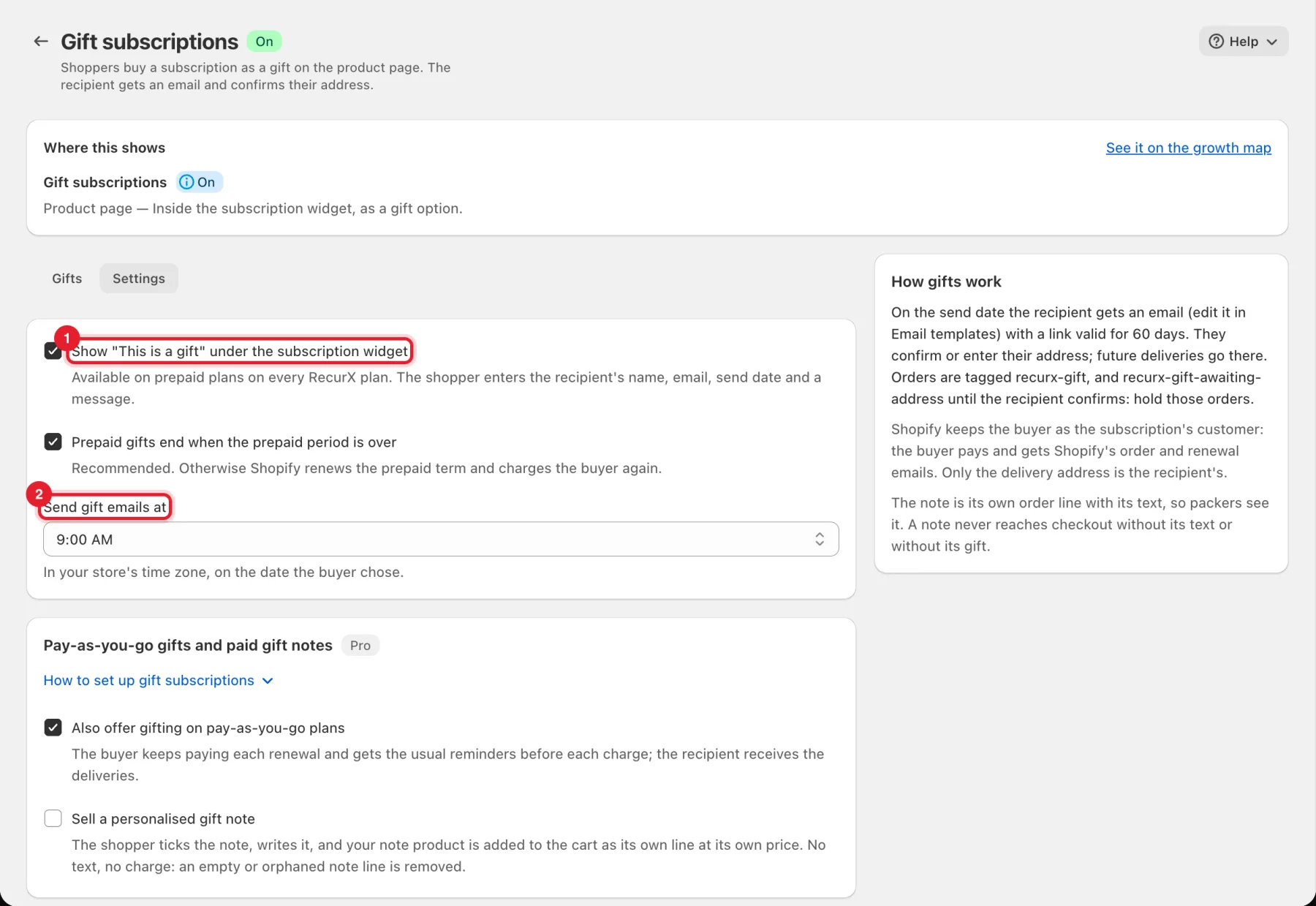
- Tick Show "This is a gift" under the subscription widget (1).
- Keep Prepaid gifts end when the prepaid period is over ticked (recommended). Otherwise Shopify renews the prepaid term and charges the buyer again.
- Pick when gift emails go out in Send gift emails at (2). It's in your store's time zone, on the date the buyer chose.
- Click Save in the bar at the top of the page.
Step 3: Pay-as-you-go gifts and gift notes (Pro)
Under Pay-as-you-go gifts and paid gift notes:
- Also offer gifting on pay-as-you-go plans (1): the buyer keeps paying each renewal and gets the usual reminders before each charge; the recipient receives the deliveries.
- Sell a personalised gift note (2): the shopper ticks the note and writes it, and your note product is added to the cart as its own line at its own price. First create a product such as Personalised note with its own price, keep it out of your collections and make it available on your Online Store. Then pick it as Note product, choose the Variant and set Maximum note length (characters).
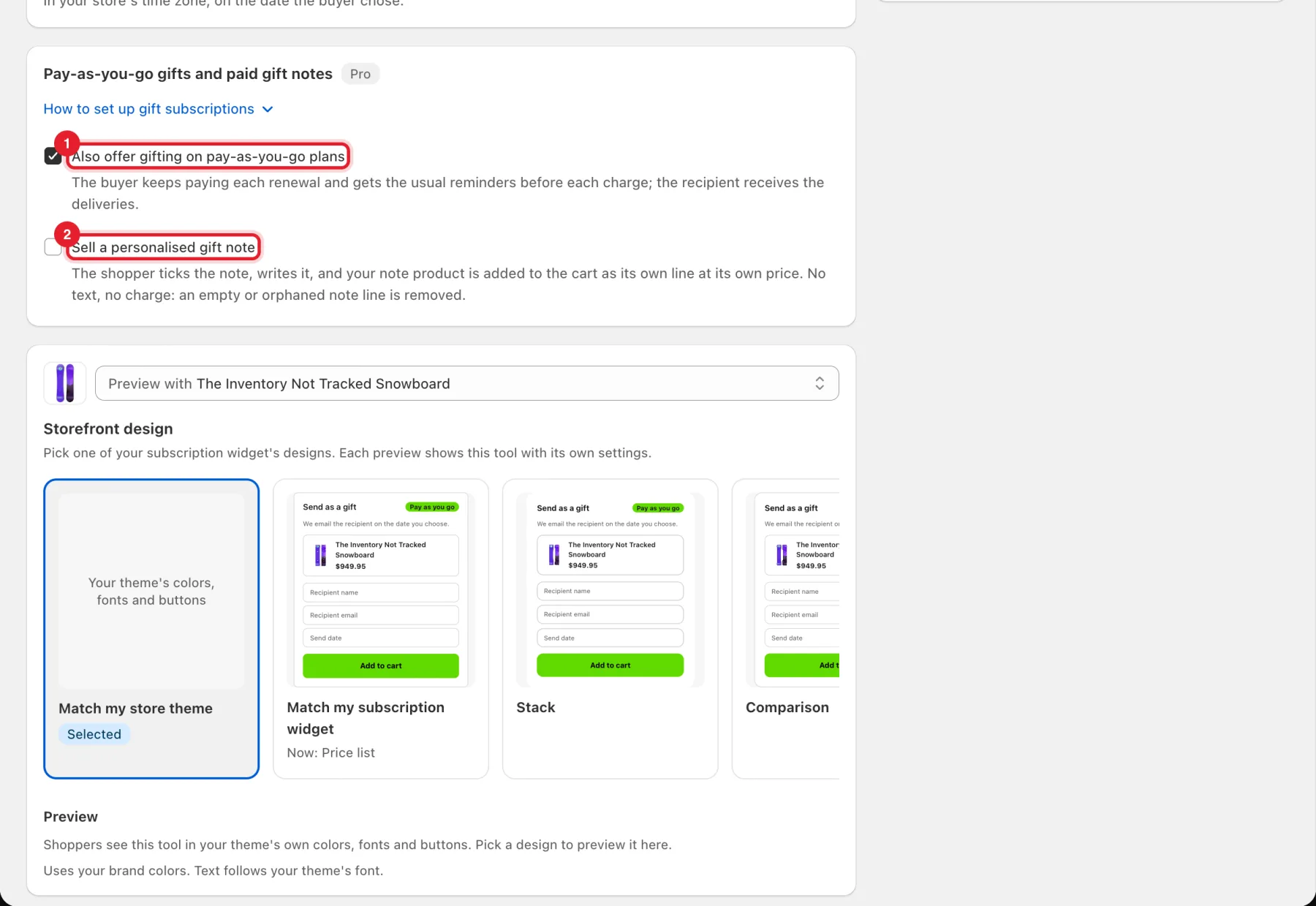
Below these options, Storefront design lets you match the gift option to your store theme or to your subscription widget, with a preview.
Step 4: Follow your gifts
On the Gifts tab each gift shows the Recipient, who it was Bought by, the Gift, the Email date and a Status: Scheduled, Email sent, Redeemed, Email failed, Pro plan needed, Voided or Ended. If an email didn't go out, Resend sends it again.
Good to know
- The gift email links to a page that stays valid for 60 days. Edit the email in Email templates.
- Gift orders are tagged
recurx-gift, andrecurx-gift-awaiting-addressuntil the recipient confirms. Hold those orders until the address is in. - Shopify keeps the buyer as the subscription's customer: the buyer pays and gets Shopify's order and renewal emails. Only the delivery address is the recipient's.
- A gift note is its own order line with its text, so packers see it. An empty or orphaned note line is removed, so it's never charged without its text.