
Page gate keeps pages for members only. When a shopper opens a page that matches a gate rule and their customer record doesn't have the membership plan's tag, they're sent somewhere else, by default the customer login page. It takes about 5 minutes.
Who it's for: stores selling a membership plan that comes with members-only content, such as guides, early drops or a community page. Each membership plan owns one gate rule.
Step 1: Open Page gate and turn on the app embed
- Go to Growth and click Manage gated pages on the Page gate card.
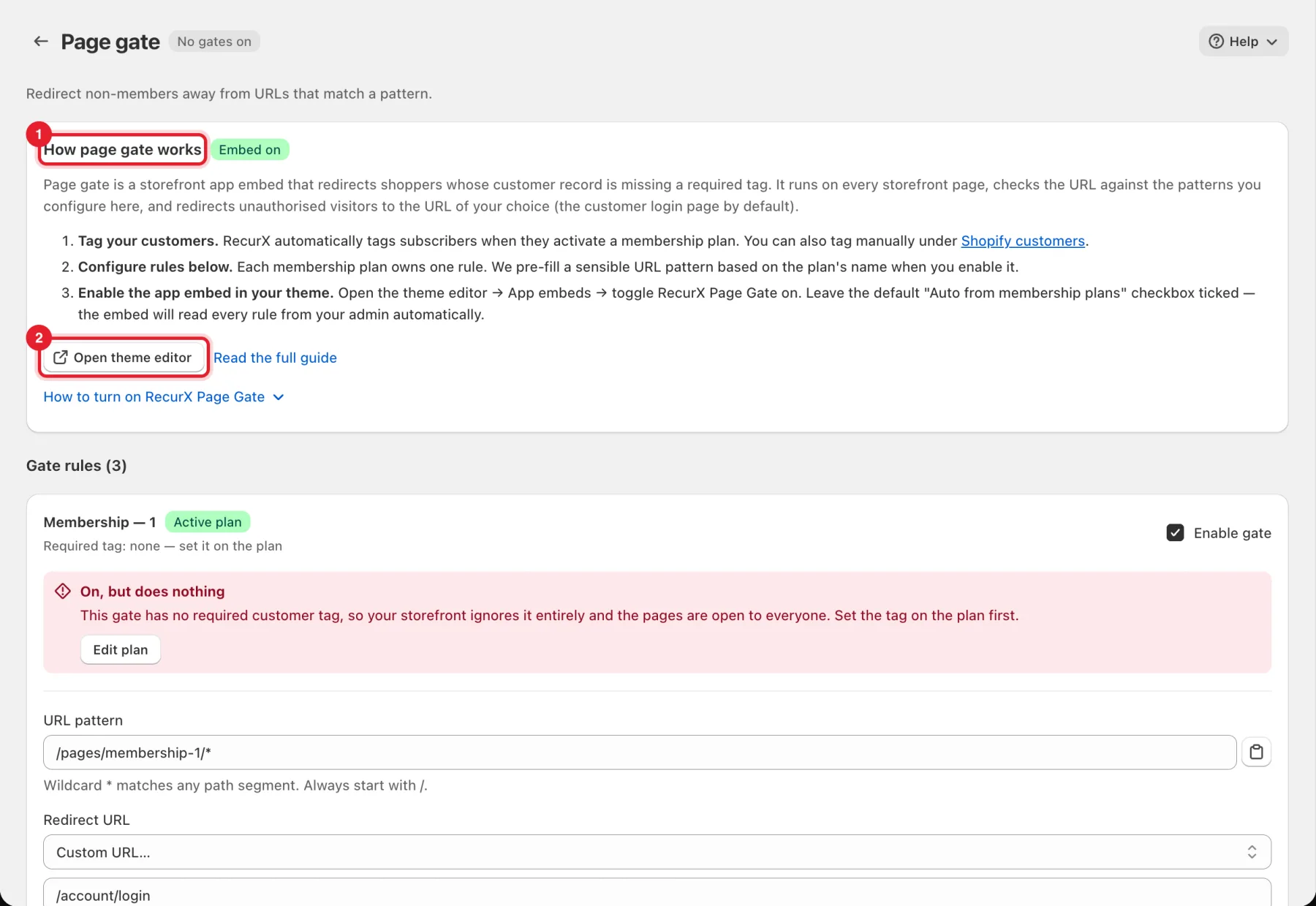
- Read How page gate works (1). The badge next to it shows whether the app embed is on.
- If the embed is off, click Open theme editor (2) (it may read Turn on in theme editor), go to App embeds, switch on RecurX Page Gate and save your theme. Leave Auto from membership plans ticked: the embed then reads every rule from RecurX.
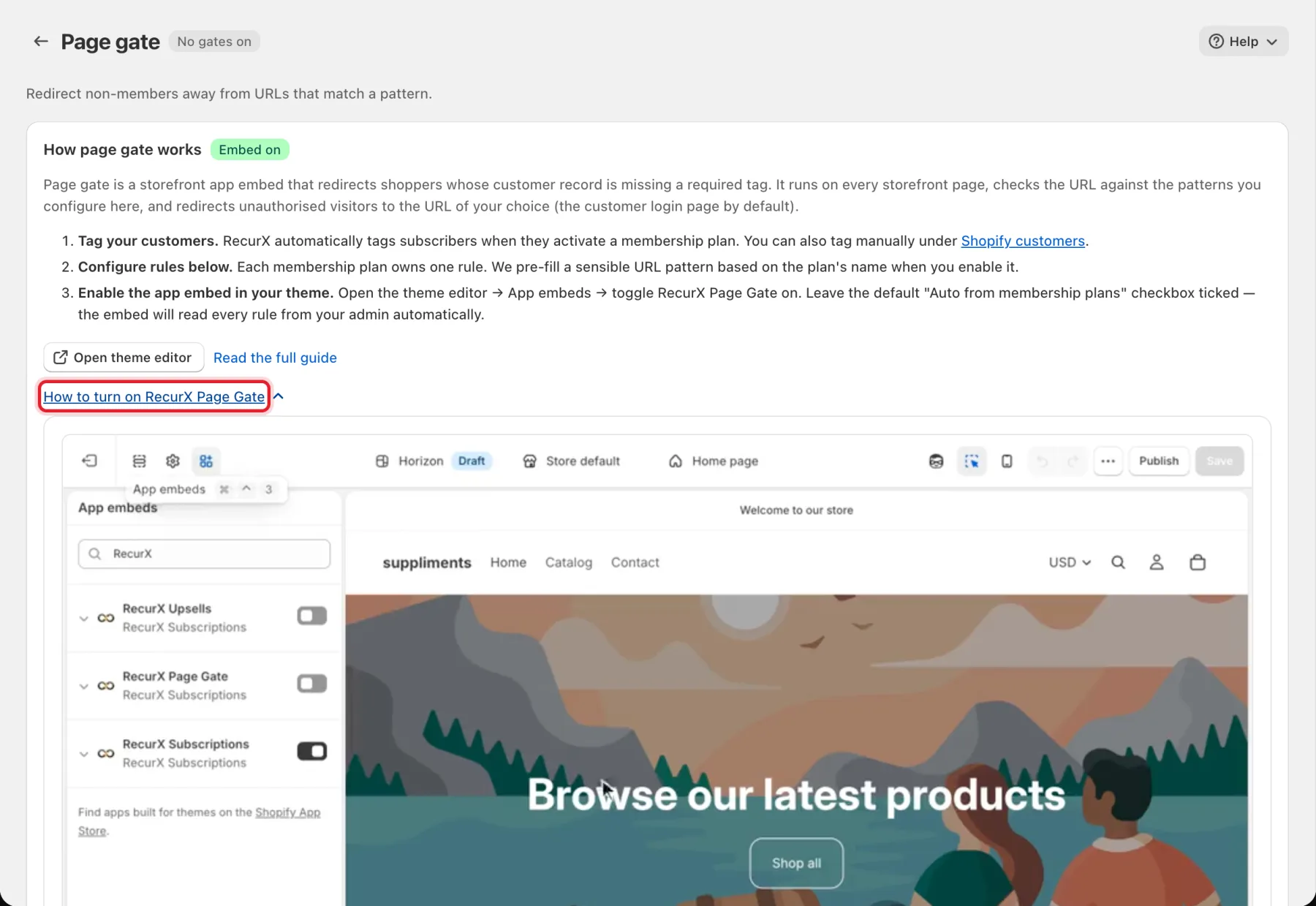
Not sure where the embed is? Click How to turn on RecurX Page Gate for a short recording: in the theme editor, open App embeds (the third icon at the top left), switch on RecurX Page Gate, and select Save in the top right corner.
The badge next to the page title says how many gates are on, for example No gates on.
Step 2: Set up a gate rule
Under Gate rules, each membership plan has its own card.
- Check the Required tag line (1). RecurX tags customers automatically when they activate the membership plan. If it says Required tag: none — set it on the plan, click Edit plan and set the plan's customer tag first.
- Tick Enable gate (2). RecurX pre-fills a URL pattern from the plan's name.
- URL pattern (3): the pages to protect. Always start with
/; a*matches any path segment, for example/pages/membership-1/*. - Redirect URL (4): where non-members are sent. Pick Customer login page (default), Home page, Cart, Customer account, All products, a product, a collection, a policy or contact page, or Custom URL….
- Save the page.
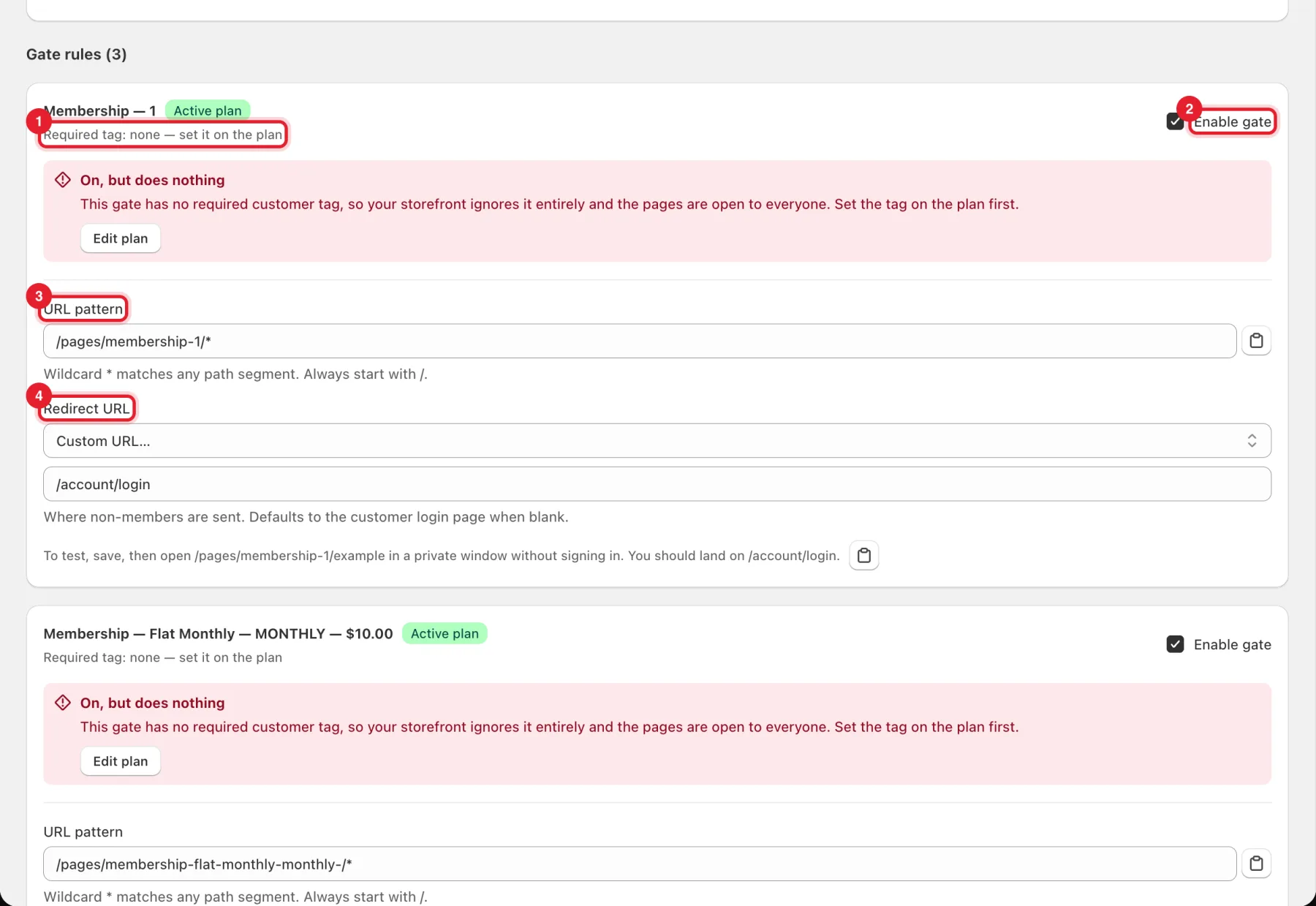
Warning: On, but does nothing means the plan has no required customer tag, so your storefront ignores the gate and the pages stay open to everyone. Set the tag on the plan.
Step 3: Test it
The card tells you how: after saving, open a gated page (for example /pages/membership-1/example) in a private window without signing in. You should land on the redirect page, such as /account/login.
Good to know
- Page gate checks the shopper's customer tag, so members must be logged in to see gated pages.
- You can also tag customers yourself under Customers in Shopify, or with Tag rules.
- To give members their own prices as well, see Member pricing.
- Membership plans are created in Subscriptions → Plans — see Create a subscription plan.