
RecurX has two tools for members-only perks:
- Member pricing adds a customer tag in Shopify to subscribers who match a rule — for example anyone with an active subscription. You then give that tag a discount in Shopify, so subscribers see their price.
- Page gate sends shoppers who don't have a membership plan's tag away from the pages you choose, for example
/pages/members/*.
Both are under Growth in RecurX.
Step 1: Open Member pricing
- In your Shopify admin, open Apps → RecurX Subscriptions.
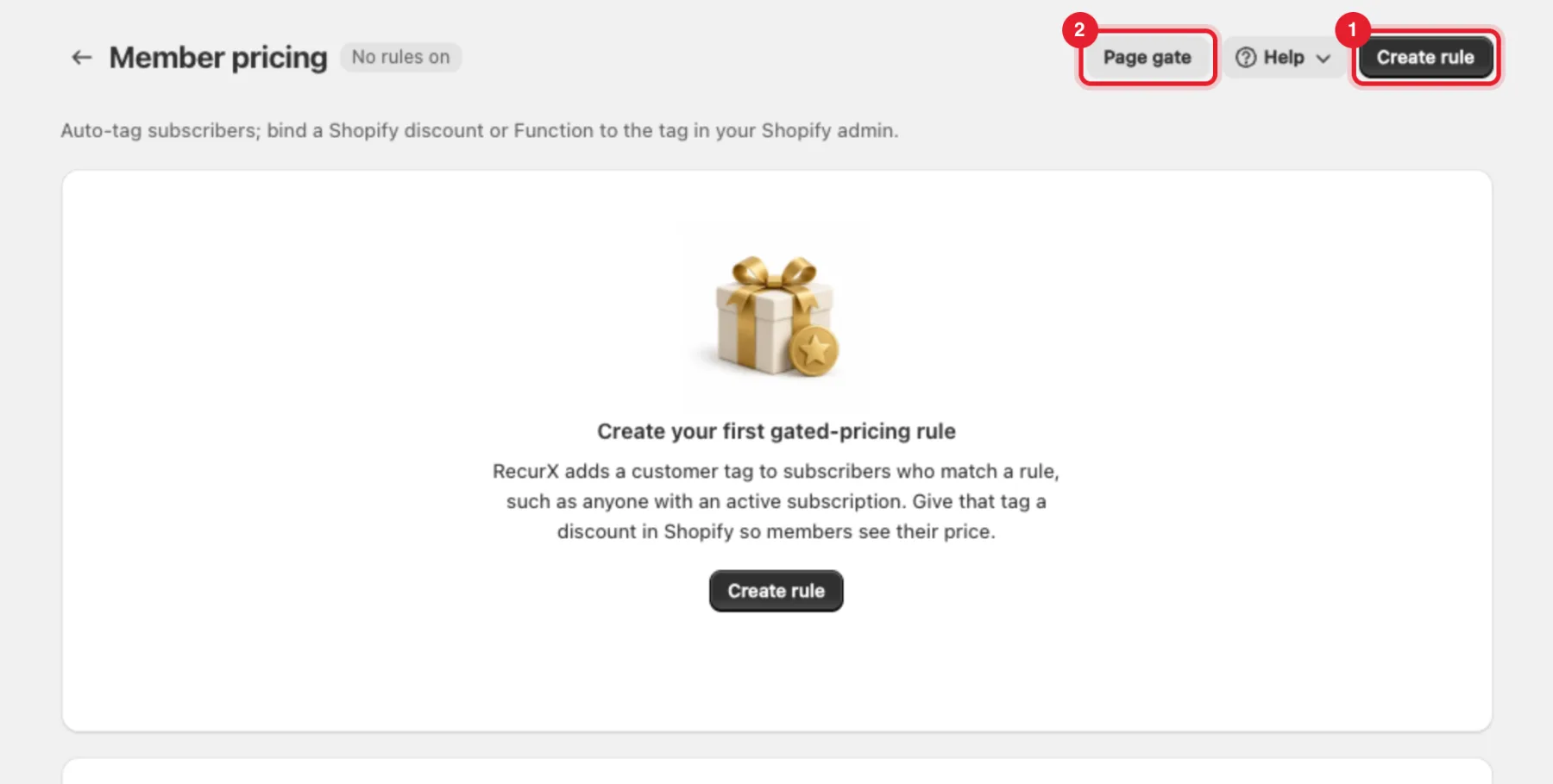
- Go to Growth → Member pricing.
- Click Create rule (1). Page gate (2) opens the page gate settings (Step 5).
Step 2: Choose who gets the tag
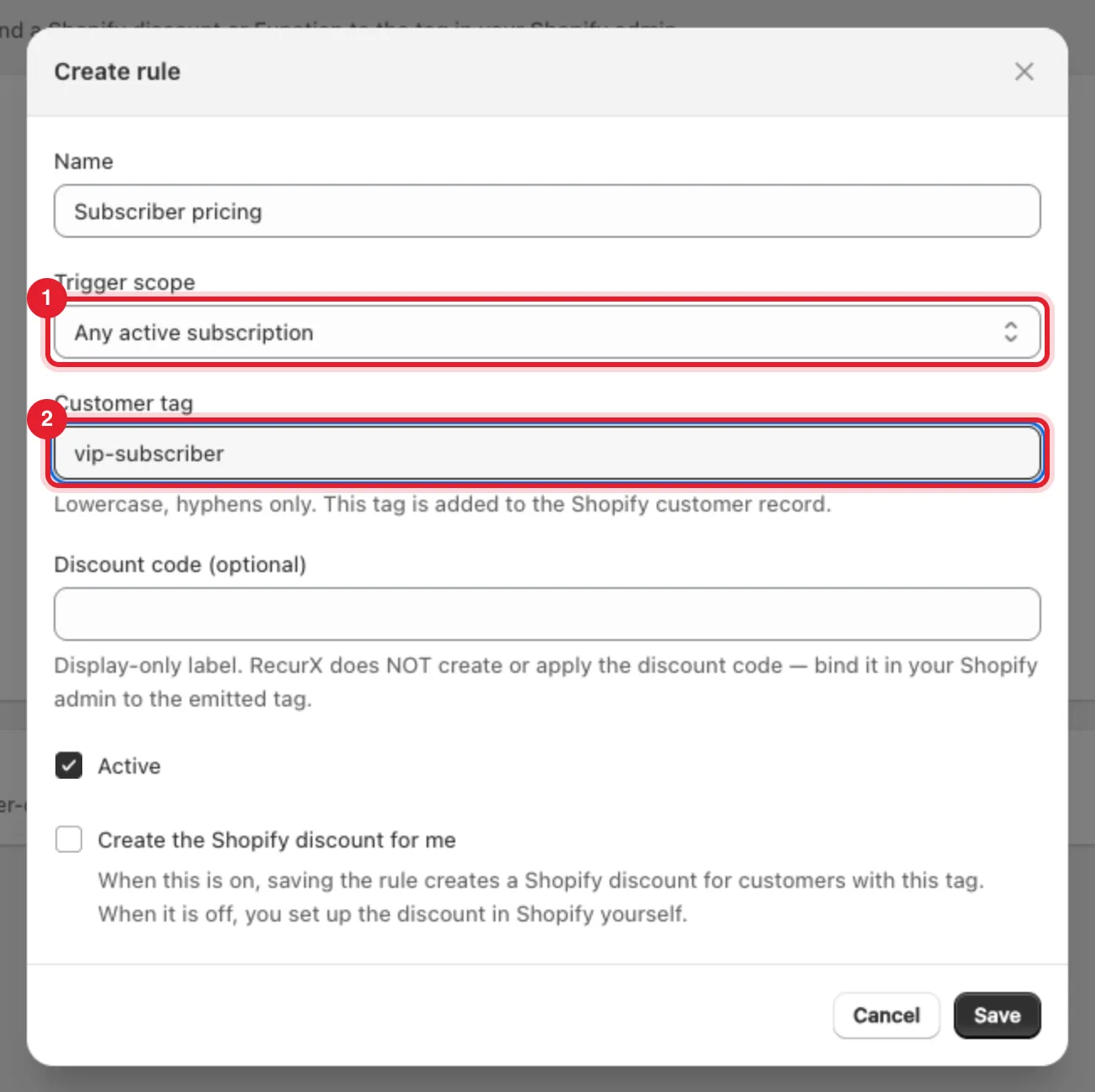
In the Create rule window:
- Name — for your reference, for example Subscriber pricing.
- Trigger scope (1) — who gets the tag:
- Any active subscription — every customer with an active subscription.
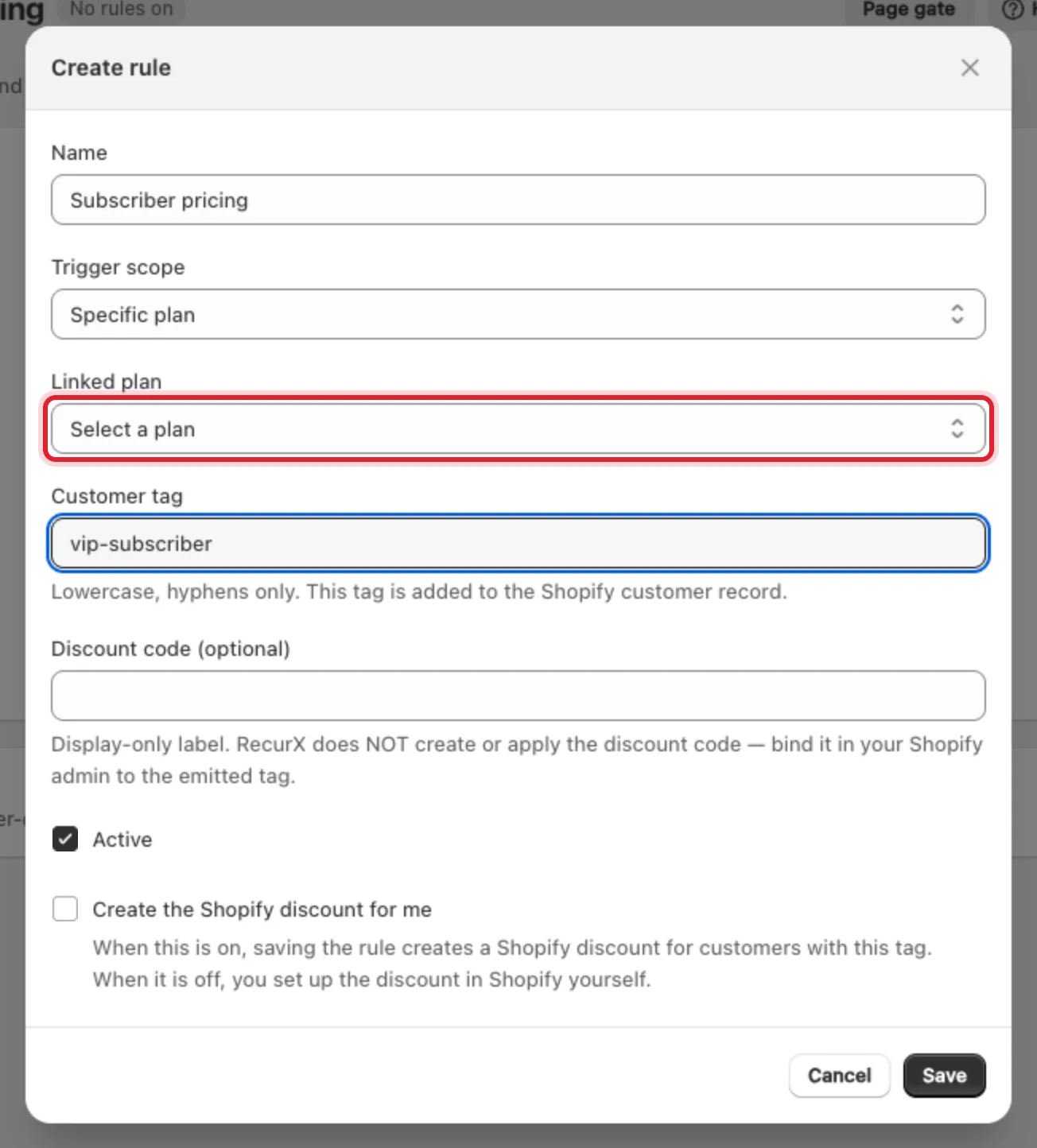
- Specific plan — only subscribers to one plan.
- After N successful orders — subscribers who have paid a number of orders (Min successful orders).
- Customer tag (2) — the tag RecurX adds to the customer in Shopify. Lowercase letters and hyphens only, for example
vip-subscriber. - Keep Active ticked and click Save.
Step 3: Pick the plan (Specific plan only)
If you chose Specific plan, pick the plan in Linked plan. Only that plan's subscribers get the tag.
RecurX adds the tag when a subscription starts (or when the subscriber reaches the number of orders you set) and removes it when the subscription is cancelled.
Note: Discount code (optional) is a label for your own reference. RecurX doesn't create or apply that code.
Step 4: Give the tag a discount in Shopify
RecurX tags the customers; the price itself comes from a Shopify discount.
- In your Shopify admin, go to Discounts and create a discount (for example an amount off products).
- Under the customer eligibility, choose a customer segment that contains customers with your tag (for example
vip-subscriber). - Save the discount in Shopify.
Customers with the tag now get the discount when they're logged in to your store. Customers without it pay the normal price.
Tip: The Create the Shopify discount for me option in the rule asks RecurX to create this discount. After saving, check Discounts in Shopify — if you don't see a discount for your tag, set it up yourself as above.
Step 5: Gate members-only pages (optional)
Page gate works with membership plans. Each membership plan has one gate rule, and the gate lets in customers who have the plan's Customer tag (set on the plan in Subscriptions → Plans).
- Go to Growth → Page gate (or click Page gate on the Member pricing page).
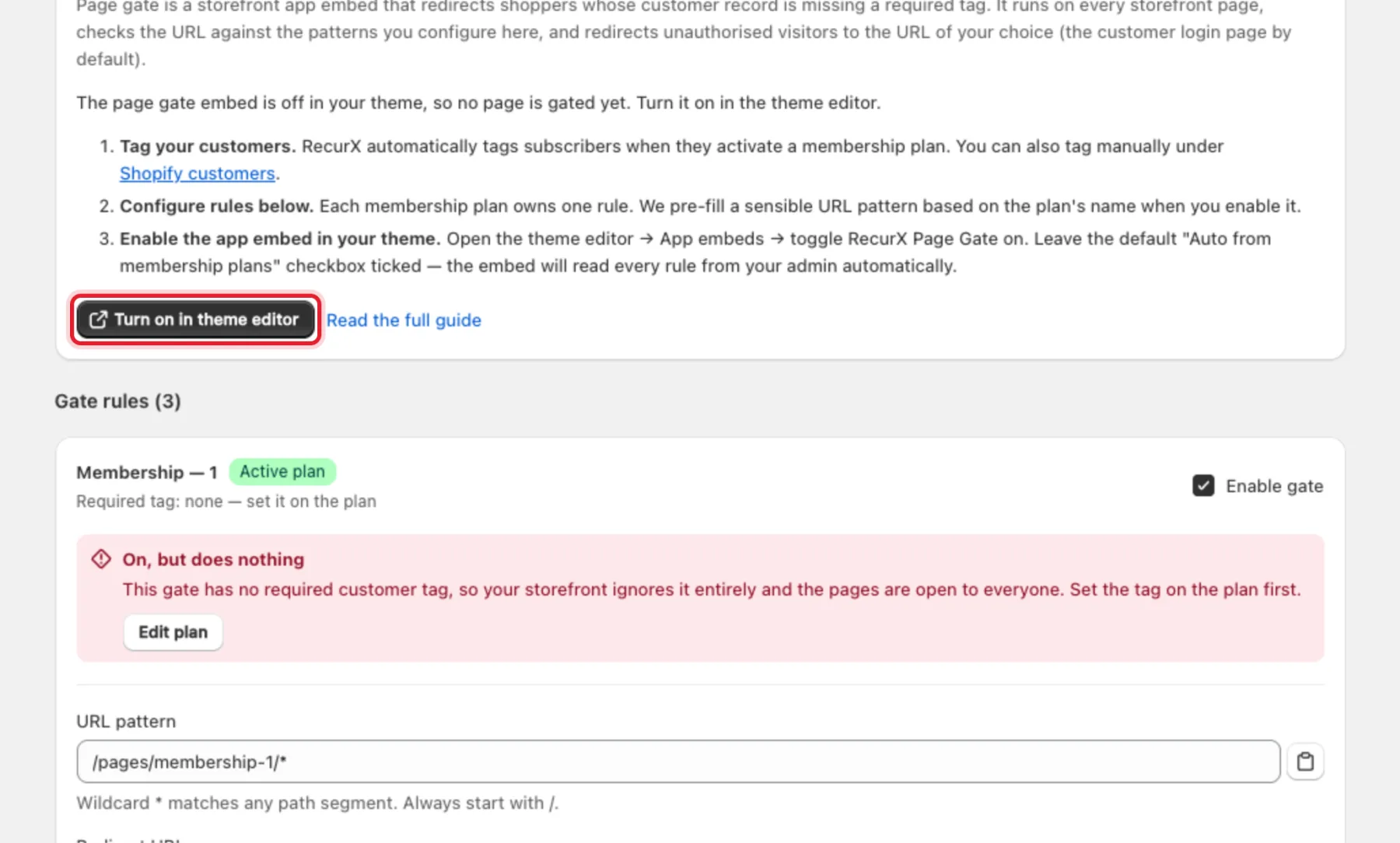
- Read How page gate works. If it says the embed is off, click Turn on in theme editor and switch on RecurX Page Gate under App embeds, then save your theme.
Step 6: Set up a gate rule
For each membership plan under Gate rules:
- Tick Enable gate (1).
- URL pattern (2) — the pages to protect. Start with
/. A*matches any path segment, for example/pages/membership-1/*. - Redirect URL (3) — where non-members go. Leave it blank to use the customer login page.
- Save.
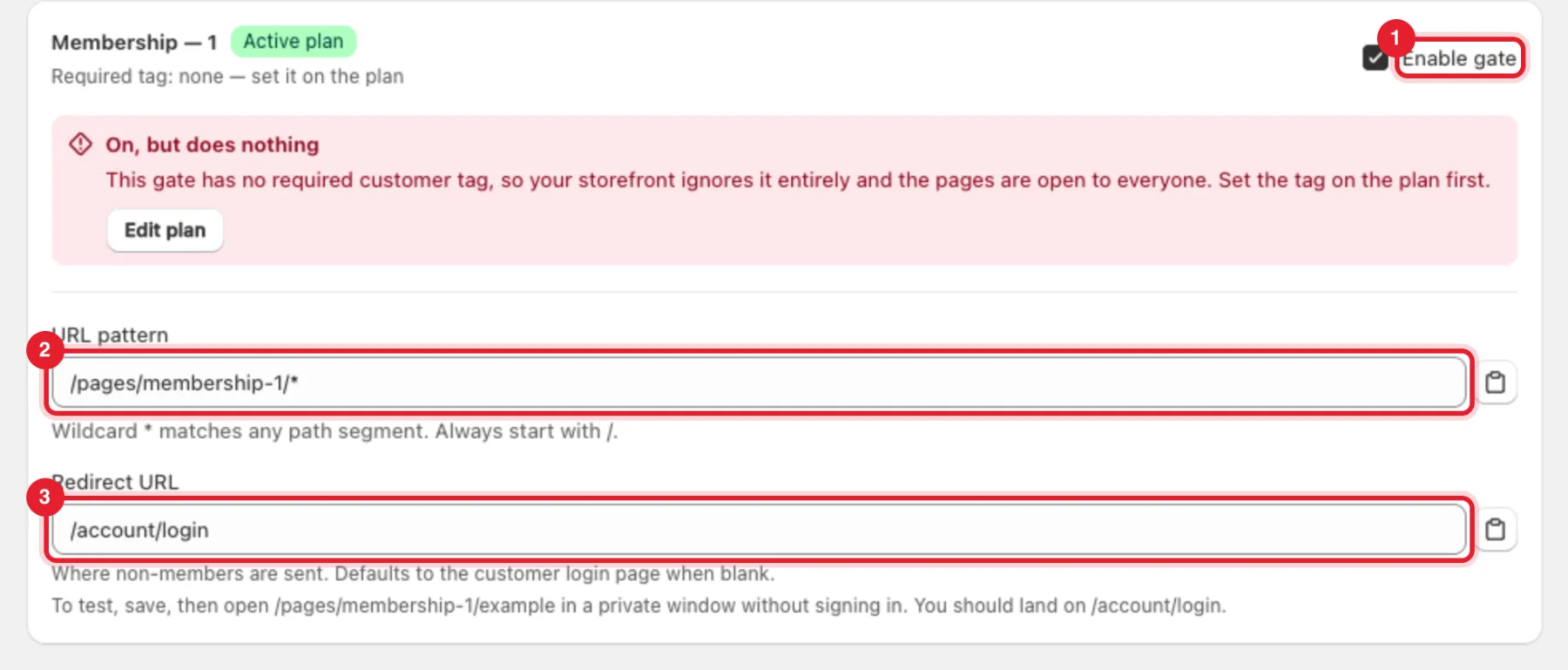
Warning: On, but does nothing means the plan has no customer tag, so the gate can't tell members apart and the pages stay open to everyone. Click Edit plan and set the plan's Customer tag.
To test, open a gated page (for example /pages/membership-1/example) in a private window without signing in. You should land on the redirect URL.
What happens next
- New subscribers who match a Member pricing rule are tagged automatically, and lose the tag when they cancel.
- Membership plans tag their members while the membership is active — see Create a subscription plan.
- To also reward long-term subscribers with points and rewards, see Loyalty program.
Troubleshooting
- "Customer tag is required" — enter a tag in Step 2.
- "Linked plan is required for this scope" — pick a plan when the scope is Specific plan.
- "This address matches the gated pattern, so non-members would be sent round in a loop. Pick a page outside the gate." — choose a Redirect URL outside the URL pattern.