
The rewards program gives customers points for orders, subscription renewals and other actions. They spend the points on rewards — a discount code, free shipping, store credit — from the customer portal. VIP tiers and streak bonuses give long-term subscribers more. Setup takes about 10 minutes.
Plan: the rewards program is included in the Basic and Pro plans.
Open it: in your Shopify admin, open Apps → RecurX Subscriptions → Retention and click Manage on the Rewards program card. The page is called Rewards and has four tabs: Configuration, VIP tiers, Members and Settings.
Step 1: Turn the program on and set the points economy
- Open the Settings tab.
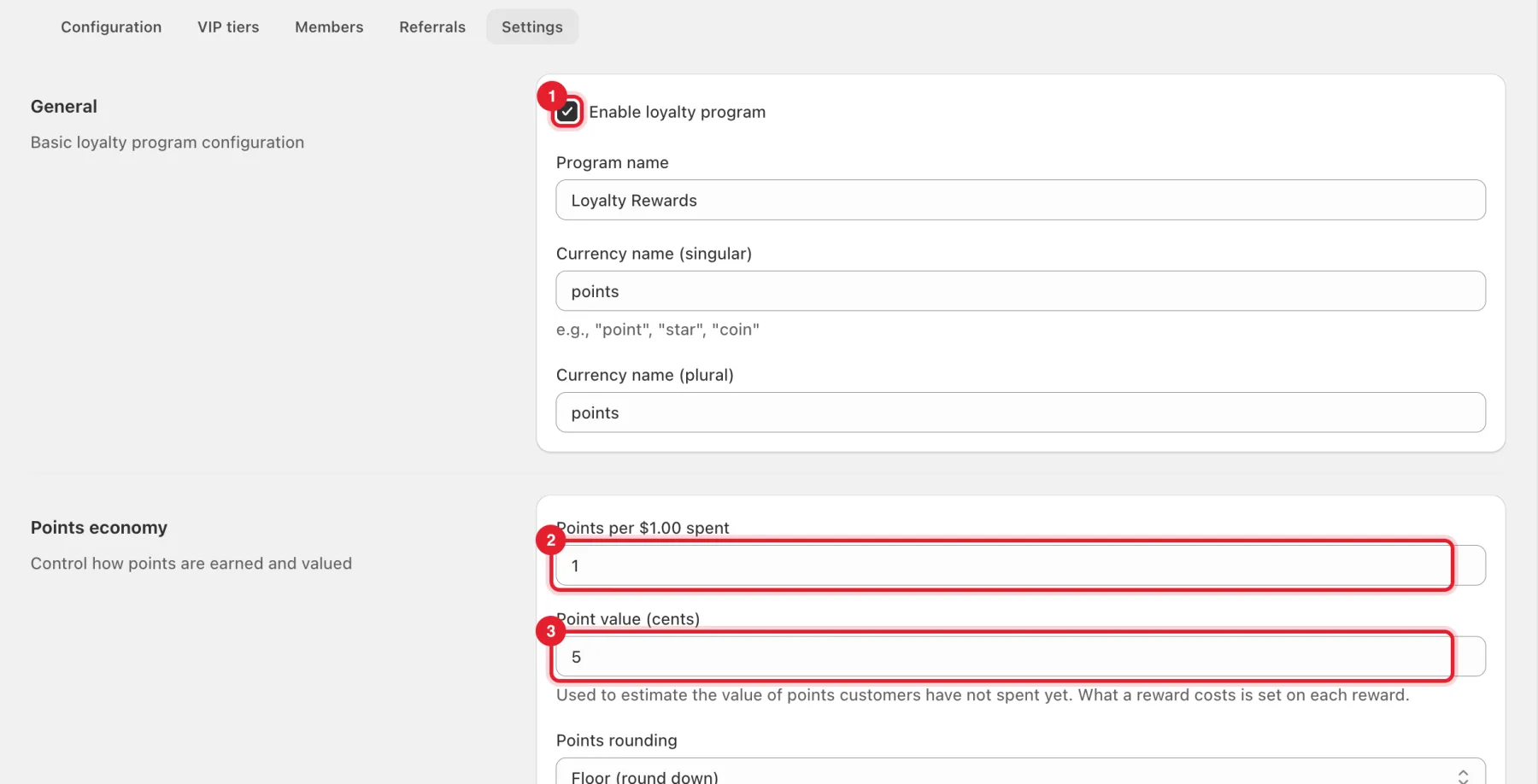
- Tick Enable loyalty program. Optionally change the Program name and what points are called (Currency name (singular) and (plural) — for example "star" and "stars").
- Under Points economy, set Points per $1.00 spent and Point value (cents) — how many cents each point is worth when redeemed.
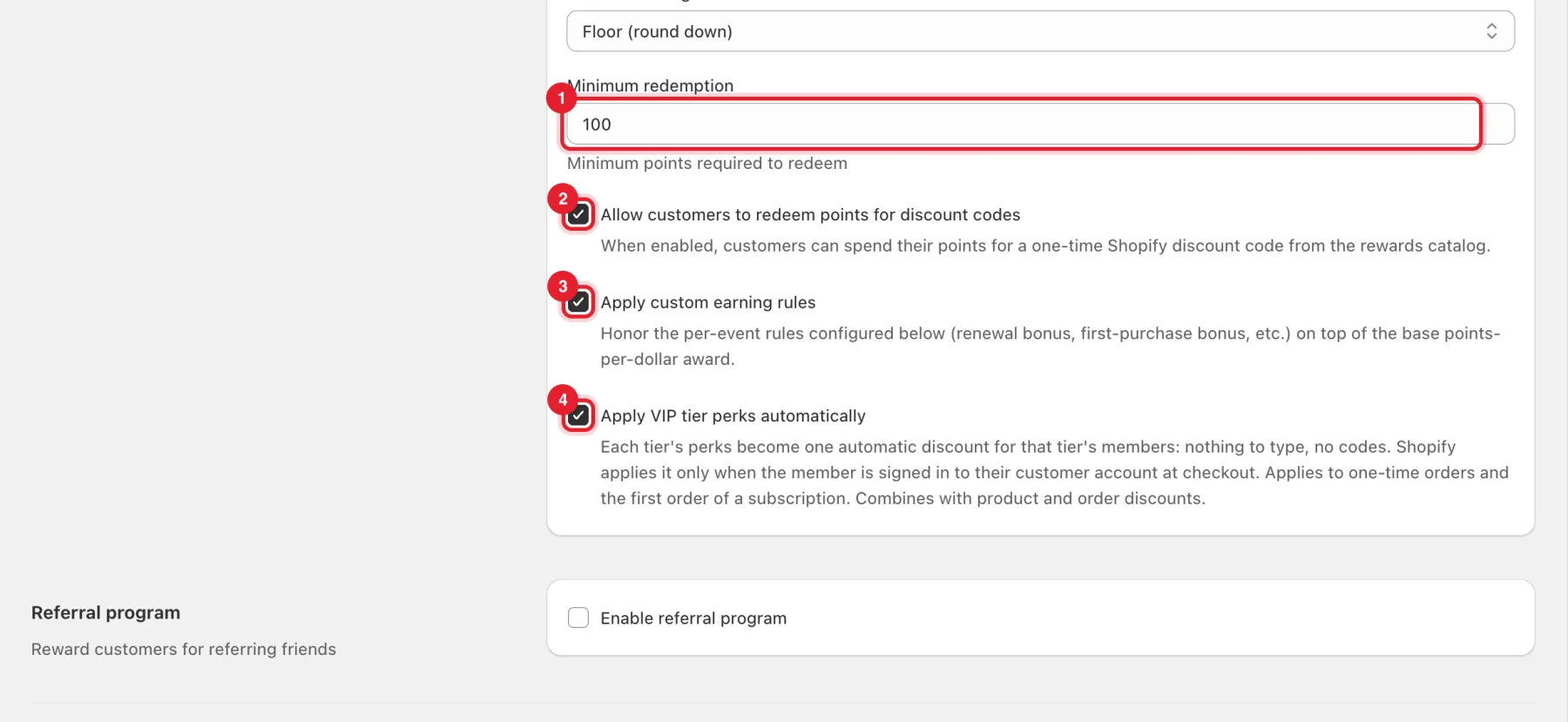
- Tick Allow customers to redeem points for discount codes so customers can spend points in the portal, and set the Minimum redemption (the fewest points a customer needs to redeem).
- Apply custom earning rules adds the earn methods from Step 2 (renewal bonus, first-purchase bonus and so on) on top of the points per dollar. Apply VIP tier perks automatically turns each tier's perks into one automatic discount for that tier's members: nothing to type, no codes. Shopify applies it only when the member is signed in to their customer account at checkout. It applies to one-time orders and the first order of a subscription, and combines with product and order discounts.
- Click Save in the bar at the top of the page.
Step 2: Choose how customers earn points
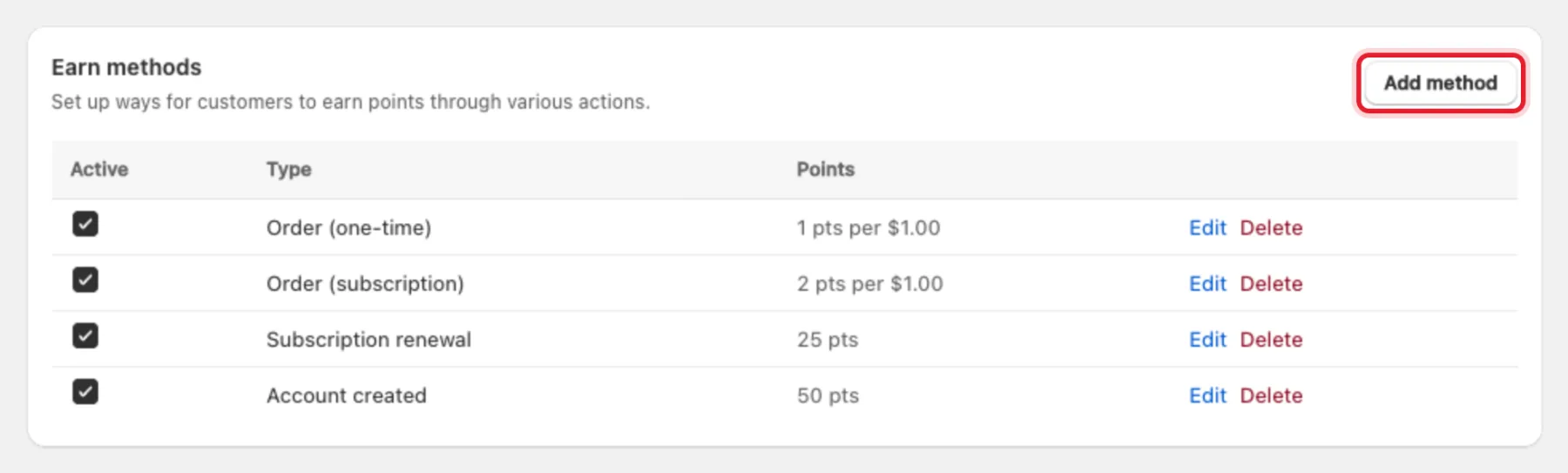
- Open the Configuration tab. Earn methods lists how customers earn points, for example Order (subscription) at 2 points per $1.00 or Subscription renewal at 25 points.
- Click Add method to add one, or Edit / Delete on a row. Untick Active to pause a method.
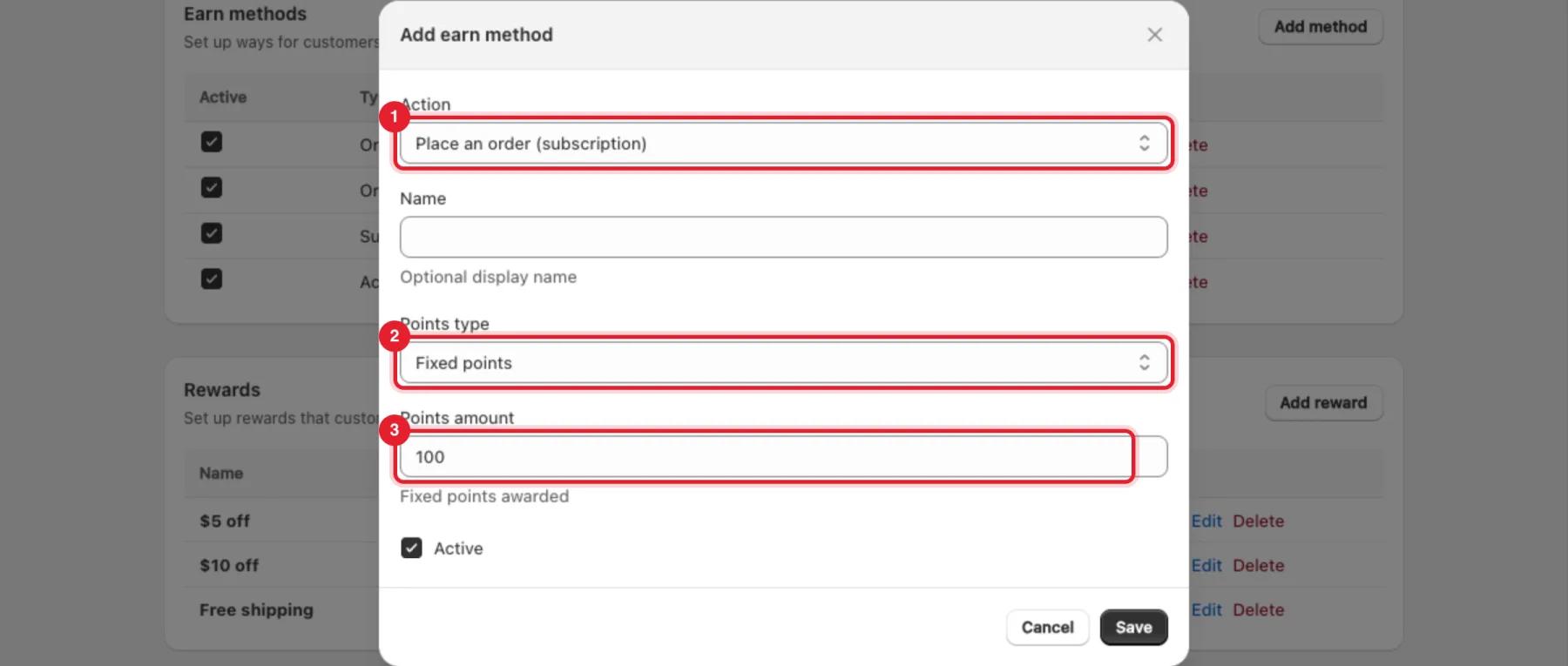
- In Add earn method, pick the Action — Place an order (one-time), Place an order (subscription), First purchase bonus, Subscription renewal or Account creation — then the Points type (Fixed points or Per dollar spent) and the Points amount. Click Save.
Step 3: Create rewards
- Still on Configuration, the Rewards card lists what customers can redeem, with the Cost in points. Click Add reward.
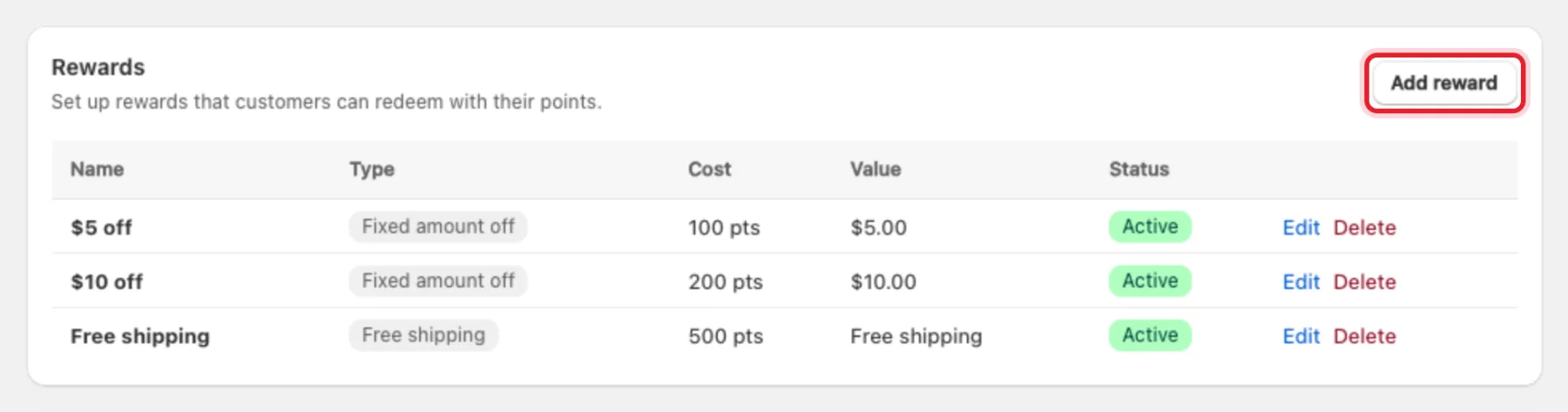
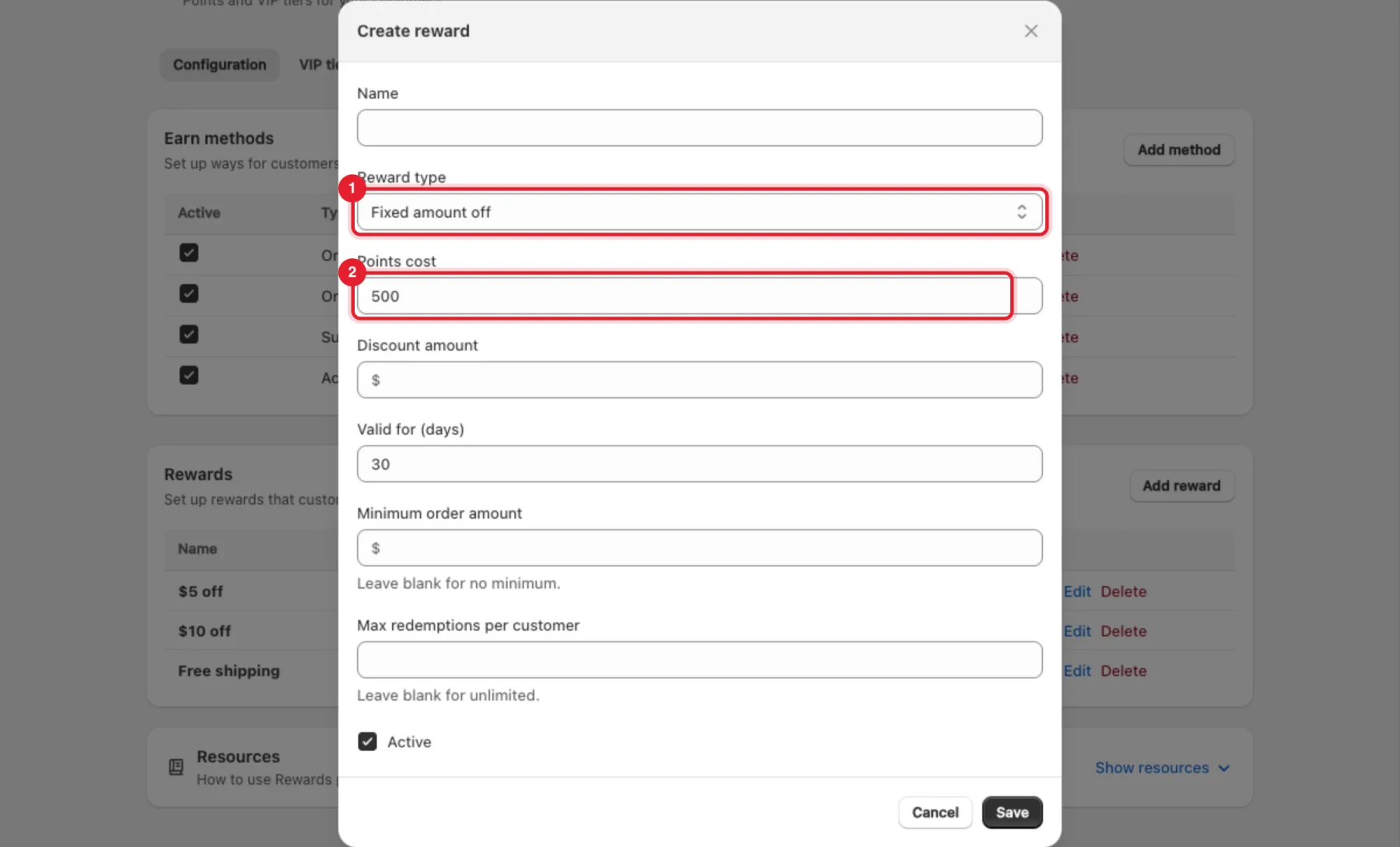
- Give it a Name and choose the Reward type: Fixed amount off, Percentage discount (%), Free shipping, Free product, Discount on next X renewals, Free subscription month, Free bundle upgrade, Free subscription add-on or Store credit.
- Set the Points cost and the reward's value. Optionally set Valid for (days), a Minimum order amount and Max redemptions per customer.
- Click Save.
Step 4: Add VIP tiers (optional)
- Open the VIP tiers tab and click Add tier.
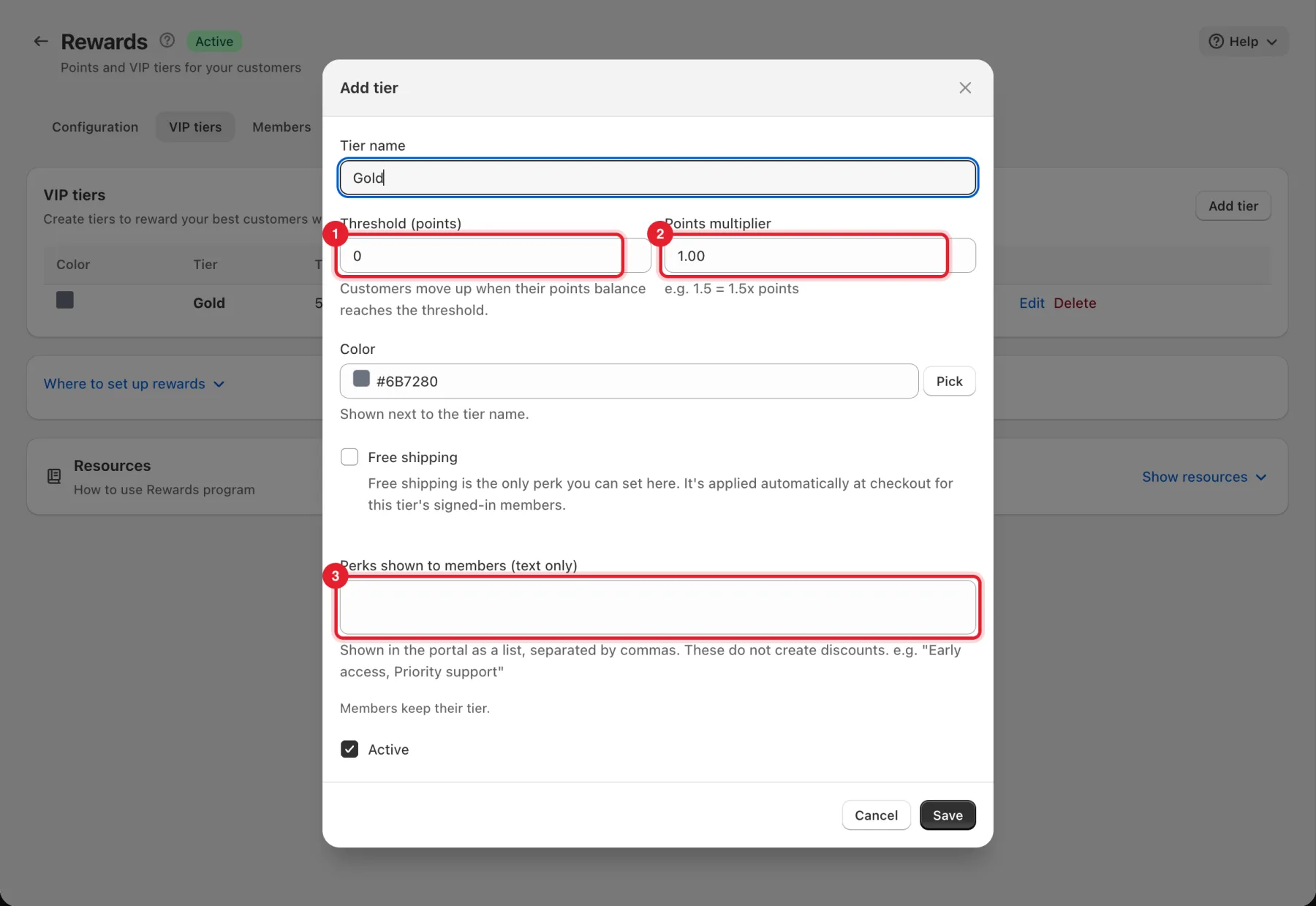
- Enter a Tier name and the Threshold (points) — customers move up when their points balance reaches it.
- Set a Points multiplier (for example 1.5 = 1.5x points) and a Color. Tick Free shipping to give the tier's signed-in members free shipping at checkout. It's the only perk you can set here. Perks shown to members (text only) lists other perks in the portal, separated by commas. These don't create discounts.
- Click Save. Tiers are never removed automatically.
Step 5: Reward streaks (optional)
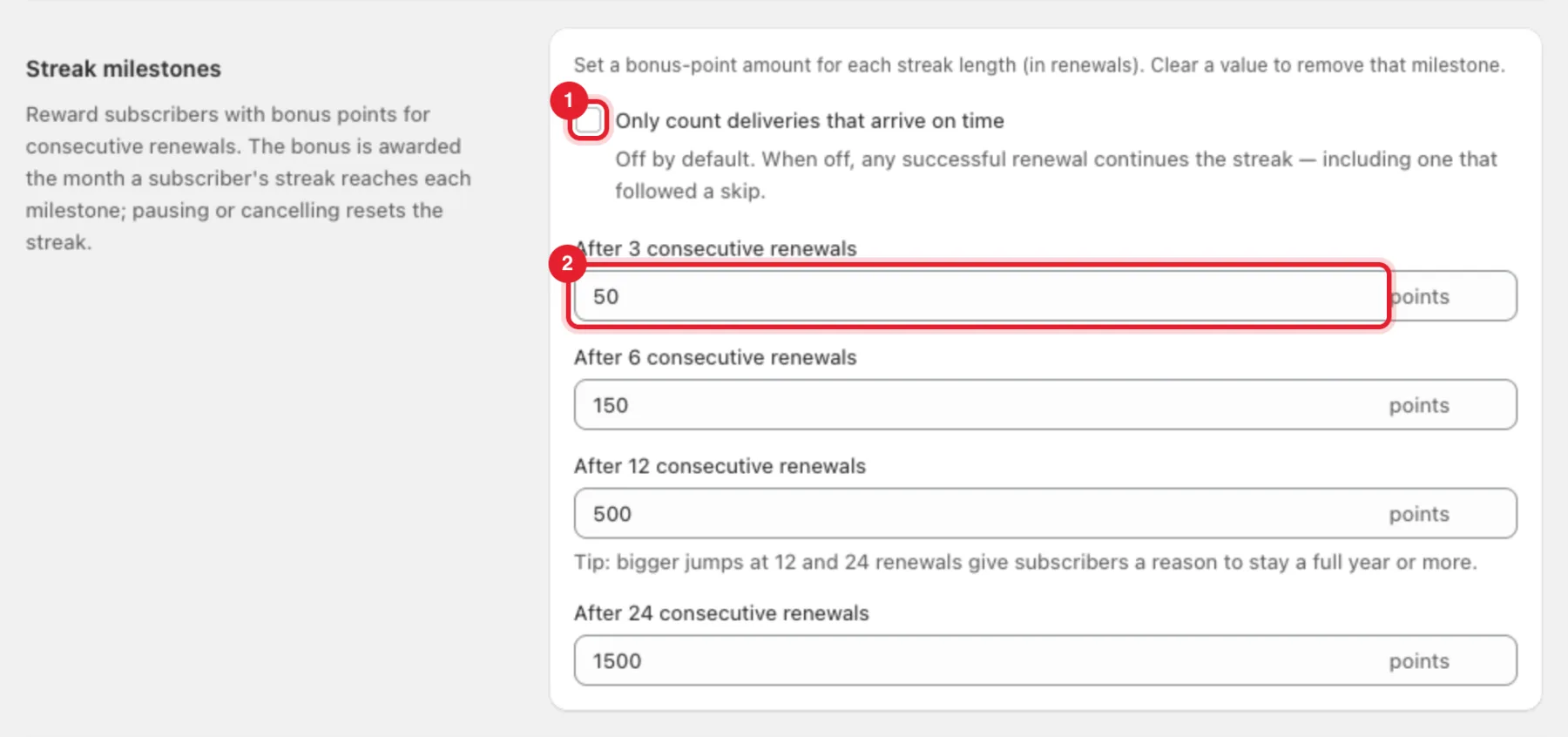
On the Settings tab, Streak milestones gives bonus points for consecutive renewals — after 3, 6, 12 and 24 renewals. Clear a value to remove that milestone. Pausing or cancelling resets the streak.
- Only count deliveries that arrive on time — off by default. When off, any successful renewal continues the streak, including one that followed a skip.
- Set the bonus points for each milestone.
Step 6: See and adjust members' points
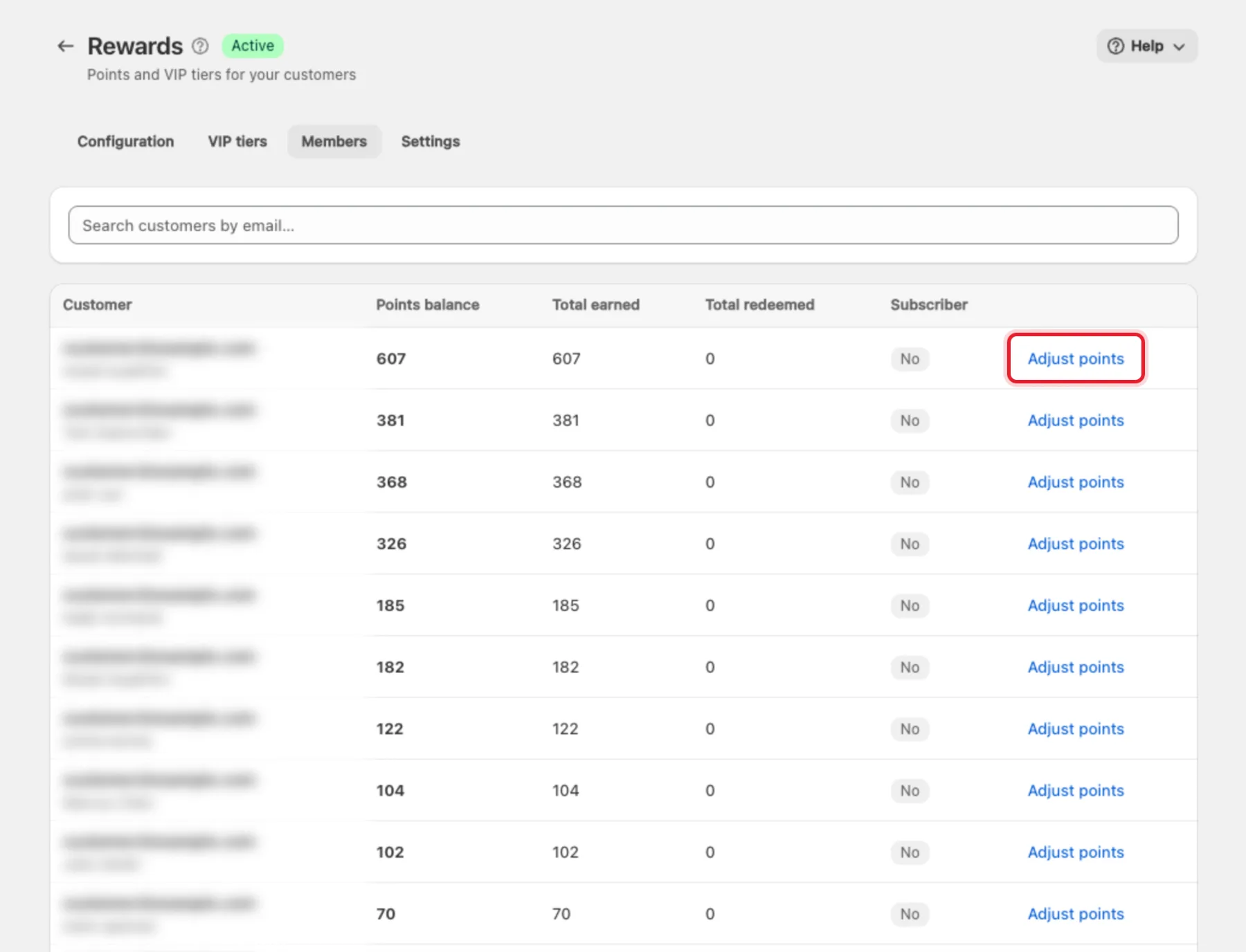
The Members tab lists each customer's Points balance, Total earned, Total redeemed and whether they're a Subscriber. Search by email, and click Adjust points to add or remove points for a customer.
What customers see
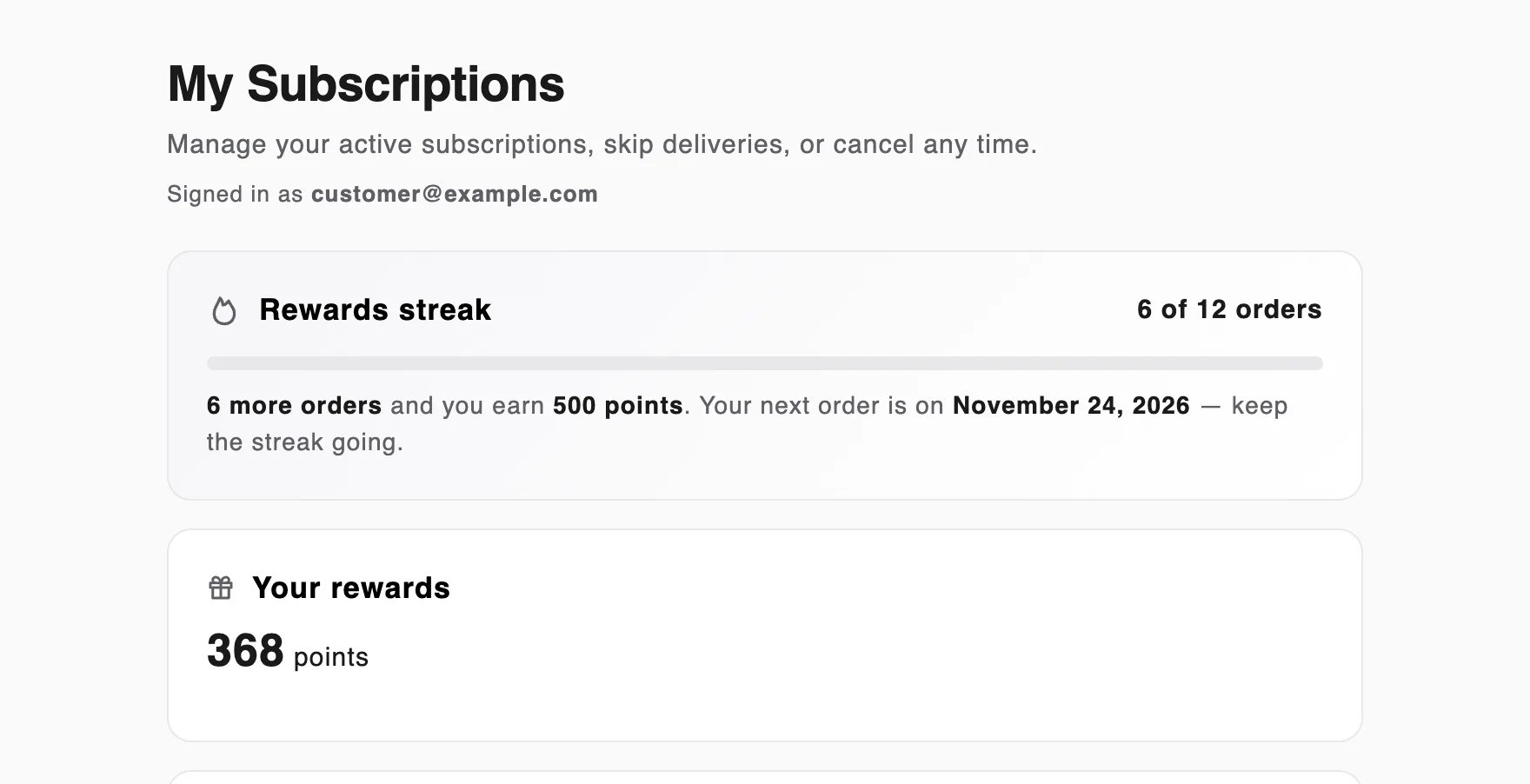
In the customer portal, Your rewards shows the customer's points and VIP tier, and Rewards streak shows progress to the next streak bonus. When redemption is allowed, each reward has a Redeem button; the customer confirms and gets a code to use at checkout. A Store credit reward adds store credit to their Shopify account instead. The section also shows the customer's referral link.
Tip: For a surprise, set a Mystery reward in Customer portal settings → Offers: on the order numbers you choose, subscribers open a gift box in the portal for bonus points. It needs point redemption turned on.
FAQ
- Customers don't see the rewards section. Check Enable loyalty program is ticked. The section only shows for customers enrolled in the program.
- The Redeem buttons don't appear. Tick Allow customers to redeem points for discount codes and make sure at least one reward is Active. A button stays disabled until the customer has enough points and the Minimum redemption.
- Can I show members-only prices? Yes, with Gated VIP pricing.