
The Notifications page controls the emails RecurX sends to you, the merchant, when something happens to a subscription — for example a new subscriber or a failed payment. It takes about a minute to set up.
These are not the emails your customers receive. Customer emails (receipts, reminders, payment recovery) are edited on the Templates page — see Edit your subscription email templates.
Step 1: Open Notifications
- In your Shopify admin, open Apps → RecurX Subscriptions → Campaigns.
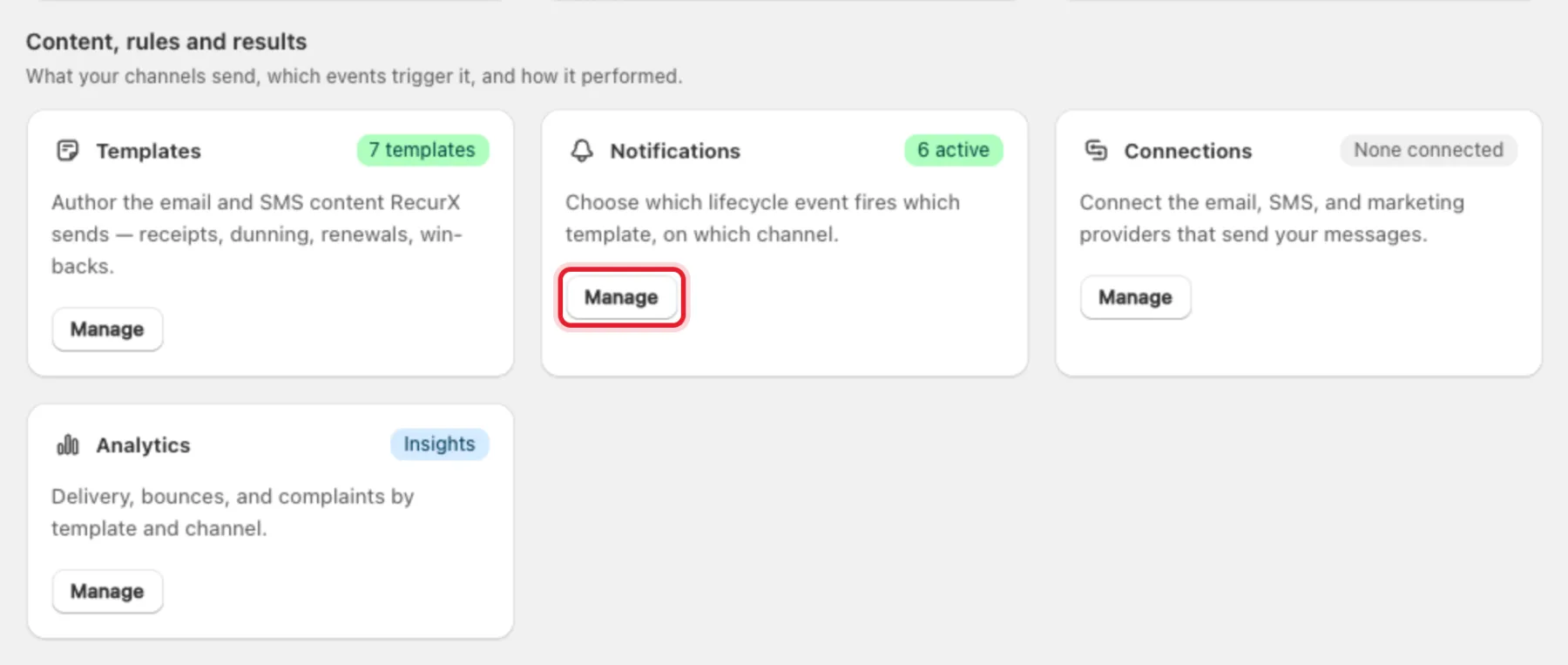
- On the Notifications card, click Manage. The badge shows how many events currently send you an email (for example 6 active).
Step 2: Set your notification email
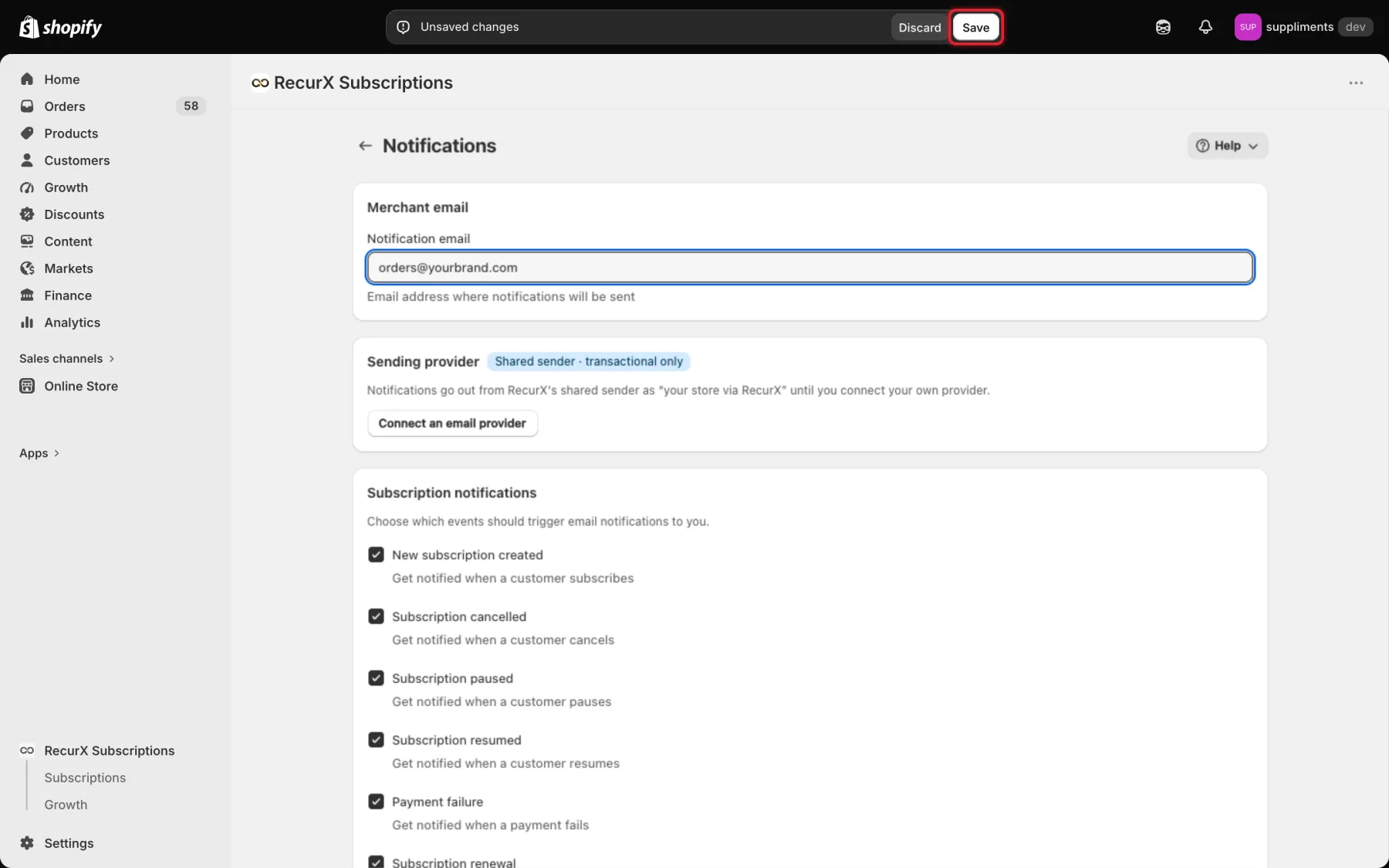
Under Merchant email, enter the address that should receive the alerts in Notification email. Use a shared inbox or a mailing list address if several people need them — RecurX sends to one address.

Note: The same address receives test emails when you click Send to my email on the Templates page.
Step 3: Check the sending provider
The Sending provider card shows how the alerts are sent:
- Shared sender · transactional only — alerts go out from RecurX's shared sender as "your store via RecurX" until you connect your own provider.
- Connected — alerts go through your own provider, from your From address.
- If the card says No email provider is connected, so these notifications don't send, connect a provider to turn them on.
To use your own provider, click Connect an email provider. See Connect your email provider.

Step 4: Pick the events
Under Subscription notifications, tick each event that should email you:
| Event | You get an email when |
|---|---|
| New subscription created | a customer subscribes |
| Subscription cancelled | a customer cancels |
| Subscription paused | a customer pauses |
| Subscription resumed | a customer resumes |
| Payment failure | a renewal payment fails |
| Subscription renewal | a subscription renews |
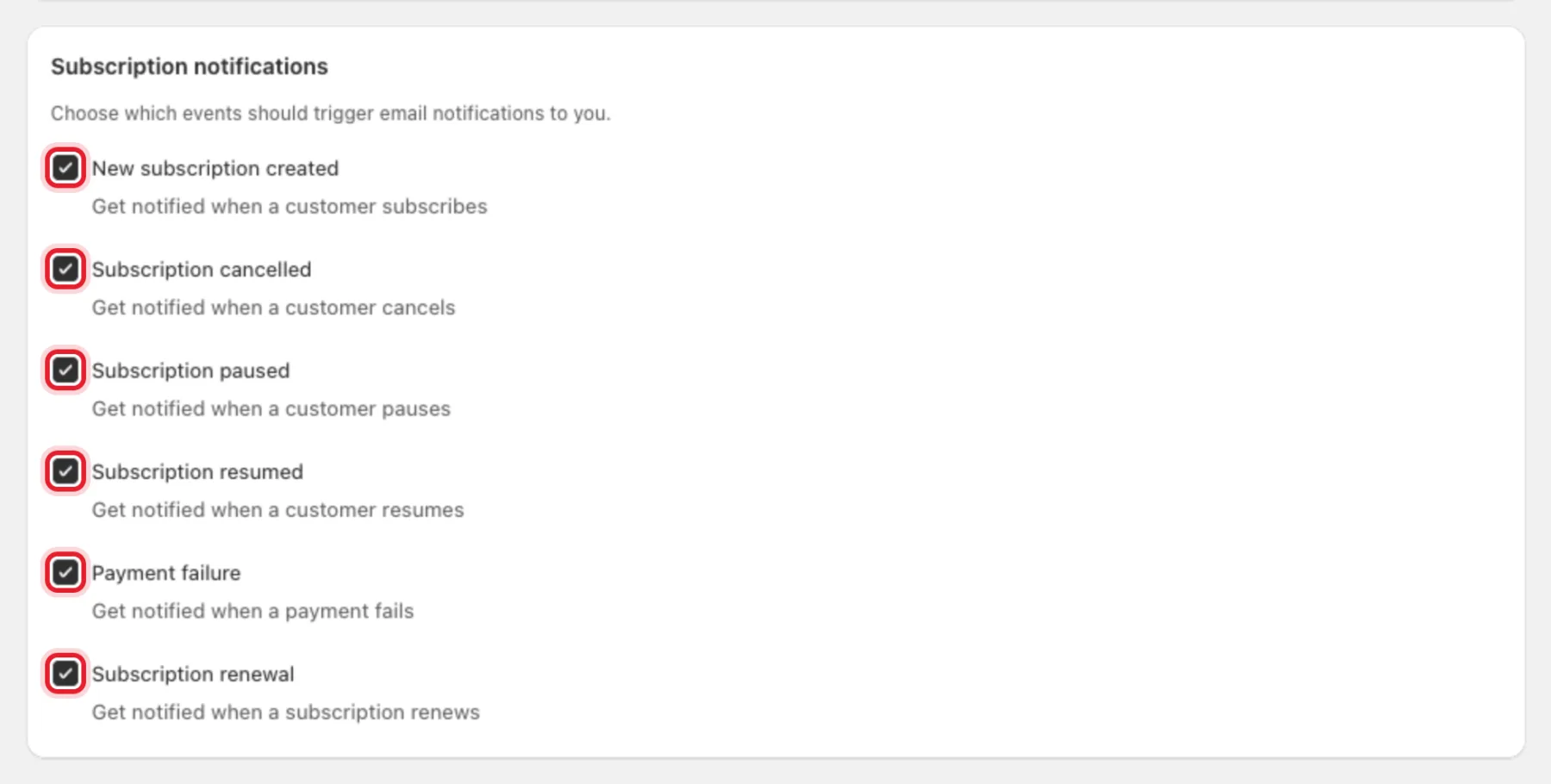
Tip: At minimum, keep New subscription created, Subscription cancelled and Payment failure on — those are the events you are most likely to act on.
Note: Payment failure also covers renewals a renewal safeguard put on hold, and renewals that had to be charged without their safeguard check.
Step 5: Save
Click Save in the bar at the top of the page. You see Settings saved successfully. Changes apply to the next subscription events.
Good to know
- RecurX sends at most one alert per event and subscriber per day, so a webhook that Shopify retries doesn't flood your inbox.
- There is no SMS or WhatsApp option on this page: store alerts are email only. Customer text messages are set up under Campaigns → SMS — see Send SMS and WhatsApp messages to subscribers.
Troubleshooting
- "Please enter a valid email address" — fix the address in Notification email before saving.
- Not receiving alerts — check that Notification email is filled in and the event is ticked, then check your spam folder. With the shared sender, alerts come from RecurX's address, not yours.