
Bulk edit changes many subscriptions in one go. You can add or remove tags, shift or set the next order date, change the frequency, swap a variant, or add or remove a one-time product. Every edit is previewed first as a dry run, needs your confirmation, then runs in the background. The History tab lets you revert it.
Who it's for: stores with many subscribers that need to make the same change to a group, such as tagging a cohort, moving orders around a holiday, or replacing a discontinued variant.
Step 1: Choose the subscriptions
- In your Shopify admin, open Apps → RecurX Subscriptions → Subscriptions and open the Subscribers page.
- Tick the subscriptions you want to change. Or filter the list and select all that match.
- In the selection bar, click … (More actions).
- Click Bulk edit, or Add tag / Remove tag to start with a tag edit.
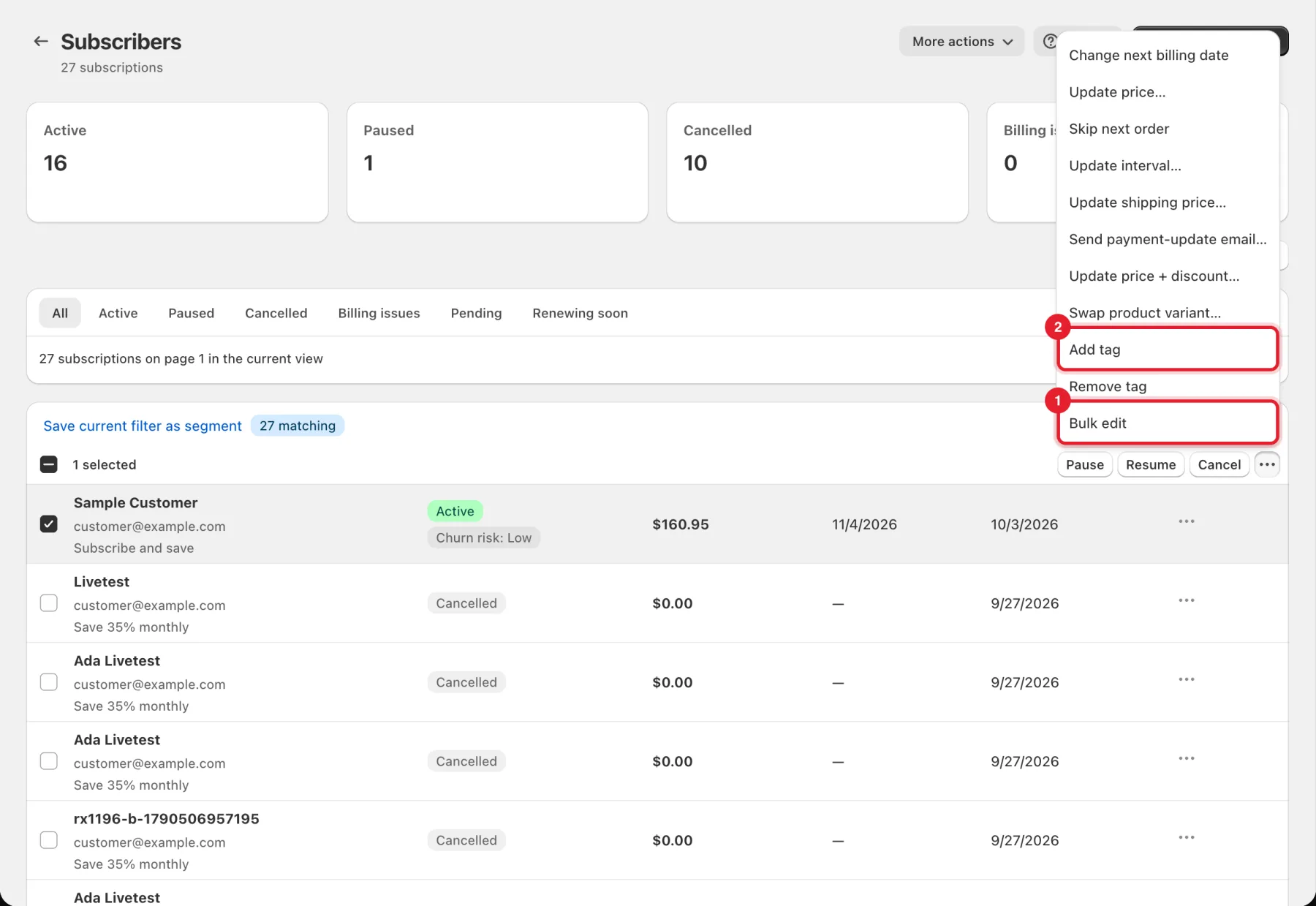
Tip: The same menu also has quick actions (Change next billing date, Update price…, Skip next order, Update interval…, Swap product variant…) that open a single window instead of the Bulk edit page.
Step 2: Choose what to change
The Bulk edit page opens on the Edit tab.
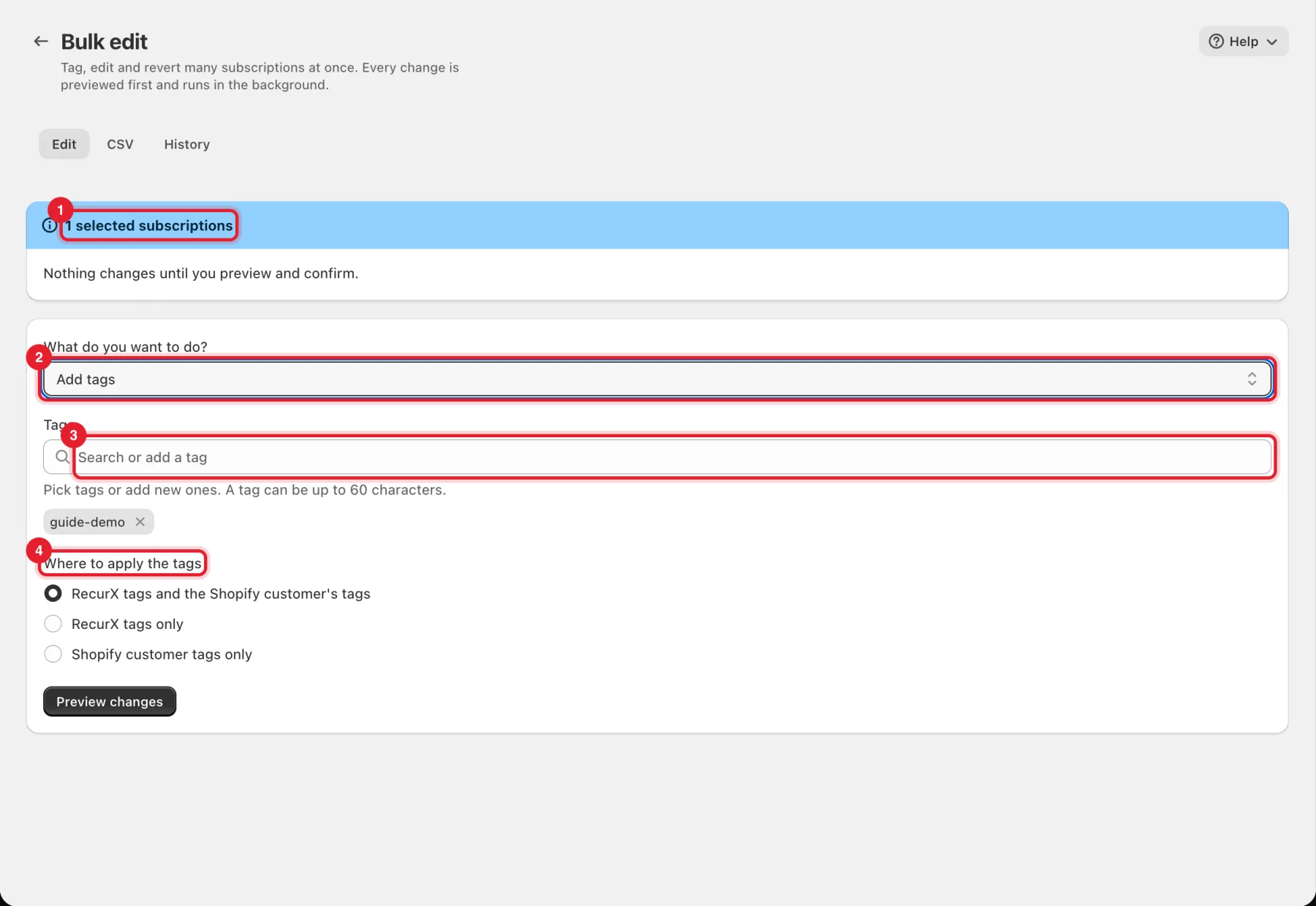
- The banner shows what you're editing, for example 1 selected subscriptions or Every subscription matching the current filter.
- Under What do you want to do?, choose Add tags, Remove tags, Shift next order date, Set next order date, Change frequency, Swap a variant, Add a one-time product or Remove a one-time product.
- Fill in the fields for that edit. For tags, type in Tags and press Enter, or pick existing tags.
- For tags, choose Where to apply the tags: RecurX tags and the Shopify customer's tags, RecurX tags only or Shopify customer tags only.
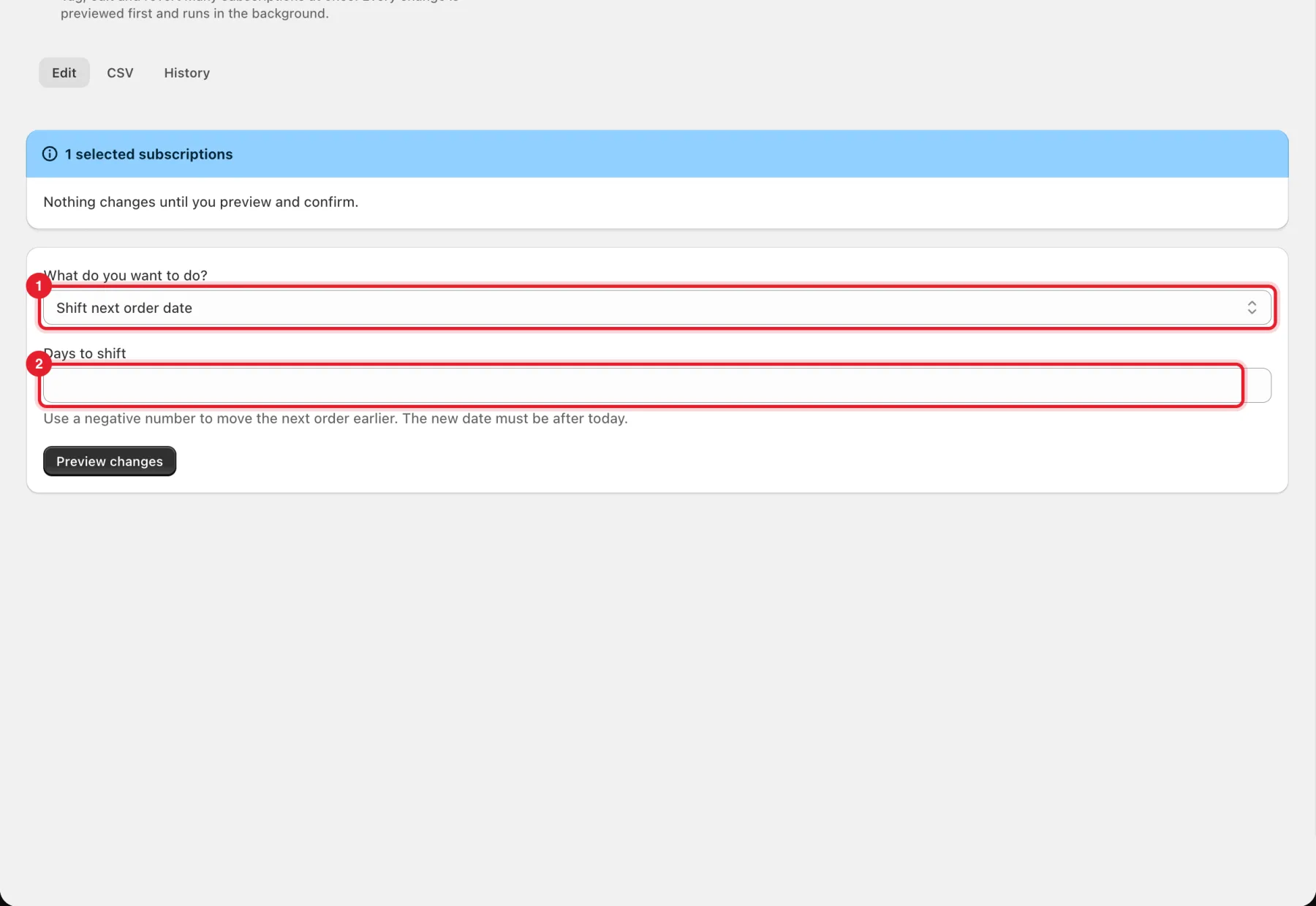
Other edits have their own fields. For example, Shift next order date asks for Days to shift. Use a negative number to move orders earlier. The new date must be after today.
Step 3: Preview, then confirm
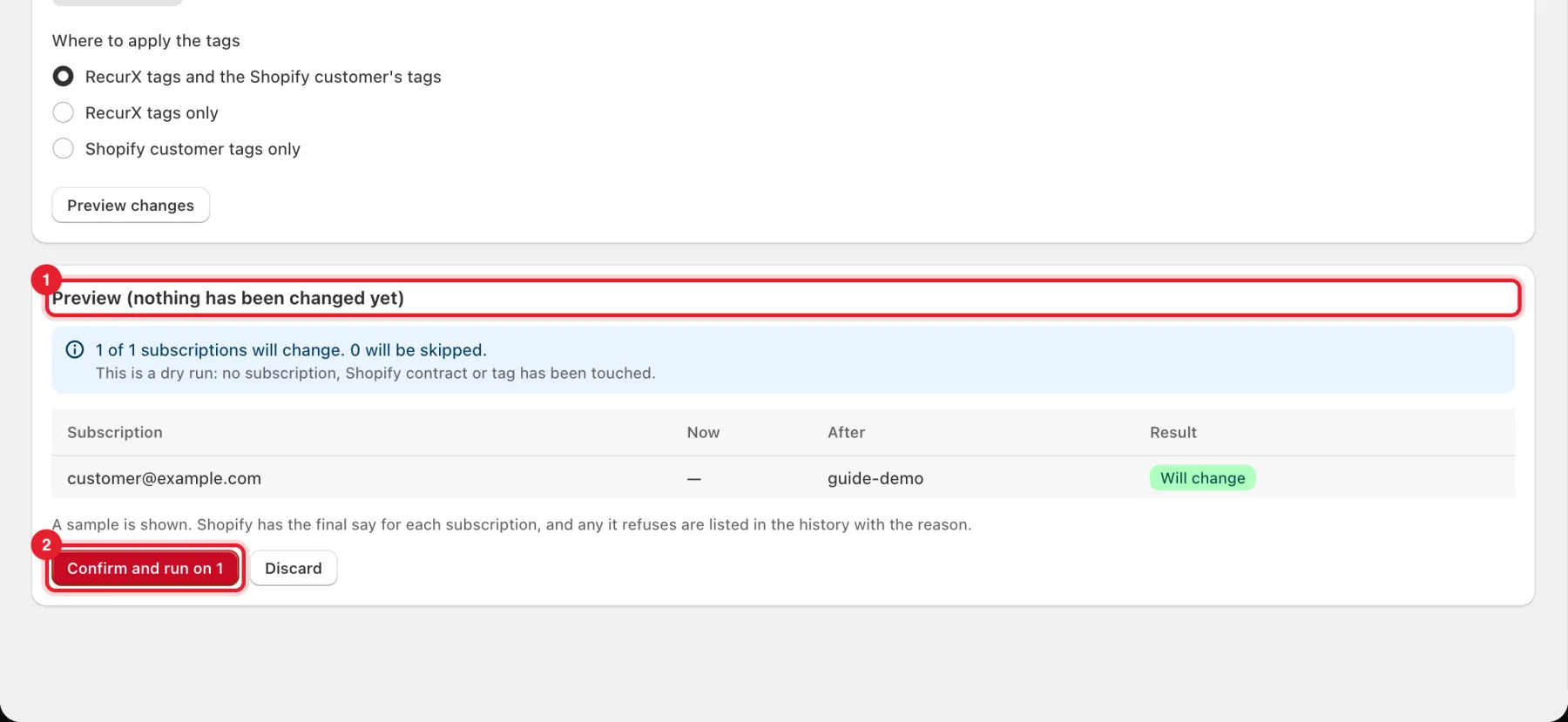
- Click Preview changes. RecurX shows Preview (nothing has been changed yet) with how many subscriptions will change and how many will be skipped, plus a sample with Now and After values. This is a dry run: no subscription, Shopify contract or tag has been touched.
- Click Confirm and run on [number] to run it, or Discard to drop it.
Note: Subscriptions that can't take the change are skipped with a reason, such as Already ended, No Shopify contract, Tags already up to date or Does not contain that variant.
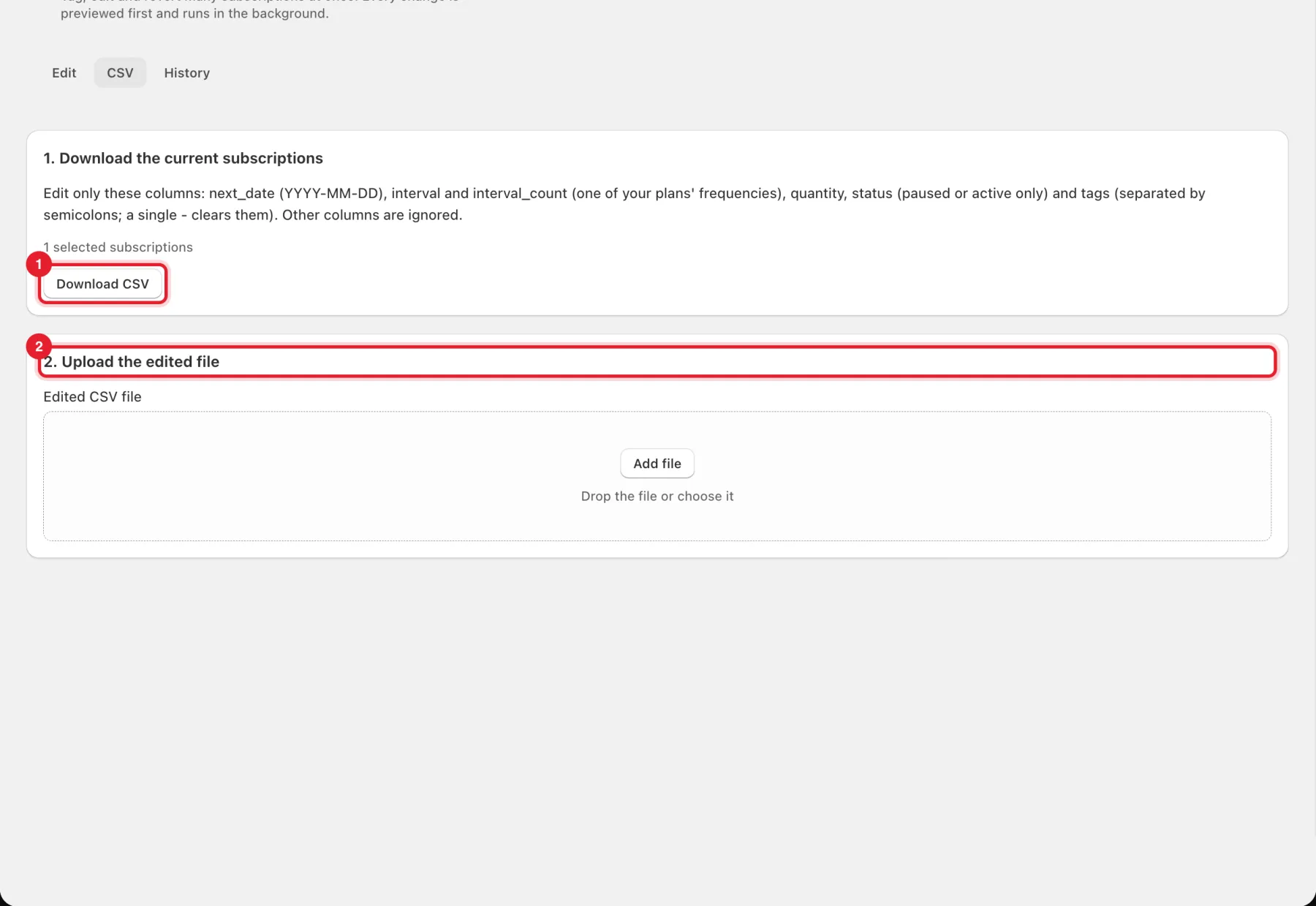
Step 4: Or edit with a CSV
On the CSV tab:
- Under 1. Download the current subscriptions, click Download CSV.
- Edit only these columns: next_date (YYYY-MM-DD), interval and interval_count (one of your plans' frequencies), quantity, status (paused or active only) and tags (separated by semicolons; a single - clears them). Other columns are ignored.
- Under 2. Upload the edited file, add the file. RecurX shows how many rows will change, have errors or are unchanged. Then confirm as in Step 3.
Step 5: Follow the job and revert it
The History tab lists every bulk edit job with its status and progress. Jobs run in the background at a pace Shopify allows, so you can leave the page. Click View for per-row results, or Revert to undo a finished job.
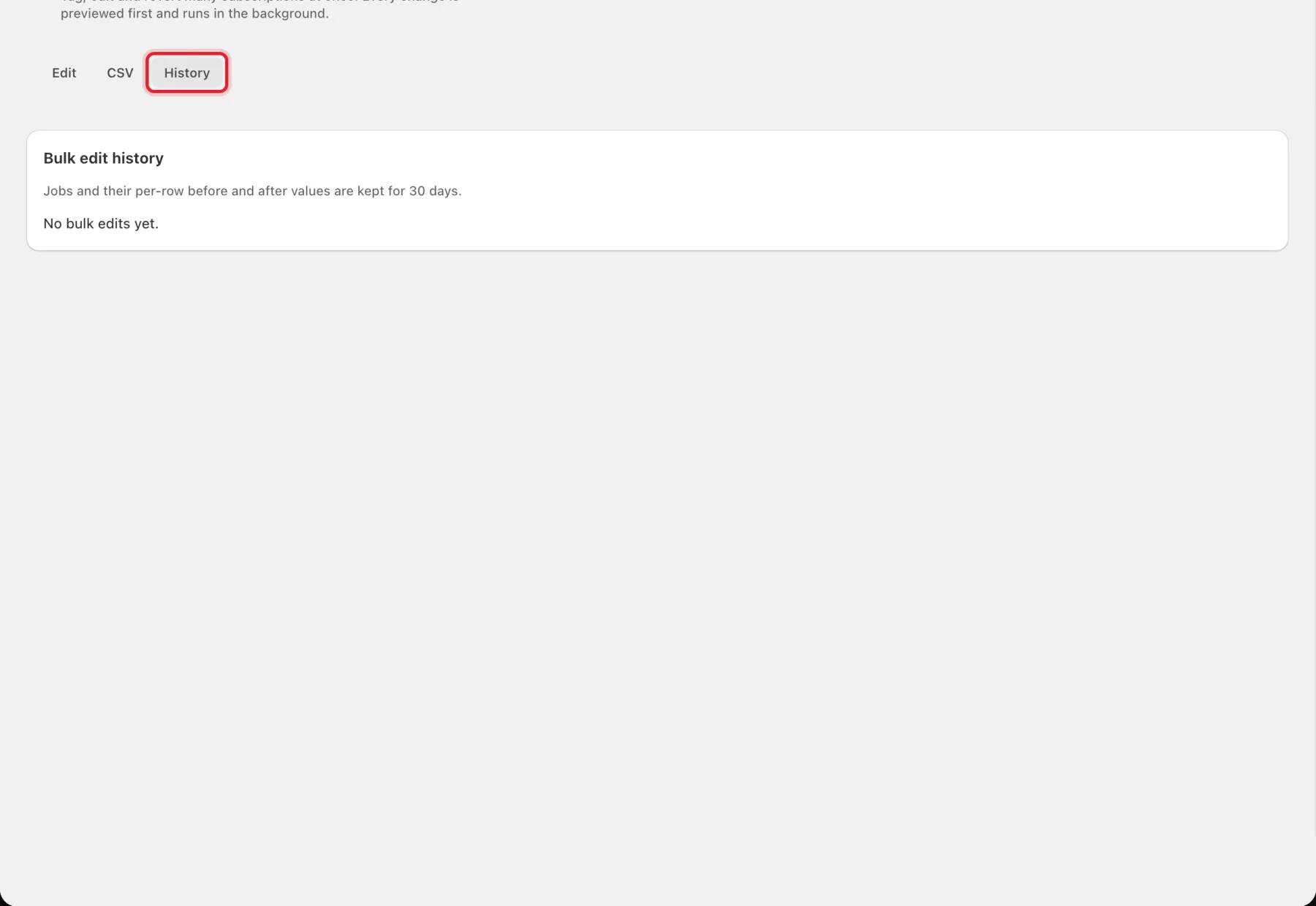
Jobs and their per-row before and after values are kept for 30 days.
Good to know
- Nothing changes until you preview and click Confirm and run.
- Change frequency only offers frequencies that one of your plans already has.
- Shopify has the final say for each subscription. Any it refuses are listed in the job with the reason.
- Bulk edits are switched off for this app right now. means the feature is temporarily unavailable. Contact support if it stays.
- To change one subscription, open it from the Subscribers list. See Manage subscribers.