
When a shopper checks out with a subscription option selected, Shopify creates the subscription (a subscription contract) together with the order, and RecurX adds it to Subscriptions → Subscribers. If a customer paid but you can't find their subscription, the order tells you which of two things happened: the subscription exists in Shopify but hasn't reached RecurX, or the shopper actually bought the product one time. This check takes about 5 minutes.
Step 1: Check the order in Shopify
- In your Shopify admin, go to Orders and open the customer's order.
- Look under the product line. A subscription line shows the plan's delivery line with the RecurX icon, for example Deliver every 2 months.
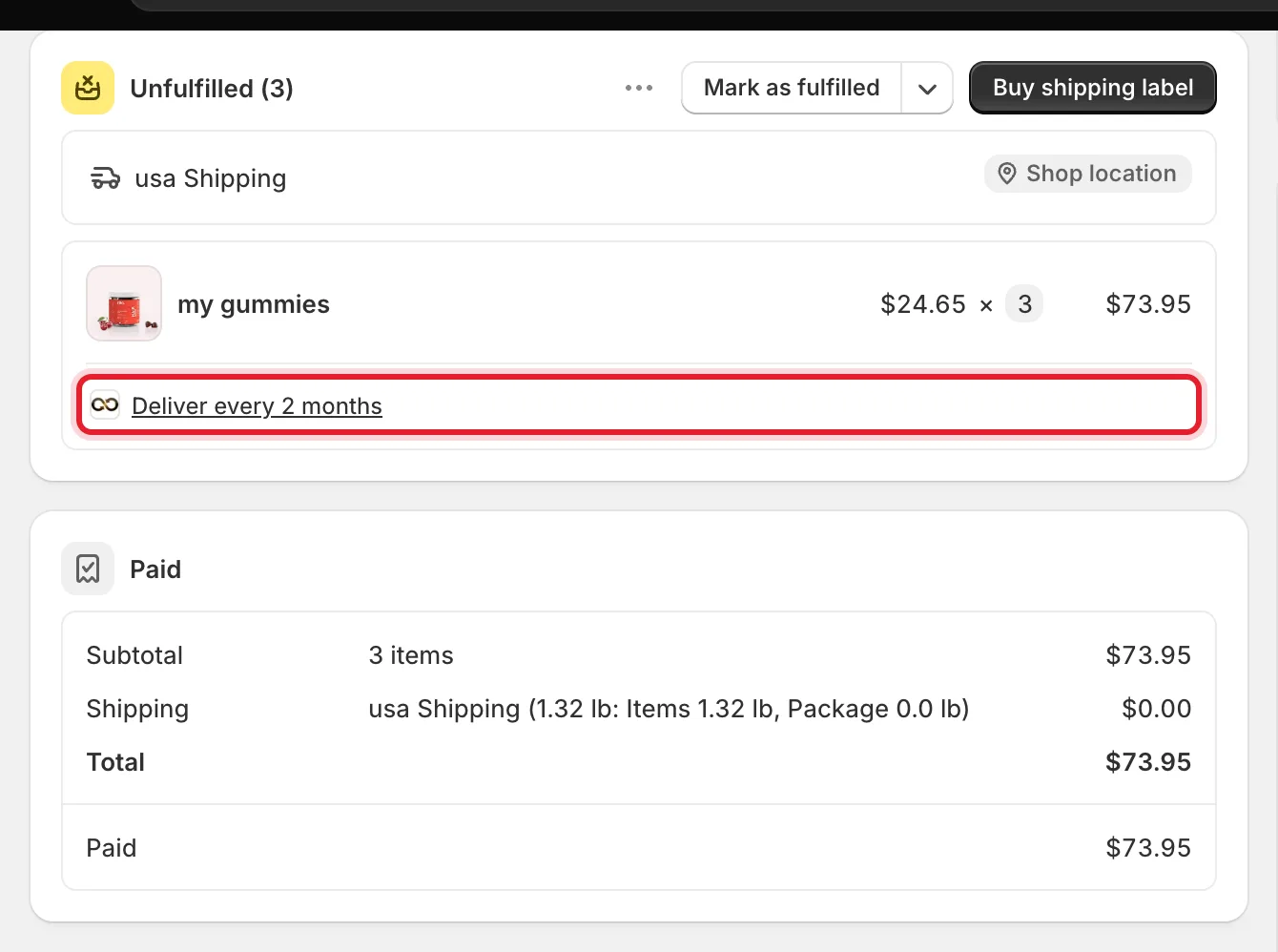
- The line is there → Shopify created the subscription. Go to Step 2.
- The line isn't there → the shopper checked out without a subscription option, so no subscription exists. Go to Step 3.
Step 2: Sync subscribers from Shopify
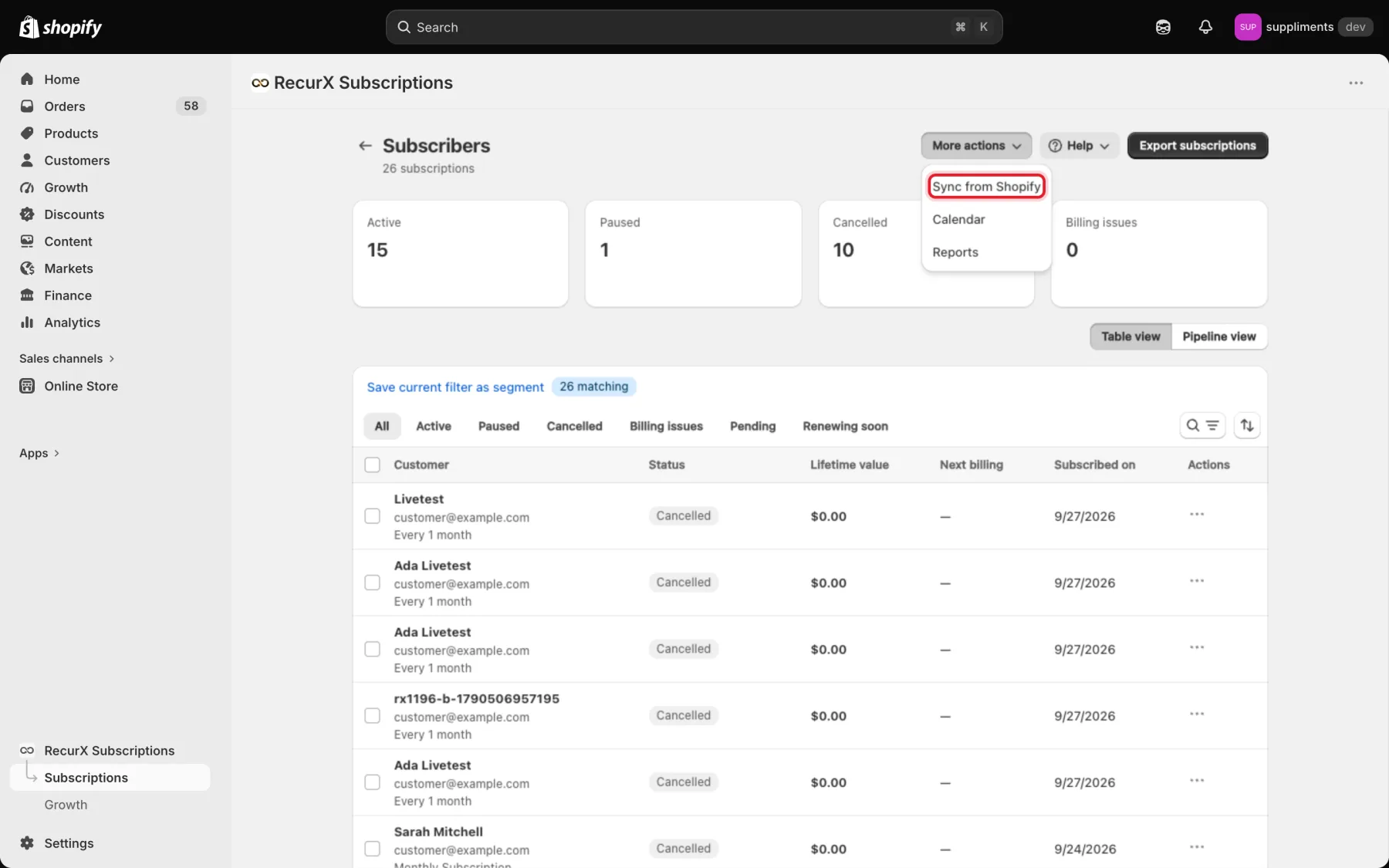
- In RecurX, go to Subscriptions → Subscribers.
- Click More actions → Sync from Shopify.
RecurX reads every subscription contract from Shopify, adds the ones it doesn't have yet and updates the status of the others. When it's done a banner shows the result, for example Synced 26 contracts: 1 updated, 1 created.
Note: A sync you start can tell customers about status changes that were made directly in Shopify in the last 48 hours — at most 25 per sync. Older changes, or changes over that limit, are updated without notifying anyone. The result banner tells you how many were announced.
If the subscription still doesn't appear after a sync, contact support (see the end of this guide).
Step 3: Make the subscription option the default
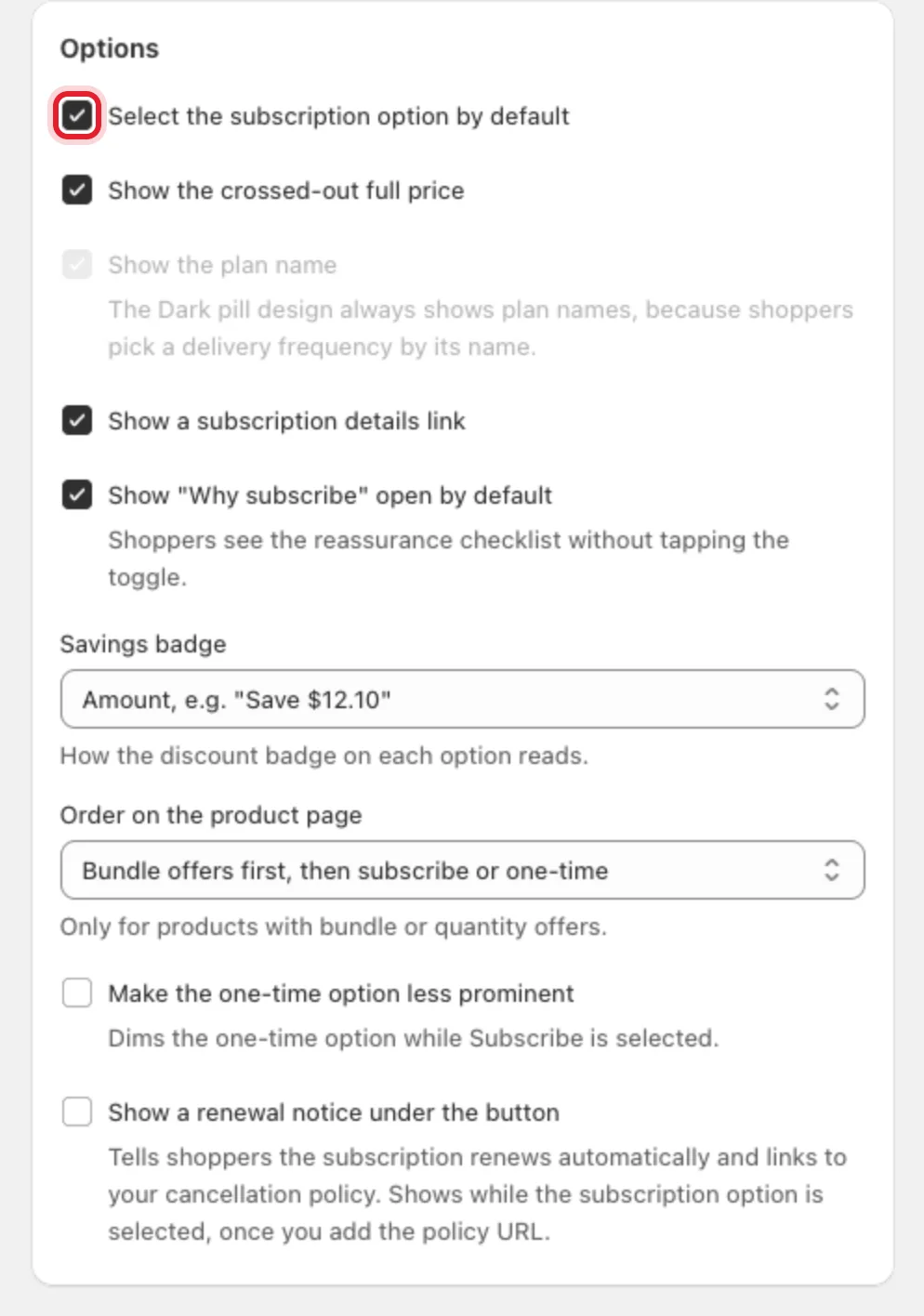
If orders come in as one-time purchases, shoppers may simply not be choosing the subscription. On the widget page (Subscriptions → Widget → Customize widget), open the Behavior tab and tick Select the subscription option by default. Then click Save.
Tip: On the Pro plan, the Cart widget (same tab) lets shoppers switch a one-time item to a subscription in the cart and cart drawer before checkout.
Step 4: Sell subscription-only products (optional)
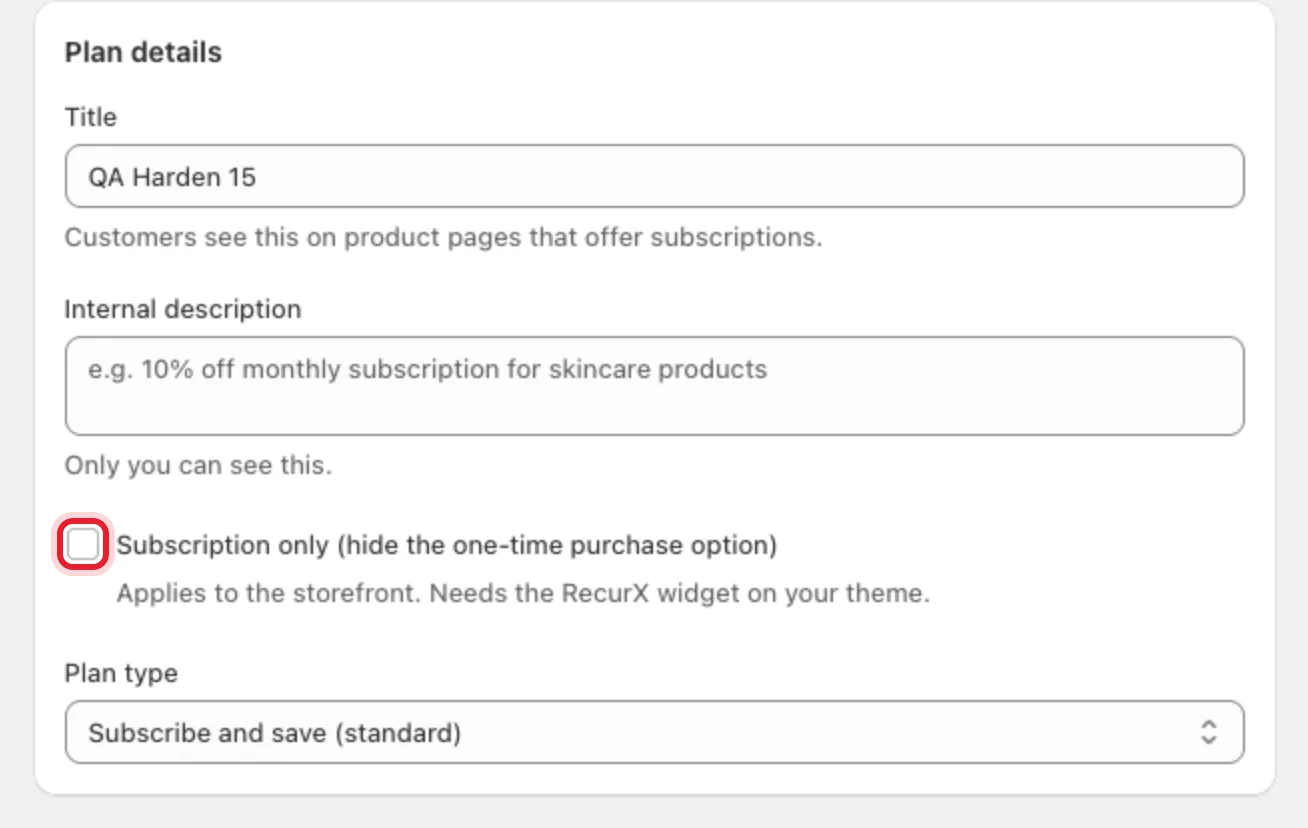
If a product should never be sold one time, open its plan in Subscriptions → Plans and tick Subscription only (hide the one-time purchase option) in Plan details, then save the plan. This applies to your storefront and needs the RecurX widget on your theme.
Other things to check
- The widget isn't on the product page. Without it shoppers can't pick a subscription. See Widget not showing on my product page.
- Your payment provider doesn't support subscriptions. Subscriptions need Shopify Payments, PayPal Express, or a third-party gateway that supports subscription contracts. If Shopify reports your store isn't eligible, RecurX's Home page shows This store can't take subscriptions yet with a link to your payment settings. No subscriptions app can bill in that case until the payment setup changes.
Still missing?
Open Help at the top of any RecurX page and choose Contact support. Include the order number and whether the order shows the subscription line from Step 1.