
The Delivery date picker shows shoppers the next available delivery dates under the subscription widget on your product pages, as a compact row plus a calendar. It uses the shopper's language and your theme's style. You decide which dates they can pick, and the chosen date is saved on the order. It's off by default. Setup takes about 10 minutes.
Who it's for: stores that deliver on set days, such as fresh food, flowers or meal kits, or that let customers plan their first box. It's available on every plan.
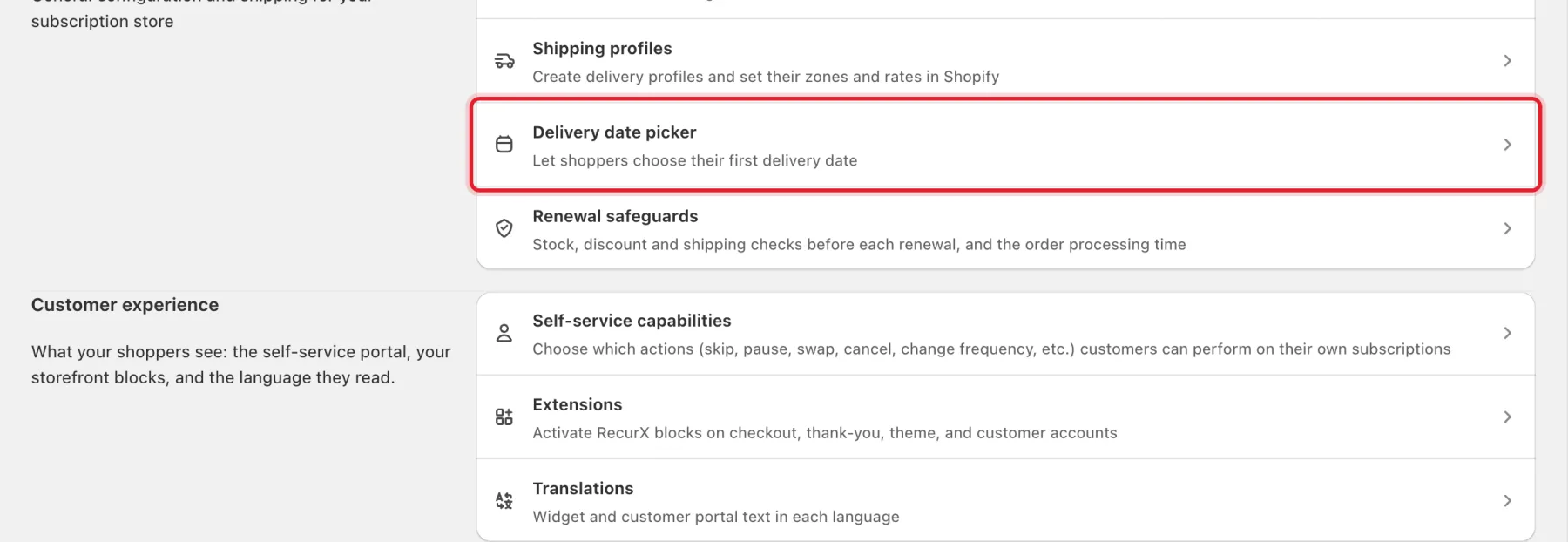
Step 1: Open Delivery date picker
- In your Shopify admin, open Apps → RecurX Subscriptions.
- Click App settings in the sidebar.
- Under Store settings, click Delivery date picker.
Step 2: Turn the picker on
Under Show the picker:
- Tick Show the delivery date picker on product pages.
- Tick Also show it for one-time purchases if one-time buyers should pick a date too.
- Tick Require a date before adding to cart to make the date mandatory. When it's off, the date is optional and shoppers can leave it empty.
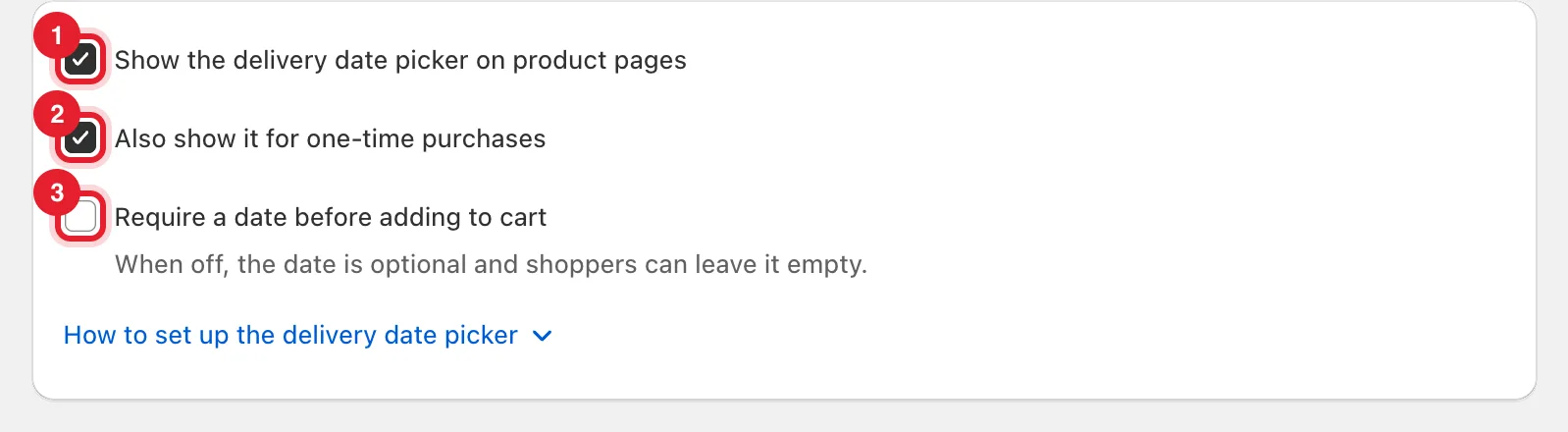
Tip: Click How to set up the delivery date picker under the checkboxes for a short walkthrough.
Step 3: Choose the available dates
Under Available dates:
- Earliest delivery (days from today): 0 allows today. The second order keeps the same lead time.
- Latest delivery (days from today): how far ahead shoppers can pick. For subscriptions, the latest date is also limited to one delivery interval, so the second order can follow it: 3 days past the earliest date for weekly plans, 10 for every 2 weeks, 24 for monthly.
- Daily cutoff: orders placed at or after this hour count from the next day. Choose No cutoff to skip it.
- Delivery days: tick the weekdays you deliver on.
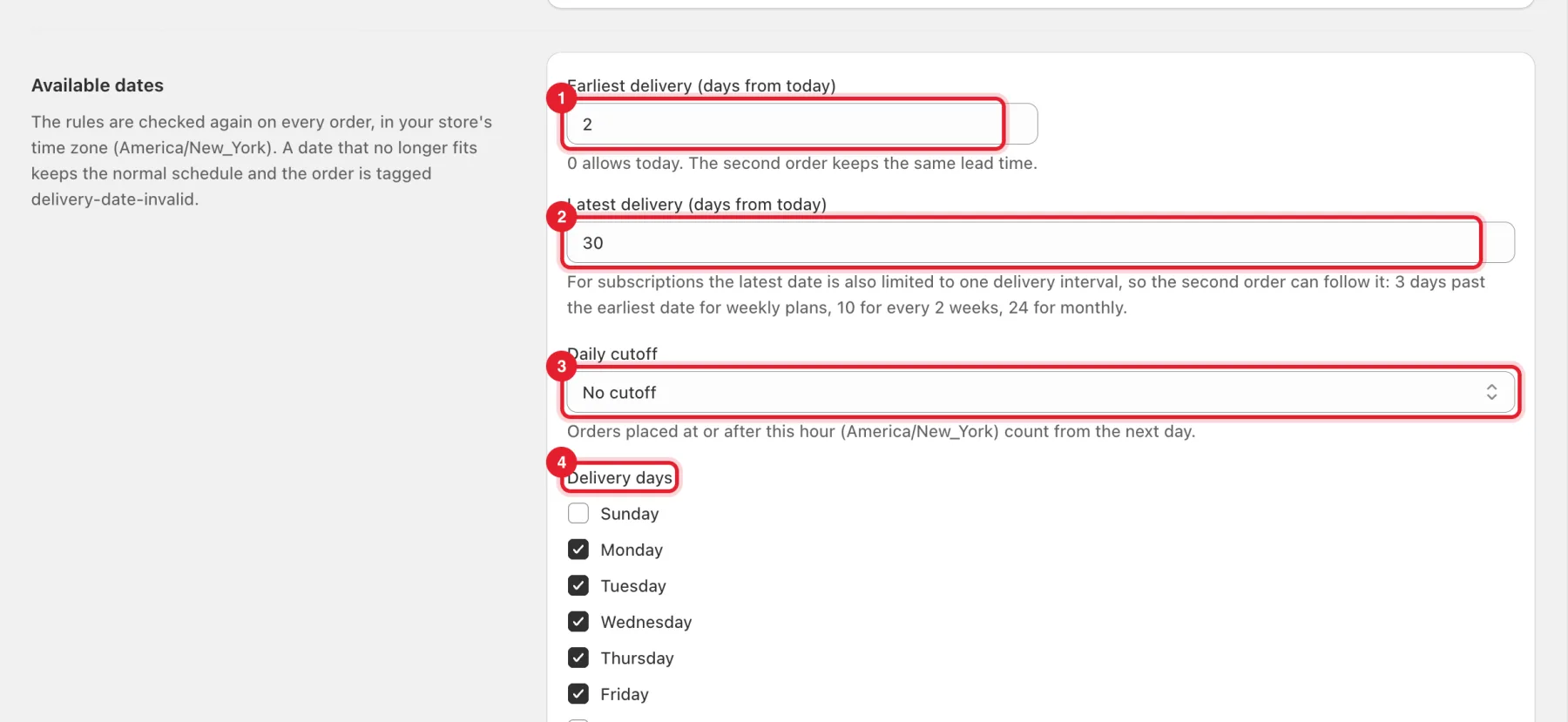
The rules use your store's time zone, which is shown on the page.
Step 4: Block dates you don't deliver
Under Blocked dates:
- Use the arrows to move between months.
- Click a day, or a first and last day for a range, then click Add date.
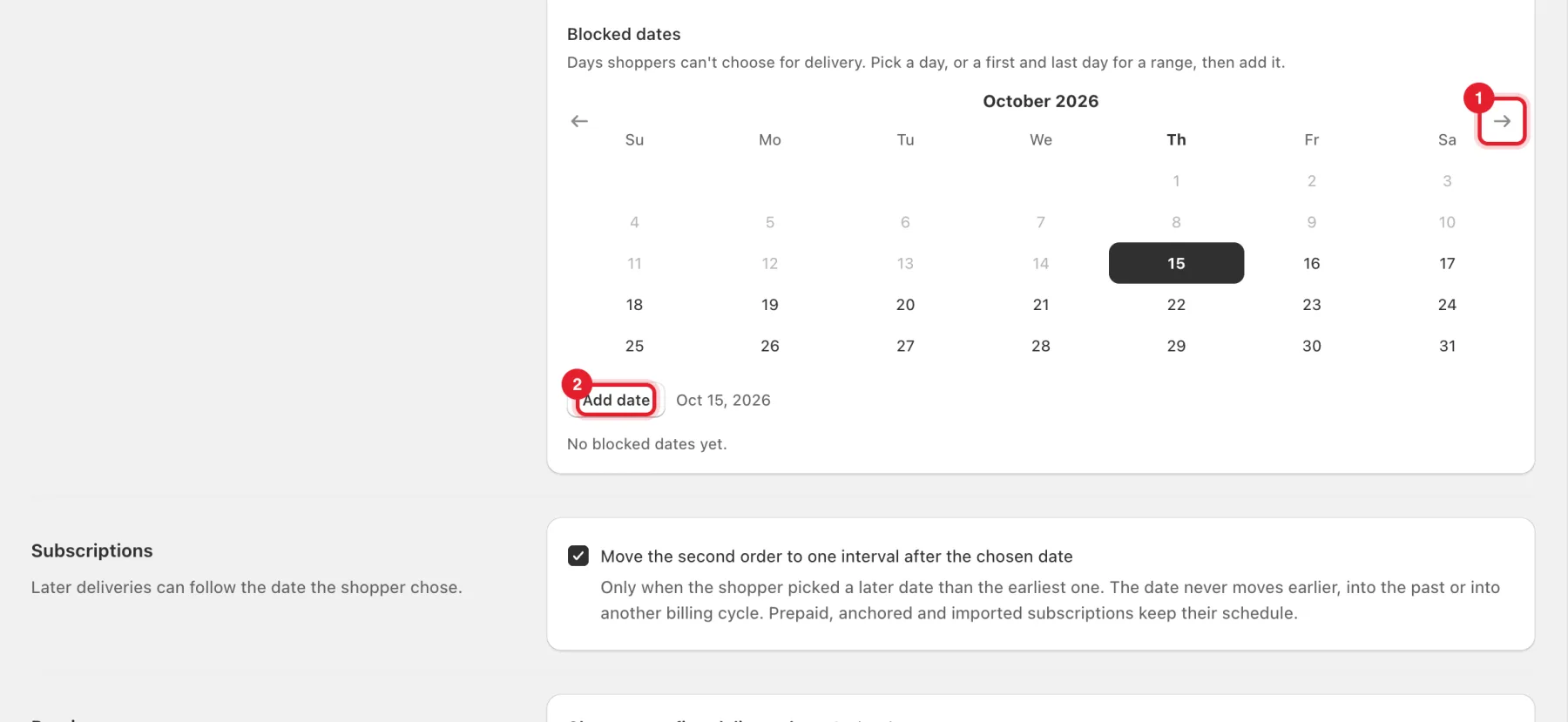
Each blocked date or range is listed under the calendar. You can add up to 100.
Step 5: Decide how later orders follow the date
Under Subscriptions, tick Move the second order to one interval after the chosen date if later deliveries should follow the date the shopper picked.
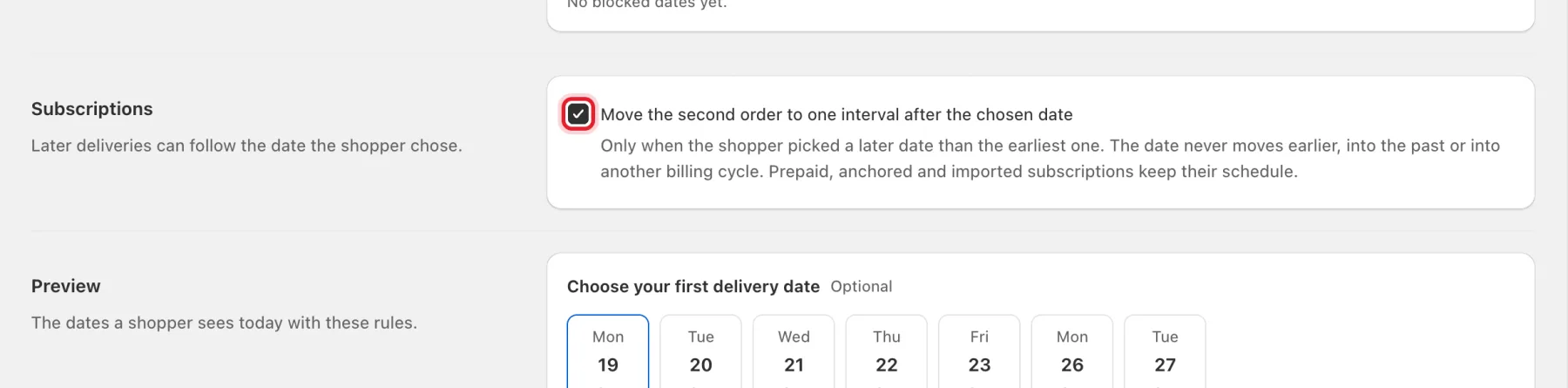
This only applies when the shopper picked a later date than the earliest one. The date never moves earlier, into the past or into another billing cycle. Prepaid, anchored and imported subscriptions keep their schedule.
Step 6: Check the preview and save
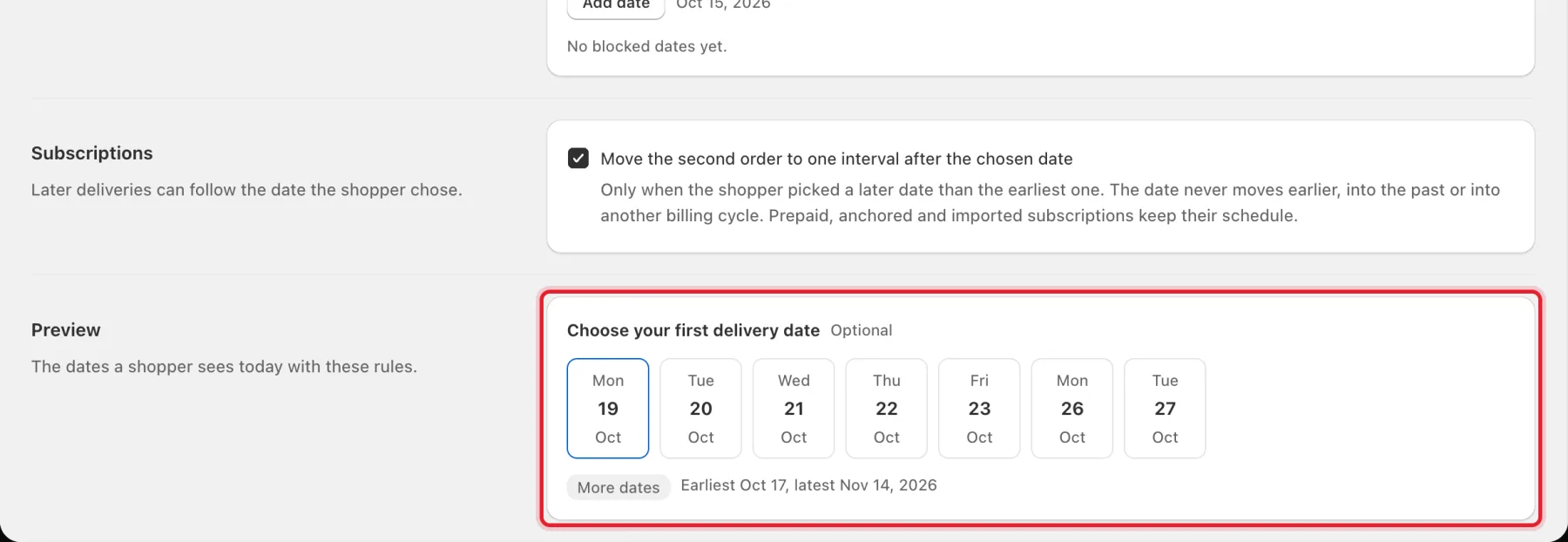
The Preview card shows the dates a shopper sees today with your rules, for example Earliest Oct 17, latest Nov 14, 2026. When everything looks right, click Save in the bar at the top of the page. RecurX shows Delivery dates saved.
Step 7: Find the chosen date on orders
The Orders card explains where the date goes. It is on the order line (Delivery date), in the order tag delivery:YYYY-MM-DD, and in the order's additional details (RecurX delivery date). Filter orders by the tag to plan fulfillment.
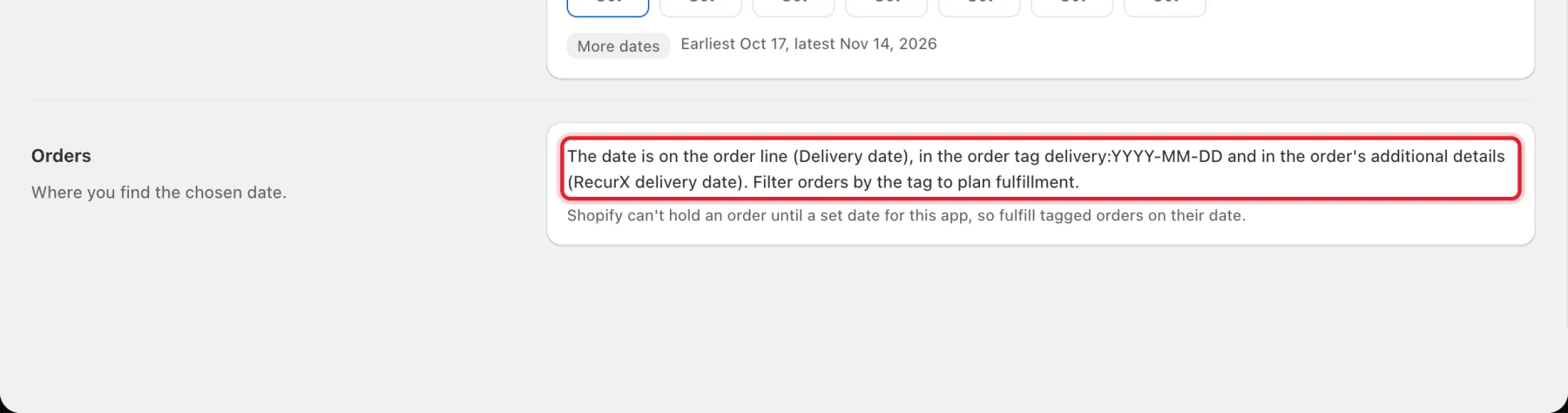
Important: Shopify can't hold an order until a set date for this app, so fulfill tagged orders on their date.
Good to know
- The rules are checked again on every order. If a chosen date no longer fits, the order keeps the normal schedule and is tagged delivery-date-invalid.
- No date fits these rules. Allow more days ahead or more delivery days. in the preview means your settings leave no date to pick.
- The picker is off, so shoppers don't see it. means Show the delivery date picker on product pages is not ticked or not saved.
- The picker appears under the subscription widget. If the widget isn't showing, see Widget not showing.