
Portal rules control when and how customers can change their subscriptions in the customer portal. You can lock changes a few days before each order, set the earliest date an order can be moved to, show an estimated arrival, choose which products customers can add and at what price, and set minimums and limits. Every rule is off until you set it. Setup takes about 10 minutes.
Who it's for: stores that need time to pack orders, sell bundles that must keep a minimum, or want to limit what customers add.
Note: Portal rules are on the Pro plan. On Basic the section is visible with an upgrade banner and its fields are locked. See RecurX billing.
Which actions customers can take at all (skip, pause, swap, cancel…) is set on the same page. See Self-service actions.
Step 1: Open Customer portal settings
- In your Shopify admin, open Apps → RecurX Subscriptions.
- Click App settings in the sidebar.
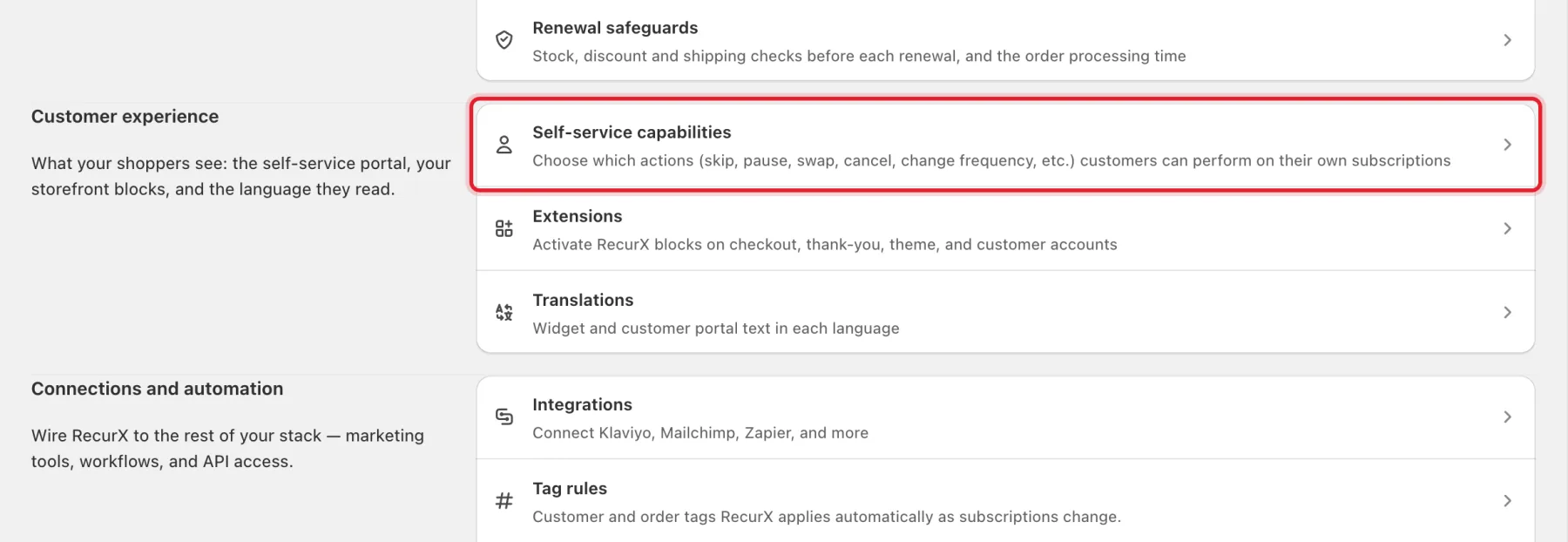
- Under Customer experience, click Self-service capabilities.
- On the Actions tab, scroll down to Portal rules.
Step 2: Set an order cutoff
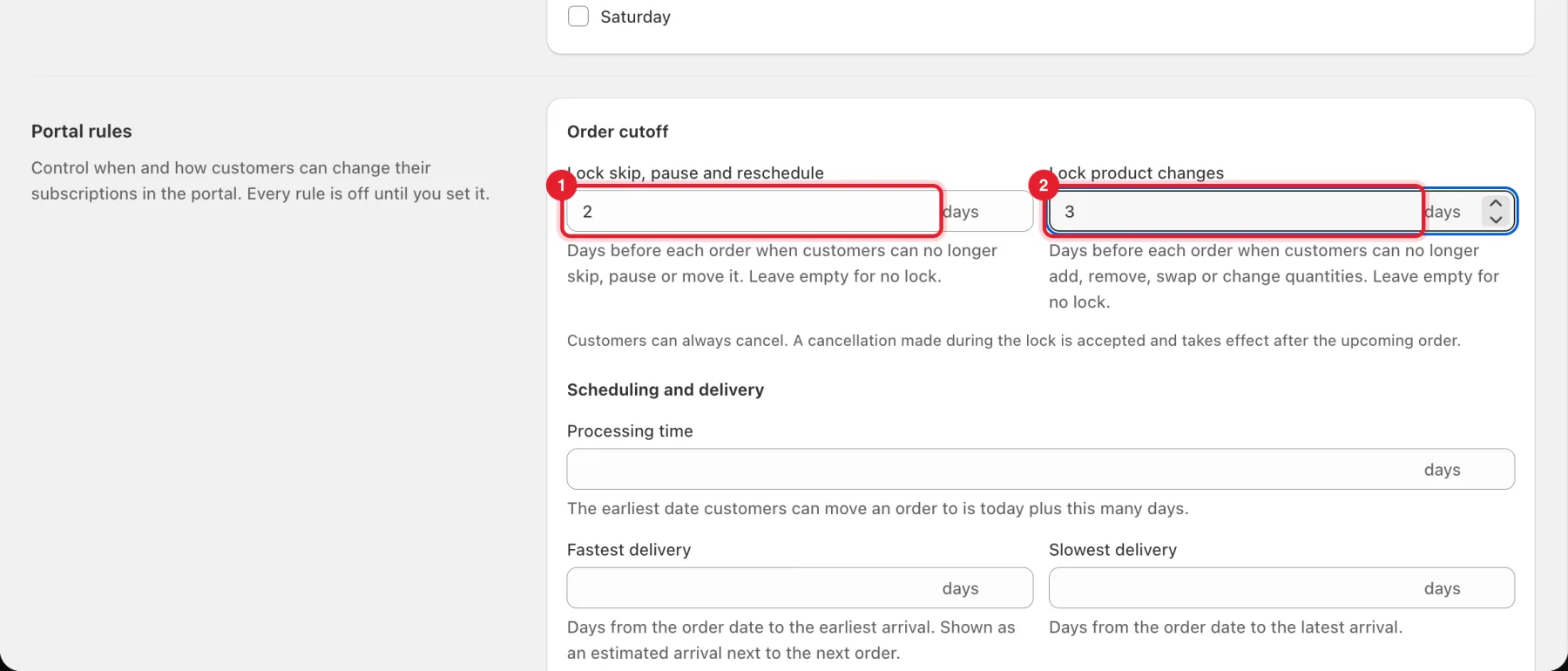
Under Order cutoff:
- Lock skip, pause and reschedule: the number of days before each order when customers can no longer skip, pause or move it.
- Lock product changes: the number of days before each order when customers can no longer add, remove, swap or change quantities.
Leave a field empty for no lock. Use a whole number of days from 1 to 30.
Note: Customers can always cancel. A cancellation made during the lock is accepted and takes effect after the upcoming order.
Step 3: Set scheduling and delivery times
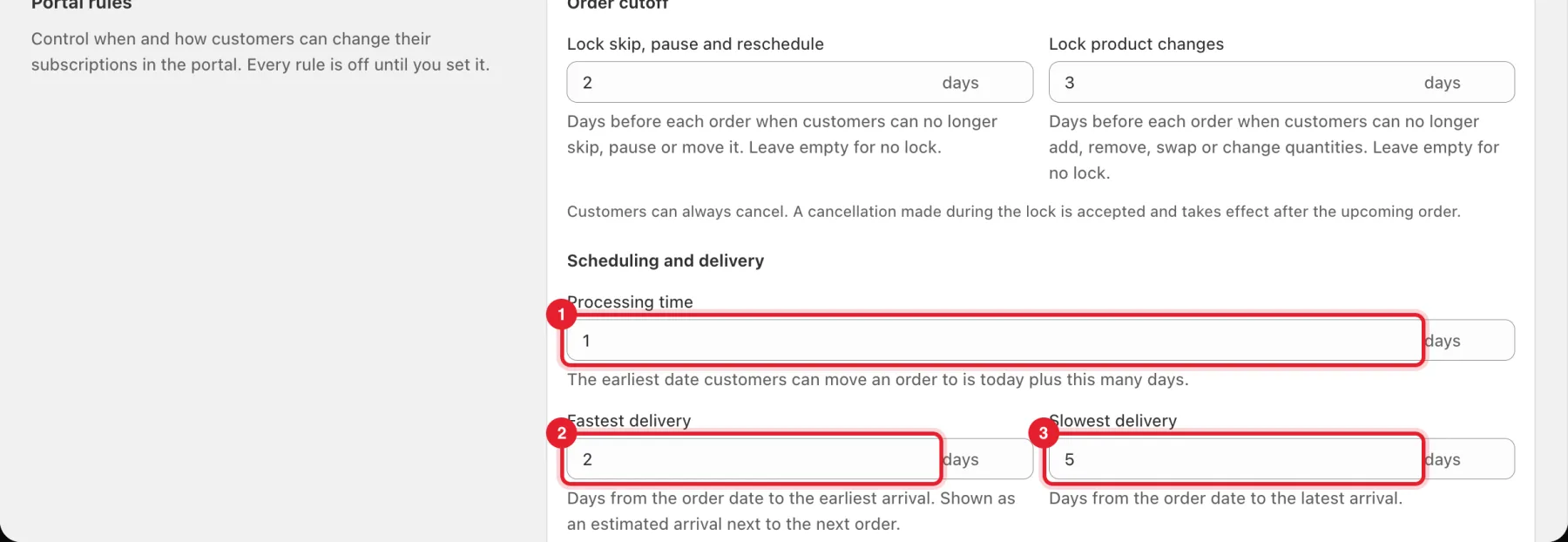
Under Scheduling and delivery:
- Processing time: the earliest date customers can move an order to is today plus this many days.
- Fastest delivery: days from the order date to the earliest arrival.
- Slowest delivery: days from the order date to the latest arrival.
When you fill in both delivery times, the portal shows an estimated arrival next to the next order. Enter both or neither.
Step 4: Choose what customers can add, and its price
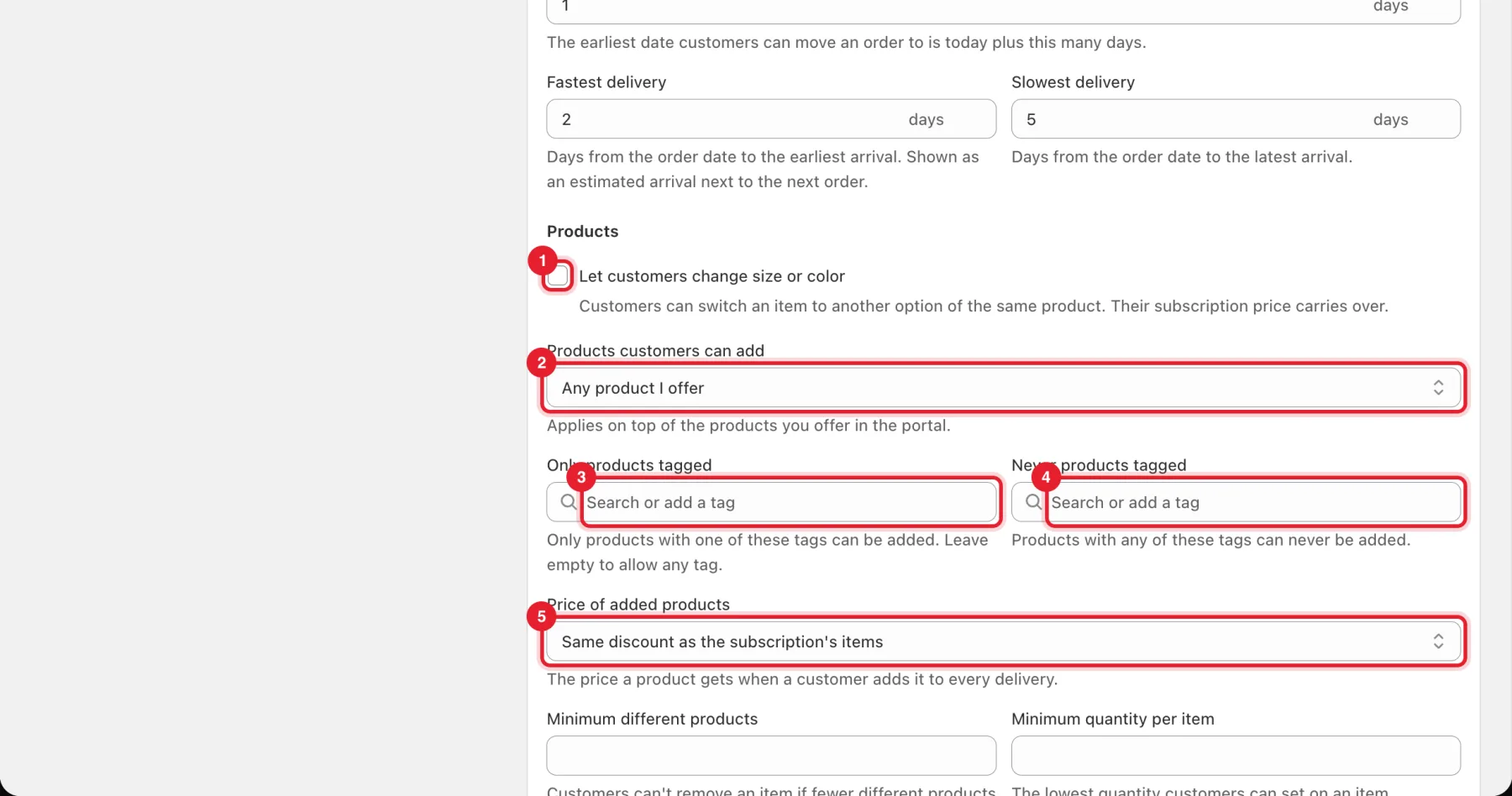
Under Products:
- Tick Let customers change size or color to let customers switch an item to another option of the same product. Their subscription price carries over.
- Products customers can add: Any product I offer, Only products sold by subscription or Only products on the same subscription plan. This applies on top of the products you offer in the portal.
- Only products tagged: only products with one of these tags can be added. Leave it empty to allow any tag.
- Never products tagged: products with any of these tags can never be added.
- Price of added products: the price a product gets when a customer adds it to every delivery: Same discount as the subscription's items, The plan's discount, No discount or A fixed percentage off. With a fixed percentage, enter it in Discount on added products (1 to 90).
Step 5: Set minimums and limits
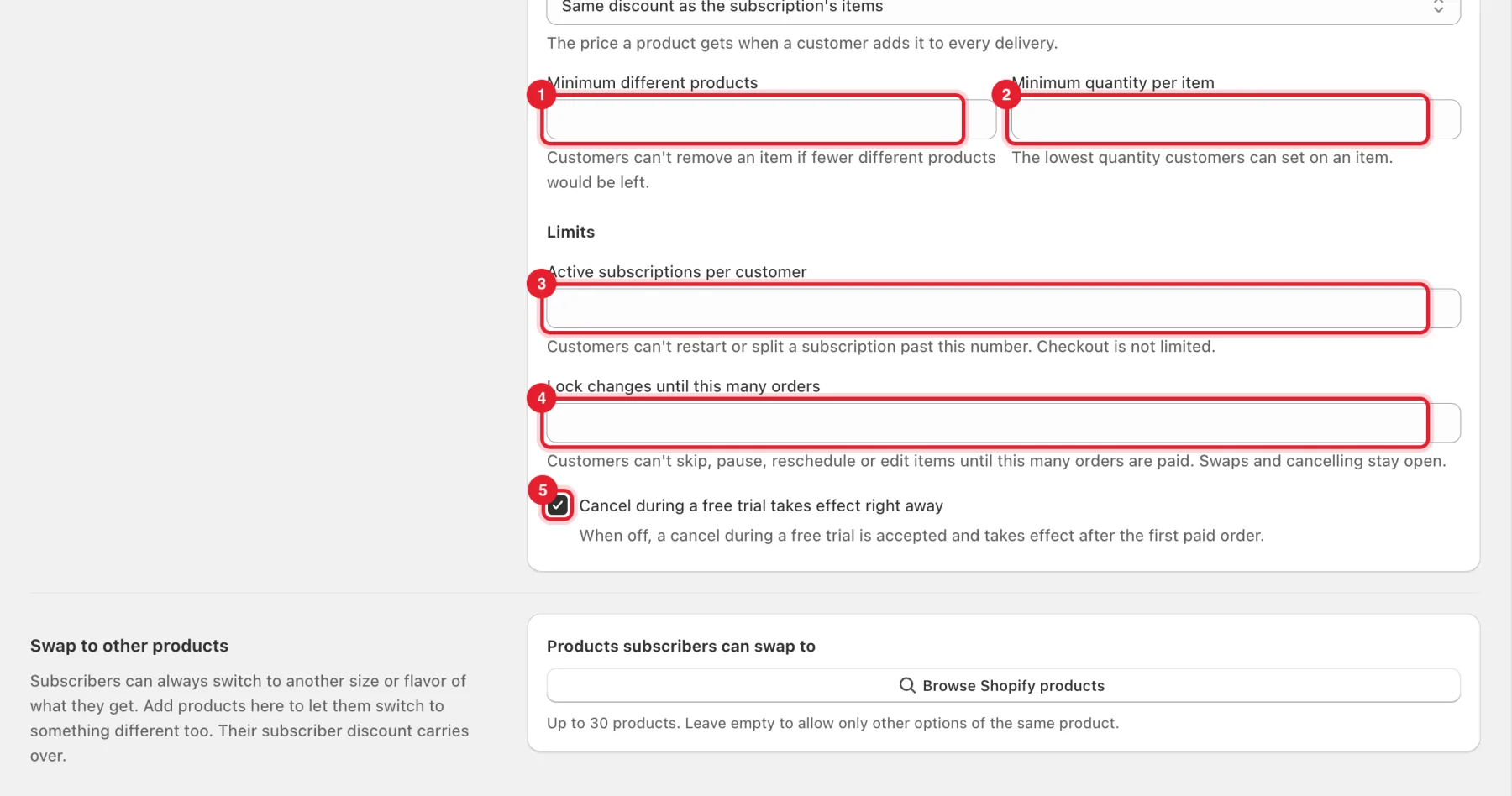
- Minimum different products: customers can't remove an item if fewer different products would be left.
- Minimum quantity per item: the lowest quantity customers can set on an item.
- Active subscriptions per customer: customers can't restart or split a subscription past this number. Checkout is not limited.
- Lock changes until this many orders: customers can't skip, pause, reschedule or edit items until this many orders are paid. Swaps and cancelling stay open.
- Cancel during a free trial takes effect right away: when this is off, a cancel during a free trial is accepted and takes effect after the first paid order.
Step 6: Save
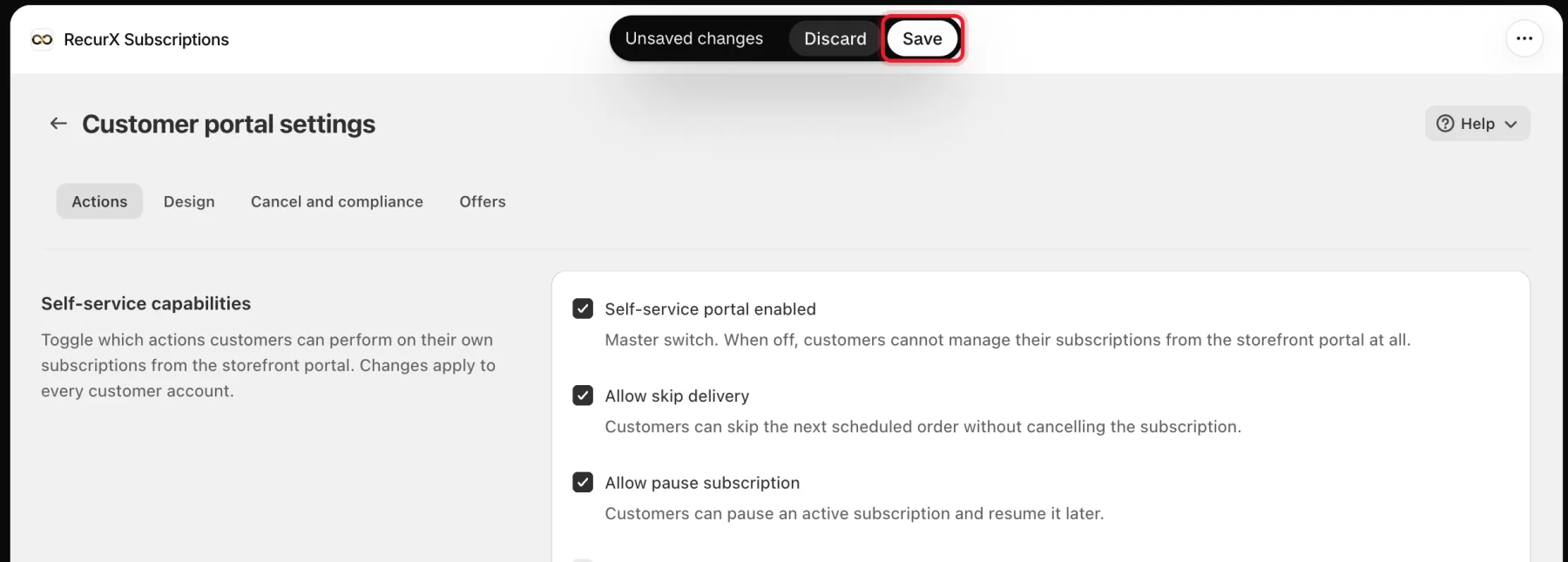
Click Save in the bar at the top of the page. If a field has a problem, Save stops and the field shows why. For example, The slowest delivery time can't be shorter than the fastest.
Good to know
- The rules apply to customers in the portal. You can still change any subscription yourself from its page in RecurX.
- Swap to other products and Backup products are just below Portal rules on the same tab. They set what subscribers can swap to and what ships when an item is out of stock.
- To make renewals skip or pause when stock runs out, see Renewal safeguards.
- Common messages: Use a whole number of days from 1 to 30, or leave it empty., Enter both the fastest and the slowest delivery time, or neither., A tag can't be both allowed and blocked.