
Add to subscription puts an Add to my next delivery button on your product pages. A logged-in subscriber clicks it, sees the price and order date, and confirms. The product is added to their next order only, or to every delivery. It takes about 3 minutes to set up.
Who it's for: stores with subscribers who also buy other products. Available on the Pro plan.
Step 1: Turn the button on
- Go to Growth and click Manage add to subscription on the Add to subscription card.
- Tick Show "Add to my next delivery" on product pages (1). It shows under the RecurX widget, or where you place the Add to subscription block in your theme.
- Under What customers can add (2), pick To every delivery or to the next order only, To every delivery only or To the next order only.
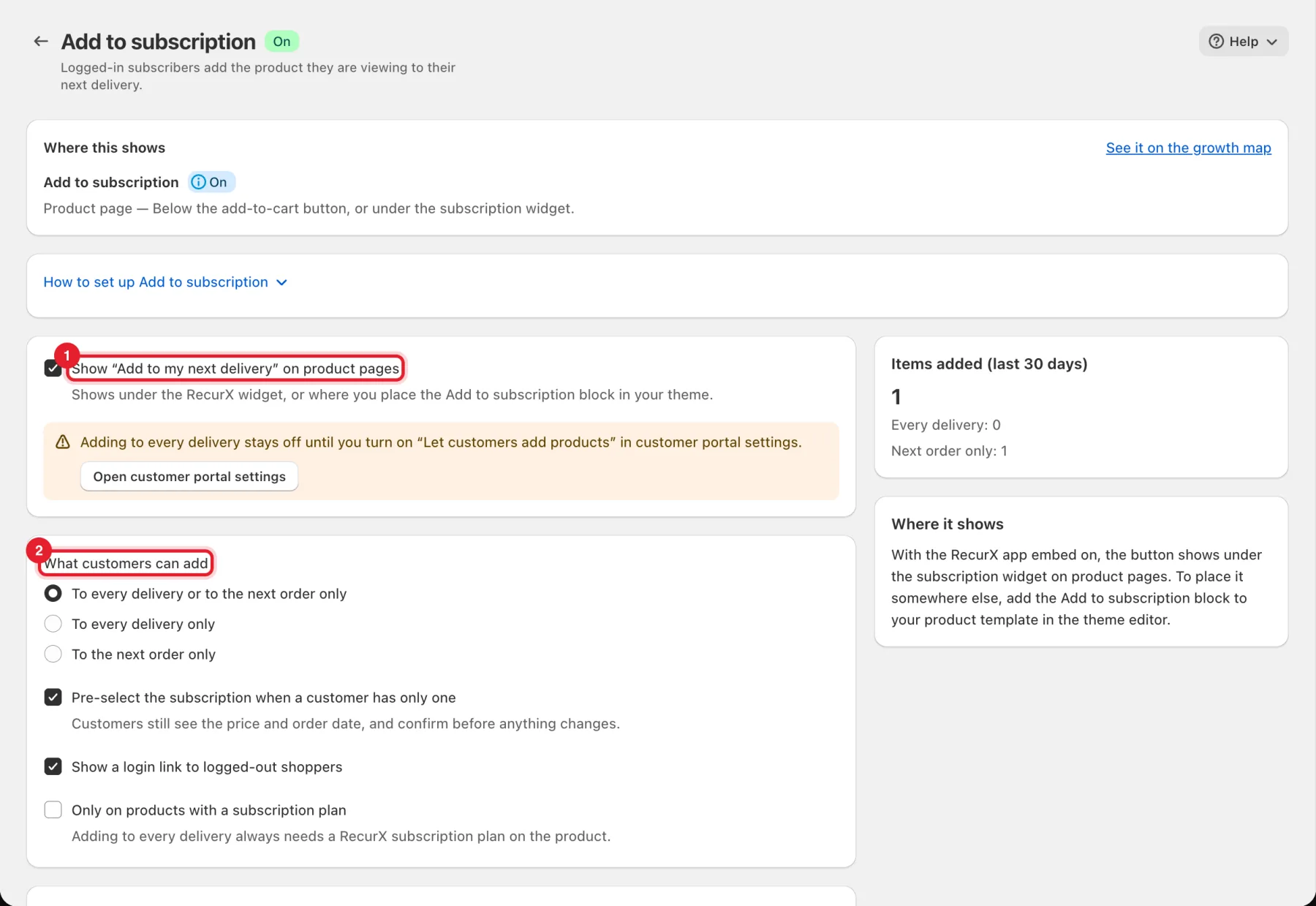
Important: Adding to every delivery stays off until you turn on Let customers add products in the customer portal settings. Click Open customer portal settings on the page to go there — see Set up the customer portal.
Step 2: Choose the options and labels
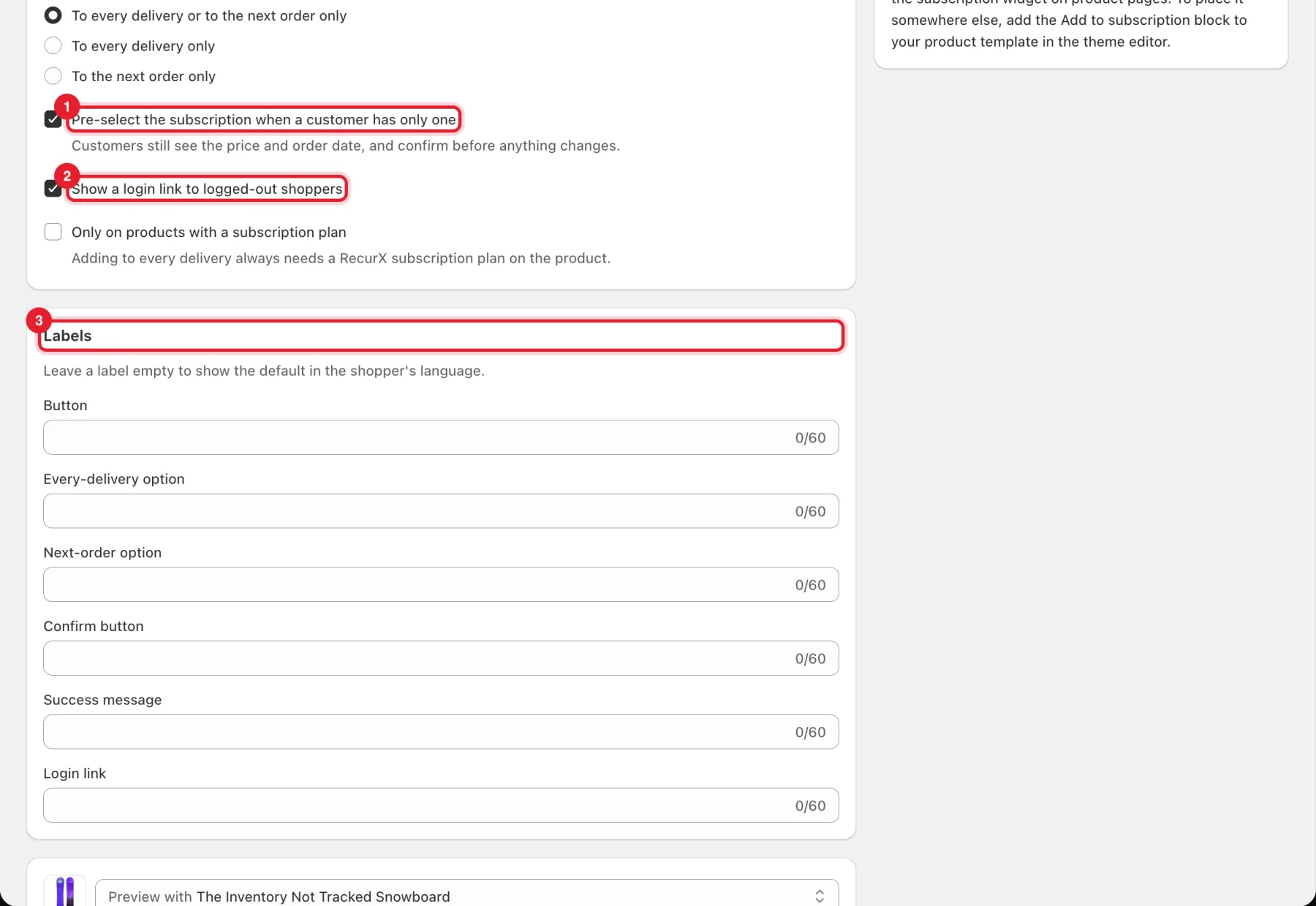
- Pre-select the subscription when a customer has only one (1): customers still see the price and order date, and confirm before anything changes.
- Show a login link to logged-out shoppers (2): shoppers who aren't signed in see a link to log in.
- Only on products with a subscription plan: shows the button only on those products. Adding to every delivery always needs a RecurX subscription plan on the product.
- Under Labels (3), change the wording of the Button, Every-delivery option, Next-order option, Confirm button, Success message and Login link (60 characters each). Leave a label empty to show the default in the shopper's language.
- Click Save in the bar at the top of the page.
Step 3: Check where it shows and how it's used
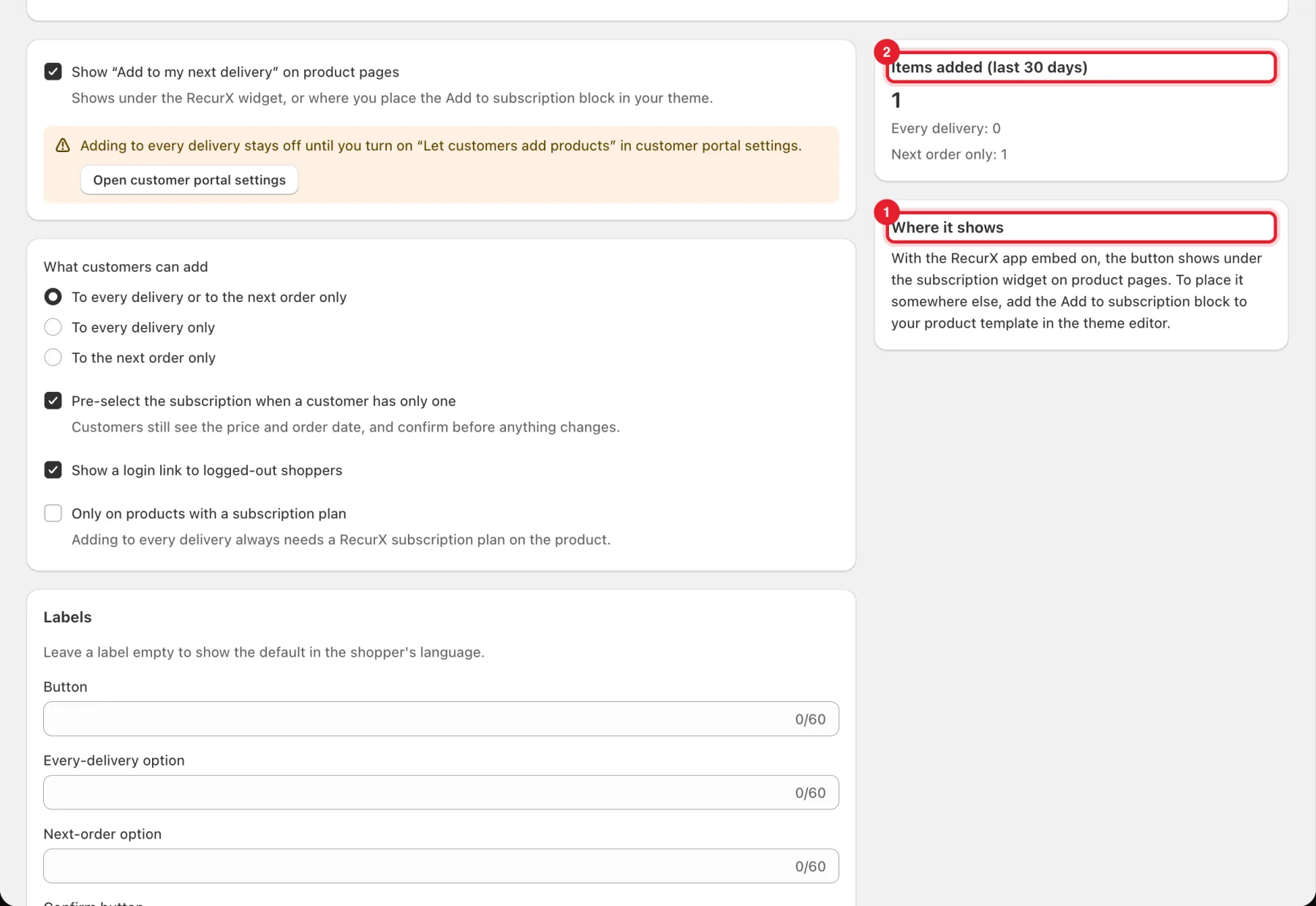
- Where it shows (1): with the RecurX app embed on, the button shows under the subscription widget on product pages. To place it somewhere else, add the Add to subscription block to your product template in the theme editor.
- Items added (last 30 days) (2): how many products subscribers added, split into Every delivery and Next order only.
Below the settings, Storefront design lets you match the button to your store theme or to your subscription widget, with a preview.
Good to know
- Only logged-in customers with an active subscription can add products.
- Items added ship with the next order. Nothing is charged until that order is billed.
- Subscribers can also add products from the customer portal — see After-purchase offers for subscribers.
- Check that the button is live on the Growth map.