
When a subscriber clicks Cancel subscription in the customer portal, Revenue Shield first shows your cancel flow. This is a short sequence of steps where they can take an alternative, such as a pause, a skip, a discount or a product swap. Cancel anyway is on every step, and Confirm cancellation is always last, so no one is kept from cancelling. This guide covers every part of the Cancel flow page. Setup takes 10–15 minutes.
Who it's for: every subscription store. The cancel flow is part of Revenue Shield, included in the Basic and Pro plans. To compare offers with traffic weights, see Cancel flow and save offers (A/B testing).
Step 1: Open the Cancel flow page
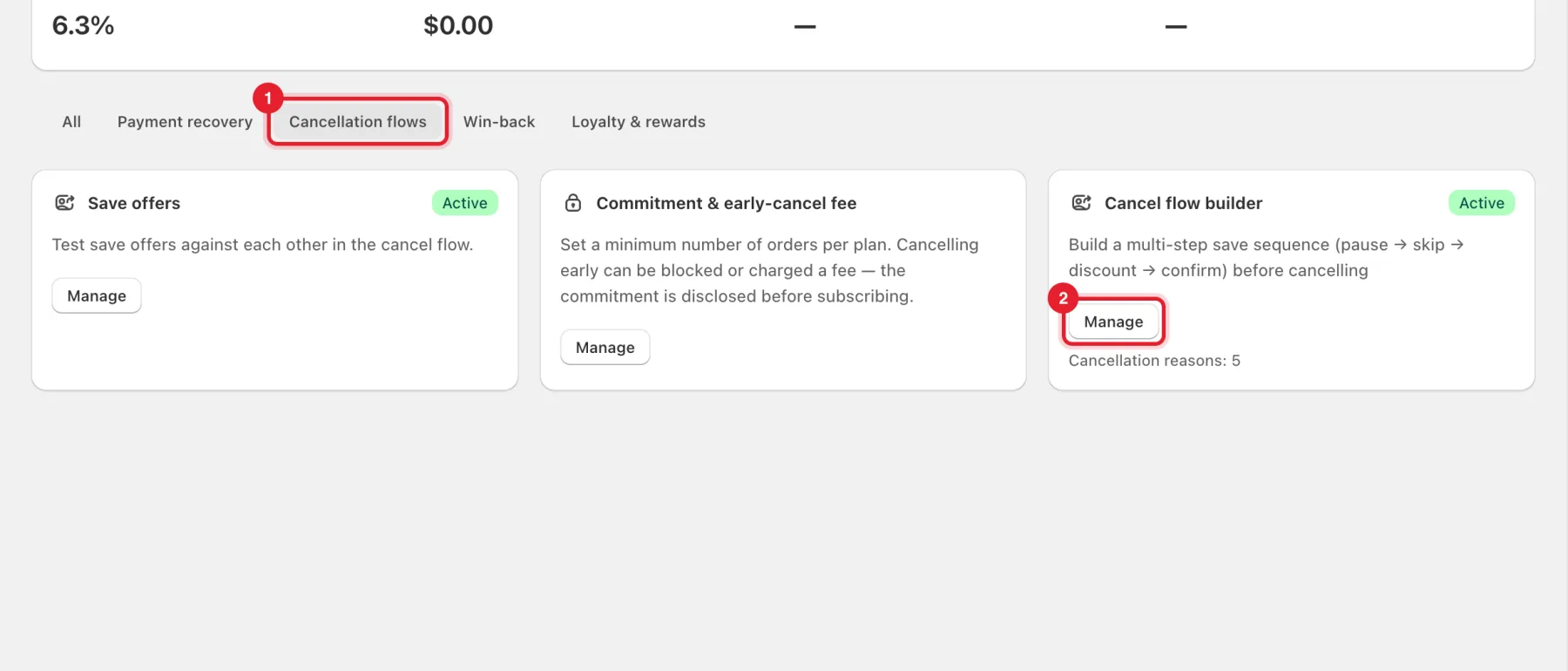
- In your Shopify admin, open Apps → RecurX Subscriptions and click Retention in the sidebar.
- Click the Cancellation flows tab.
- Click Manage on Cancel flow builder.
Step 2: Check the flow is on and set the cooldown
In Cancel flow for your customers:
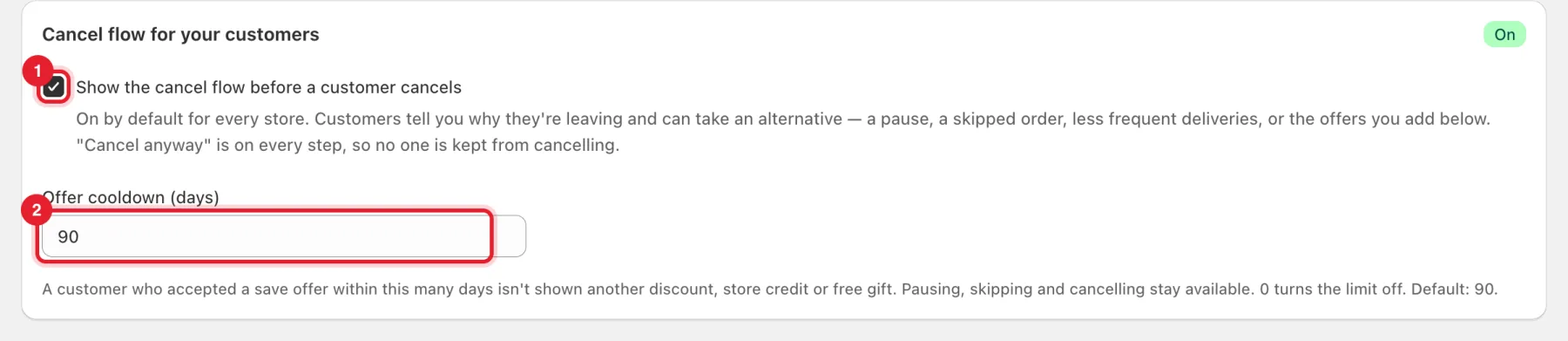
- Show the cancel flow before a customer cancels is on by default for every store.
- Offer cooldown (days): a customer who accepted a save offer within this many days isn't shown another discount, store credit or free gift. Pausing, skipping and cancelling stay available. 0 turns the limit off. The default is 90.
Step 3: Start from a template (optional)
Start from a template has prebuilt save flows by vertical: Supplements — results take time, Coffee & food — too much / too often, Beauty — swap-first save, General — balanced save flow and Price-sensitive — downgrade ladder. Click Start from this template on one.
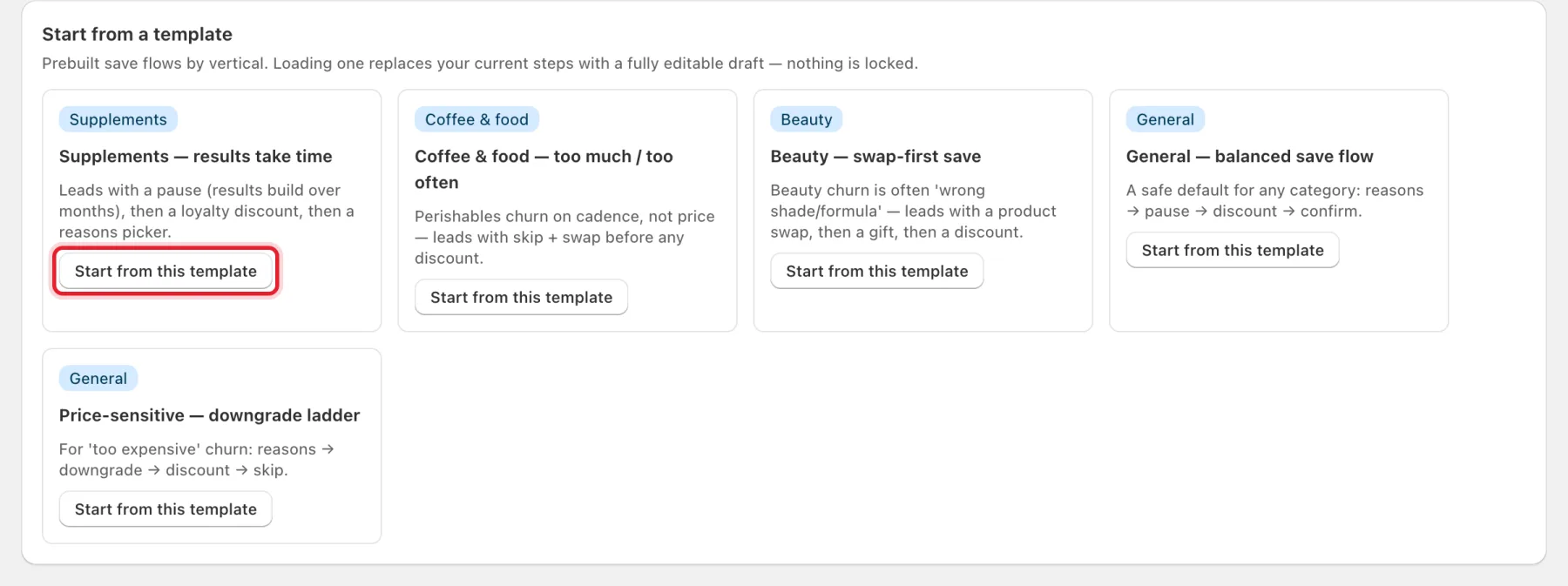
Warning: Loading a template replaces your current steps with a fully editable draft. Nothing changes for customers until you save.
Step 4: Set up each step
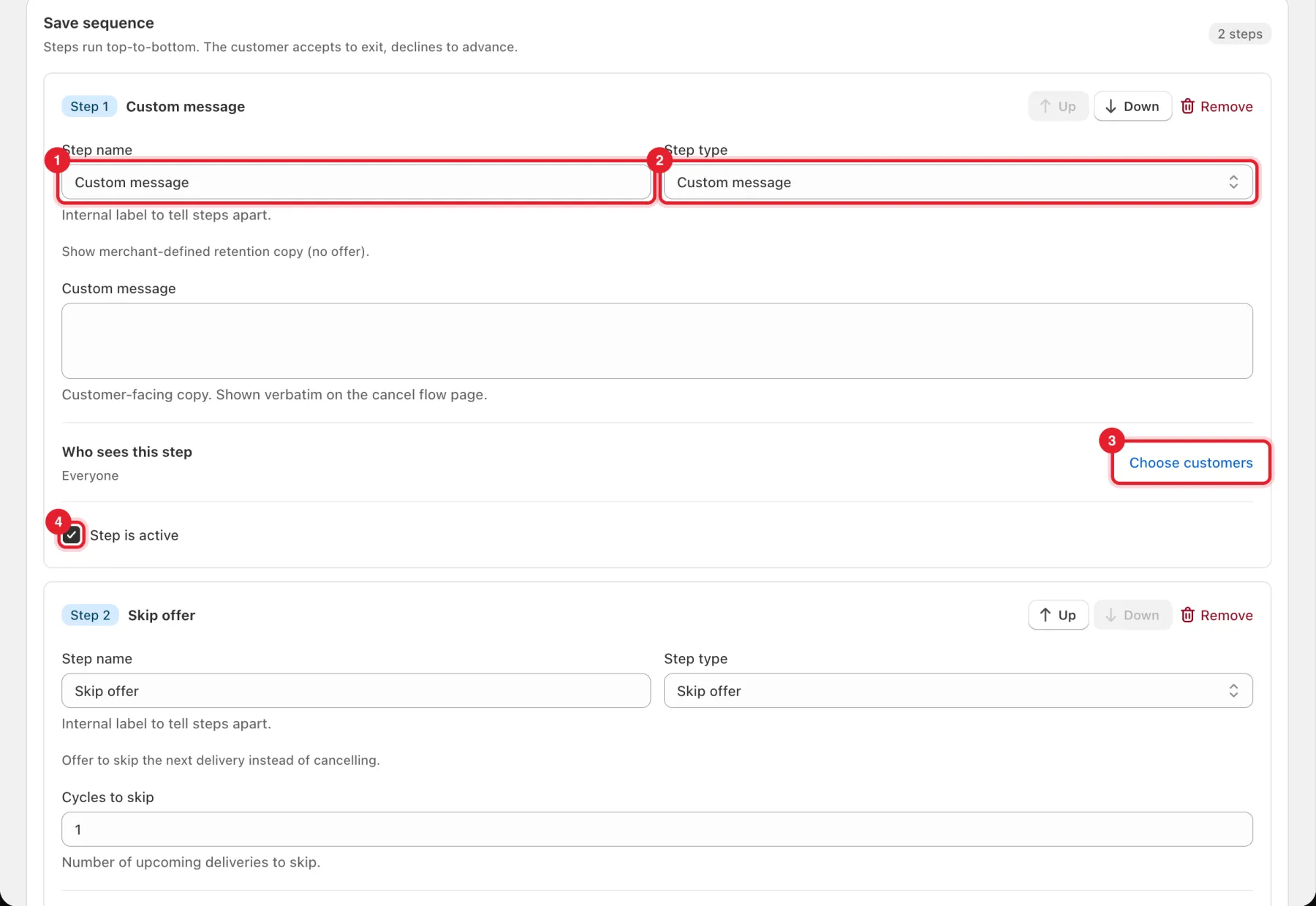
Save sequence lists your steps. They run top to bottom: the customer accepts an offer to stop, or declines to see the next step. For each step:
- Step name: an internal label to tell steps apart.
- Step type: what the step offers. The fields under it change with the type.
- Who sees this step: Everyone by default. Click Choose customers to limit it.
- Step is active: untick to switch a step off without deleting it.
- Use Up, Down and Remove to reorder or delete the step.
Step 5: Fill in the offer
Each Step type has its own settings:
| Step type | What the customer is offered | Settings |
|---|---|---|
| Pause offer | Pause instead of cancelling | Pause length (days) before it resumes |
| Skip offer | Skip upcoming deliveries | Cycles to skip |
| Discount offer | A discount to stay | Discount value, Discount type (Percentage or Fixed amount), Cycles |
| Free product | A free product on the next renewal | Select product |
| Downgrade offer | A cheaper plan | Move customers to (a plan synced to Shopify) |
| Swap product | Another product or variant | Select product & variant |
| Gift a skip | The next charge skipped as a goodwill gift | Nothing to set up |
| Store credit | Shopify store credit | Store credit amount, Credit expires after (days) |
| Bonus points | Loyalty points | Bonus points (1 to 100,000) |
| Less often offer | A longer delivery interval from the product's own selling plans | — |
| Custom message | Your own retention copy, no offer | Custom message |
| Custom instructions | Your instructions, such as a notice policy, then continue or keep the subscription | Instructions for the customer |
| Reason picker | Asks why they're cancelling | Offers per reason (Step 6) |
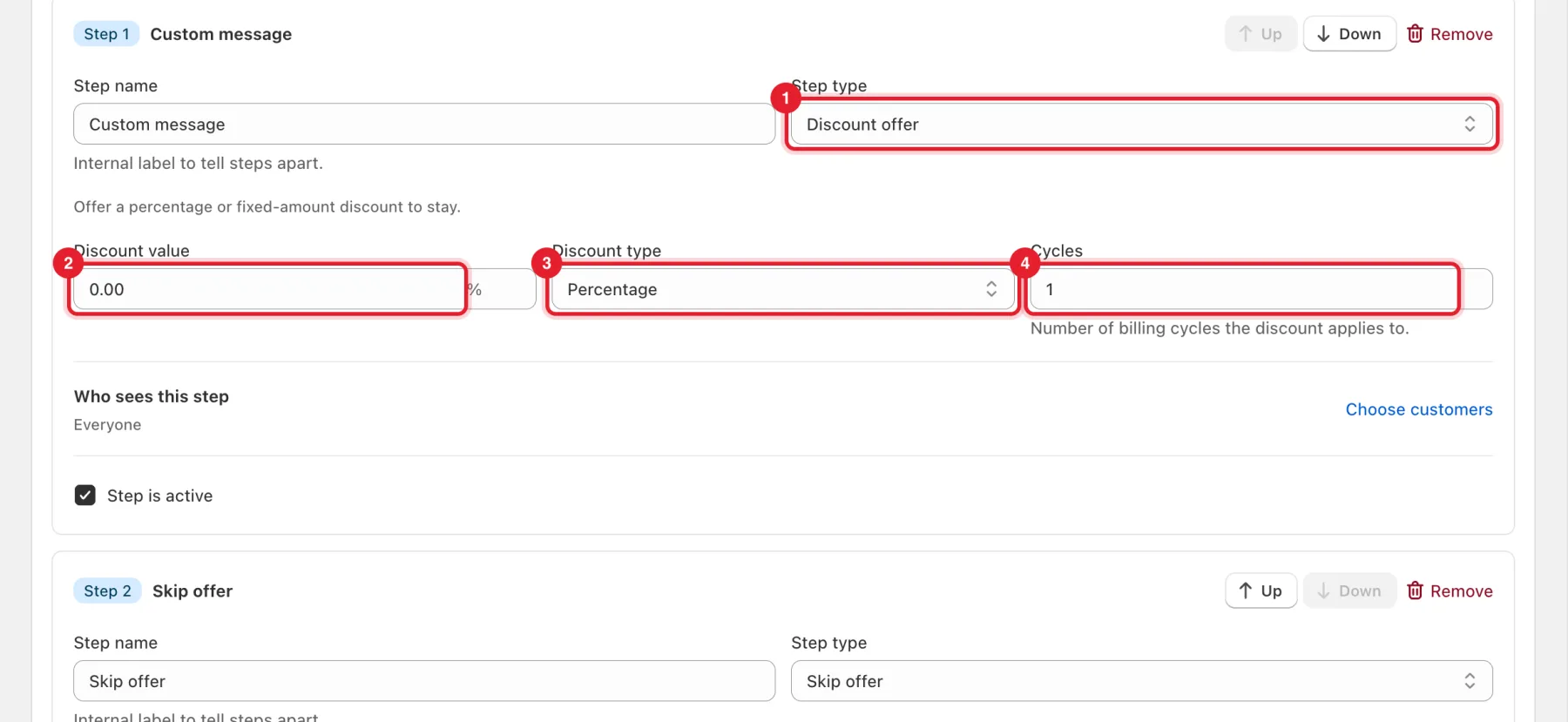
Step 6: Add offers for each cancellation reason
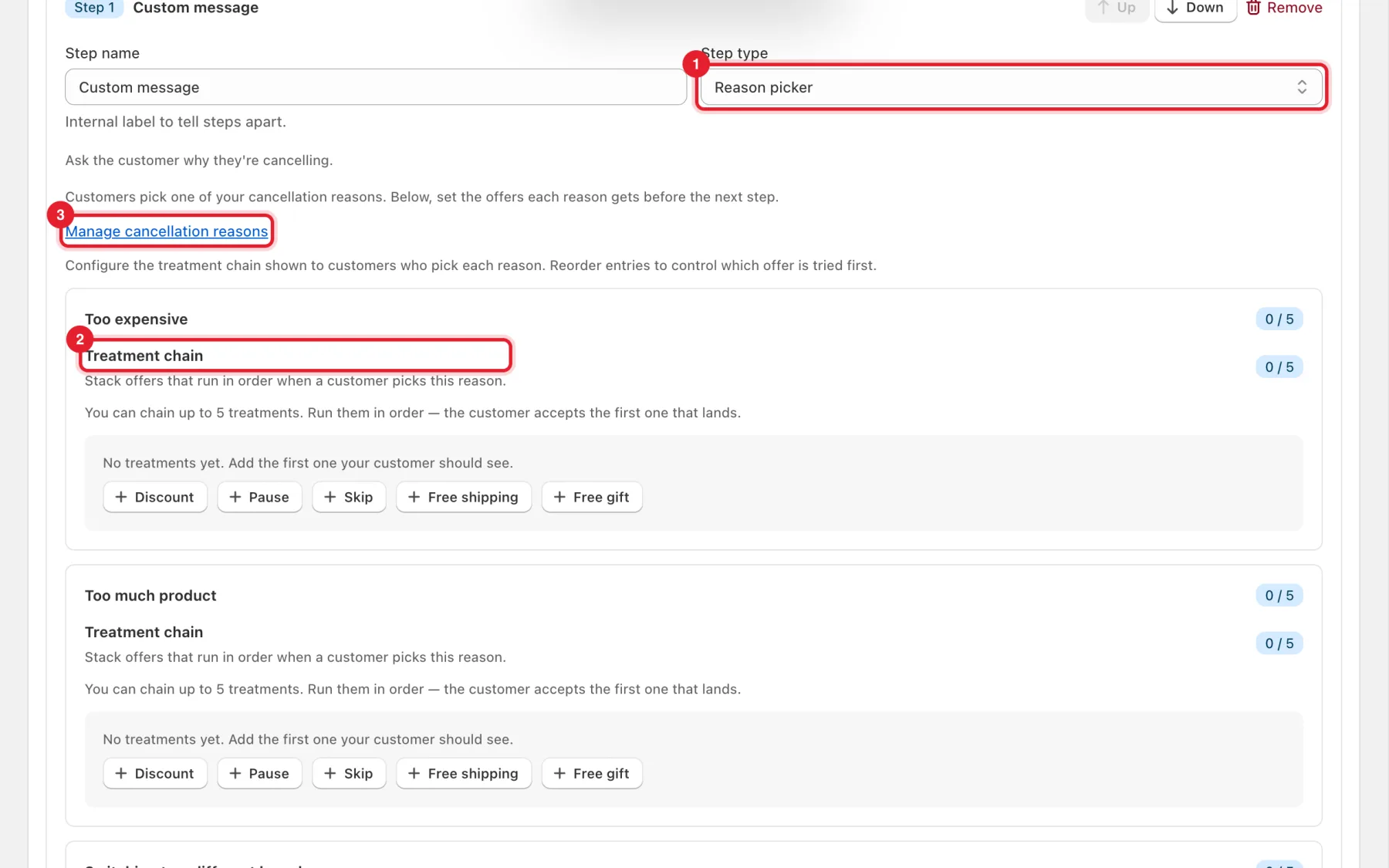
With a Reason picker step, customers pick one of your cancellation reasons. Under each reason, build a Treatment chain: click Discount, Pause, Skip, Free shipping or Free gift to add offers. The customer sees them in order and can accept any of them. You can chain up to 5 per reason.
- Set Step type to Reason picker.
- Add offers to the Treatment chain of each reason.
- Click Manage cancellation reasons to add, rename or remove the reasons.
Step 7: Add steps
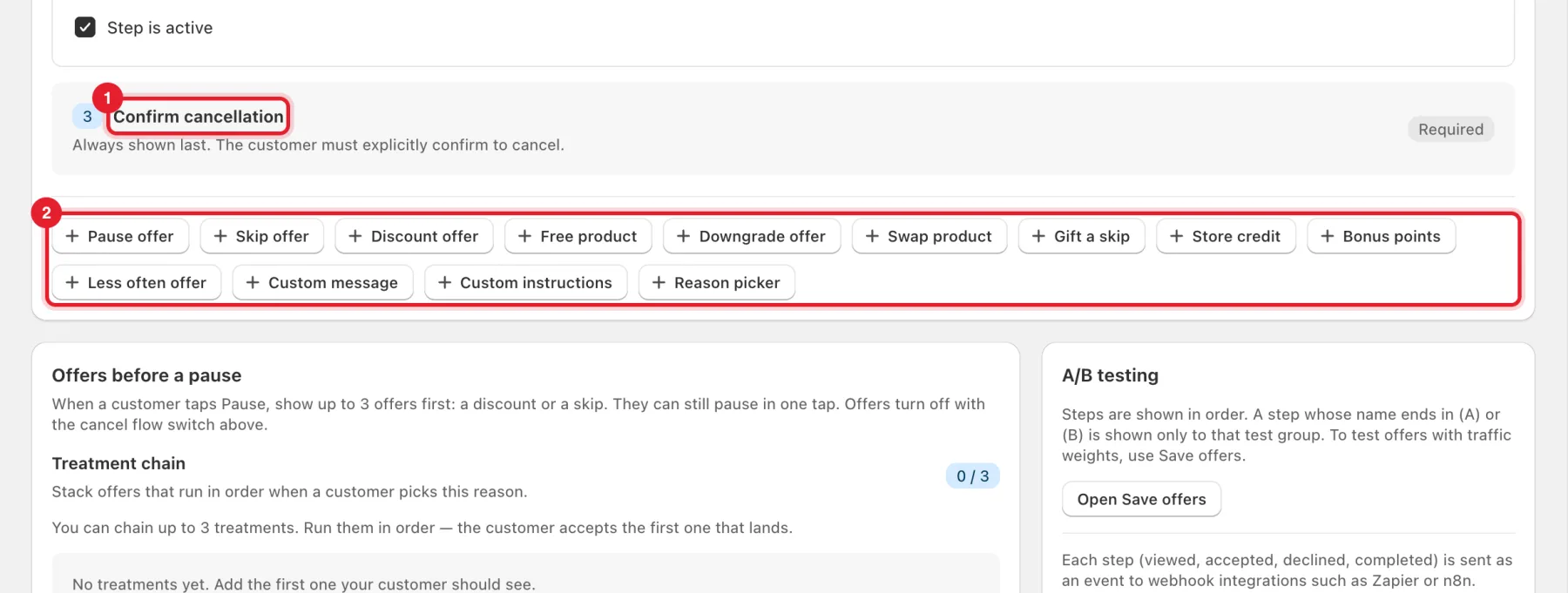
- Confirm cancellation is always shown last. The customer must explicitly confirm to cancel.
- Click a button under the steps to add one: Pause offer, Skip offer, Discount offer, Free product, Downgrade offer, Swap product, Gift a skip, Store credit, Bonus points, Less often offer, Custom message, Custom instructions or Reason picker.
Tip: Every step is one more screen for a customer who wants to leave. Three or four steps is usually enough.
Step 8: Set offers before a pause
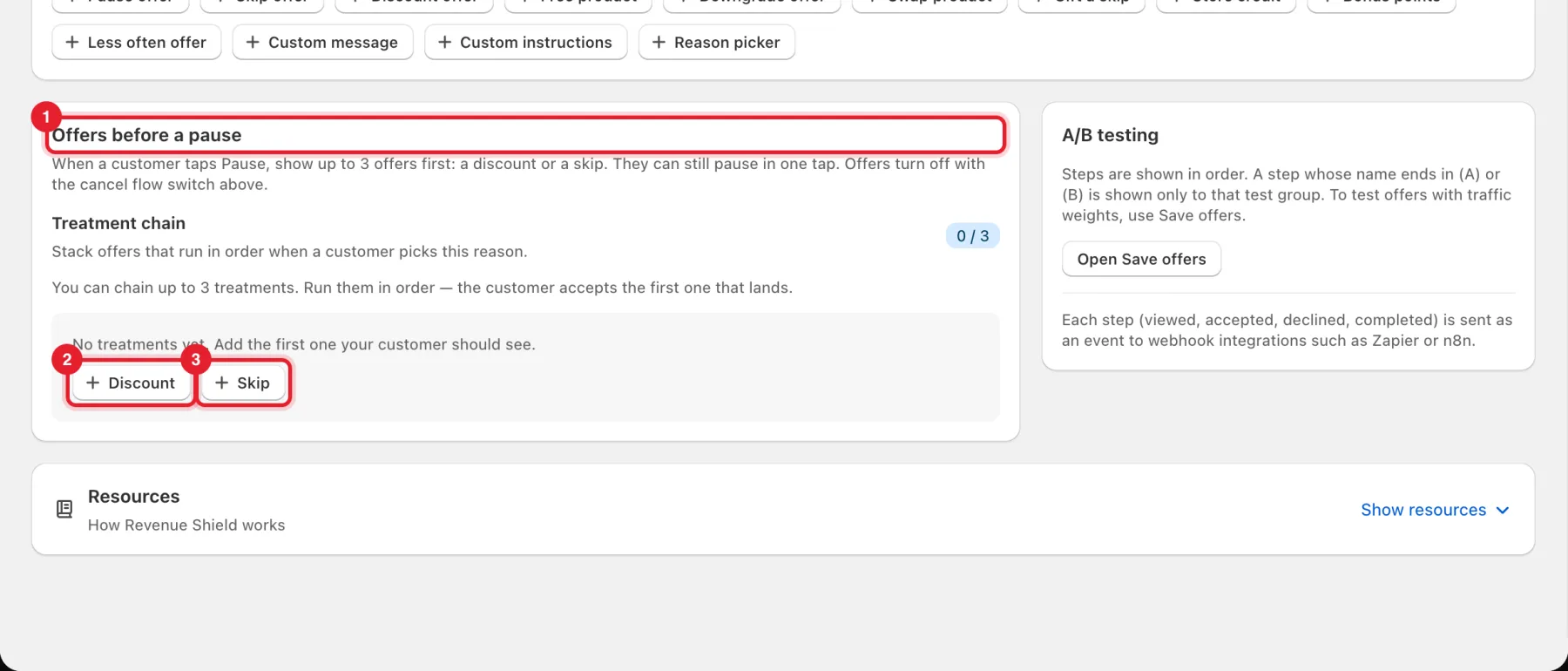
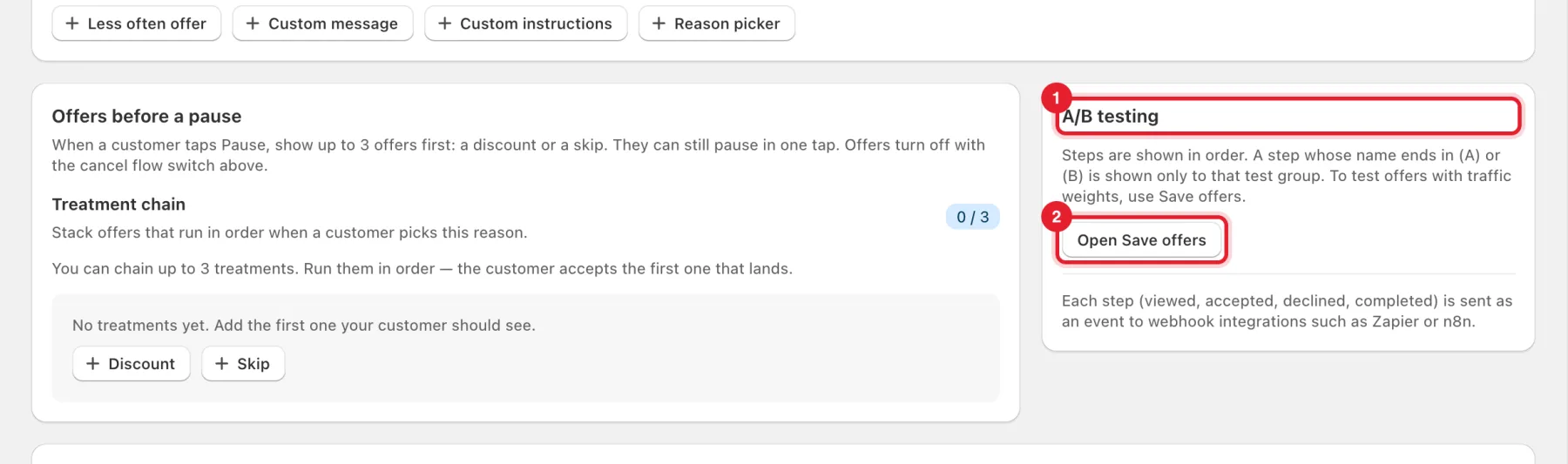
Offers before a pause works when a customer taps Pause in the portal. You can show up to 3 offers first: click Discount or Skip to add them to the treatment chain. The customer can still pause in one tap. These offers turn off with the cancel flow switch at the top.
Step 9: Test steps against each other (optional)
The A/B testing card explains the simple split. A step whose name ends in (A) or (B) is shown only to that test group, and steps without a suffix are shown to everyone. To test offers with traffic weights, click Open Save offers.
Step 10: Save
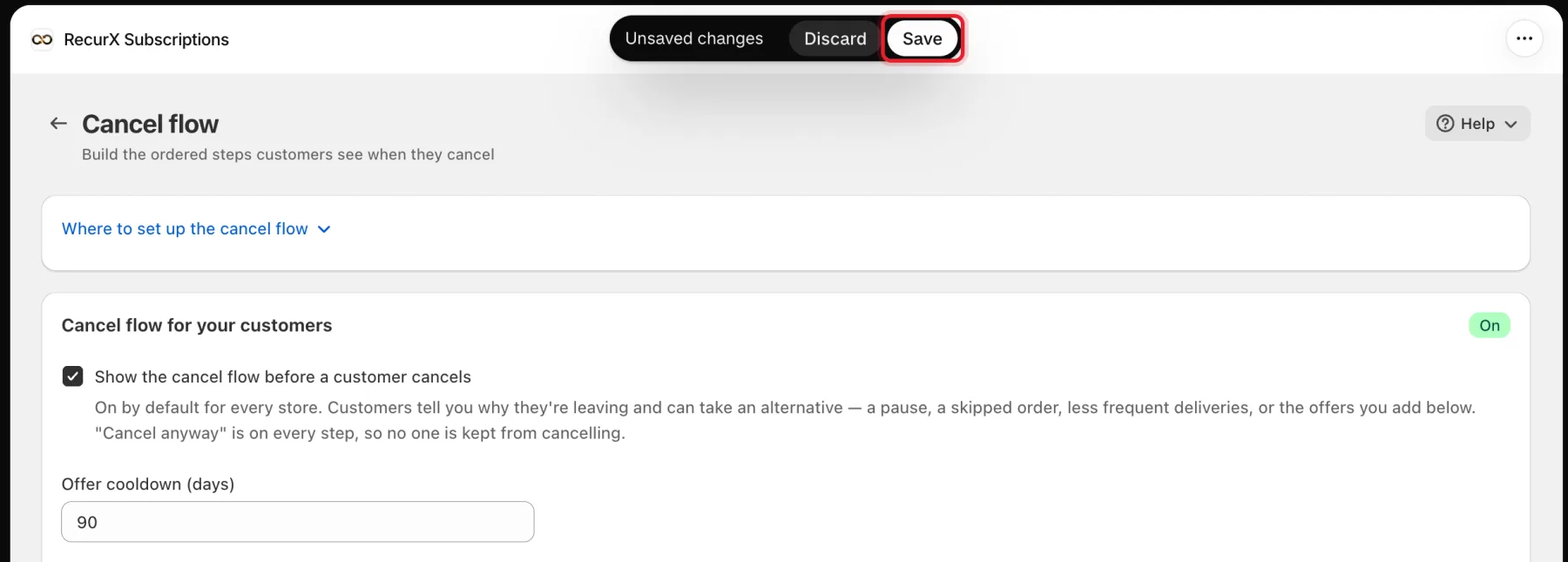
Click Save in the bar at the top of the page, or Discard to undo your edits.
Good to know
- If a customer declines every offer, the cancellation goes through. With a reason picker, the reason they chose is recorded.
- Bonus points offers show only while your loyalty program is active. See Loyalty program.
- Free product, Swap product, Downgrade offer and the Free gift treatment change what the customer gets, so RecurX switches them on store by store. If customers don't see one of them yet, ask support to turn it on for your store.
- Downgrade offer: if the page says Customers don't see this offer yet, switching plans doesn't change the price or billing interval on Shopify yet, so the offer stays hidden until it does.
- Store credit is issued once per customer per step. Shopify applies it at the customer's next checkout.
- Each step (viewed, accepted, declined, completed) is sent as an event to webhook integrations such as Zapier or n8n.
- For subscribers who already cancelled, see Win-back campaigns.